Overview
Elai lets you turn an existing PowerPoint presentation or PDF file into a video, instead of building one from scratch. When you upload a file, Elai converts your static slides or pages into a dynamic, engaging video, complete with AI-generated narration, editable elements, and interactive quiz questions.
How your file is handled depends on its format. PDF files are converted into static video slides that are applied as a background image. PPT and PPTX files give you a choice between keeping your slides fully editable or converting them into static background images, the same way a PDF is handled.
This method is a good fit if you already have a presentation, report, or document that you want to repurpose as video content. Once your file is uploaded, you can adjust the avatar, voice, branding, and other settings before rendering the final video.
Prerequisites
Verified account. Learn How to Verify Your Elai Account
How to Upload a File to Elai
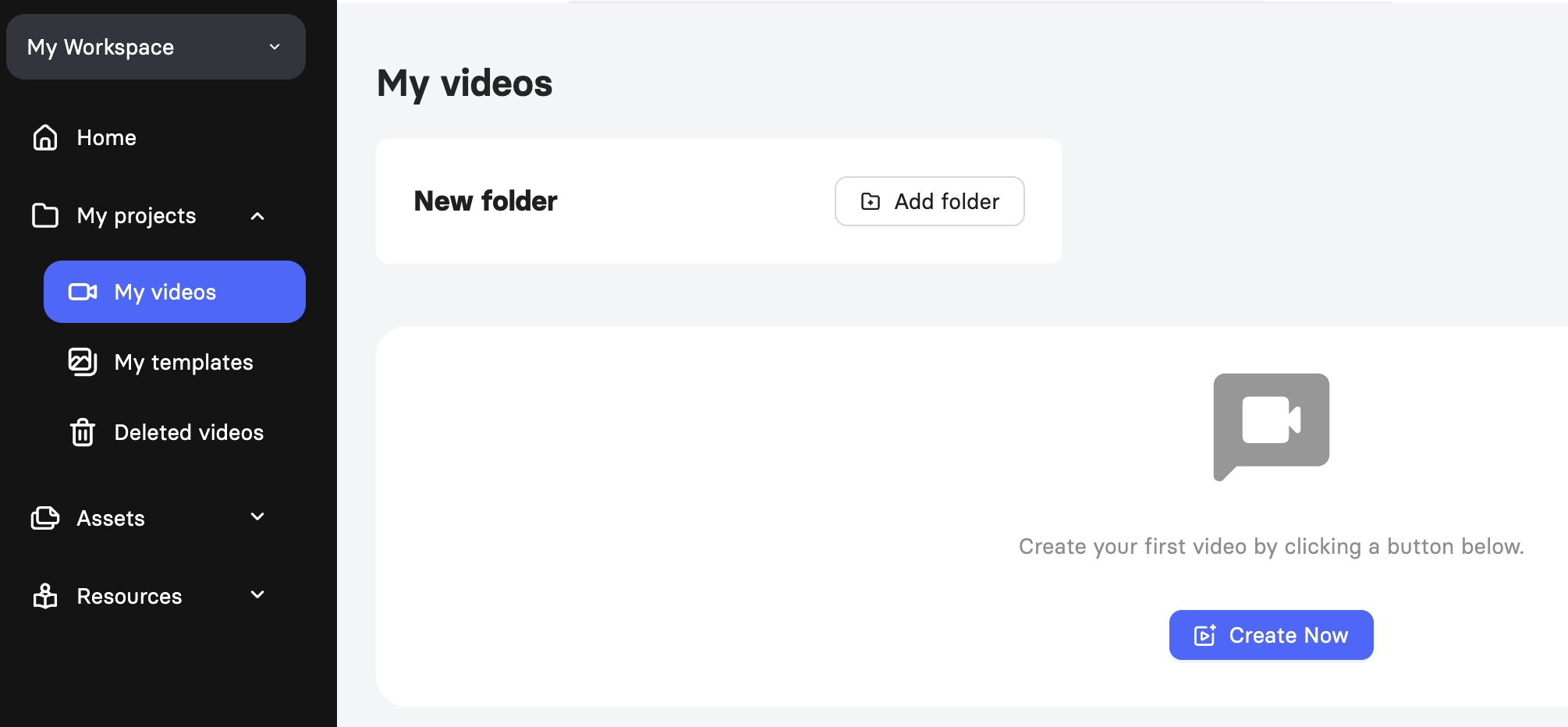
From My Videos, click Create Video.
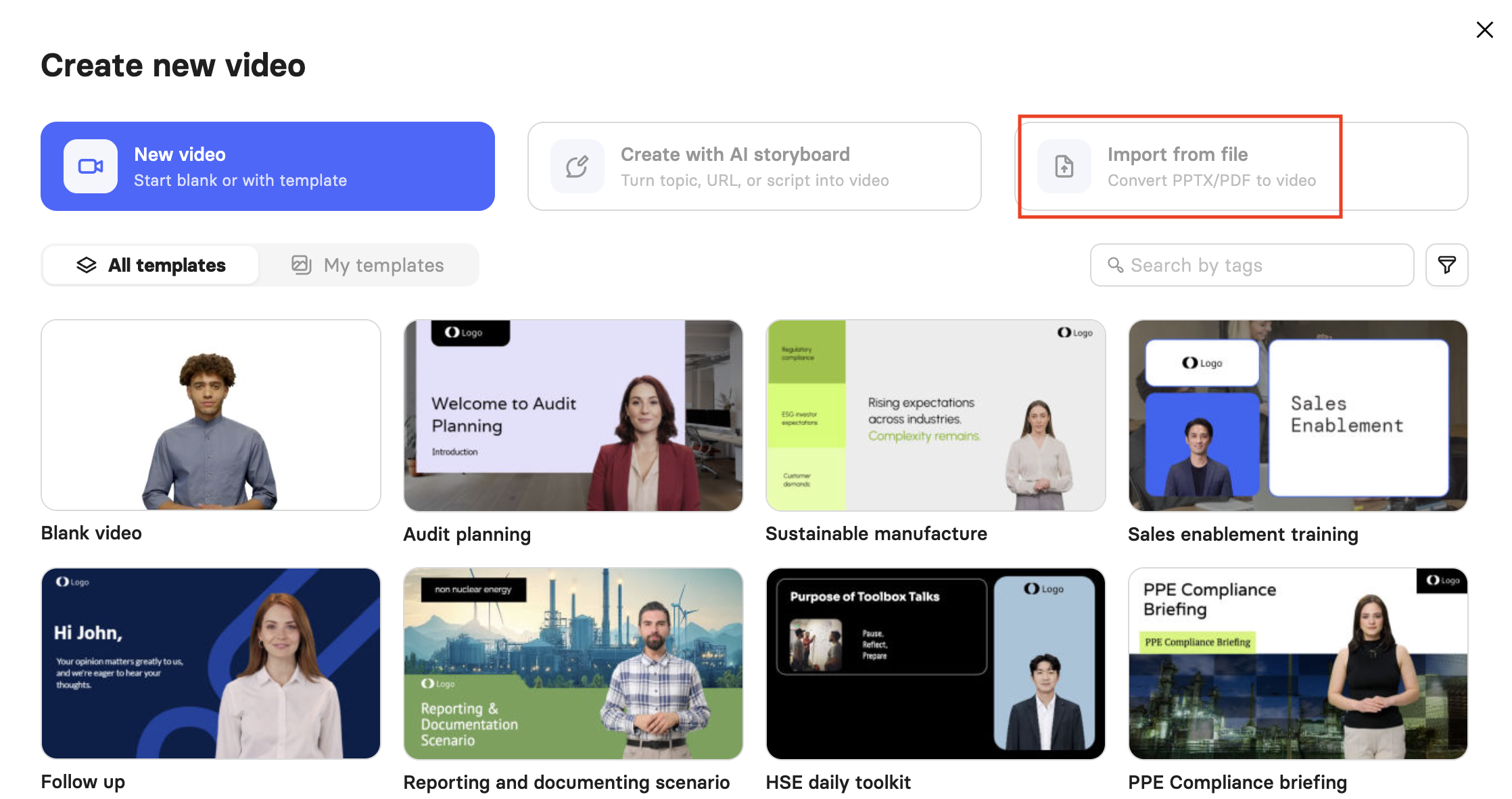
Select Import from file.
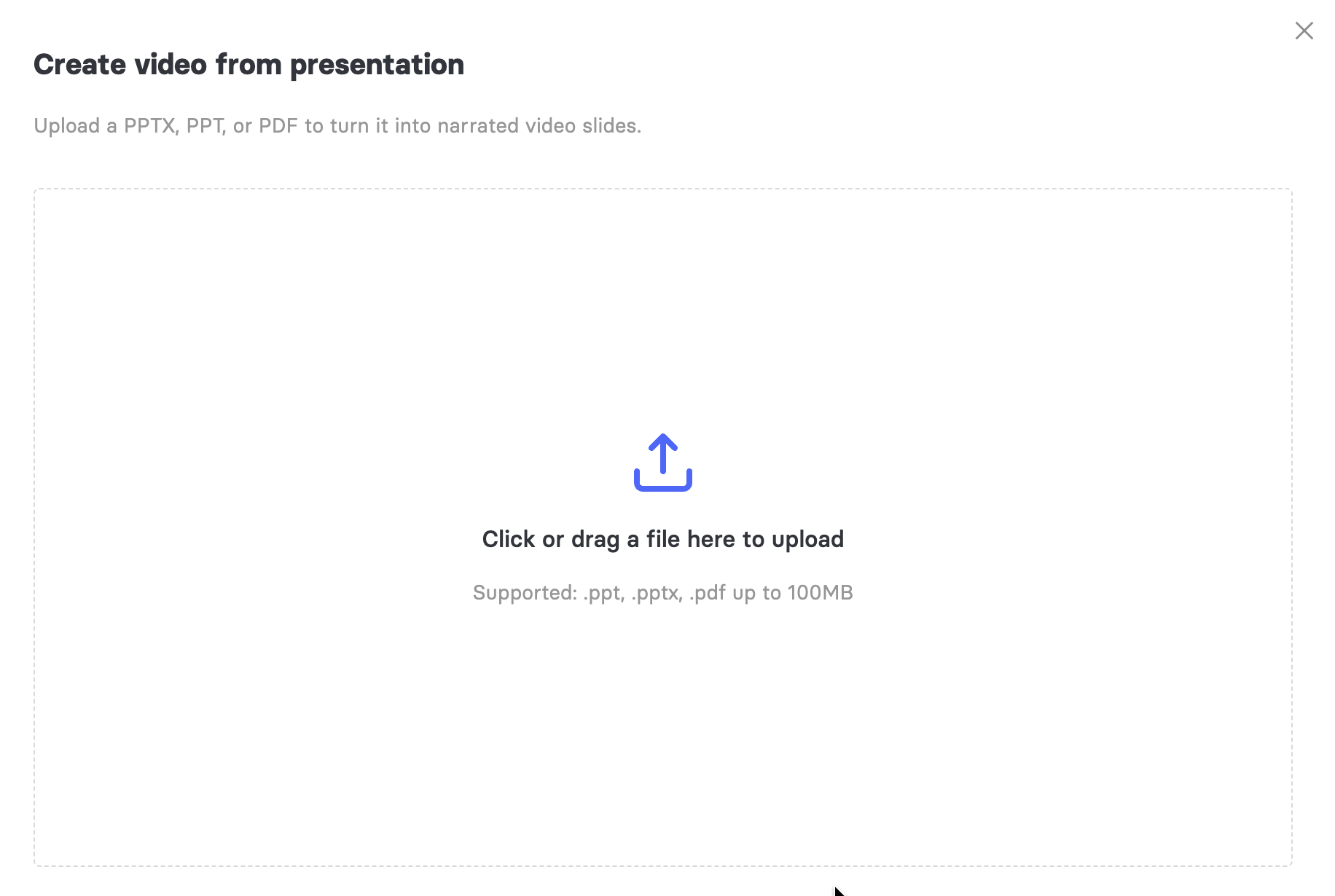
Drag and drop your PPT, PPTX, or PDF file, or click to browse and upload one from your computer.
Note: The next steps depend on your file type. PDF files convert directly into static video slides. PPT and PPTX files let you choose between two conversion modes before continuing.
Converting a PDF Into a Video
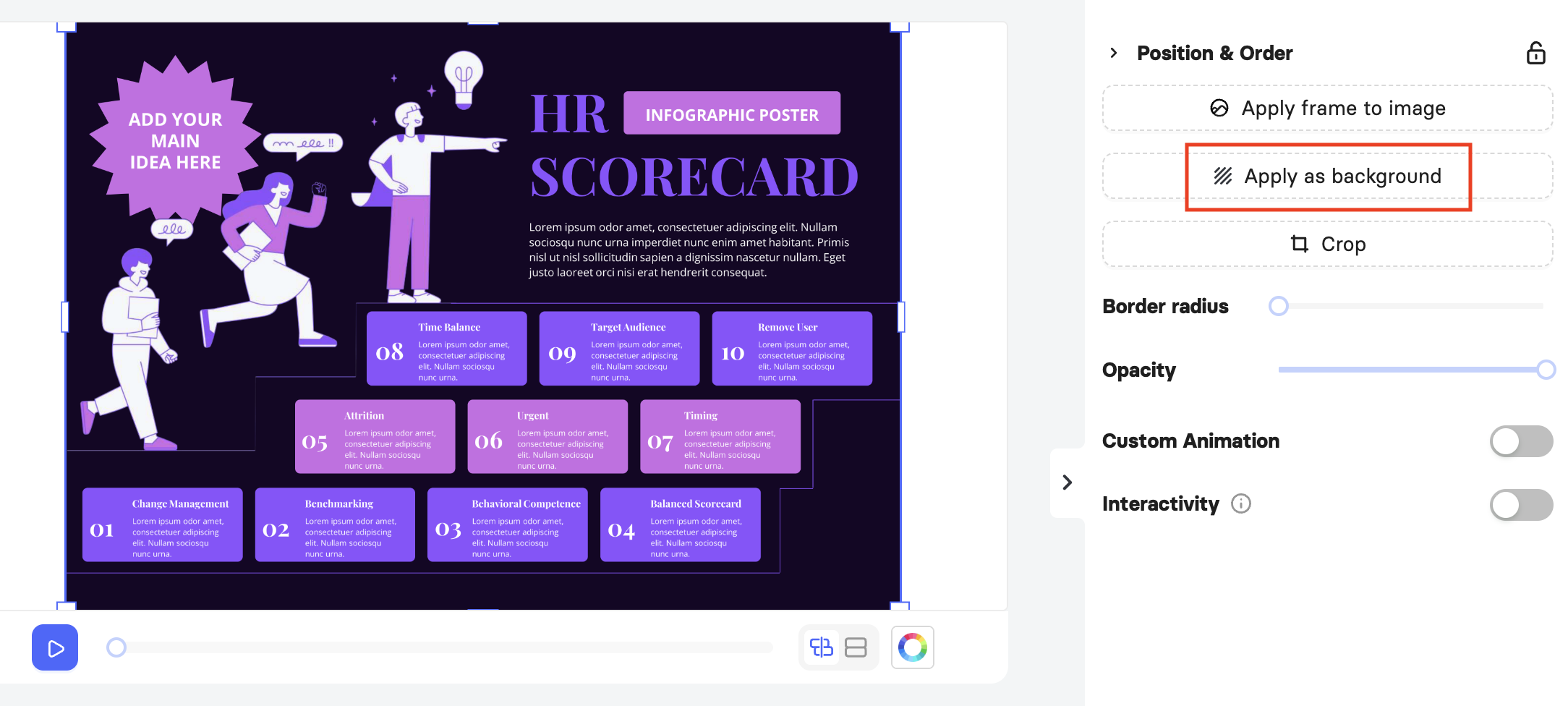
When you upload a PDF, each page is converted into a video slide with the page applied as a static background image. These backgrounds cannot be edited directly.
Review the imported PDF slide shown in the preview.
Click Change if you want to upload a different file.
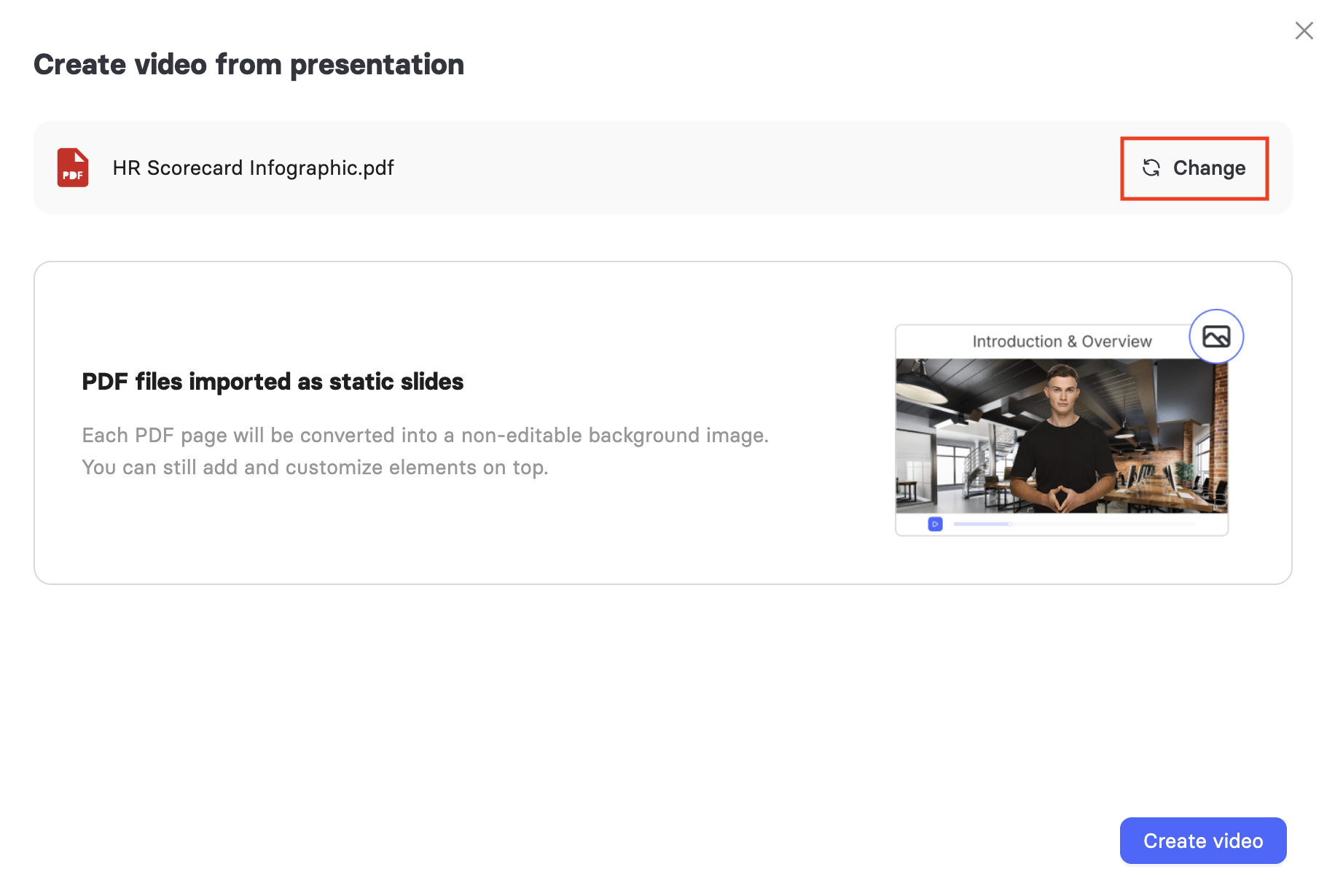
Click Create Video to continue.
Note: Make sure the dimensions of your PDF match the video slide size before uploading. If they do not match, you can apply the page as a background manually after conversion and adjust it to fit.
Converting a PPTX and PPT Into a Video
When you upload PPTX and PPT files, the platform offers two conversion modes.
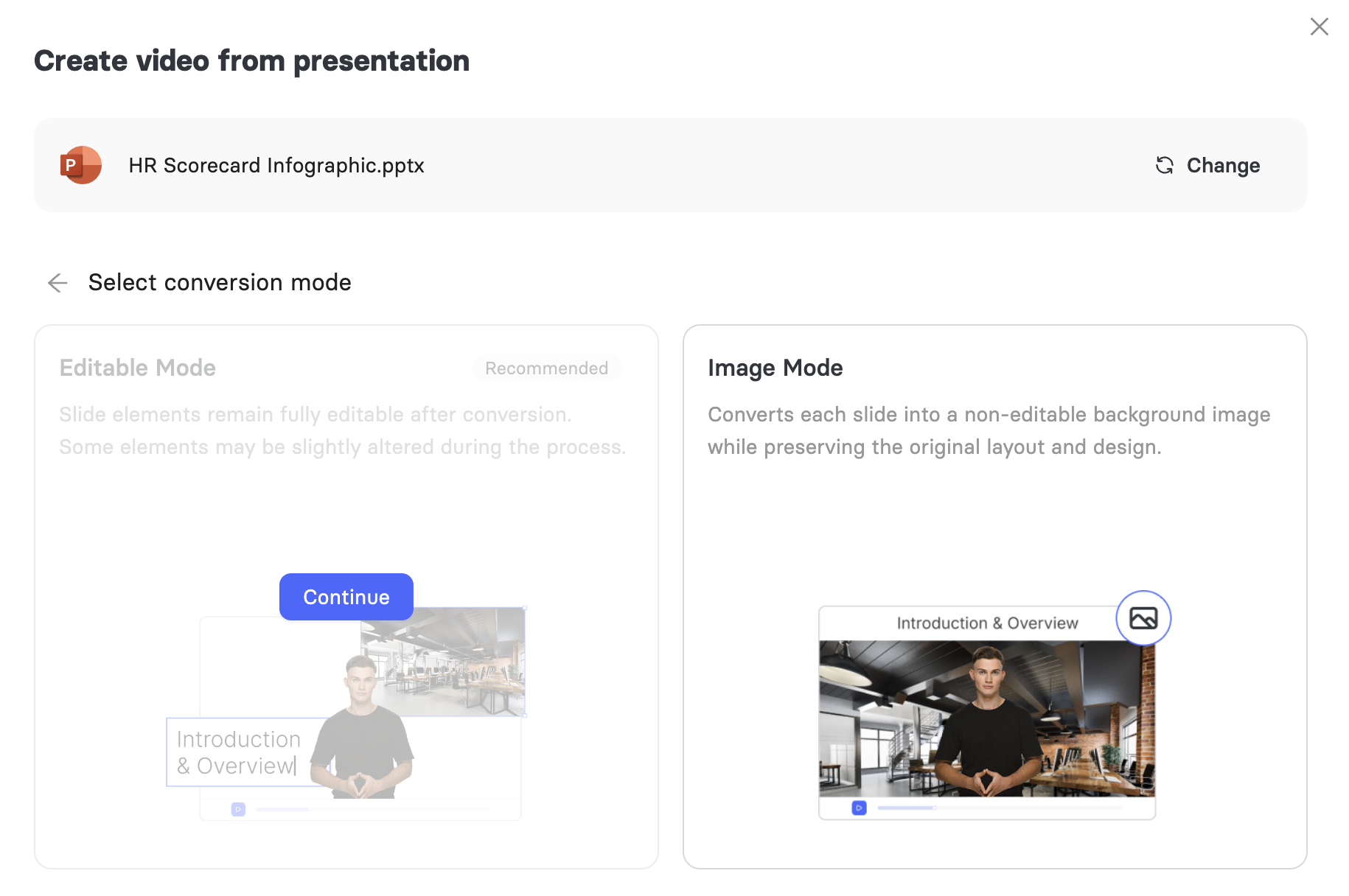
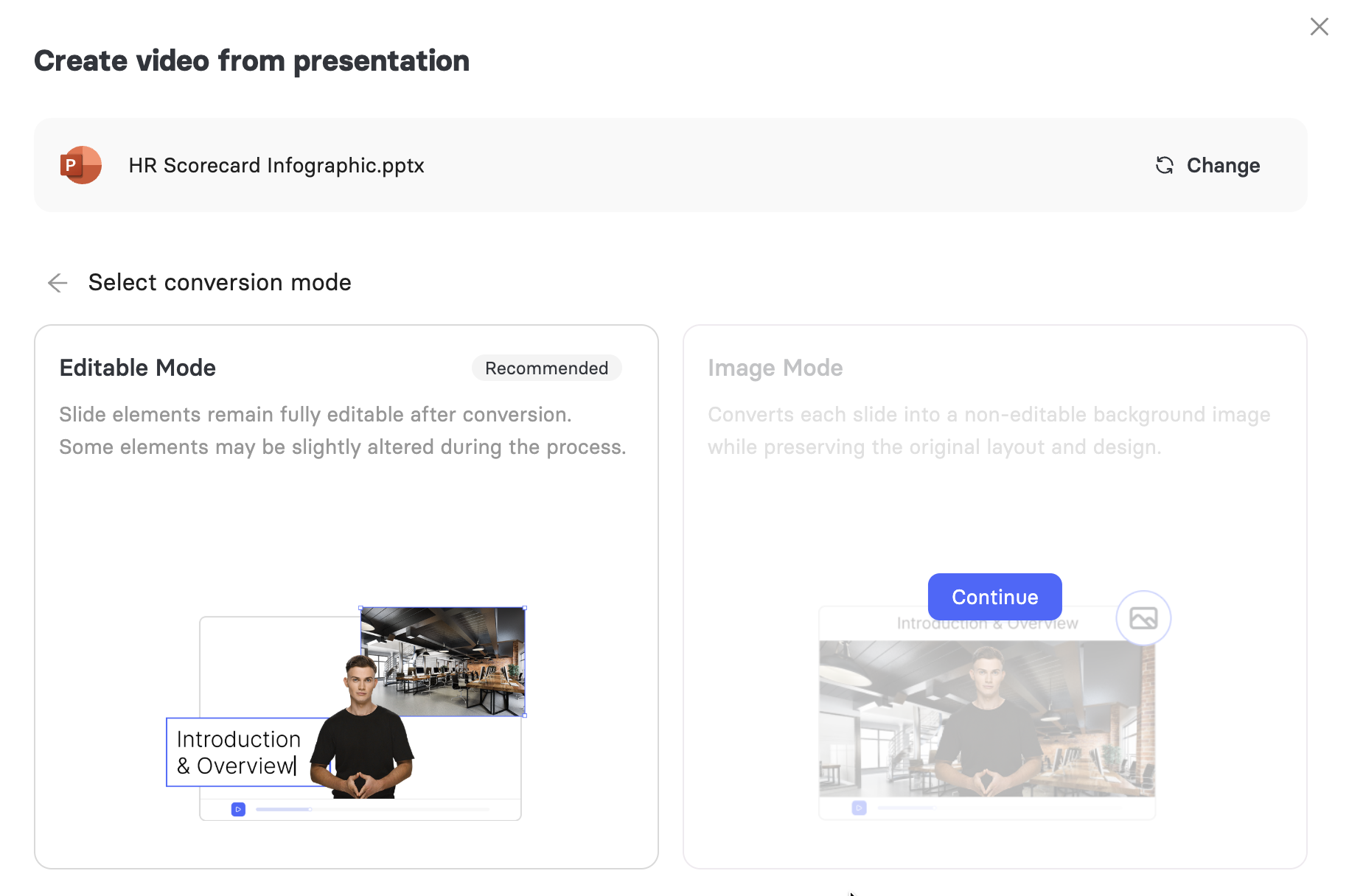
On the Select Conversion Mode screen, choose Editable Mode or Image Mode.
a. Editable Mode keeps each presentation object, such as text boxes and images, as a fully editable element in the video. Any speaker notes in your file are automatically converted into speech text. Some elements may shift slightly during conversion.
b. Image Mode converts each slide into a non-editable background image, the same way a PDF is handled, while preserving the original layout and design.
Click Continue.
In this guide, let’s proceed with Editable Mode, which allows you to set video preferences.
Setting Up Video Preferences for PPT/PPTX-to-Video
You can set up your video preferences here. Which preferences you can access depends on your subscription plan:
Free: Avatar and Custom Template.
Creator: Avatar, Custom Template, and AI Enhancements.
Team: Avatar, Brand Kit, Custom Template, and AI Enhancements.
Enterprise: Avatar, Brand Kit, Custom Template, AI Enhancements, and AI Quiz Generation.
For more on what each plan includes, see Creator Plan, Team Plan, and Enterprise Plan.
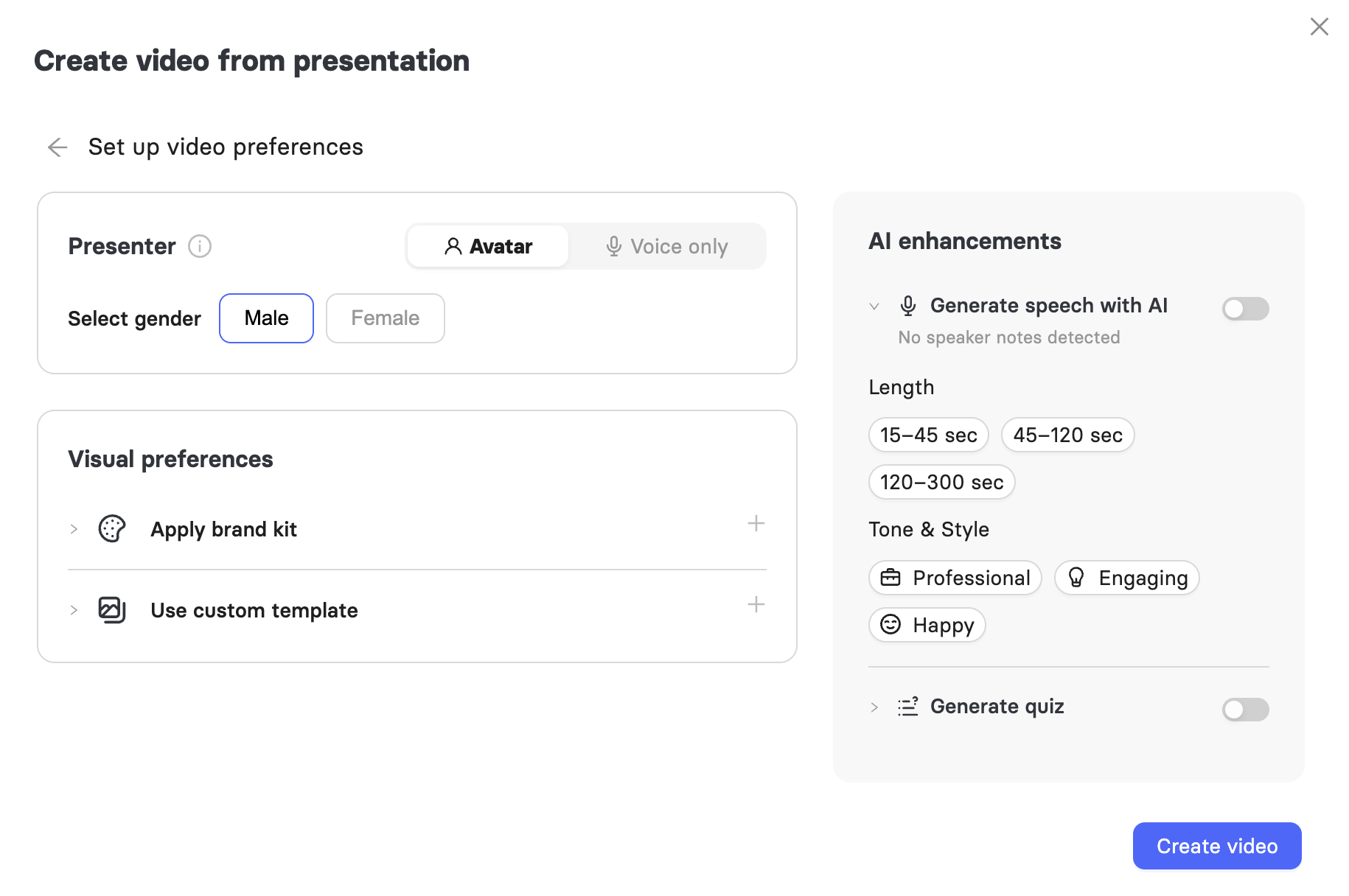
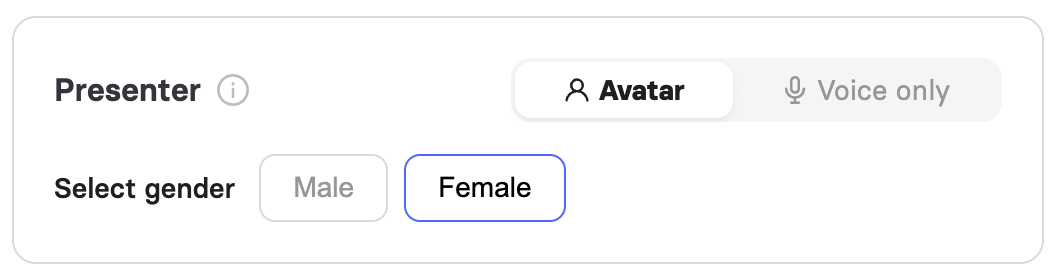
Under Presenter, choose Avatar or Voice Only, then select a gender. Elai automatically applies a default avatar and voice, which you can change at any time.
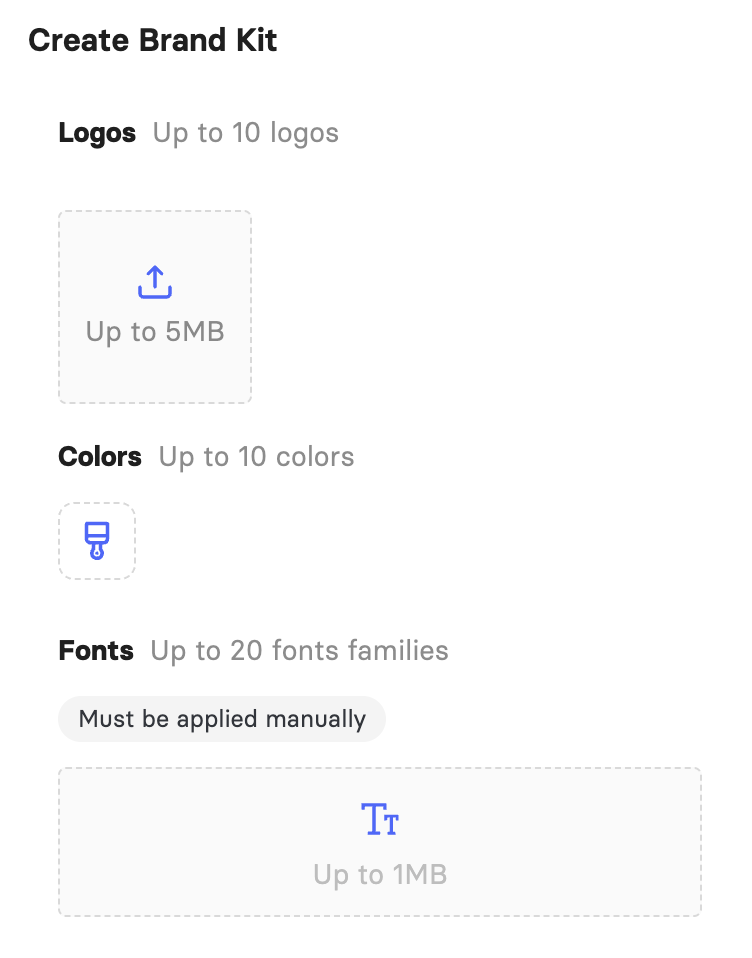
Under Visual Preferences, click Apply Brand Kit to use an existing brand kit, or click Create Brand Kit to set one up.
A brand kit stores your logos, colors, and custom fonts so you can apply them to your videos for brand consistency. You can upload up to 10 logos up to 5MB each, up to 10 colors, and up to 20 font families up to 1MB each. Uploaded fonts must be applied manually.
See the Learn About Brand Kit article.
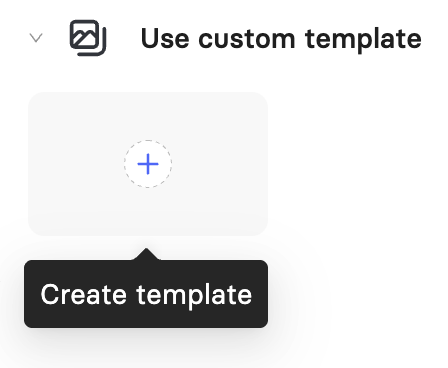
Click Use custom template to apply your existing template, or click Create Template to build a new one. See Learn How to Create a Video Template.
Under AI Enhancements, turn on Generate speech with AI to have AI write a script based on your slides.
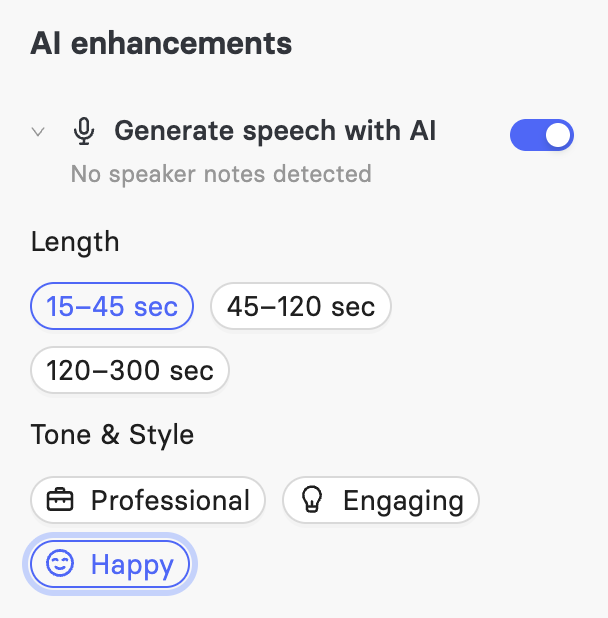
Choose a target Length for your video: 15 to 45 seconds, 45 to 120 seconds, or 120 to 300 seconds.
Under Tone & Style, select the tone that best matches your video, such as Professional, Engaging, or Happy.
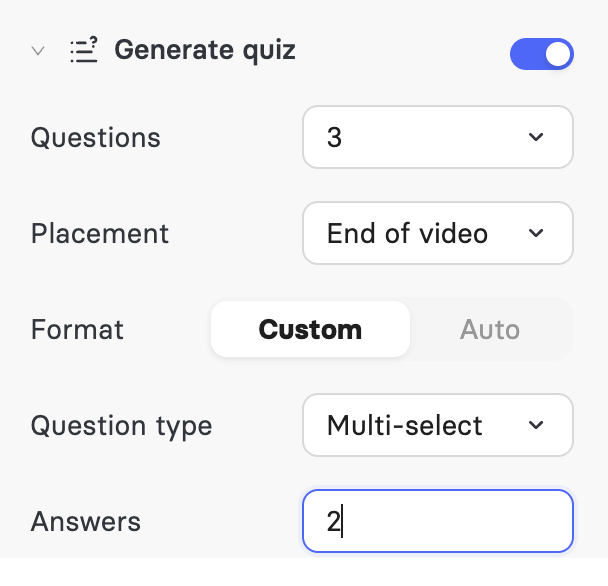
Turn on Generate Quiz to add quiz questions to your video, then set the Questions, Placement, Format, Question Type, and number of Answers.
Click Create Video.
Missing fonts
If your PPTX or PPT file uses fonts that are not already available in your account, Elai shows a Missing fonts detected screen listing each font and style.
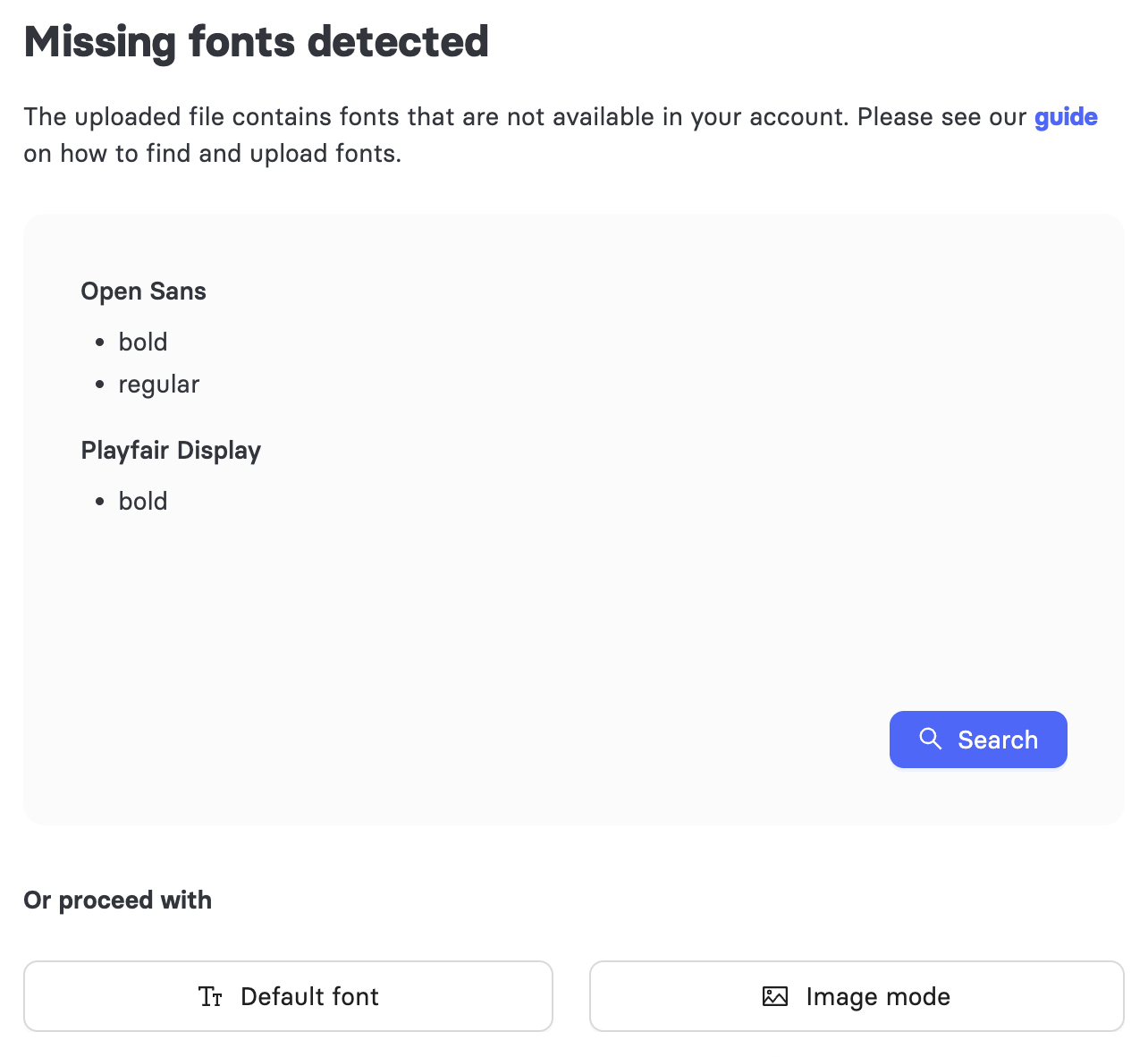
For help uploading custom fonts, see How to Upload Custom Font.
To solve this Missing font detected problem:
a. Click Search to look for the missing fonts. On the Search Results screen, click Upload to Brand Kit next to any font you want to add. Your brand kit holds up to 20 font family slots. Any font you do not upload is replaced with a default font.
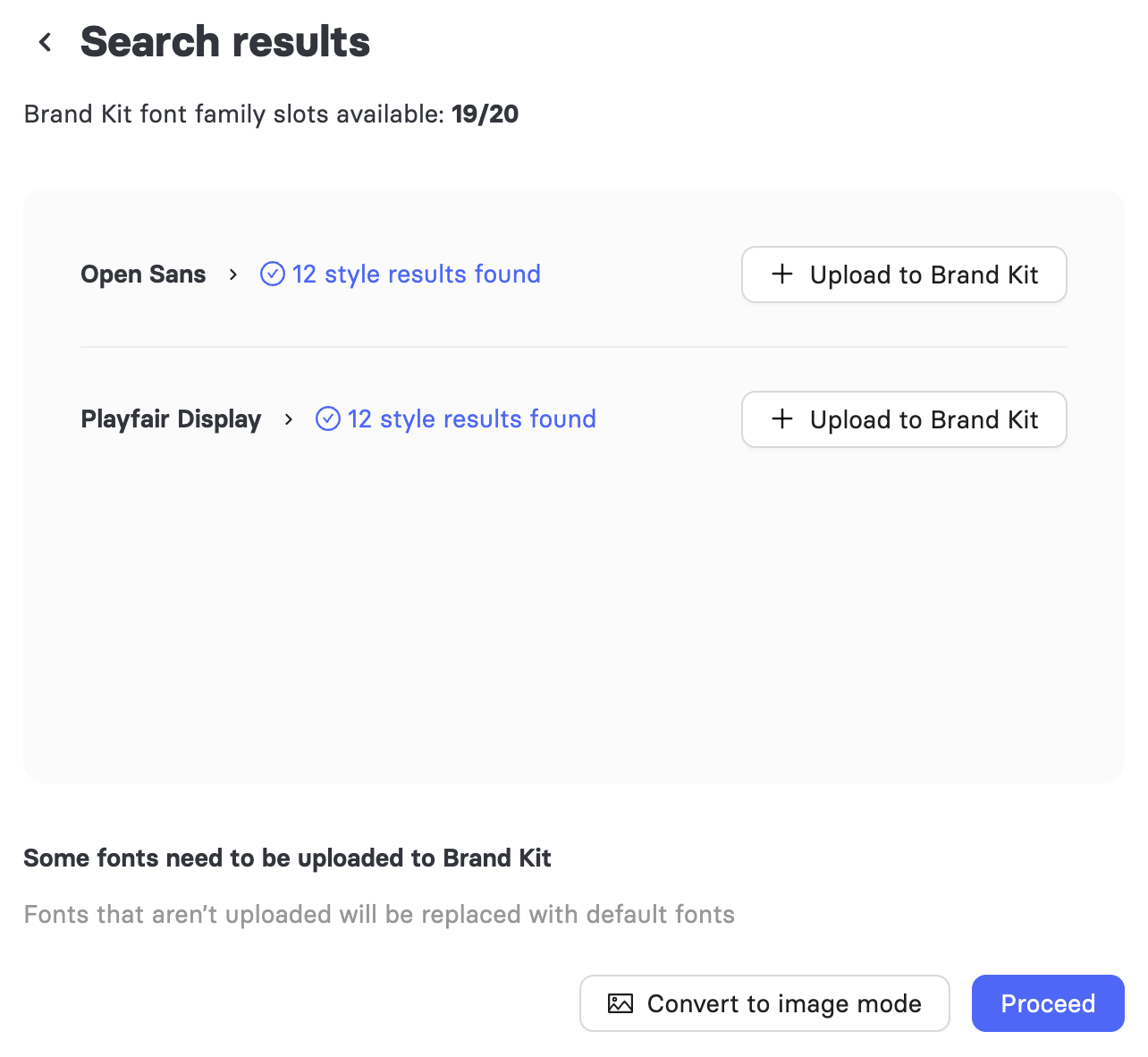
b. Click Default Font to skip the search and replace all missing fonts with defaults, or
c. Click Image Mode to convert the file to static slides instead.
Then proceed to continue with your changes.
Finishing Your Video
Wait for Elai to finish converting your file. This can take several minutes.
If you used Editable Mode, review your slides in the AI Storyboard. The storyboard shows all your converted slides in one place, along with the script, text, and AI-generated quiz questions for each one, so you can review and adjust the content before it becomes a full video. For details, see Learn about AI Storyboard.
Click Review Storyboard to edit the text and script directly in this view, or click Open Editor to make more detailed changes to slides, avatars, voice, and design.
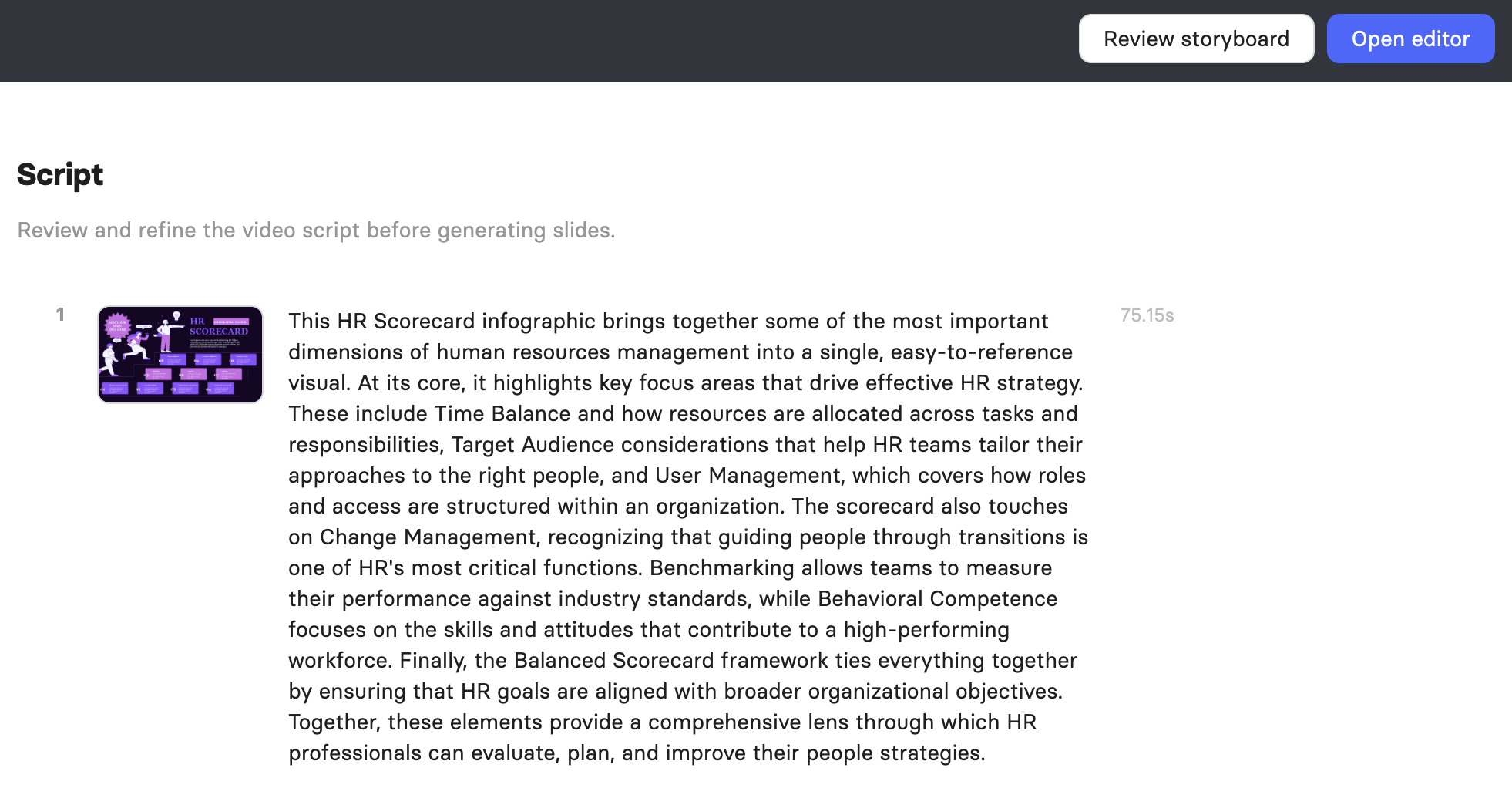
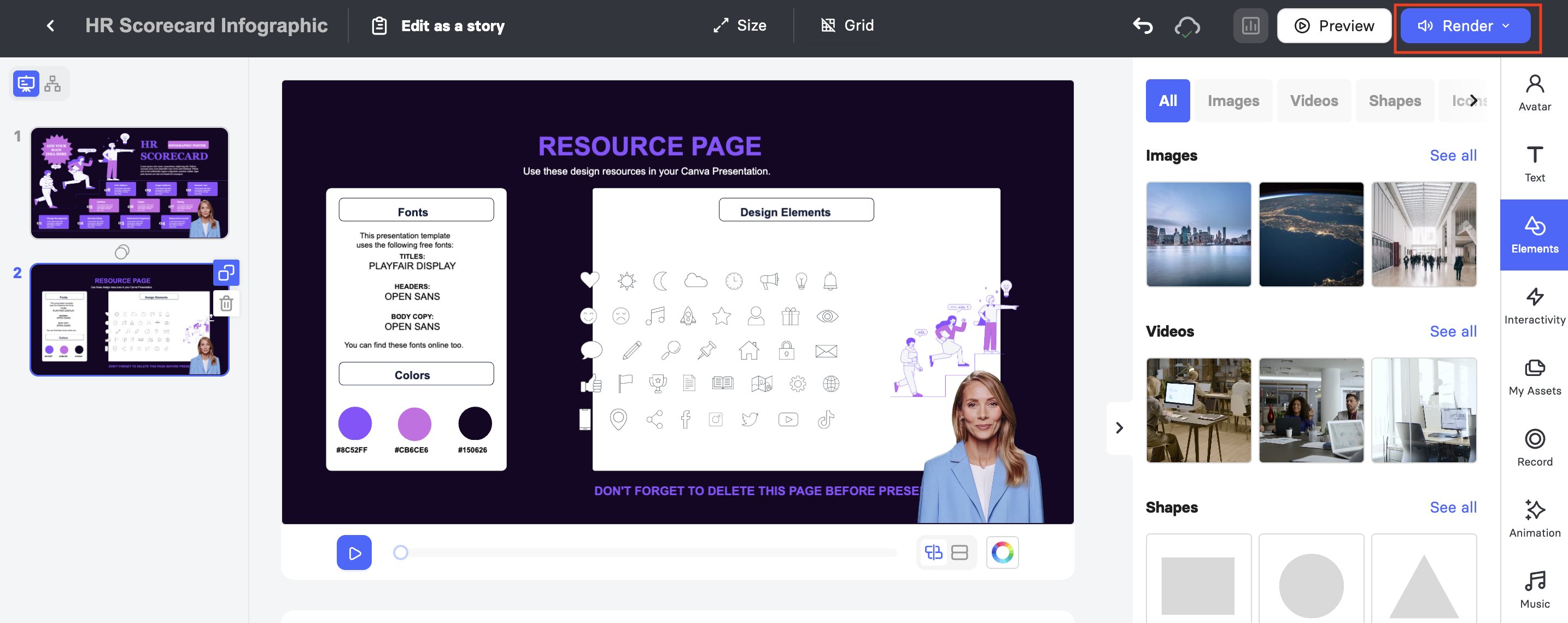
Edit your video slides in the Elai video editor. When you are happy with the video, click Render to generate the final video.
FAQ
Can I switch between Editable Mode and Image Mode after uploading?
No. You choose the conversion mode before your file is processed. If you want the other mode, you will need to re-upload your PPT or PPTX file and select again.
Why does my PDF look cropped or stretched in the video?
This happens when the dimensions of your PDF do not match the video slide size. Make sure your PDF dimensions match before uploading, or manually adjust the background after conversion.
Can I edit the text on slides converted in Image Mode?
No. Image Mode applies each slide as a static background image, so text and objects are not editable. If you need to edit individual elements, choose Editable Mode instead.
Is AI Quiz Generation available on every plan?
No. AI Quiz Generation is available only on the Enterprise plan. For details, see the Enterprise Plan.
Can I still use a brand kit if I choose Image Mode?
Yes, but since Image Mode slides are static images, brand kit elements like fonts and colors will only apply to any editable components you add afterward, not to the background image itself.
Was this article helpful?
That’s Great!
Thank you for your feedback
Sorry! We couldn't be helpful
Thank you for your feedback
Feedback sent
We appreciate your effort and will try to fix the article