Overview
Background music helps set the tone of your video and keeps viewers engaged from start to finish. In the Elai editor, you can add music in two ways: choose a track from the built-in royalty-free library, or upload your own audio file. Once added, you can fine-tune the volume and control exactly when the track starts and ends.
This article walks you through both options, as well as how music behaves when it's already built into a template.
Prerequisites
The Stock Music library is available on all plans. Your account must be verified before you can render videos. See How to Verify Your Elai Account for more detailed steps
Uploading your own music requires a Team or Enterprise plan.
Add Music From the Stock Library
Open your video in the Elai editor and click Music in the right sidebar.

Click Stock Music to browse the built-in library.
Use the All Genres dropdown or the Search by Tags field to filter tracks.
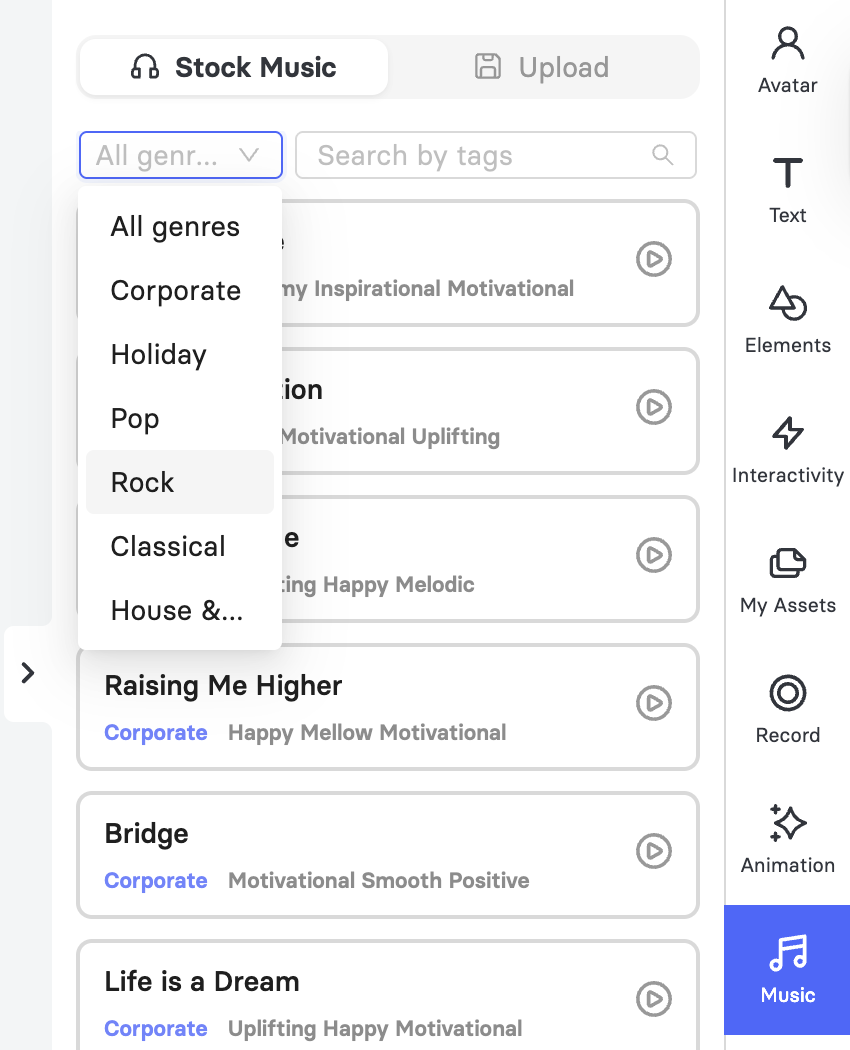
Click the play icon next to a track to preview it before adding it to your video.
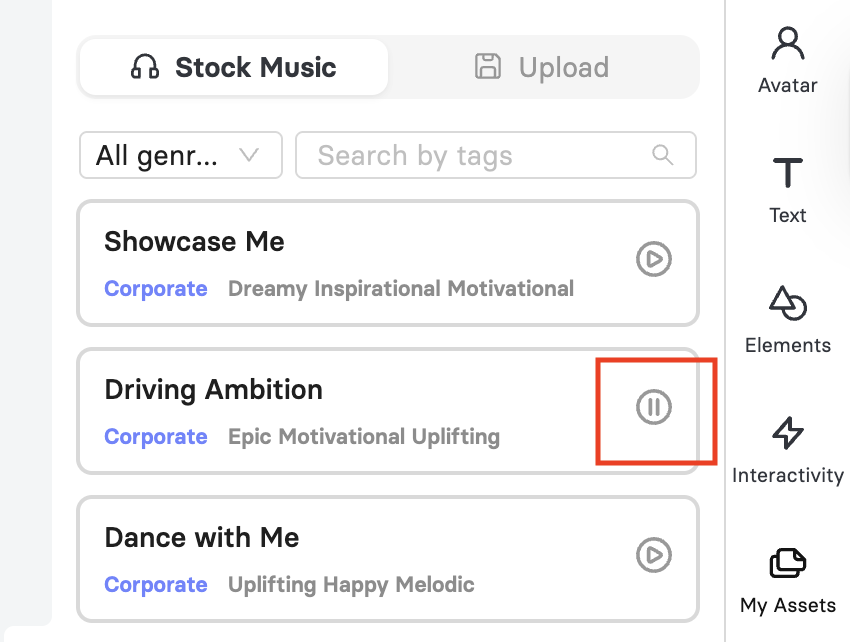
Click on a track to apply it. A blue checkmark appears to confirm your selection.
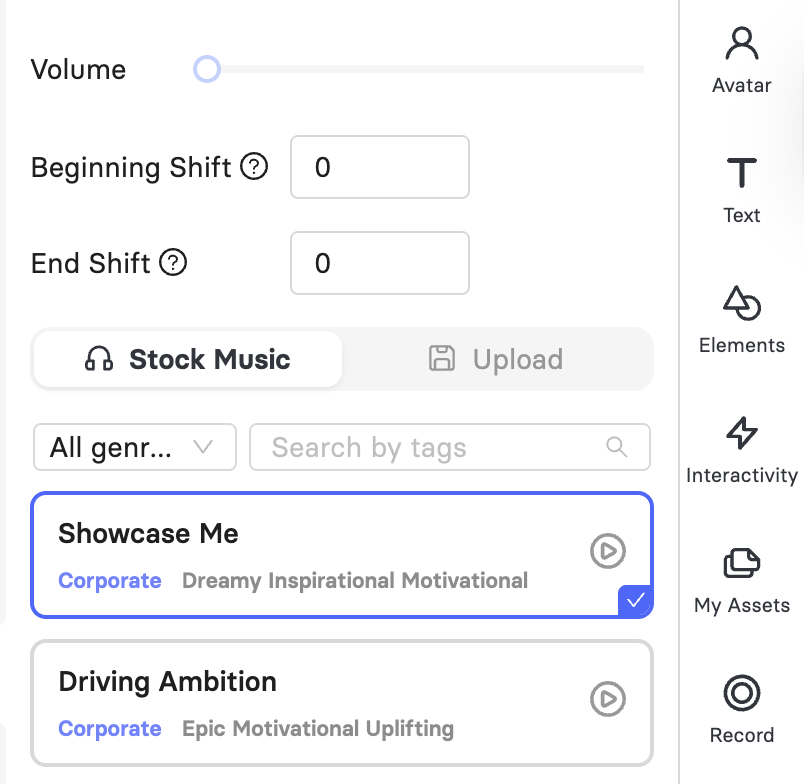
Use the Volume slider to adjust how loud the music plays.
Enter values in Beginning Shift and End Shift to control when the track starts and ends relative to your video.
Important: To remove a track, click on it again. The checkmark will disappear, and the music will no longer play in your video.
Upload Your Own Music
Click Music in the right sidebar, then click Upload.
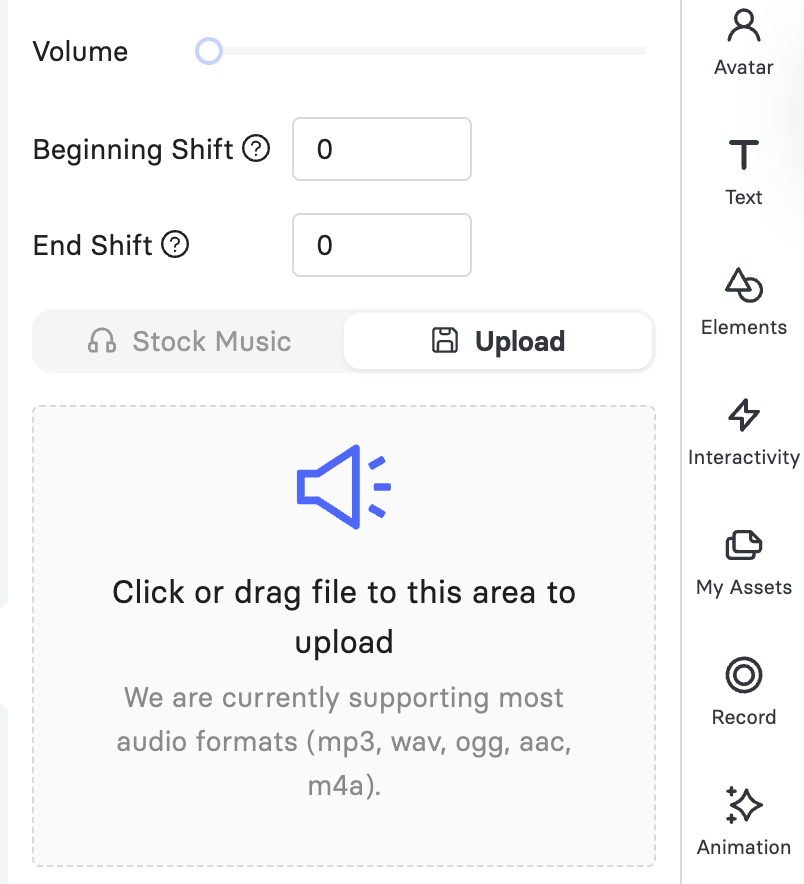
Click or drag an audio file into the upload area. Supported formats are mp3, wav, ogg, aac, and m4a.
Click on the uploaded file to apply it to your video. A blue checkmark appears to confirm your selection. You can preview your file by clicking the play icon.
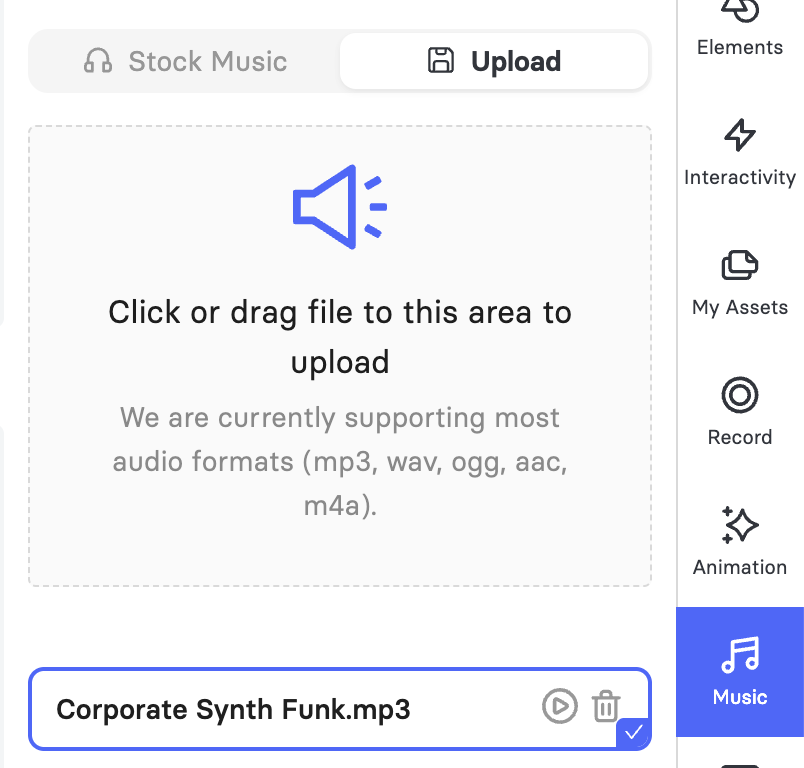
Use the Volume slider and the Beginning Shift and End Shift fields to adjust playback the same way you would for a stock track.
Important: To remove an uploaded track, click on it again. The checkmark will disappear, and the track will be unselected from your video.
To permanently delete an uploaded track from your list, click the bin icon next to the file.
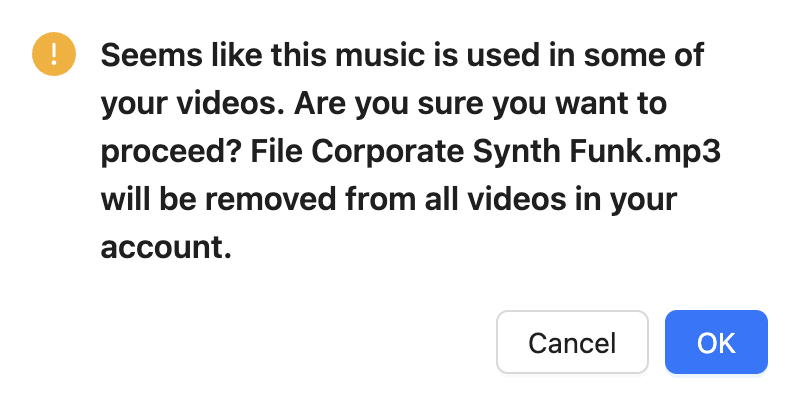
Important: If the track is already used in one or more of your videos, a confirmation message appears warning you that the file will be removed from all videos in your account. Confirm only if you're sure you want the track removed everywhere it's currently used.
Check Volume Against Your Avatar's Speech
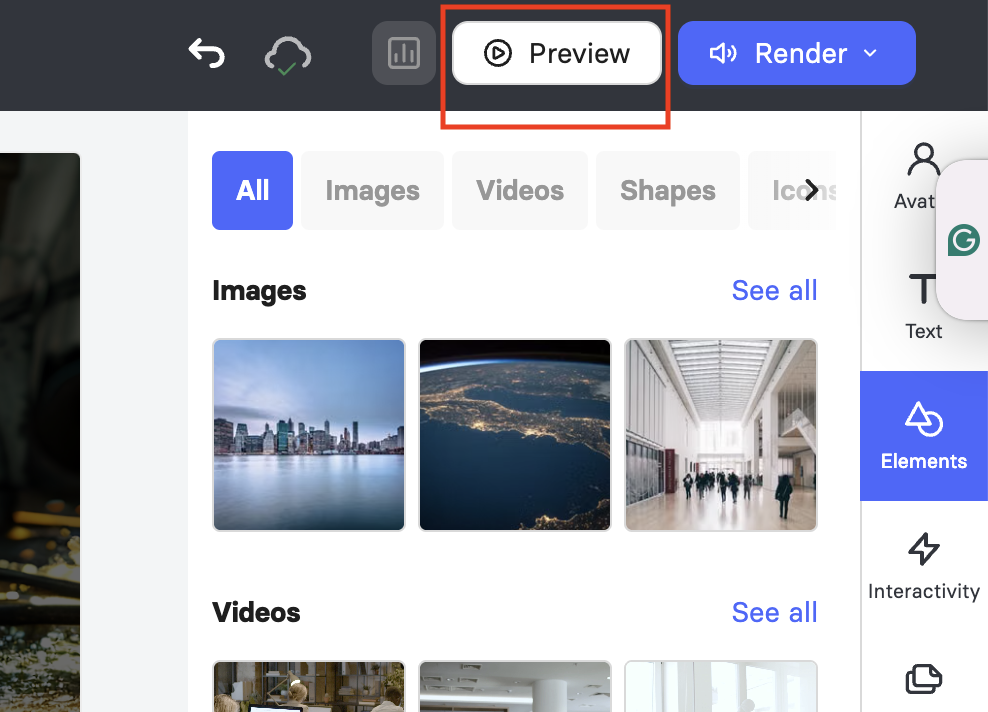
Before rendering, preview your video to check how the music level plays against your avatar's speech. Adjust the Volume slider so the track supports the voiceover without covering it, keeping the avatar's speech clear and easy to follow.
Music in Video Templates
Some Elai templates come with background music already built in. Preview your video before rendering to confirm whether template music is present and whether it fits your content.
You can also build your own template with your preferred music and reuse it across future videos. For details, see How to Create a Video Template.
Was this article helpful?
That’s Great!
Thank you for your feedback
Sorry! We couldn't be helpful
Thank you for your feedback
Feedback sent
We appreciate your effort and will try to fix the article