Overview
By default, your avatar speaks using one of Elai's AI-generated voices. The Upload voice option lets you replace that with a pre-recorded audio file of your own. This is useful when you want the avatar to deliver a specific narration exactly as recorded, with your own pacing, tone, or accent, rather than having the AI read your script. Once you upload the file, the avatar will lip-sync to your audio automatically when the video is rendered.
Prerequisites
Verified account. See How to Verify Your Elai Account for more detailed steps
Upload Your Voice
- Open a slide in the Elai editor.
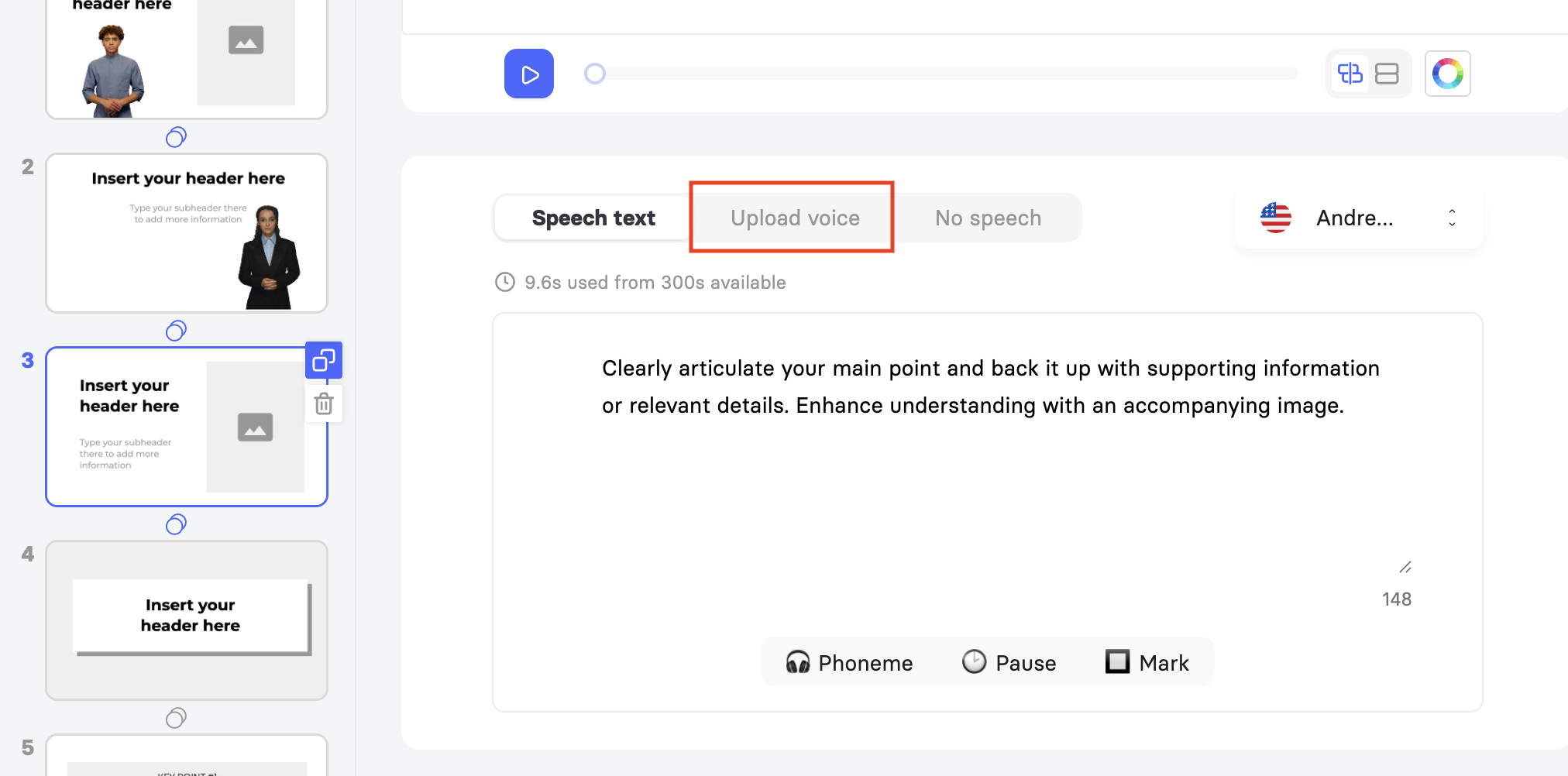
- In the speech text panel at the bottom of the screen, select the Upload voice tab.
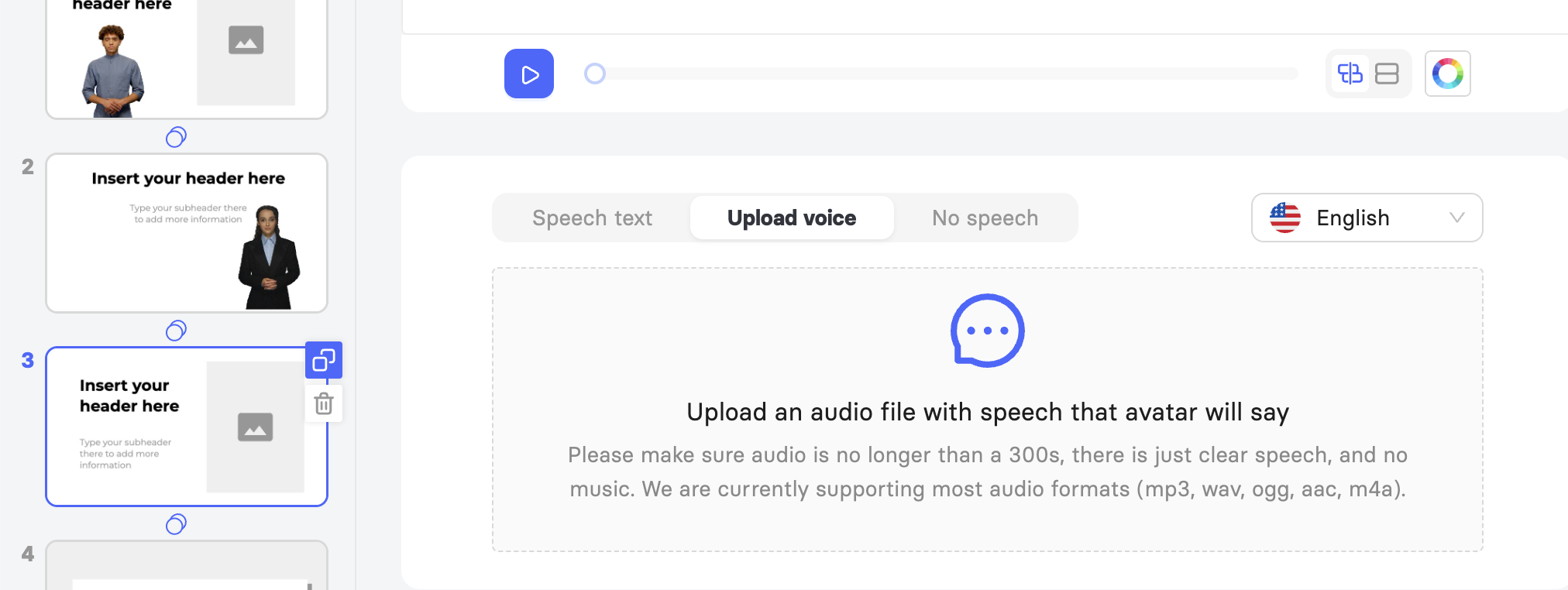
- Select the upload area and choose an audio file from your computer. Accepted formats are mp3, wav, ogg, aac, and m4a. The file must be no longer than 300 seconds and should contain only clear speech with no background music.
- After uploading, select the Language dropdown on the right side of the panel and choose the language of your audio. This helps the avatar sync accurately to your speech.
- Your avatar will lip-sync to the uploaded audio when the video is rendered. On a Trial plan, rendering is limited to 60 seconds of total video. Upgrade your plan to render longer videos.
If you uploaded the wrong file, select the file name displayed above the upload area and choose a new file to replace it.
To remove the uploaded audio and return to AI-generated speech, select the Speech text tab.
To silence the avatar for that slide, select No speech.
Best Practices
Match the language setting to your audio. Selecting the correct language in the dropdown is important for accurate lip-sync. If the language does not match the audio, the sync may be off.
Keep the audio clean. The file should contain only clear speech with no background music, noise, or long silences at the start or end. Clean audio produces the most accurate lip-sync.
For recurring use, clone your voice instead. If you plan to use your own voice across multiple videos, uploading a new file each time is time-consuming. Cloning your voice and adding it to the voice library lets you generate speech in your voice from any script directly in the editor, just like any other Elai voice.
Clone Your Voice for Better Results
Voice cloning is a paid add-on option that creates a digital copy of your own voice. Once cloned, you can type any script, and the avatar will narrate it in your voice. Your cloned voice works exactly like any other Elai voice and is available across 75 languages.
You can request voice cloning directly from the voice library in the Elai editor by selecting Create a custom voice in the language list. Learn more about How to Add Your Own Voice Clone to Voice Library. 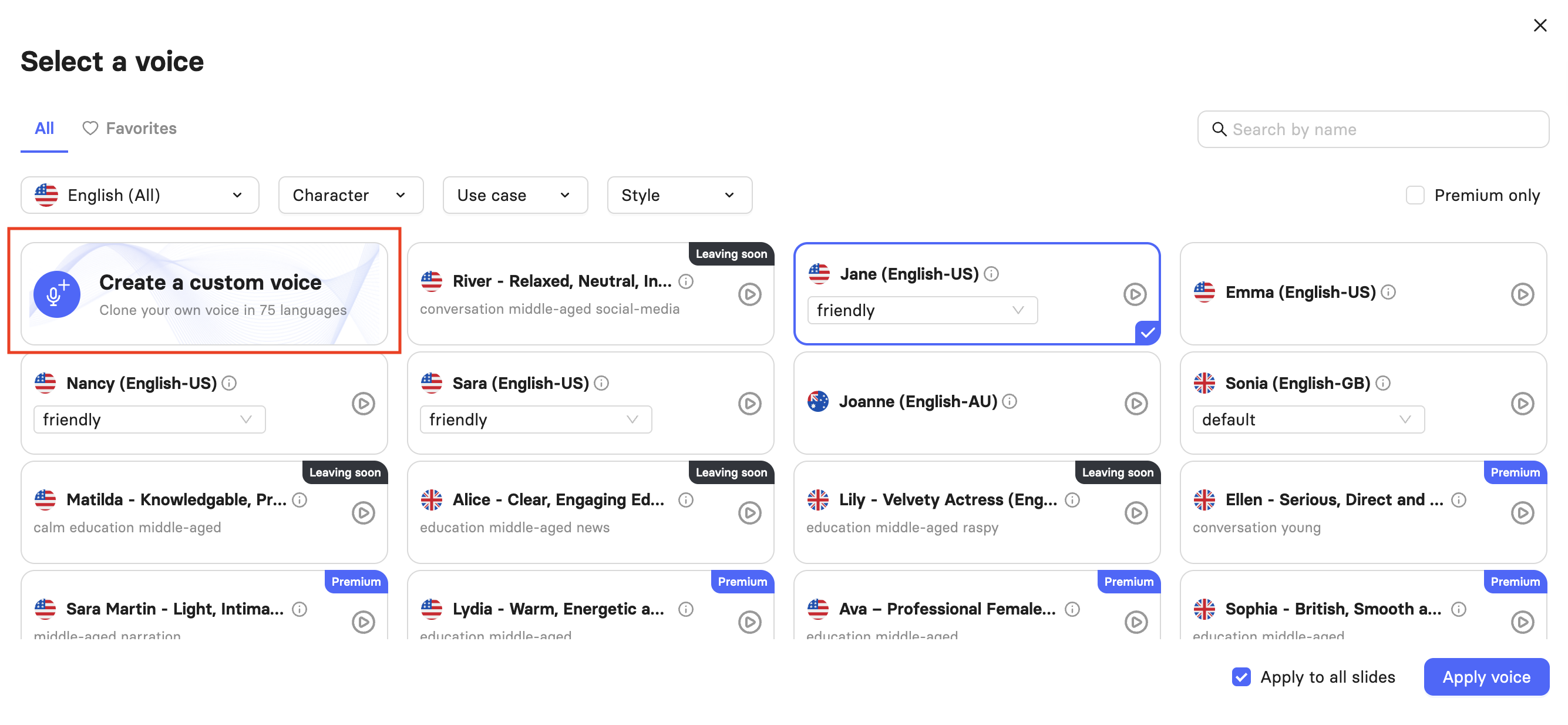
Was this article helpful?
That’s Great!
Thank you for your feedback
Sorry! We couldn't be helpful
Thank you for your feedback
Feedback sent
We appreciate your effort and will try to fix the article