Overview
Elai gives you flexible control over how your avatar speaks. With over 400 voices across 75+ languages, you can find the right tone for any video and assign it directly to any avatar. For most videos, selecting a voice and typing your script is all you need. When a word sounds off, or you want a natural pause, Elai's built-in Phoneme and Pause tools let you fix it without touching any code. For more complex cases, the speech text field also supports SSML tags, giving you precise control over emphasis, pitch, rate, and custom pronunciation.
Prerequisites
- Verified account. See How to Verify Your Elai Account for more detailed steps
Choose Your Voice
Elai offers two categories of voices, both accessible from the speech text panel on any slide.
Standard Voices: Over 300 voices in 75+ languages with a range of intonations and accents. Available on all plans, including Trial.
Premium Voices: all Standard Voices and an additional 100 enhanced voices in 75+ languages with enhanced naturalness and additional intonation range. Available on Team and Enterprise plans only. For details, see Learn about Premium Voices.
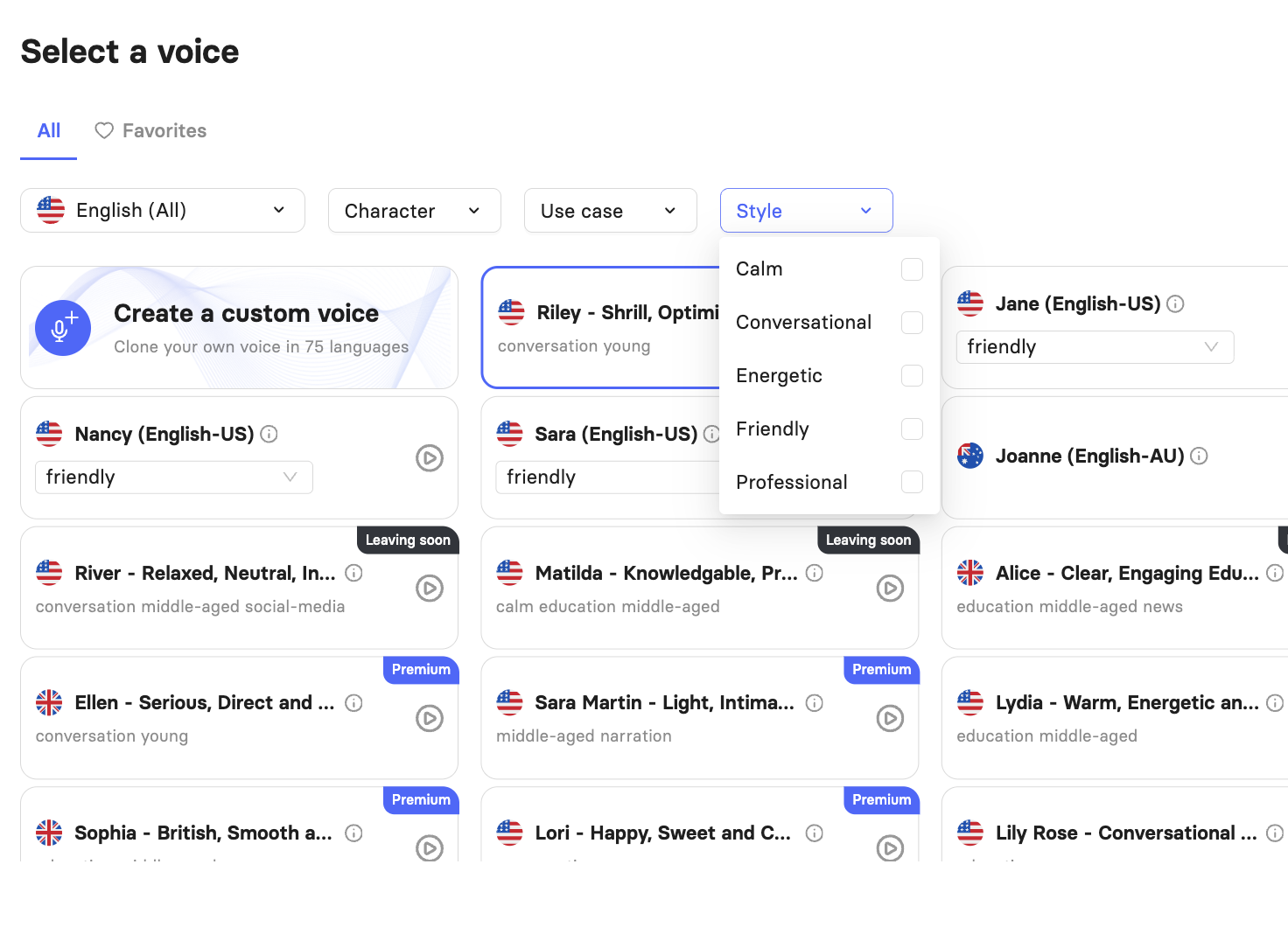
To select a voice, open a slide in the editor and locate the speech text panel at the bottom of the screen. The currently active voice is displayed in the bottom-right corner of the slide, just above the speech text panel. 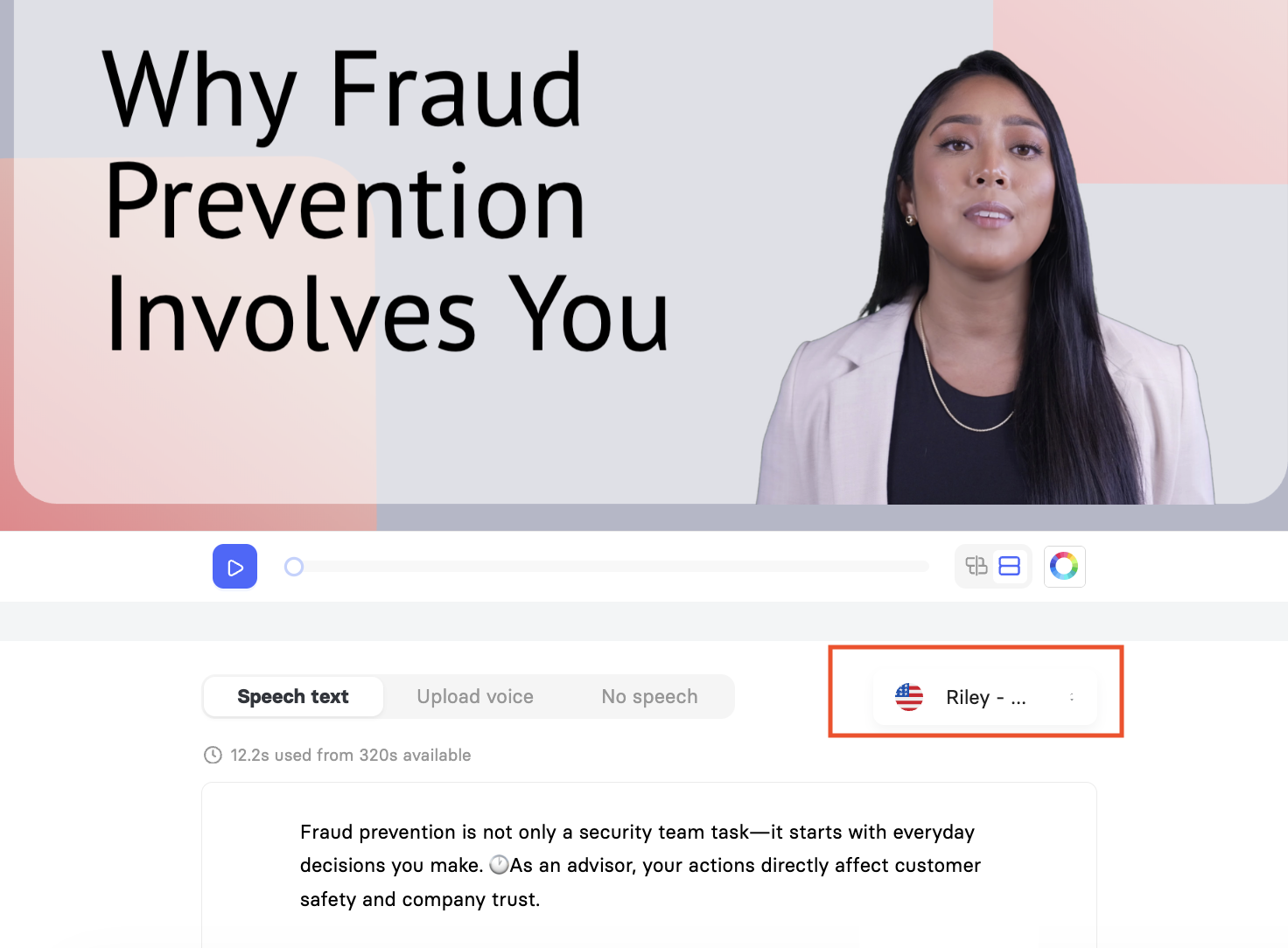 Select it to open the voice picker. The sex of the available voices is determined by your selected avatar. To switch between male and female voices, you will need to change your avatar first. In the voice picker, you will see filters for language, character, use case, and style.
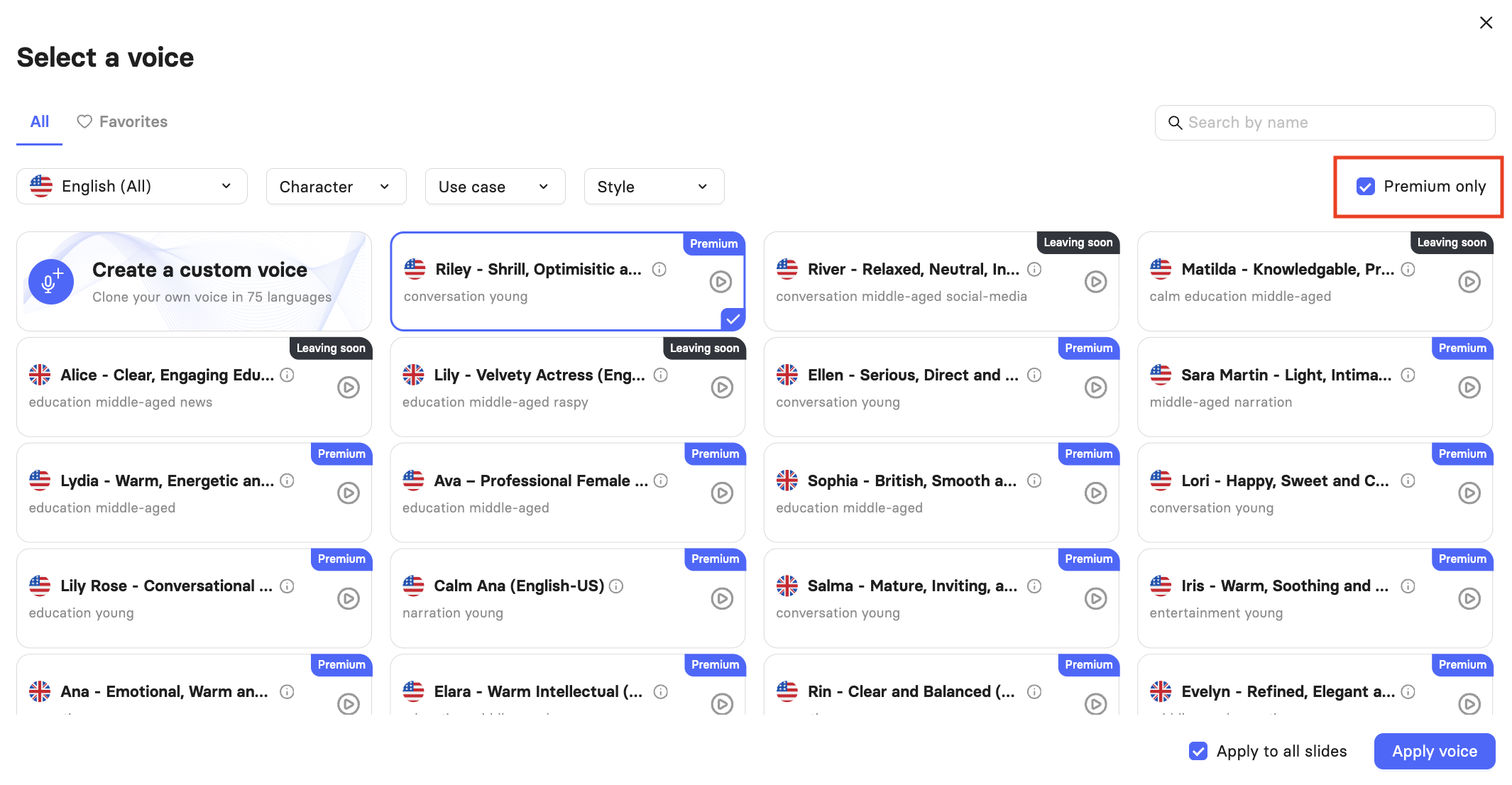
  You can also check Premium only to narrow the list to premium voices, or use the search bar to find a voice by name. Each voice card shows a short description of its tone and use case.
  Select the play icon to preview it before applying.
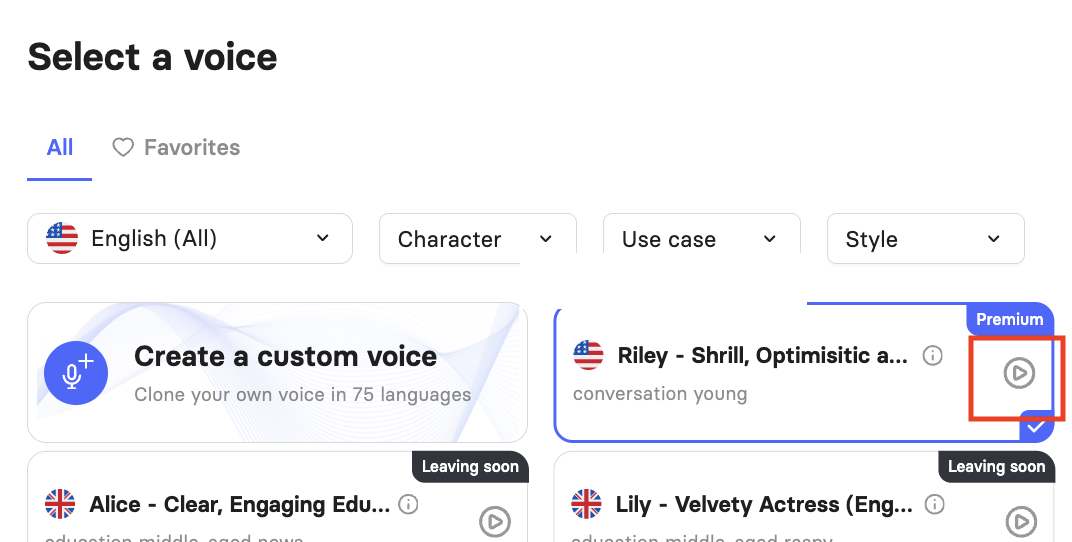 If you have cloned your own voice, it will appear in the picker and can be selected for avatar narration just like any other voice. If you have not cloned a voice yet, you can start the process directly from the picker by selecting Create a custom voice.
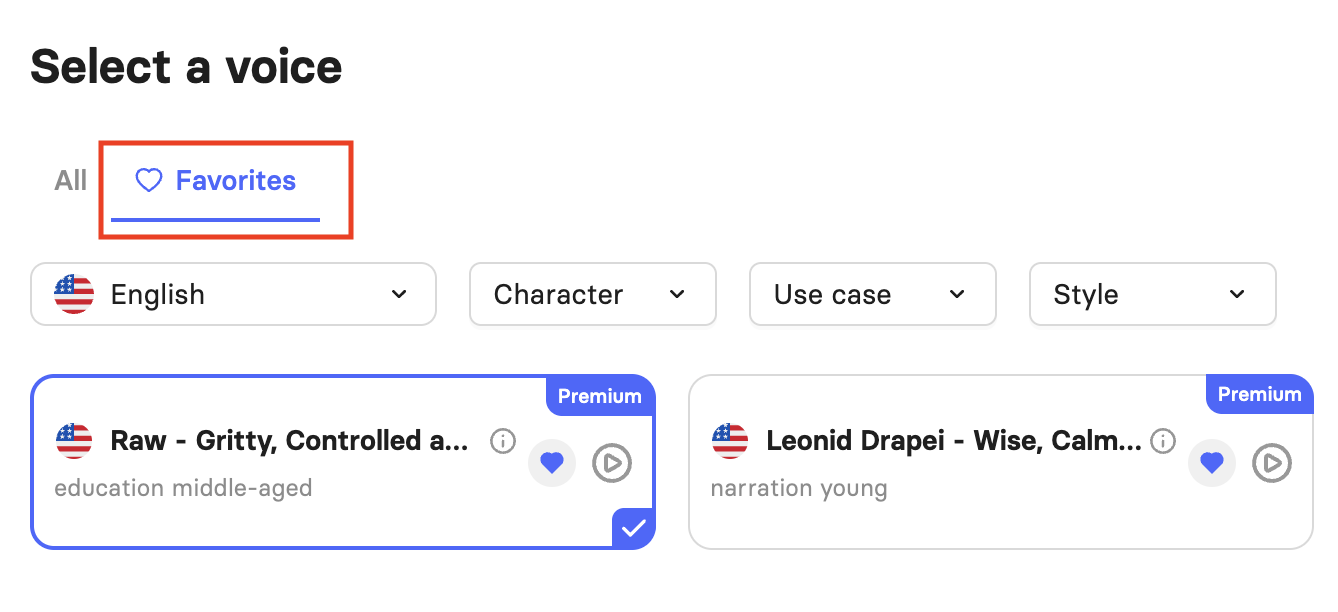
To save a voice for quick access later, select the heart icon on its card to mark it as a favorite. To view your saved voices, select the Favorites tab at the top of the picker. 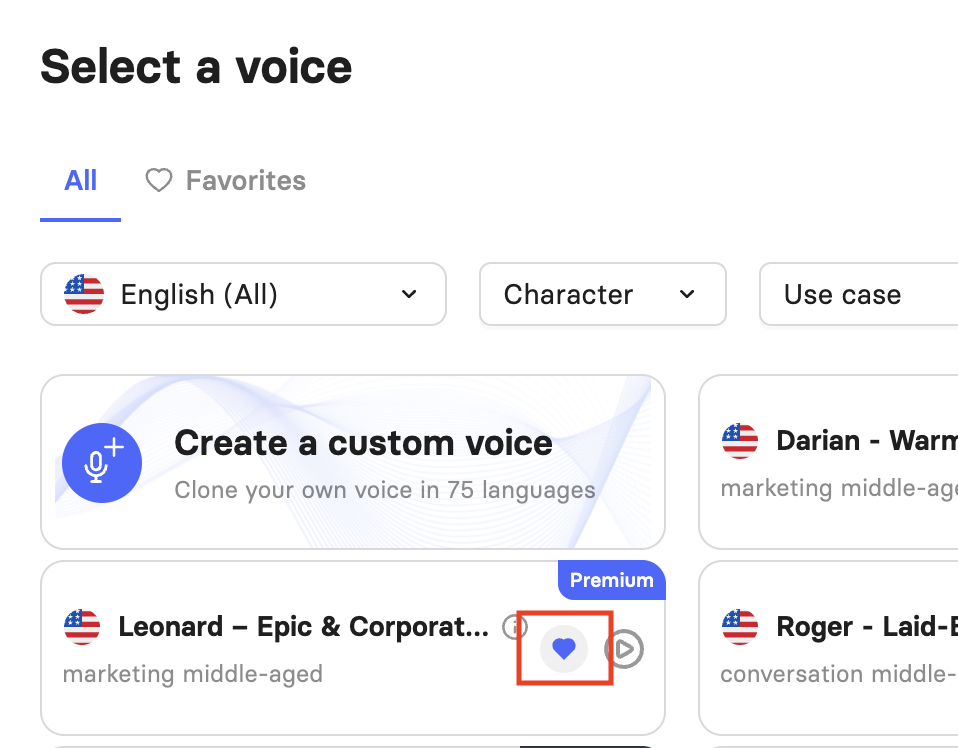
The Favorites tab filters by the language currently selected, so you will only see favorites that match the active language. To see favorites from a different language, update the language filter first.
Once you have chosen a voice, you can apply it to the current slide only or to all slides in your video by checking Apply to all slides before selecting Apply voice.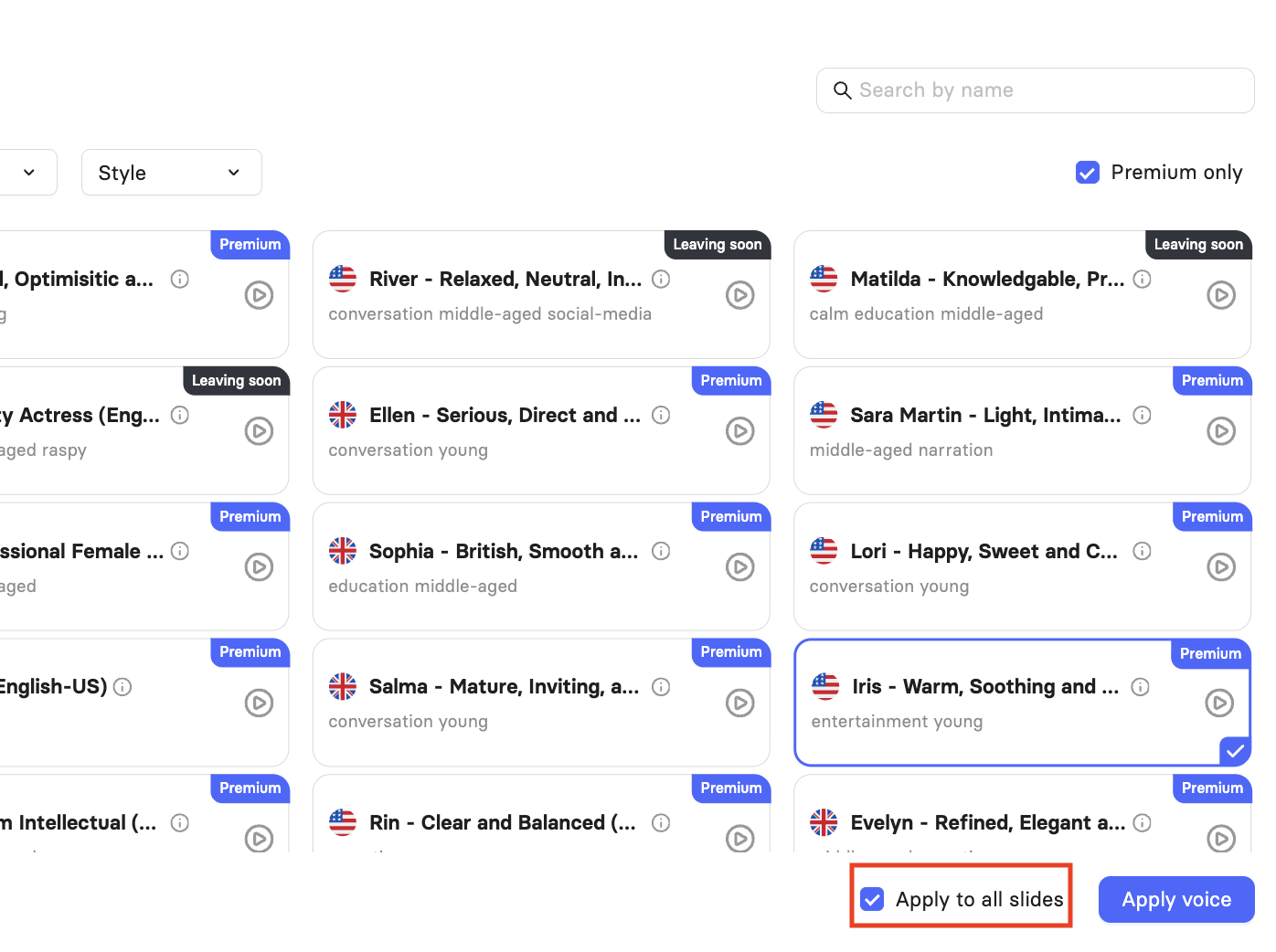
Set Up Your Slide Audio
Each slide has three audio modes, selectable from the tabs at the top of the speech text panel.
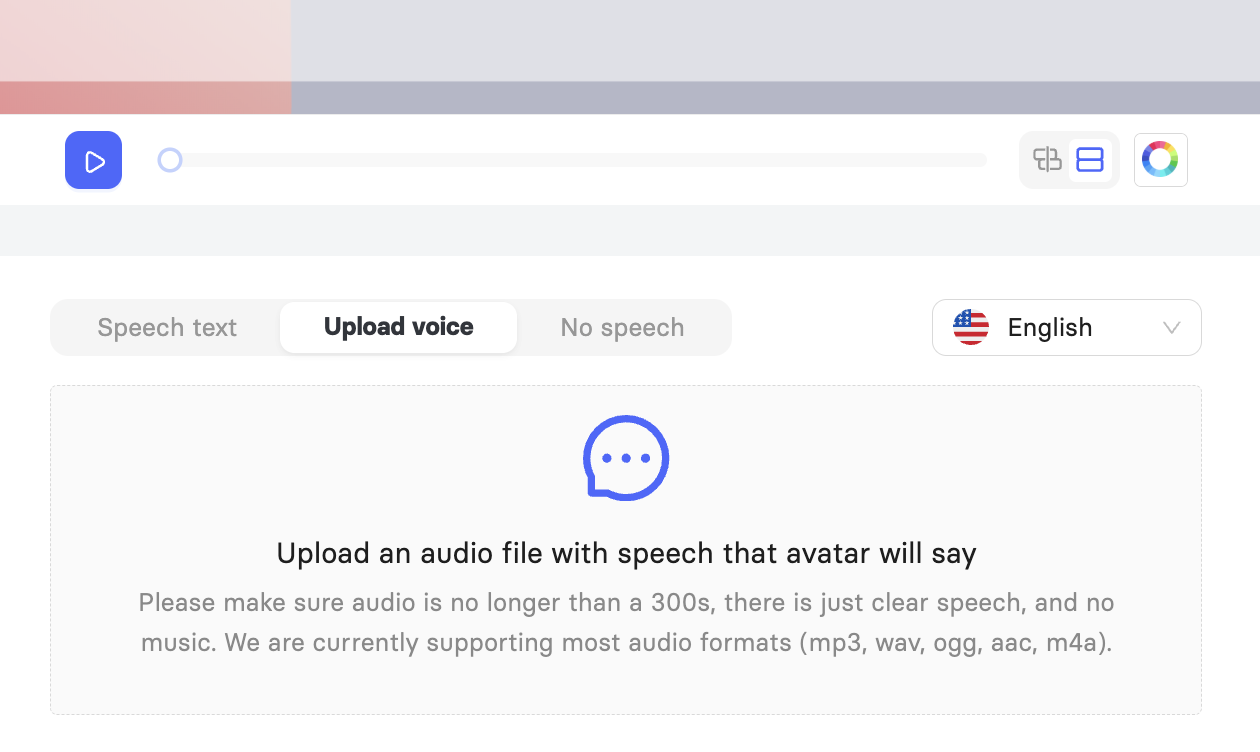
Speech text: Type your script directly into the text field and let the avatar read it aloud using your selected voice. Each slide supports up to 300 seconds of audio at render time. On a Trial plan, the total rendered video length is limited to 60 seconds across up to 3 slides.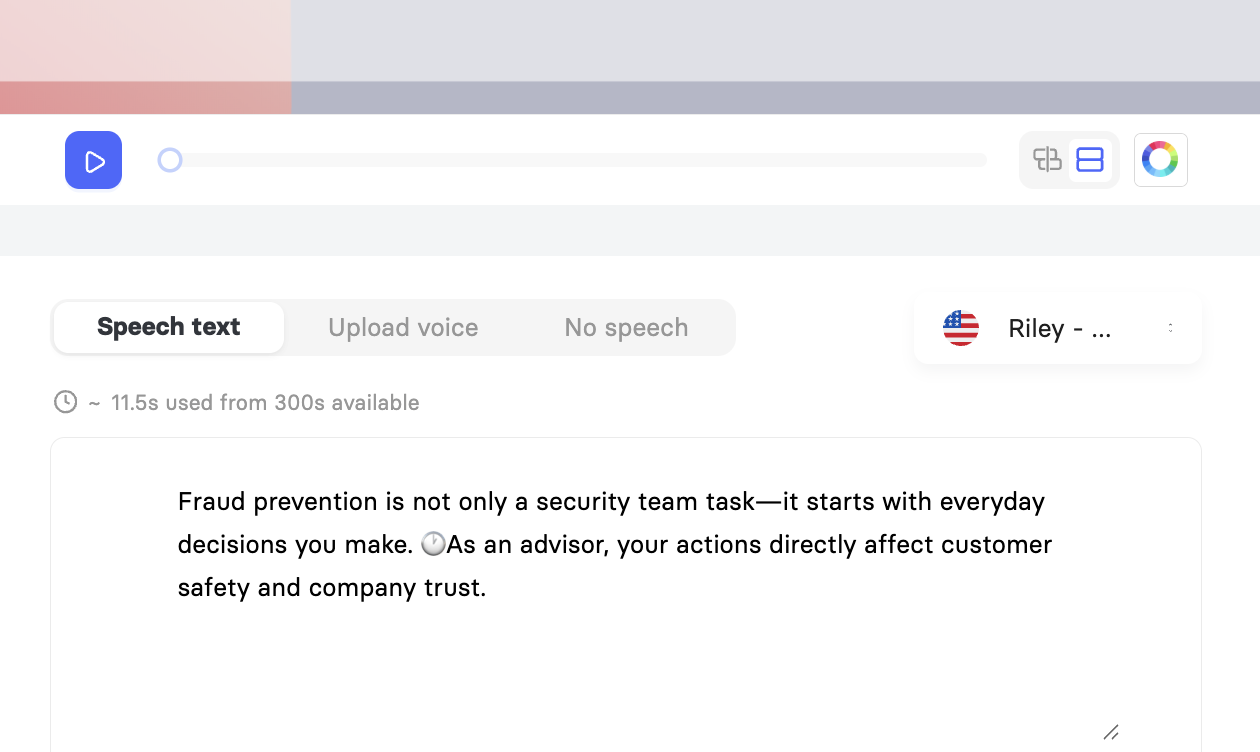 Upload voice: Upload a pre-recorded audio file, and the avatar will lip-sync to it automatically. Accepted formats are mp3, wav, ogg, aac, and m4a. The file must be no longer than 300 seconds and should contain only clear speech with no background music. Learn How to Upload Voice.
No speech: Silences the avatar for that slide. You can set a custom duration, so the slide holds for a specific length of time before advancing.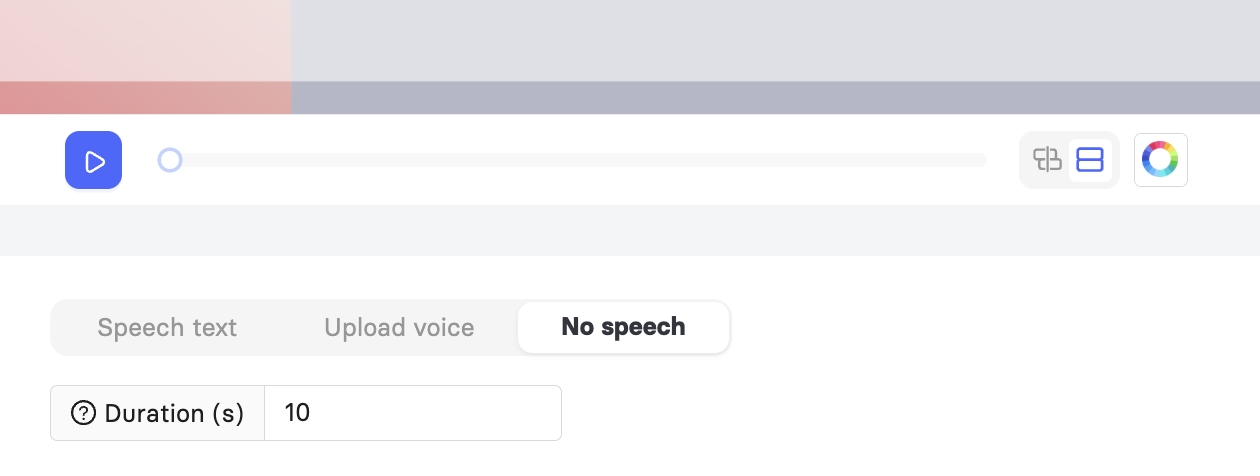
Adjust Pronunciation and Pacing
When you type your script into the speech text field, you can make small adjustments directly in the text to influence how the audio sounds. Keep in mind that hyphens you add for pronunciation purposes, for example, writing "lap-top" instead of "laptop", will appear in your video captions exactly as written. For that reason, it is better to use the Phoneme and Pause buttons built into the panel whenever possible, as they apply adjustments without affecting your captions.
Adding pauses
To insert a pause, place your cursor in the text where you want the gap and select Pause. A dropdown will appear with preset durations: 0.25s, 0.5s, 1s, and 1.5s.
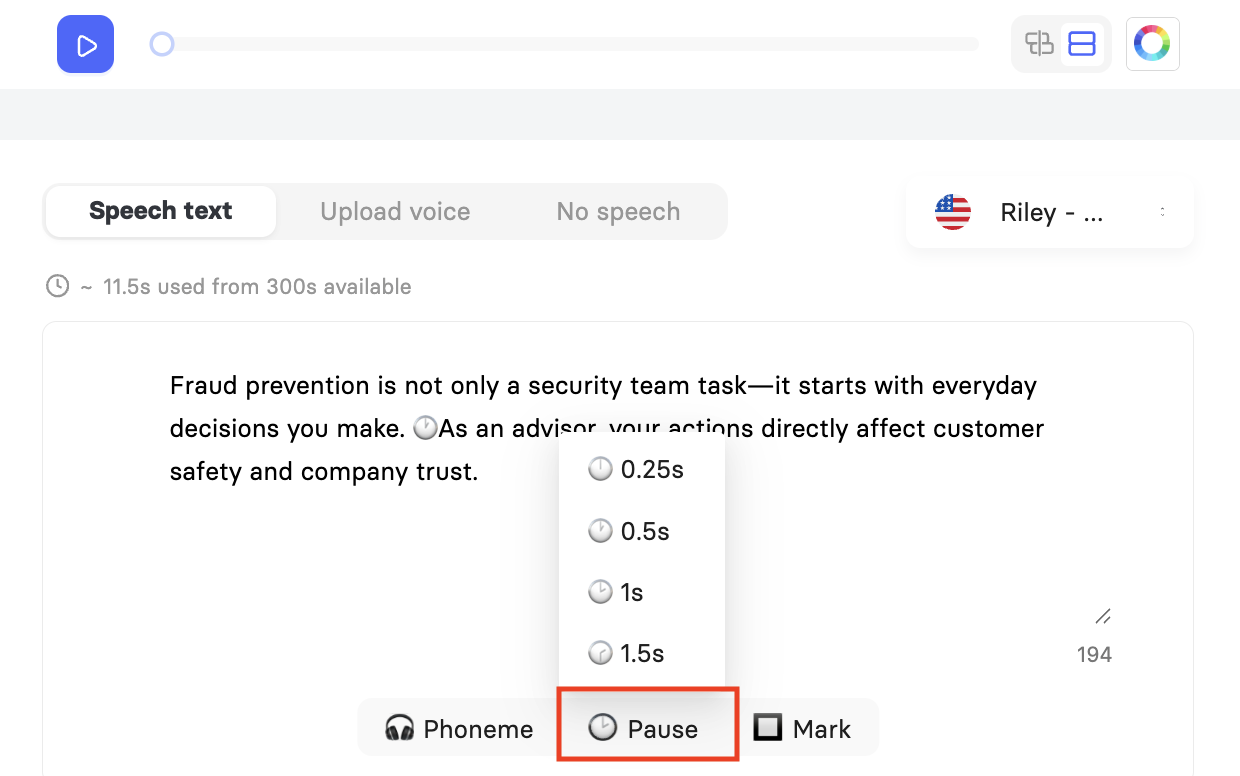
Selecting one inserts the pause at your cursor position. You can insert multiple pauses anywhere in the script. For example, two consecutive 1.5s pauses will produce a 3-second gap.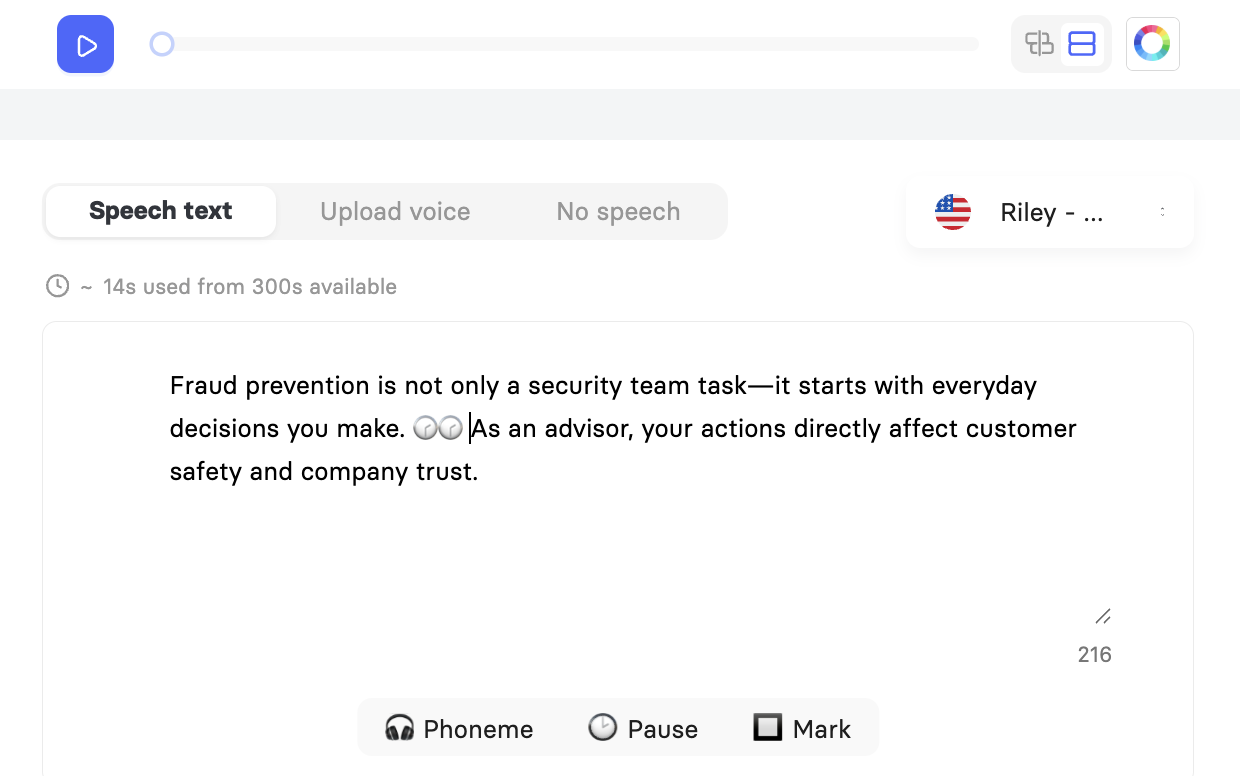
If you would rather have more precise control over the pause, you can insert a break tag directly in the text box with <break time="1s" />. This code, also known as SSML, will not appear in your captions. For example:
Hello everyone! <break time="1s" /> This is my first Elai video.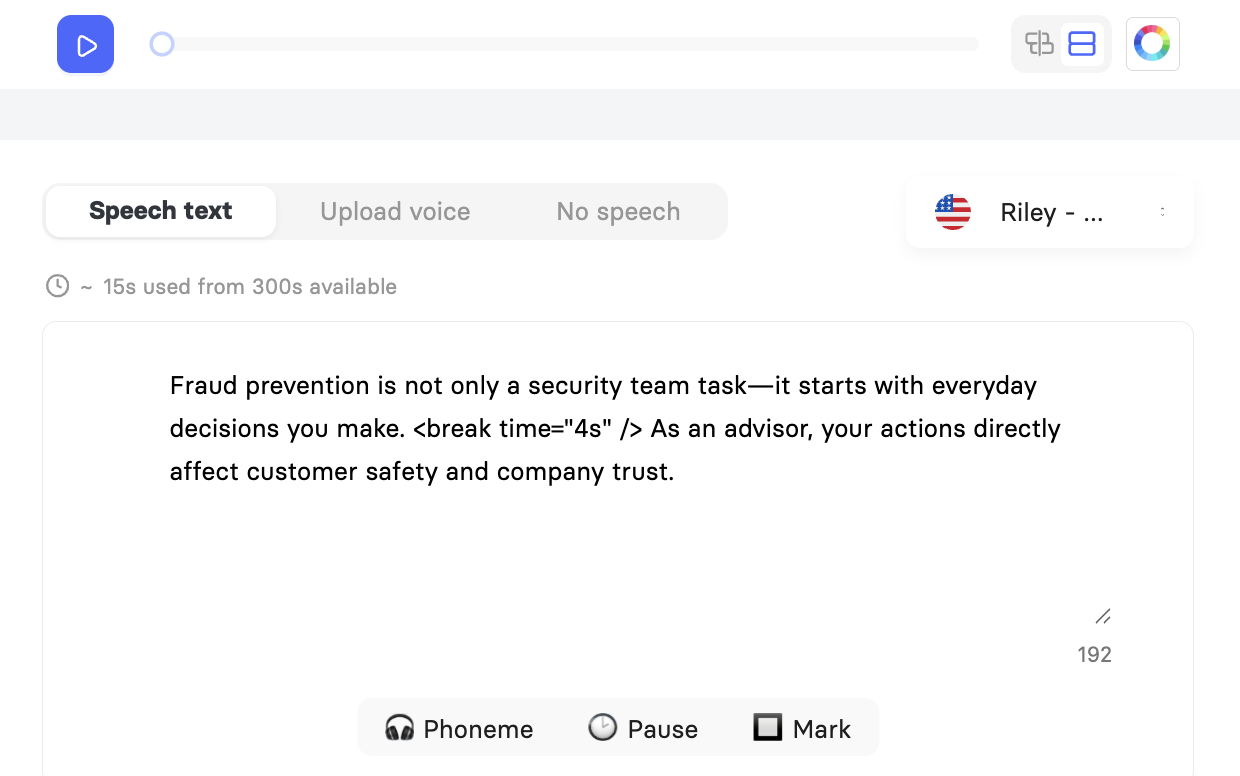
Using the Phoneme Dictionary
To open the Phoneme Dictionary, select Phoneme in the speech text panel. This is a workspace-level pronunciation list. Any word you add here will be pronounced consistently across all videos in the workspace, with no changes visible in the captions or the script. 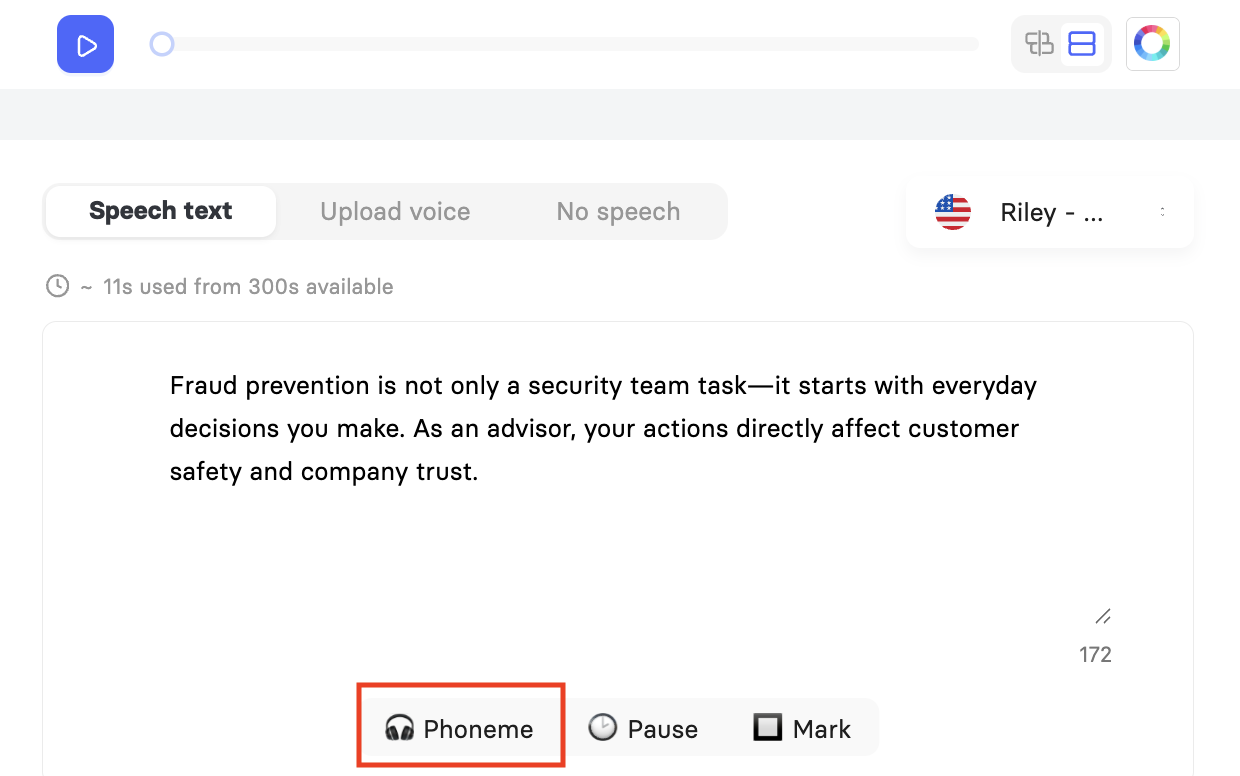
For a full guide on using the Phoneme Dictionary and SSML, see How to Adjust Pronunciation with Phoneme Dictionary and SSML.
FAQ
What's the difference between Standard and Premium voices?
Premium Voices offer more natural-sounding speech, with greater variation in style, pace, and accent for added realism. They're available on Team and Enterprise plans. Standard Voices are included on every plan, including Trial, and cover the full range of 75+ languages.
Can I use my own cloned voice for narration?
Yes. Once you've cloned a voice, it appears in the voice picker alongside the built-in voices and can be selected the same way. The cloned voice supports 32+ languages.
Why can't I find male and female versions of the same voice?
Voice sex is tied to your selected avatar rather than being a separate toggle. To hear the opposite sex for a given voice, switch your avatar first.
Does the Phoneme Dictionary apply to one video or my whole workspace?
It applies workspace-wide. Any pronunciation you set is used consistently across every video in the workspace, not just the one you're editing.
Can I add more than one pause at once?
Yes. You can insert multiple pauses anywhere in the script, and consecutive pauses stack. Two 1.5s pauses in a row, for example, create a 3-second gap.
Why don't I see all my favorited voices?
The Favorites tab filters by the language currently selected. If a favorite doesn't appear, switch to the language filter it was saved under.
Was this article helpful?
That’s Great!
Thank you for your feedback
Sorry! We couldn't be helpful
Thank you for your feedback
Feedback sent
We appreciate your effort and will try to fix the article