Overview
Elai gives you several ways to control how your avatar pronounces words. For most cases, the built-in Phoneme and Pause tools in the speech text panel are all you need. They let you fix mispronunciations and add pauses without changing anything visible in your captions. For more complex adjustments, the speech text field also supports SSML tags, giving you precise control over emphasis, pitch, and rate.
Prerequisites
Verified account. See How to Verify Your Elai Account for more detailed steps
Use the Phoneme Dictionary
The Phoneme Dictionary is a workspace-level pronunciation list. Any word you add here will be pronounced consistently across all videos in the workspace, with no visible changes to your captions or script.
To add a pronunciation entry:
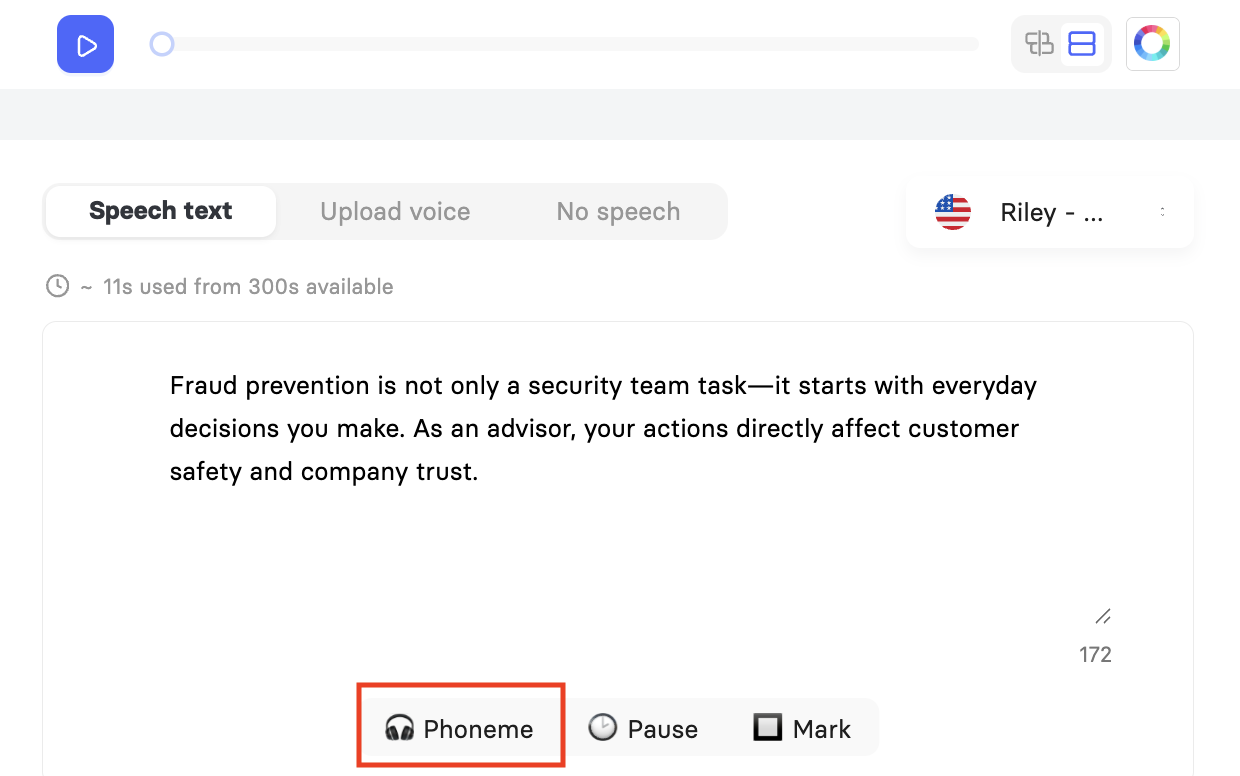
- Select Phoneme in the speech text panel below your script. The Phoneme Dictionary will open.
- Select + Add phoneme.
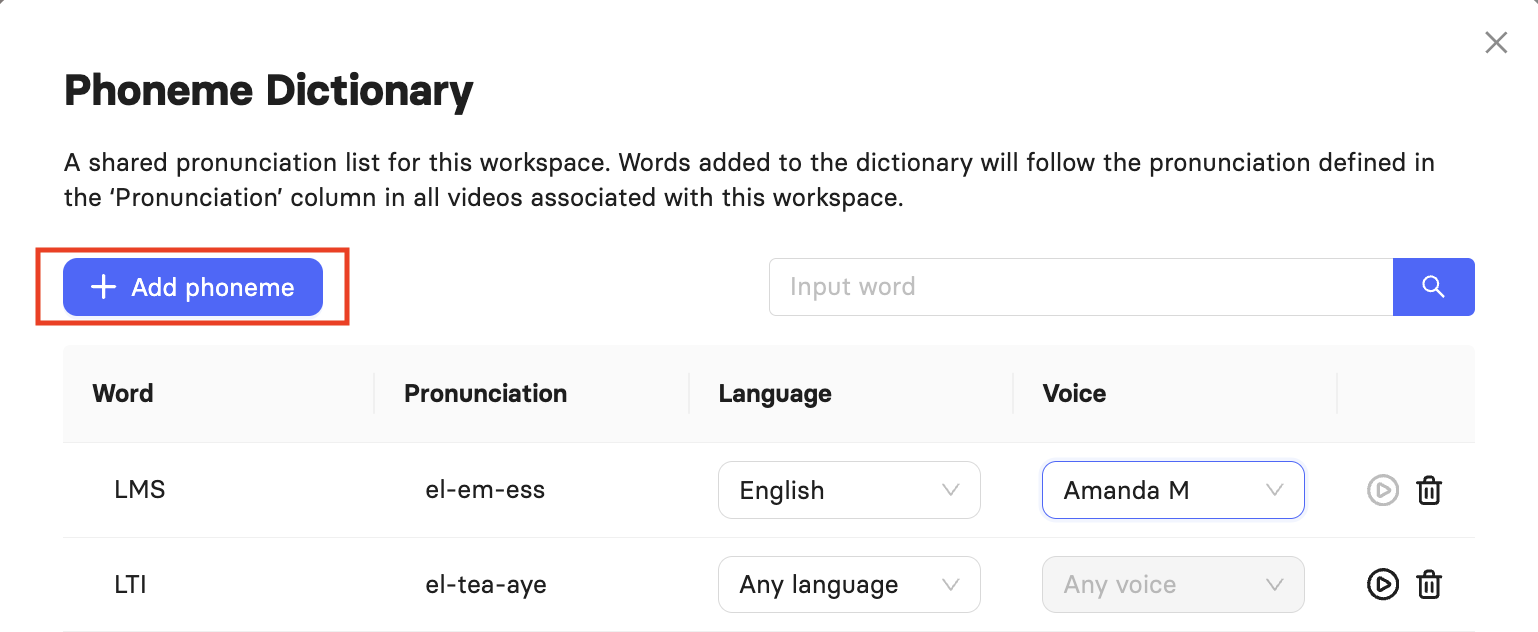
- In the Word field, enter the word exactly as it appears in your script. For example, "LMS".
- In the Pronunciation field, enter how it should sound phonetically. For example, "el-em-ess" for LMS.
- In the Language dropdown, select which language this pronunciation applies to, or leave it set to Any language to apply it globally.
- In the Voice dropdown, you can optionally link the pronunciation to a specific voice. This option becomes available only after you select a language. Only voices corresponding to that language will be shown. Your favorite voices will appear at the top of the list.
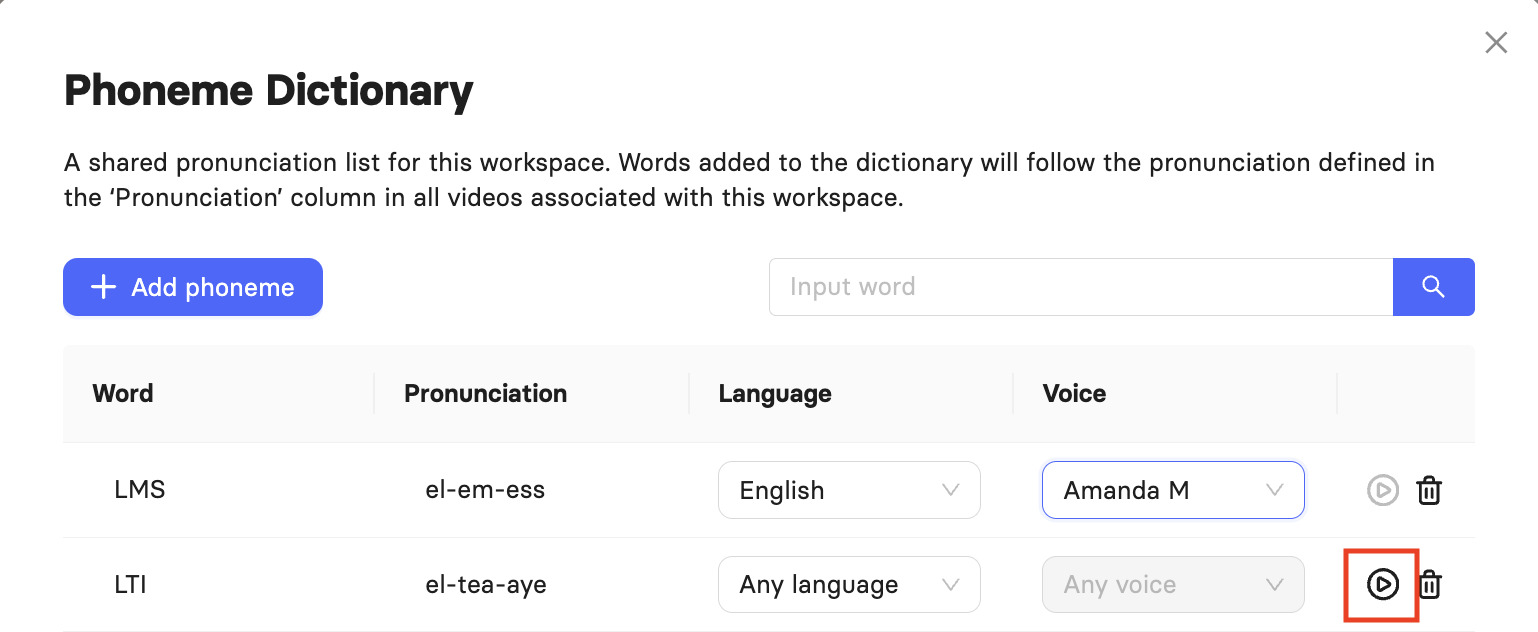
- Select the play icon to preview how the pronunciation sounds.
- Select Save.
The dictionary table shows each entry's word, its defined pronunciation, the language it applies to, and the voice it is scoped to. You can preview, edit, or delete any entry at any time.
Once a phoneme is saved, it will be applied automatically to that word in all future videos across the workspace, based on the language and voice rules you set.
Managing multiple pronunciations for the same word
You can add the same word more than once if each entry uses a different language or a different voice. This allows one word to be pronounced differently depending on the context it appears in, and entries for the same word will be grouped in the list for easy management.
You cannot add the same word linked to the same language or "Any language" twice. The system will prevent this to avoid conflicts.
Pronunciation Tips by Word Type
Short words. Spell the word the way it sounds. For example, "edamame" sounds best when you enter "edamomay" in the pronunciation field.
Long or complex words. Break the word into syllables and change only the syllable that sounds wrong. For example, "acromioclavicular" sounds best as "a chromio clavickular".
Acronyms pronounced as a word. If the AI is spelling out an acronym that should sound like a word, write the phonetic version in full. For example, for ASAP, enter "eighsap". For NASA, spell it as it sounds: "nasa".
Acronyms spelled out as individual letters. If the AI is reading an acronym as a word when it should spell it out, separate the letters with hyphens. For example, for NBA enter "en-be-ay". For SSO, enter "S S O", and for URL, enter "you-are-el".
Numbers. The Phoneme Dictionary does not read numerals or spaces directly. Write out the words instead, and use hyphens rather than spaces between them.
Reference numbers or pages: for 1246 read as "twelve forty-six", enter "twelve-forty-six". For 1246 read as "one-two-four-six", enter "one-two-four-six".
Dollar amounts: for $12.46, enter "twelve-dollars-and-forty-six-cents"
Years: for 1246 read as "twelve forty-six", enter "twelve-forty-six"
Phone numbers: for (206) 555-3131, enter "two-zero-six-five-five-five-three-one-three-one". Alternatively, add spaces or dashes directly in the speech text field: "2 0 6 - 5 5 5 - 3 1 3 1"
Add Pauses
To insert a pause, place your cursor in the script where you want the gap and select Pause in the speech text panel. A dropdown will appear with preset durations: 0.25s, 0.5s, 1s, and 1.5s. Selecting one inserts the pause at your cursor position. You can insert multiple pauses anywhere in the script. For example, two consecutive 1.5s pauses will produce a three-second gap.
Pauses inserted this way do not appear in your captions.
If you are already using SSML in your script, you can also insert a break tag directly:
Hello everyone! <break time="1s" /> This is my first Elai video.
Adjust Pronunciation with SSML
SSML tags let you control the delivery of your speech, including rate, pitch, volume, and emphasis. You add them directly to the speech text field alongside your script.
SSML modifications only work with voices that have no style label on their card in the voice picker. Voices with a fixed style description, such as "conversation middle-aged social-media" or "education middle-aged raspy", do not support SSML tags.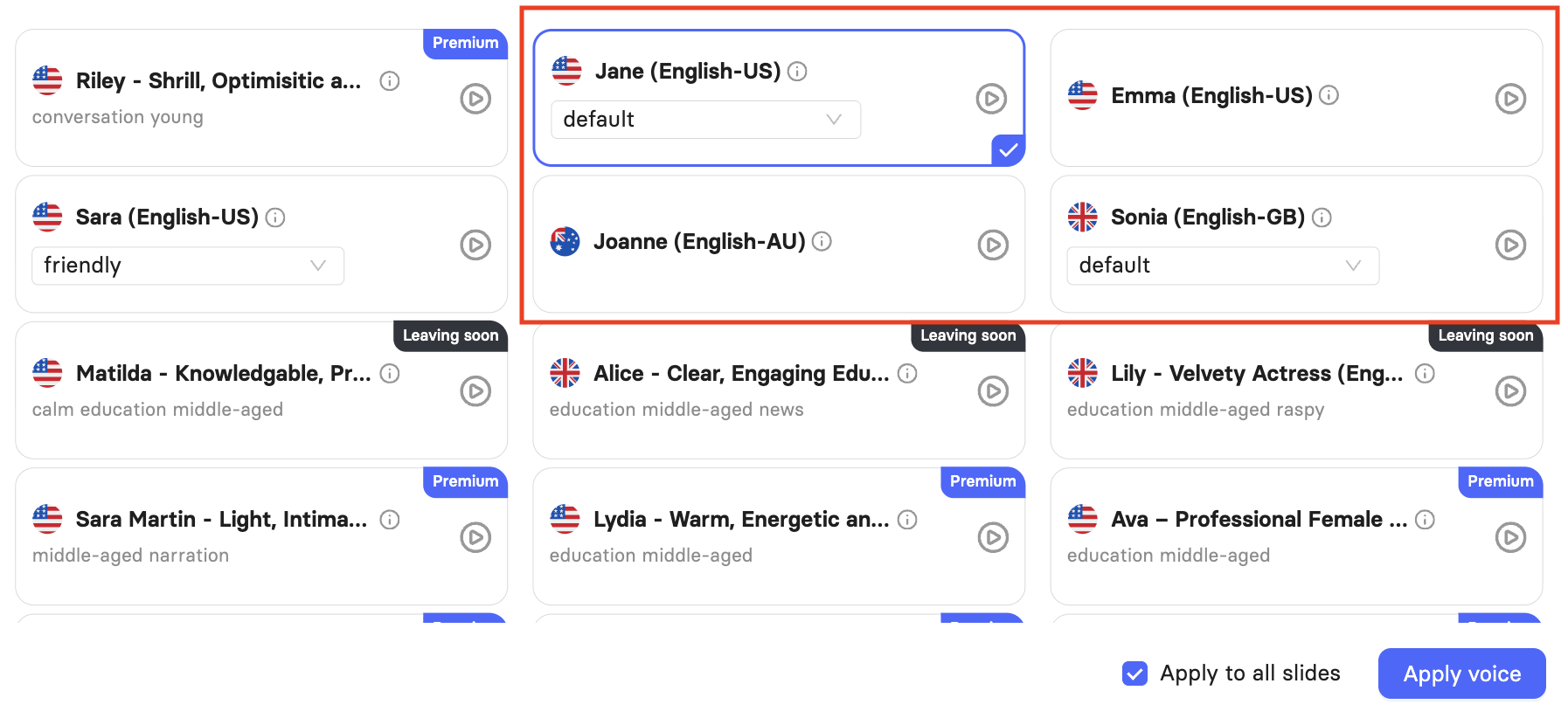
Change rate, volume, or pitch
Use the <prosody> tag to adjust how a word or sentence sounds. You can adjust rate, volume, pitch, contour, and range within the same tag:
<prosody rate="-25%" pitch="+10%">This part will be slower and higher.</prosody>
For example, applied to a sentence in a script: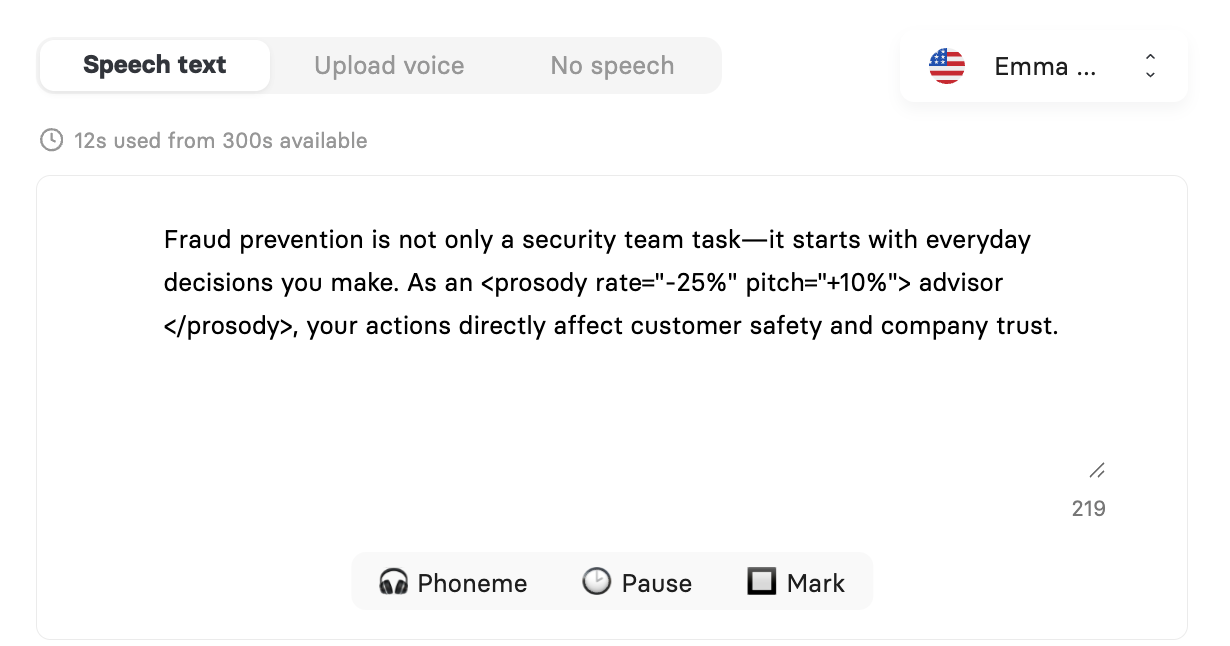
Emphasize a word
Combine a short pause with a reduced rate to add natural emphasis:
Entrance is on the <break time="100ms"/><prosody rate="-25%">ground</prosody> level.
Alternatively, use the contour attribute to shape the pitch curve of a single word:
<prosody contour="(1%, +85%)">word</prosody>
Important! SSML tags inserted directly into the speech text field will not appear in captions. However, any plain-text workarounds you type, such as hyphens or phonetic rewrites, will appear in captions exactly as written. Use the Phoneme Dictionary or Pause button for anything that should stay invisible.
Best Practices
Preview every slide before rendering. Use the play button in the editor to listen back to each slide after making changes. Catching a mispronunciation before rendering saves you video minutes.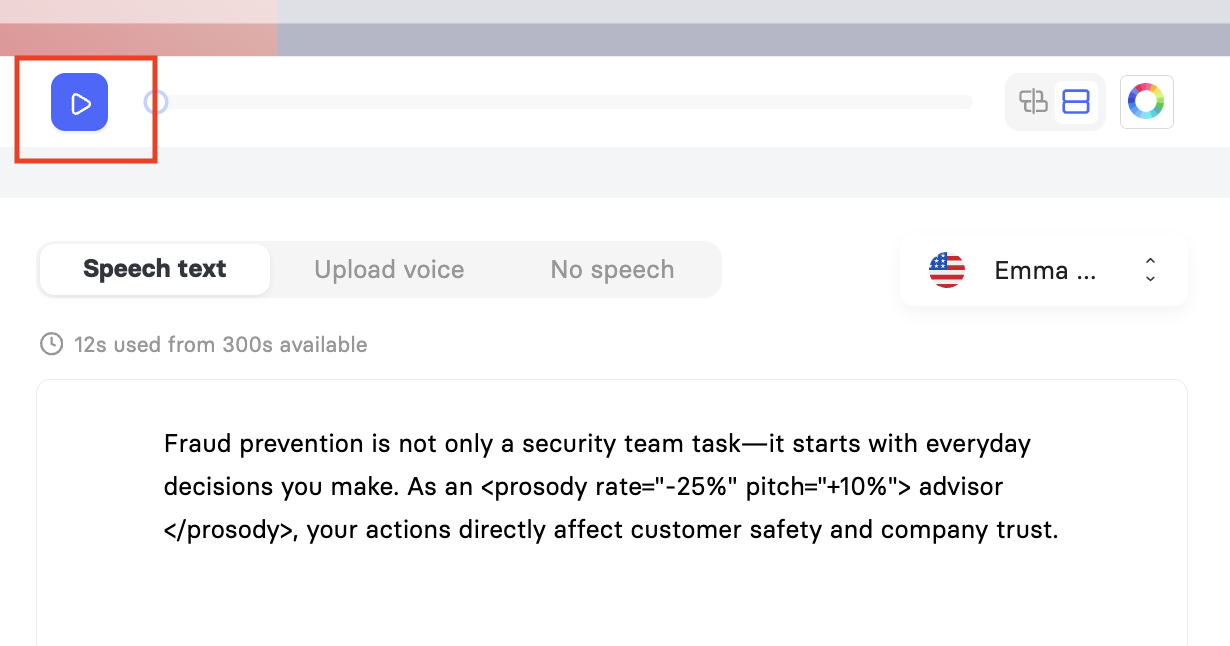 Let punctuation do the work first. Commas, periods, and question marks all influence the rhythm of the AI voice. If a sentence sounds rushed or flat, try adjusting the punctuation before adding a pause tag. It is often all you need.
One language per slide. Mixing languages on a single slide often produces inconsistent pronunciation. If your video uses multiple languages, use a separate slide for each one.
Use the Phoneme Dictionary for recurring words. If your script contains a brand name, acronym, or technical term the AI consistently mispronounces, add it to the Phoneme Dictionary once. It will be corrected automatically across every video in the workspace.
Use Pause for emphasis, not just gaps. A short pause before an important word, 0.25s or 0.5s, can add natural emphasis without any SSML. It makes key terms stand out more clearly for the viewer.
Check your spelling. The AI reads what you type. A typo will produce a mispronunciation that neither punctuation nor phoneme tools can fix. Always proofread your script before previewing audio.
Was this article helpful?
That’s Great!
Thank you for your feedback
Sorry! We couldn't be helpful
Thank you for your feedback
Feedback sent
We appreciate your effort and will try to fix the article