Overview
Video templates in Elai let you define a reusable structure for your videos, including layout, avatar, voice, branding, and slide content, so your team can create consistent, on-brand videos without starting from scratch each time. Instead of manually setting up each new video, you build a template once, publish it to your workspace, and your teammates can use it as a starting point for any video they create.
Elai currently offers over 100 pre-built templates covering a range of topics and industries. You can use any of them as a base, customize them fully to match your needs, or create your own template from a blank canvas. All your templates are stored in the My templates section.
Prerequisites
Any Elai subscription, including Trial
Verified account. See How to Verify Your Elai Account for more detailed steps
Access My Templates
In the left-hand navigation, select My templates under My projects. This is where all of your workspace's video templates are stored.
If this is your first time opening My templates, you will see a Create template button in the center of the screen and in the upper-right corner. Once you have templates saved, only the upper-right button will be visible.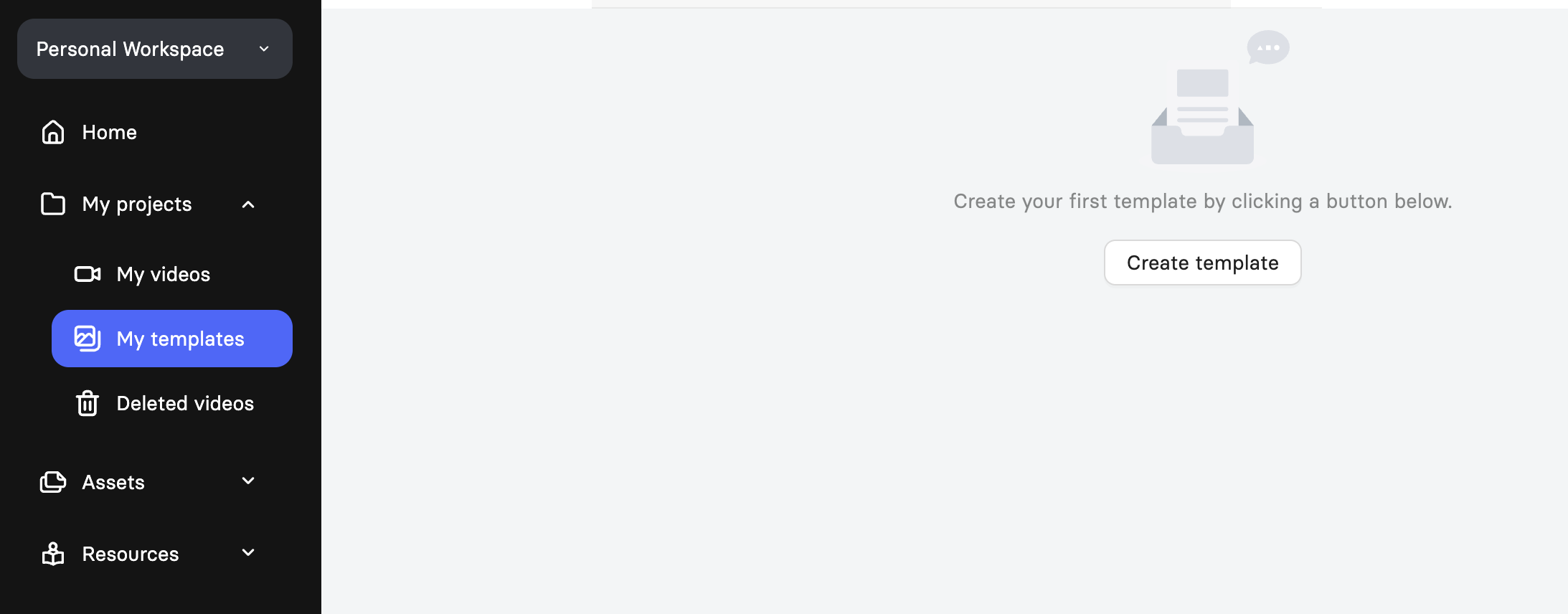
The templates list shows each template's name, tags, creation date, last updated date, and published status. The Published toggle indicates whether a template is currently available to your teammates in the video creation flow. From the list, you can also create a video based on a template, duplicate it, or delete it using the icons on the right side of each row.
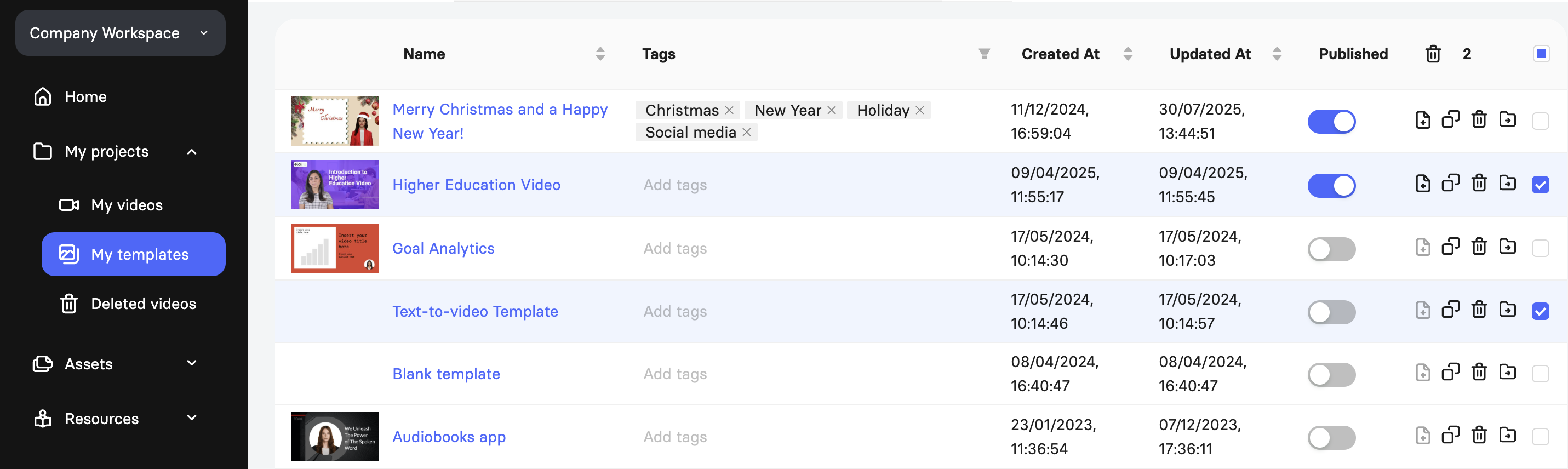
To delete multiple templates at once, select the checkboxes next to them and use the bulk delete option that appears at the top of the list.
Important! Deleting a template is permanent and cannot be undone.
Create a Template
1. Select Create template in the upper-right corner of the My templates page, or at the center of the page if no other templates exist.
2. The Create your own template dialog will open with a grid of all available base templates. Elai provides over 100 pre-built options across a range of topics. You can search by tags to filter by topic or style, or click any template to preview it before selecting.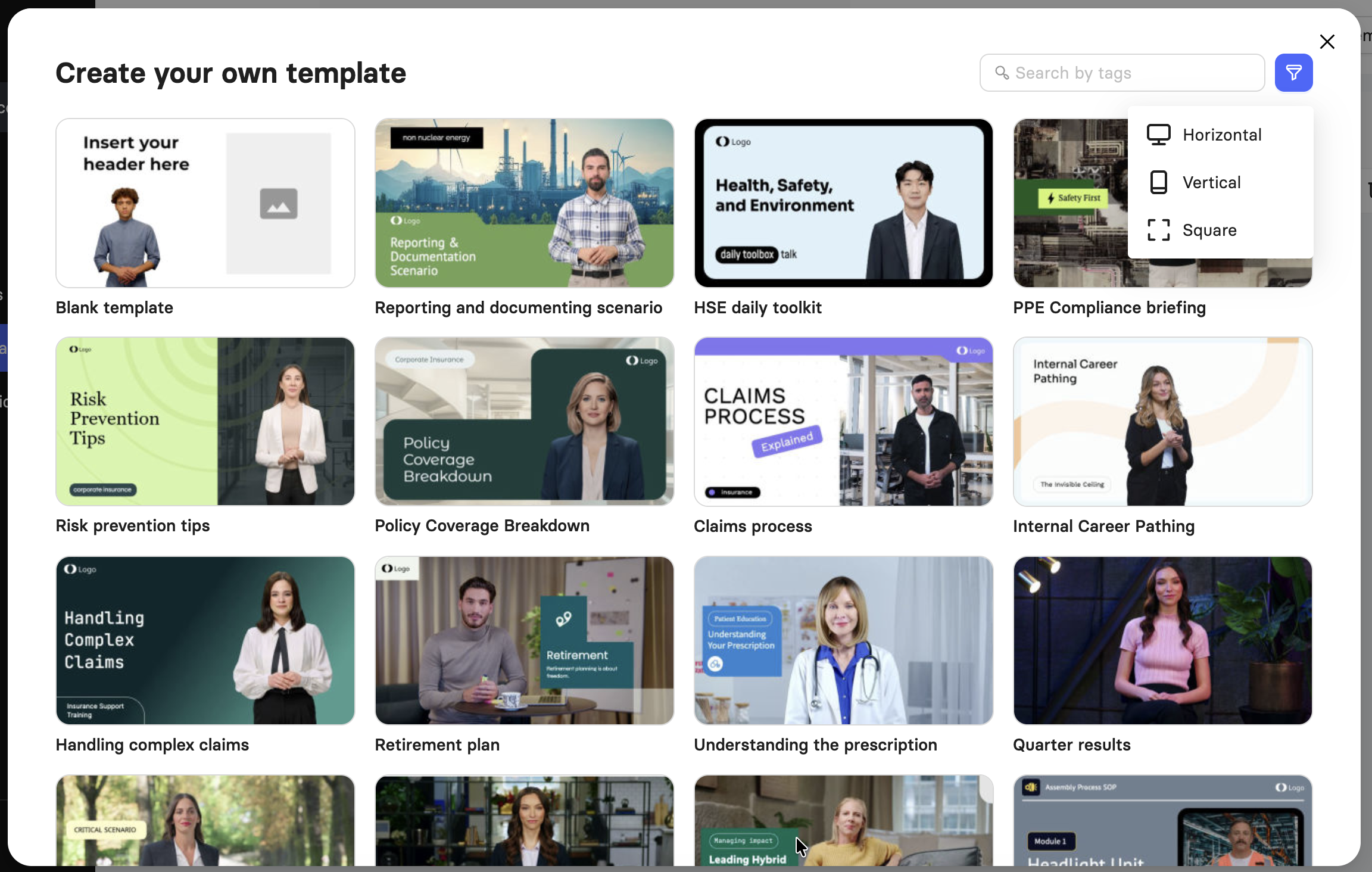
3. Select the base template you want to use and select Create template. If you prefer to start with a blank canvas, select Blank template in the upper-left corner of the grid.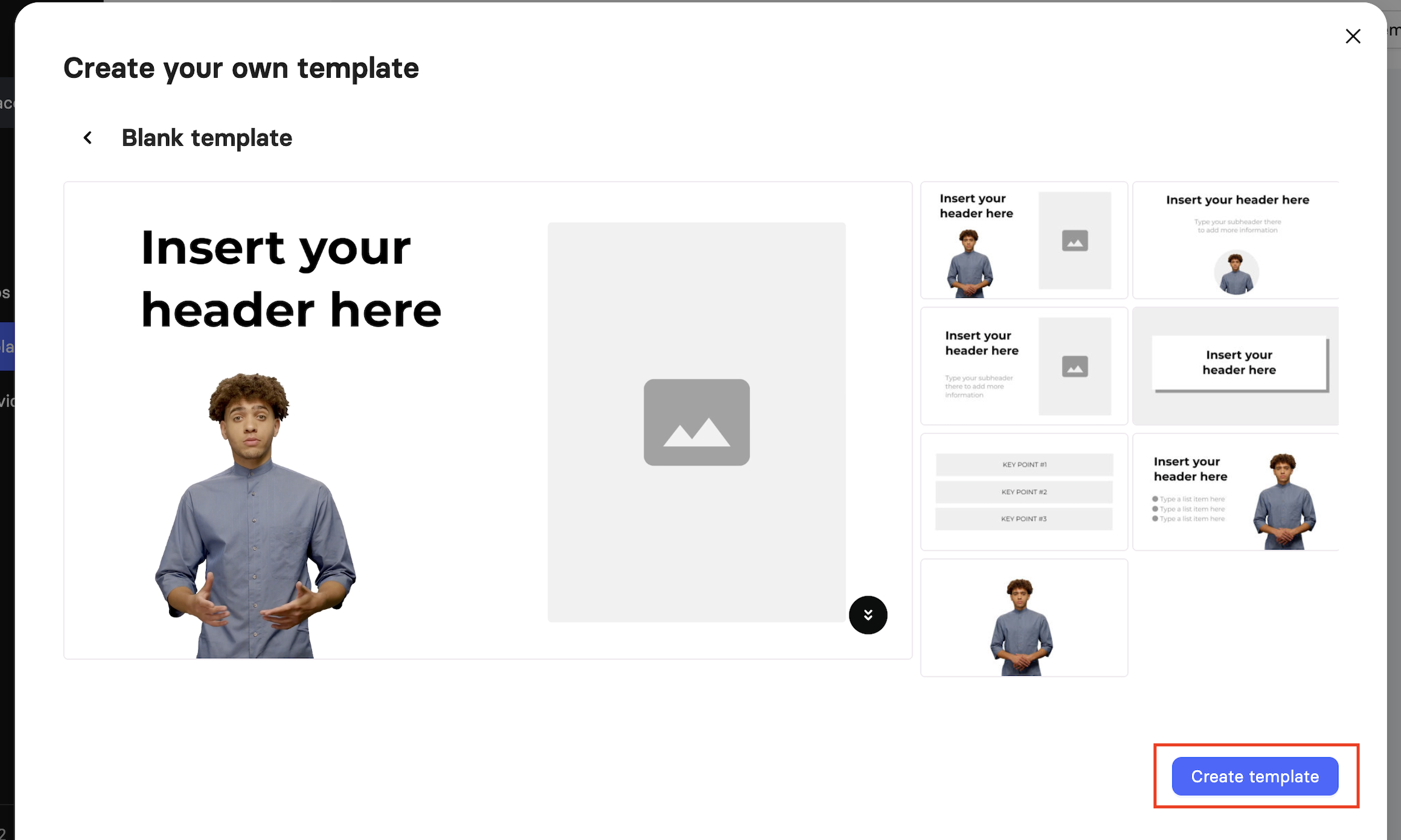
4. The template will open in the Elai editor. Each template contains placeholder elements, including headers, subheaders, images, and bullet point lists. You can change the background, avatar, voice, text, and any other element on the slides to match your content and brand style.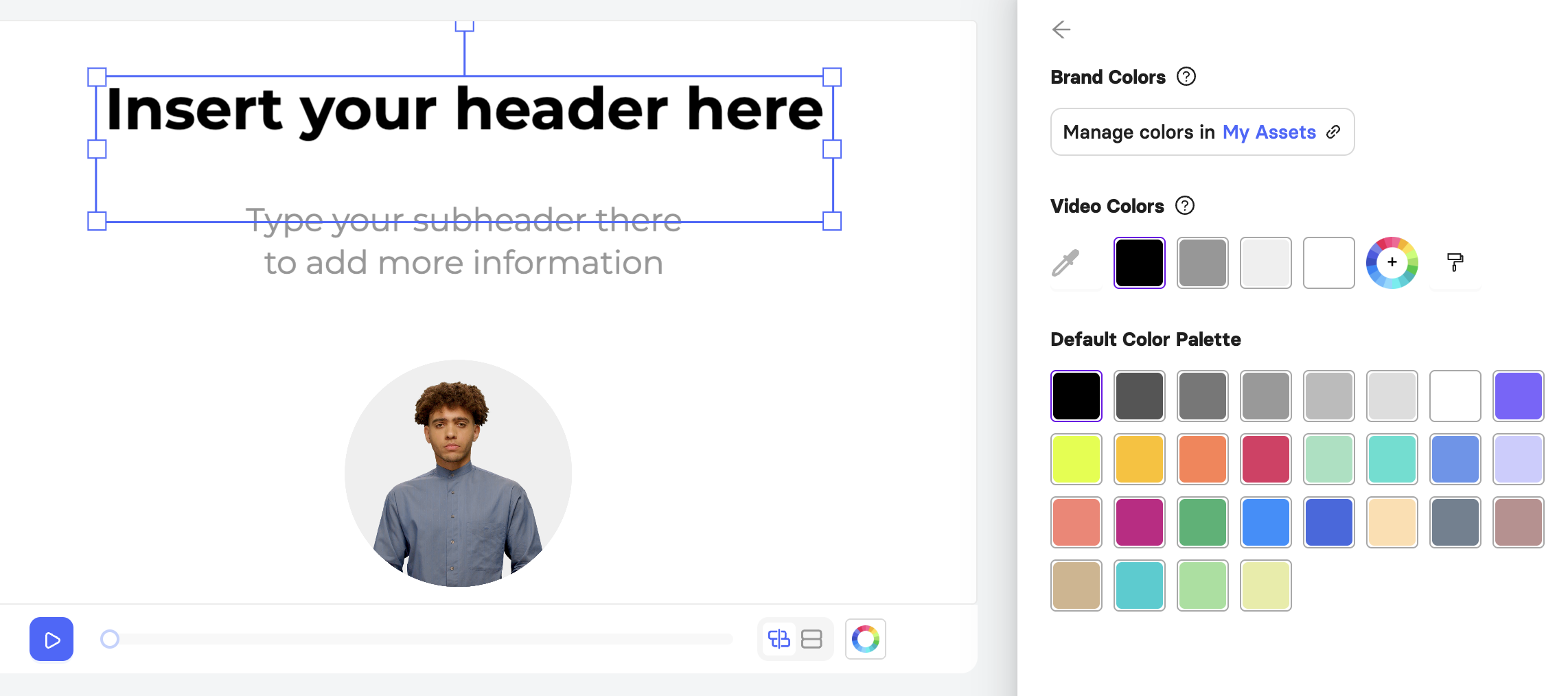
5. If you are on a Team or Enterprise plan, you can apply your company logos, colors, and fonts using Brand Kit, available in the left-hand navigation. This ensures every video created from the template stays visually consistent with your brand.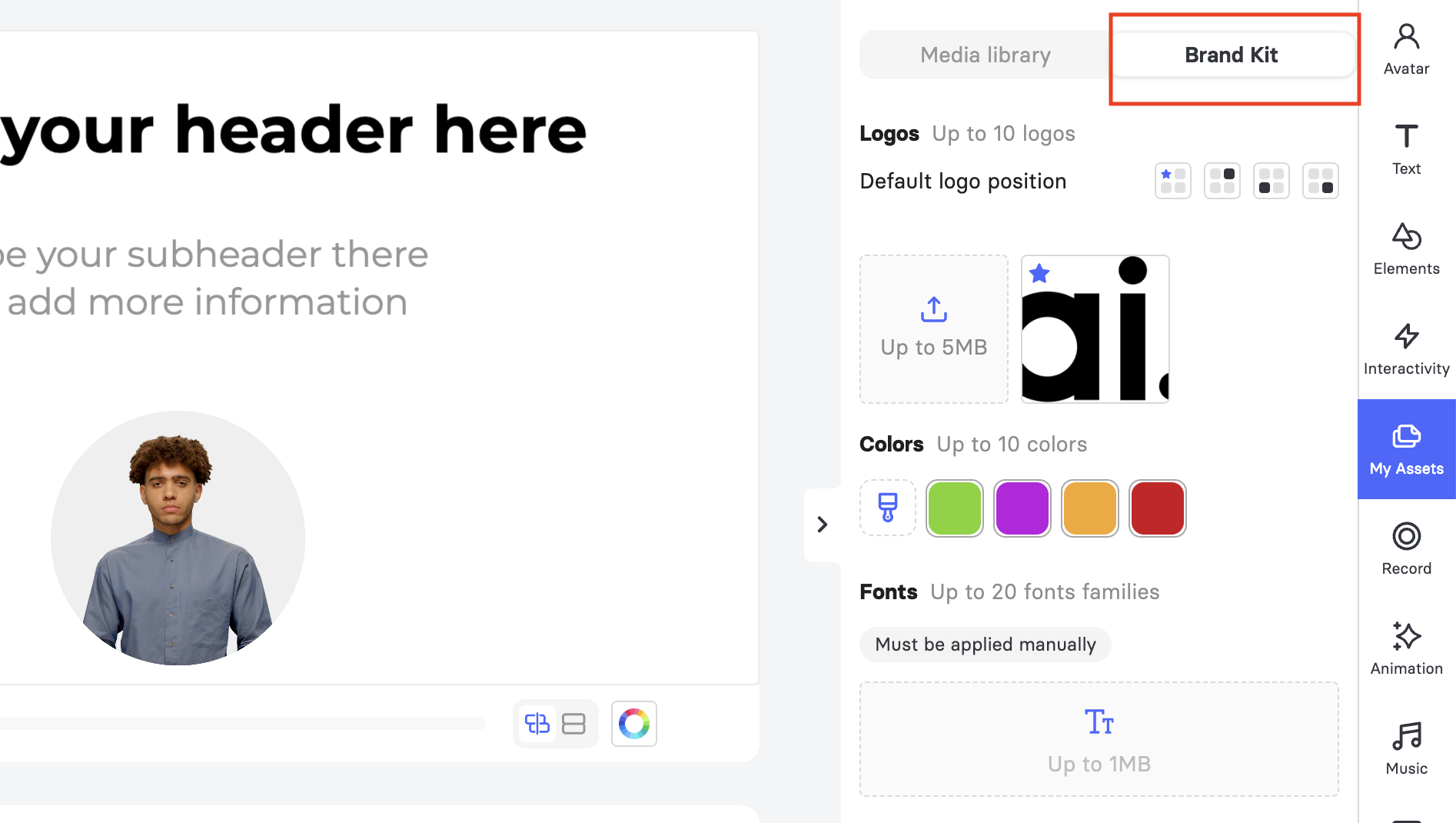
6. When you are ready to review, select Preview at the top of the editor. Note that slide transitions and avatar lip-sync are not visible in the preview.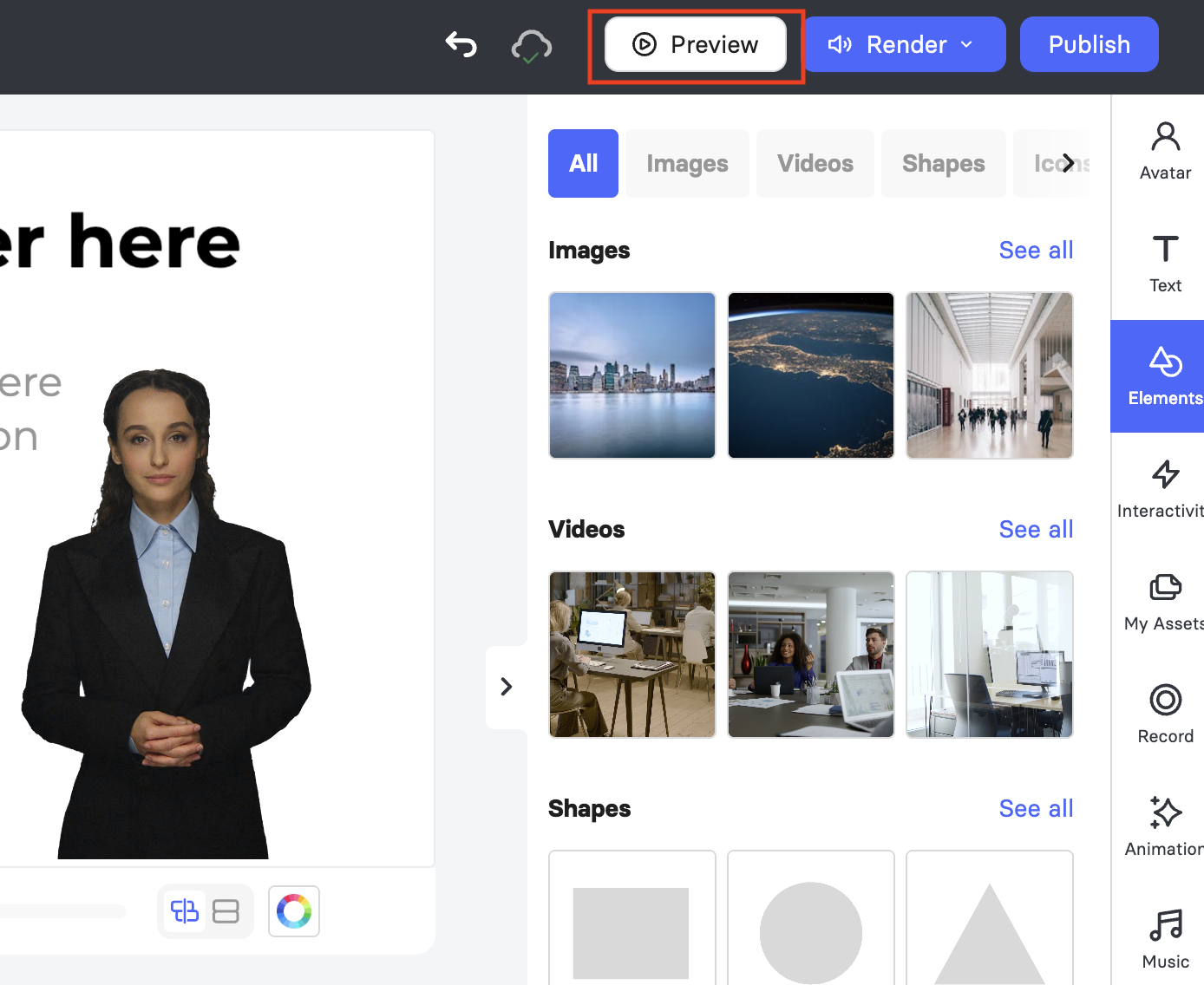
7. Once you are satisfied with the template, select Publish. The template will now be available to your teammates when they create a new video from the workspace.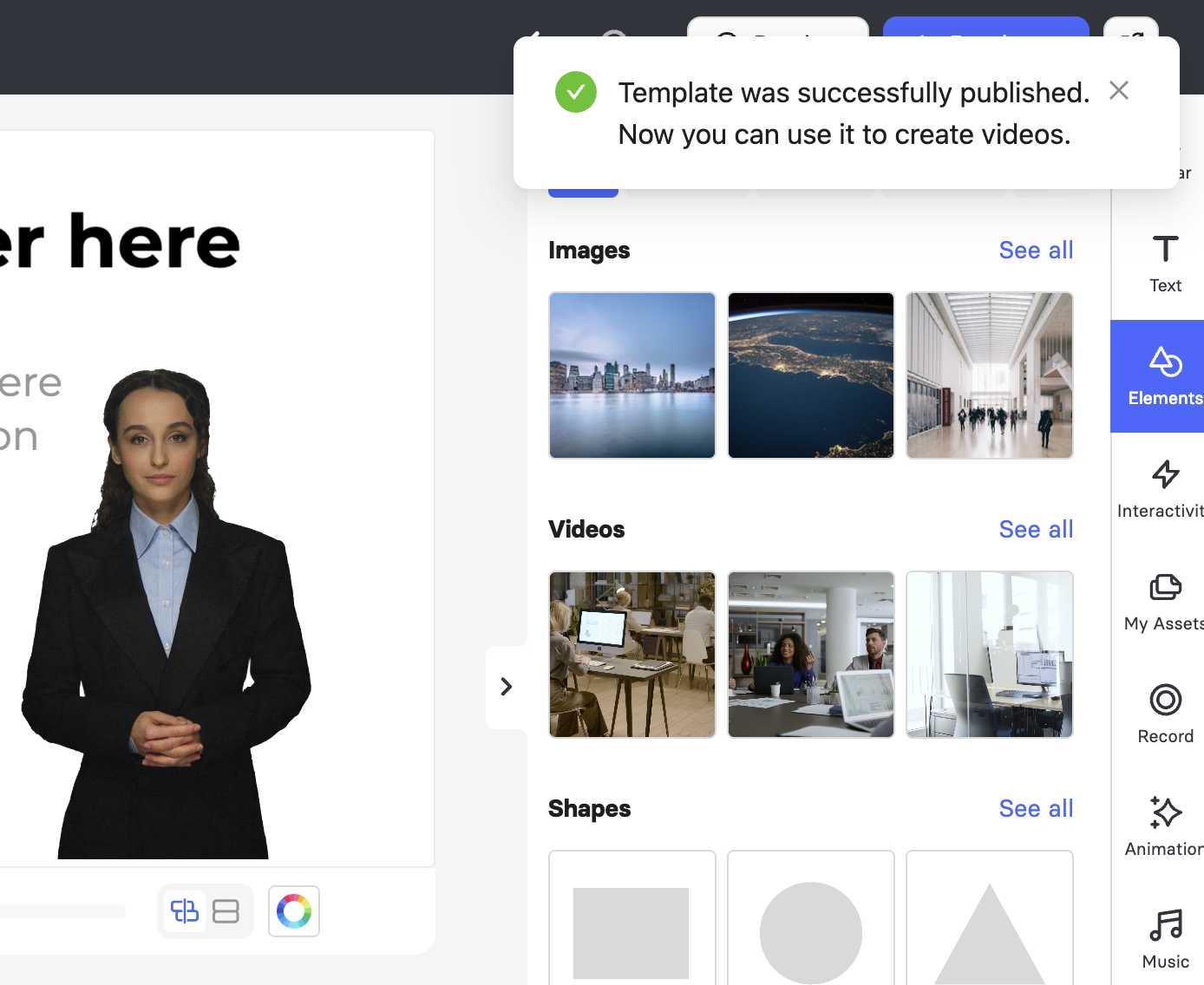
If you make edits to a published template and notice that its preview card still shows an outdated or missing thumbnail, use the Update template thumbnails button in the upper-right corner of the editor.
Template thumbnails are cached separately from slide content, so they do not update automatically when you edit slides. Selecting this button regenerates and saves fresh preview images for all slides in the template.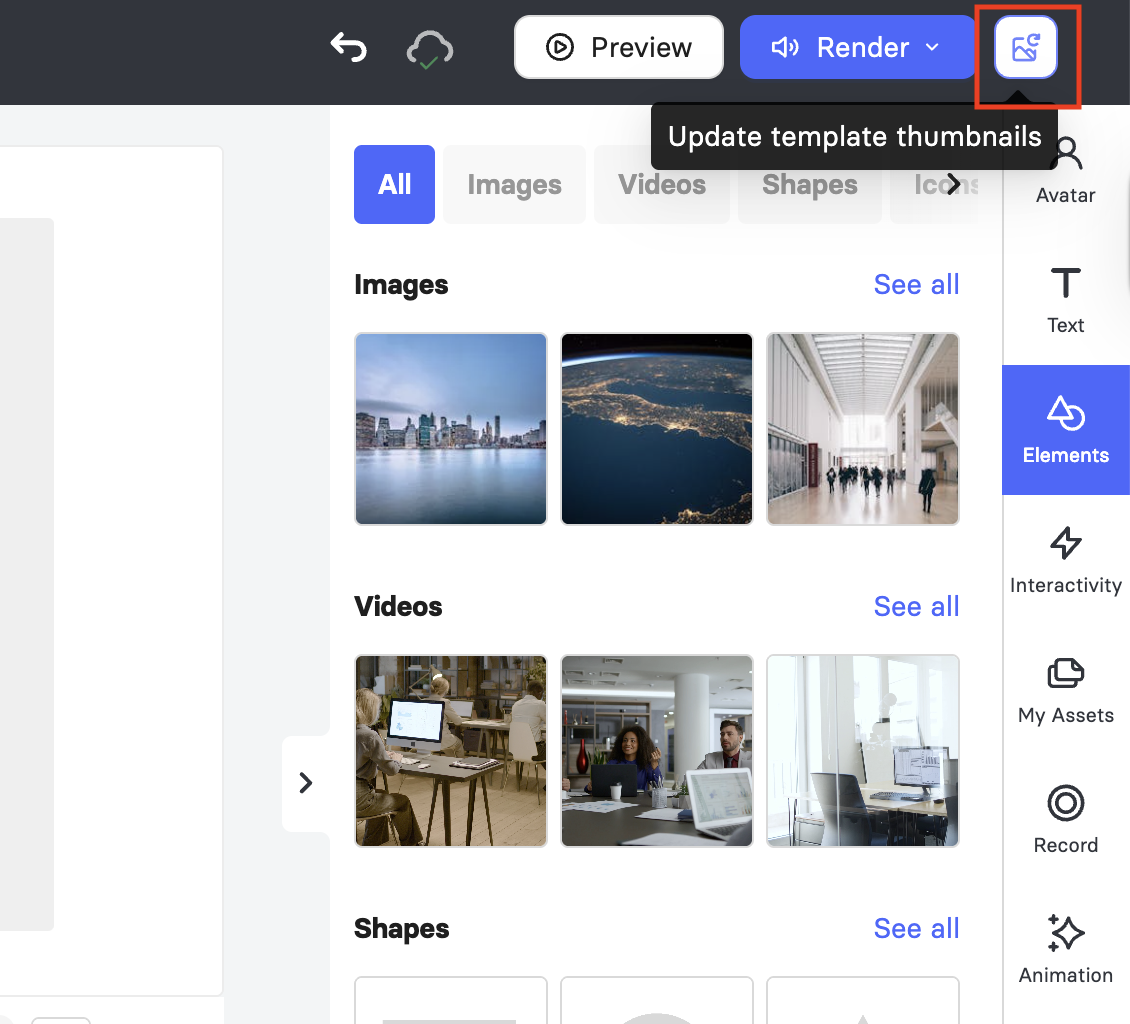
Important! Only published templates appear in the video creation flow. If a template you created is not showing up, check that it has been published using the toggle in the My templates list.
Manage Your Templates
Once a template is published, teammates can select it when creating a new video. To create a video from a template, select Create video in the upper-right corner of the Elai home page. 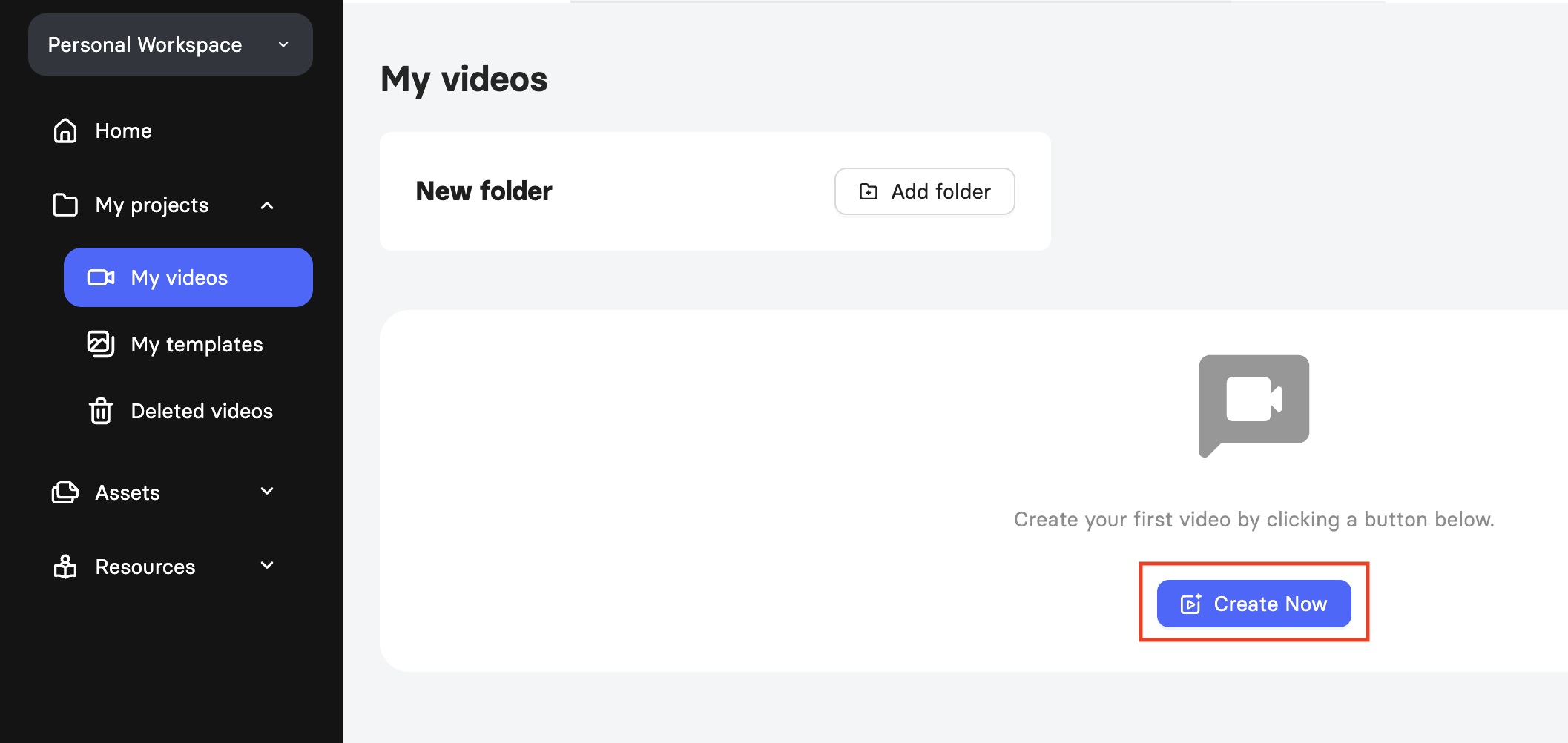
In the dialog that opens, you will see Elai's library templates under Templates and your workspace's custom templates under My templates. Only published templates are visible here.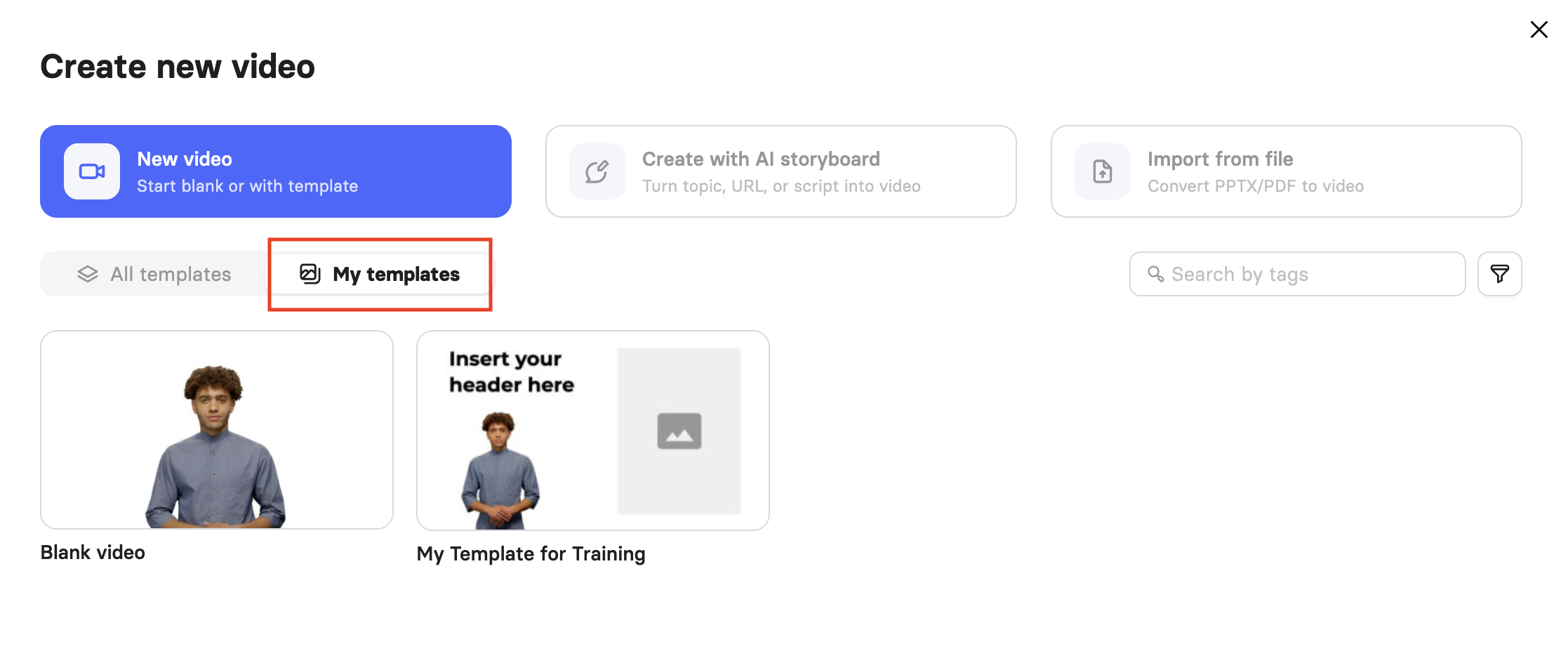
Note that when you sign up for an Elai account, you select a use case such as L&D or News, and the template grid may open with that tag pre-selected. If you do not see the template you are looking for, clear the active tag filter to view all available templates.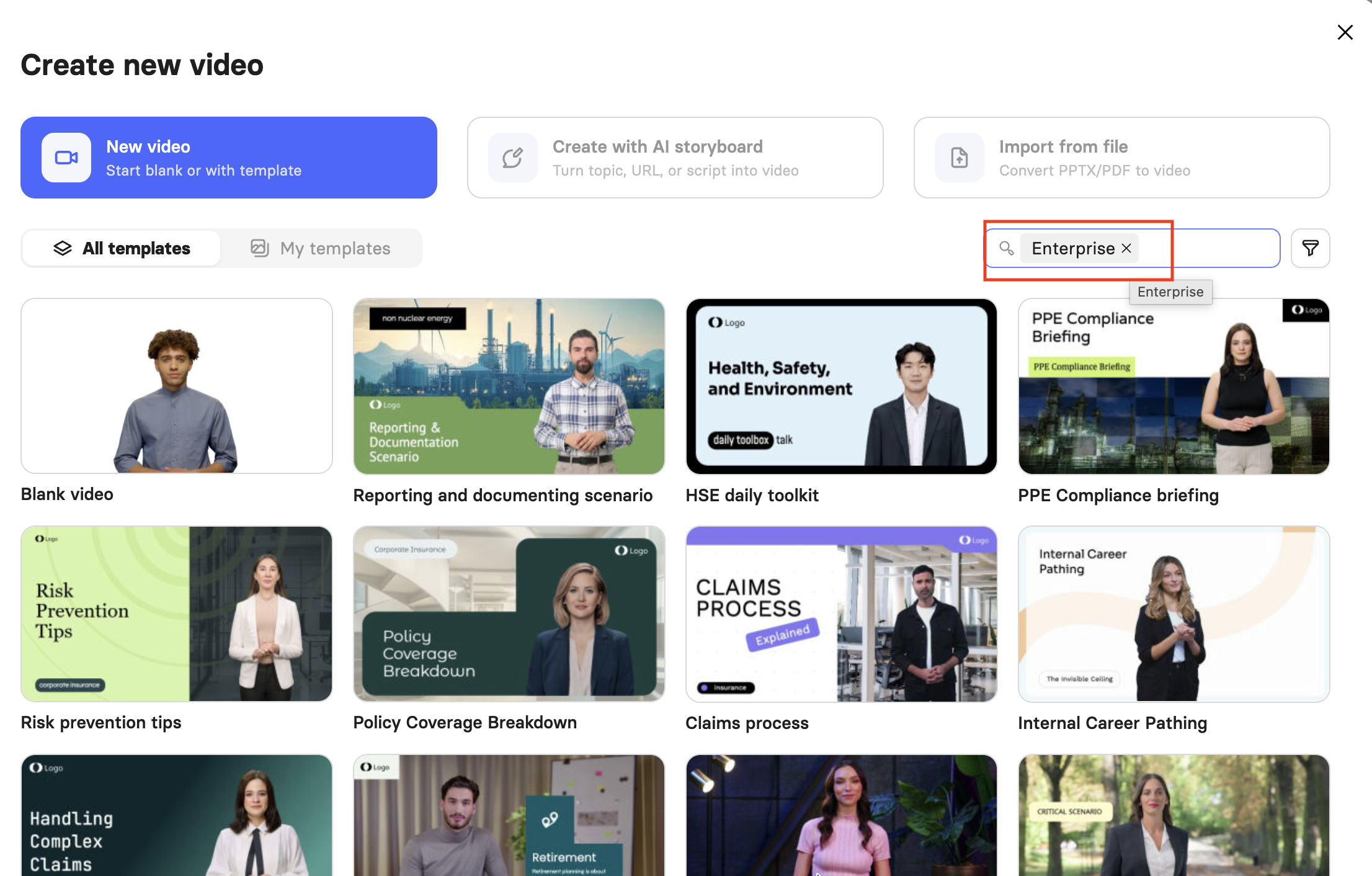
On an Enterprise plan, templates won’t sync across workspaces. If you can’t find a template, it may be in a different workspace.
You can also render a video template directly as a standalone video using the Render button in the editor. Make sure the template is published before rendering. On a Trial plan, rendering is limited to 3 slides with a total video duration of 1 minute. Even if your template has more slides, only the first 3 will render.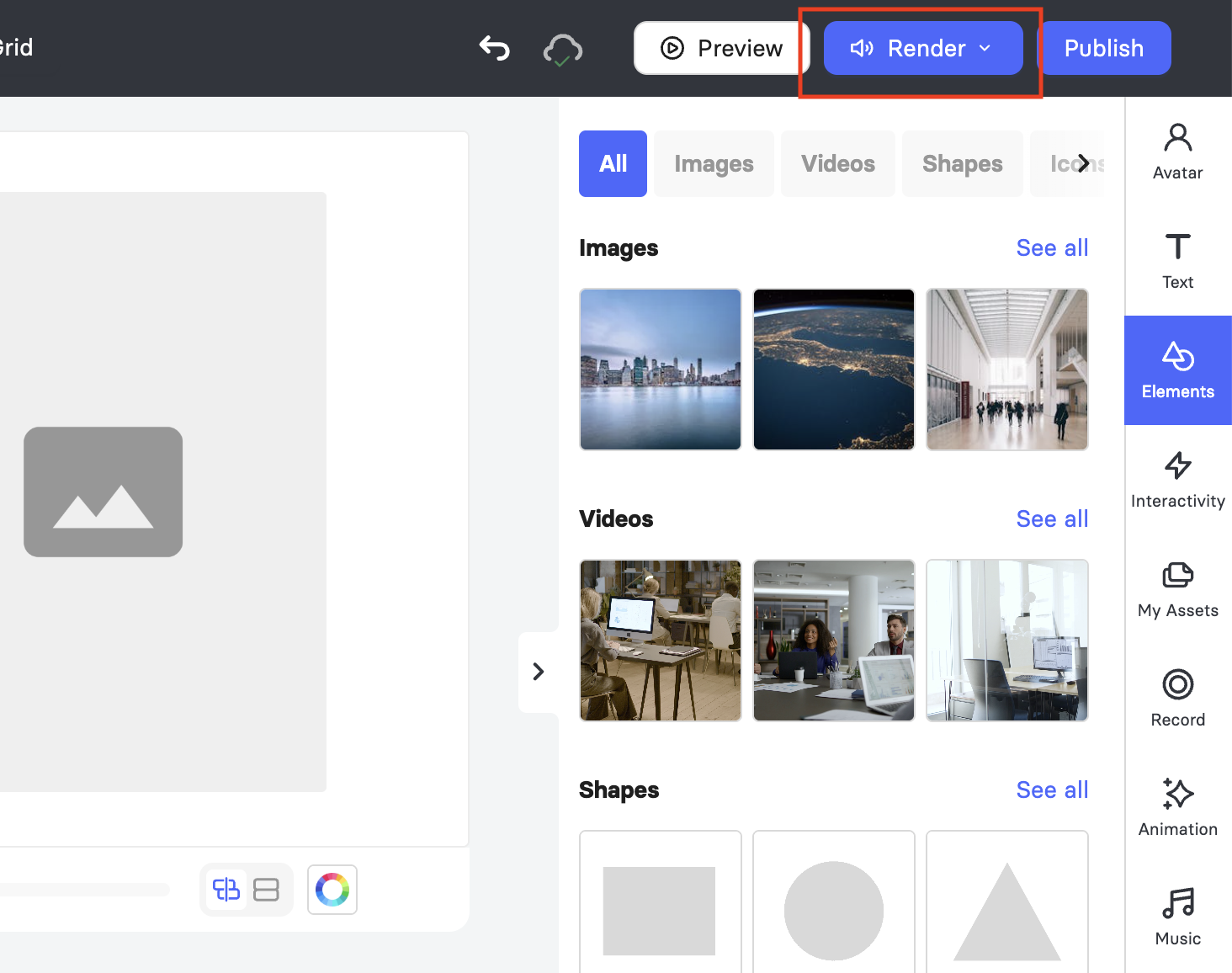
To move a template to a different workspace or cloud environment, select the move icon in the template's row in the My templates list. 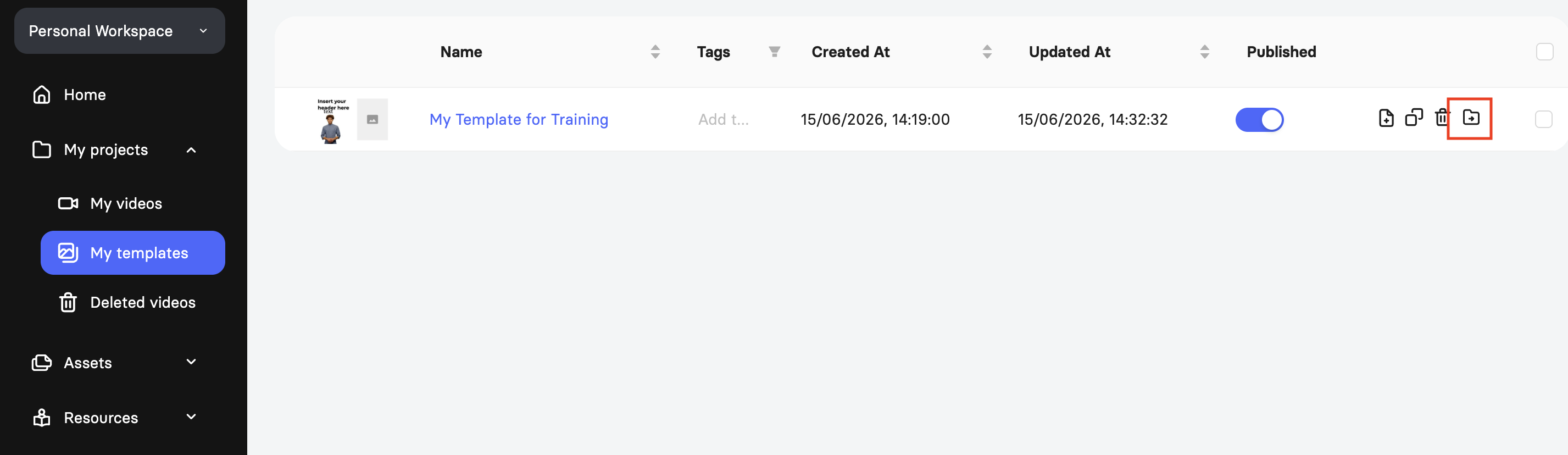
A dialog will appear where you can choose the destination: select Workspace and pick one of your available workspaces, or select Cloud to move it to a connected cloud environment. Moving a template transfers it to the selected workspace or cloud environment; it does not make the template available across multiple workspaces simultaneously. Moving templates between workspaces and clouds is only available on Enterprise plans.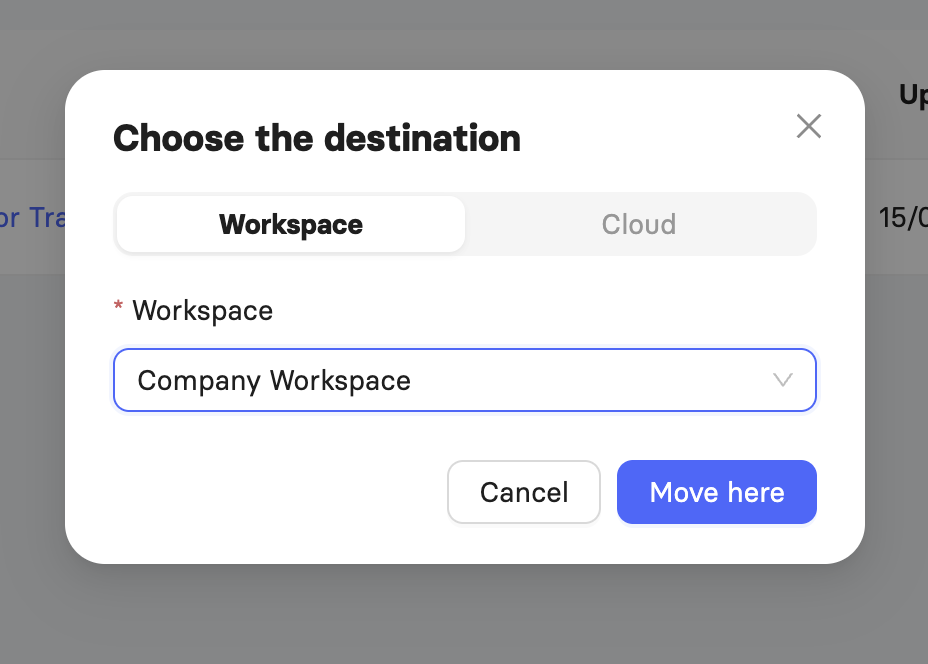
Automate Video Creation with Templates
If you need to generate videos at scale, you can use your published templates as the foundation for automated video creation through the Elai API. The API includes a dedicated endpoint for copying and generating videos from a template, enabling the programmatic production of large volumes of videos. For details, see the Elai API documentation.
Elai also supports Zapier integration for no-code workflow automation. You can connect Elai to other tools in your stack and trigger video creation automatically without writing any code. For details, see How to Use Zapier to Automate Your Video Creation Process.
FAQ
Why can't my teammates see the template I just created?
Only published templates appear in the video creation flow. Check the Published toggle in the My templates list and make sure it's turned on for your template.
I deleted a template by mistake. Can I get it back?
No. Template deletion is permanent and can't be undone, so it's worth double-checking before confirming, especially when using bulk delete.
Why can't I find a template that a colleague says they published?
On Enterprise plans, templates don't sync across workspaces, so it may exist in a different workspace than the one you're viewing. Check with your colleague which workspace they published it in.
Do slide transitions and avatar lip-sync show up when I preview a template?
No. Preview shows layout and content, but transitions and lip-sync only render in the final video output.
Was this article helpful?
That’s Great!
Thank you for your feedback
Sorry! We couldn't be helpful
Thank you for your feedback
Feedback sent
We appreciate your effort and will try to fix the article