Overview
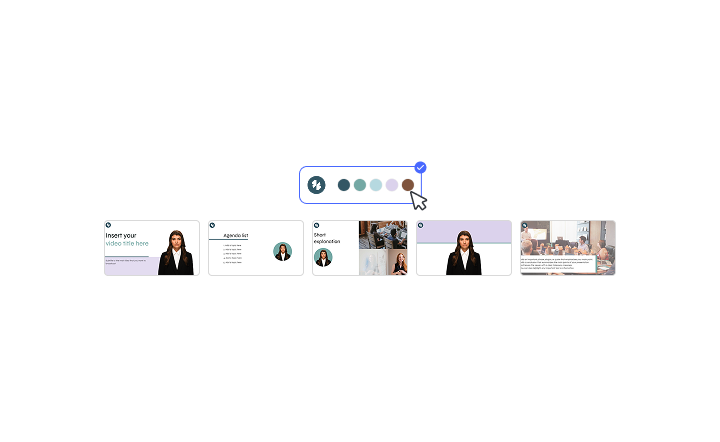
Brand Kit lets you store your logos, colors, and fonts in one place, then apply them to your Elai videos automatically instead of adding them one video at a time. It is built for teams that want every video coming out of their workspace to look consistently on brand.
Setting up your Brand Kit once means you can skip the manual styling on every new video. Pick your brand colors, upload your logo, and add your custom fonts, then apply them to any video in a few clicks.
Prerequisites
Team plan or Enterprise plan. For plan details, see Team Plan and Enterprise Plan
Setting Up Your Brand Kit
To create your Brand Kit, go to Home, then open Assets in the left sidebar and select Brand Kit.
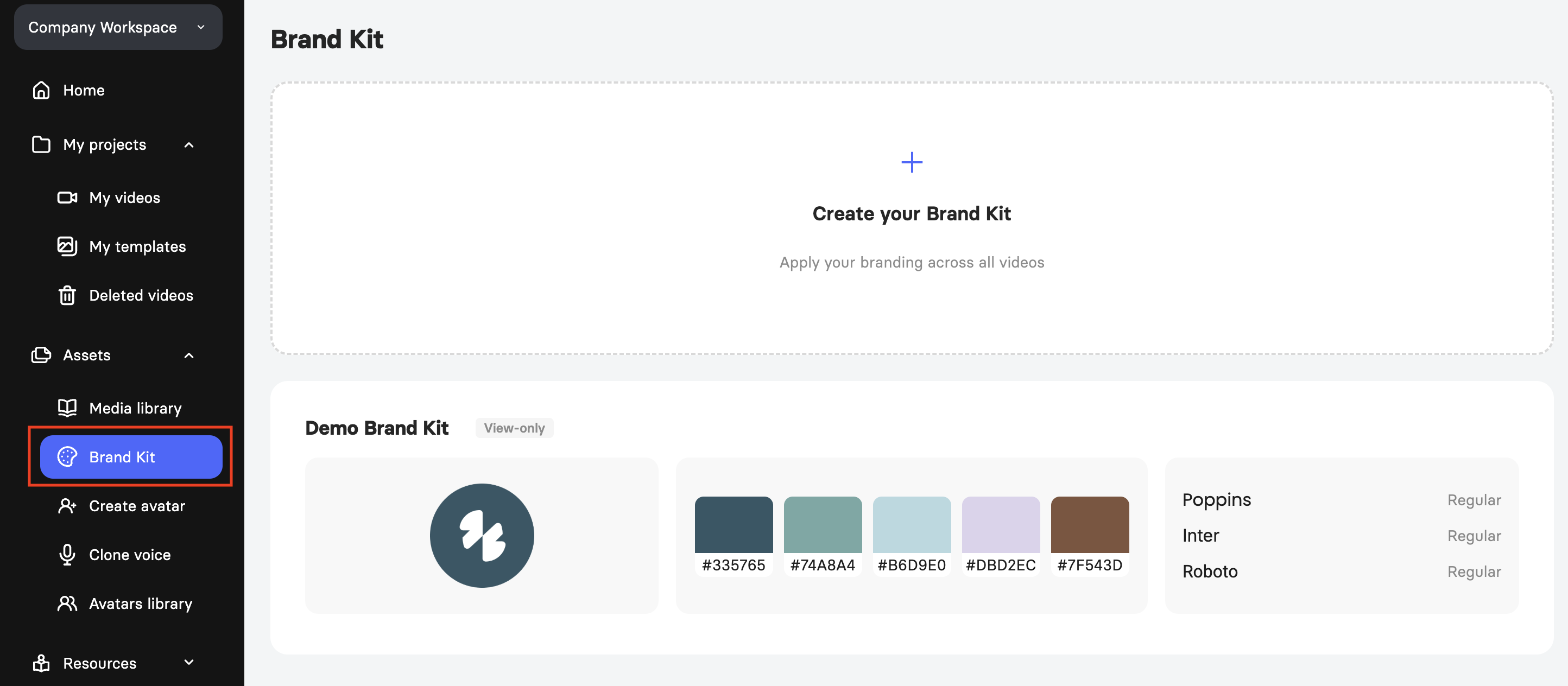
Click the plus icon to start building your own, and also check the read-only Demo Brand Kit for an example of how a finished one looks. From there, you can upload a logo, add your brand colors, and upload your custom fonts.
How much you can store depends on your plan.
Team: up to 2 logos, up to 5 colors, and up to 5 font families
Enterprise: up to 10 logos, up to 10 colors, and up to 20 font families
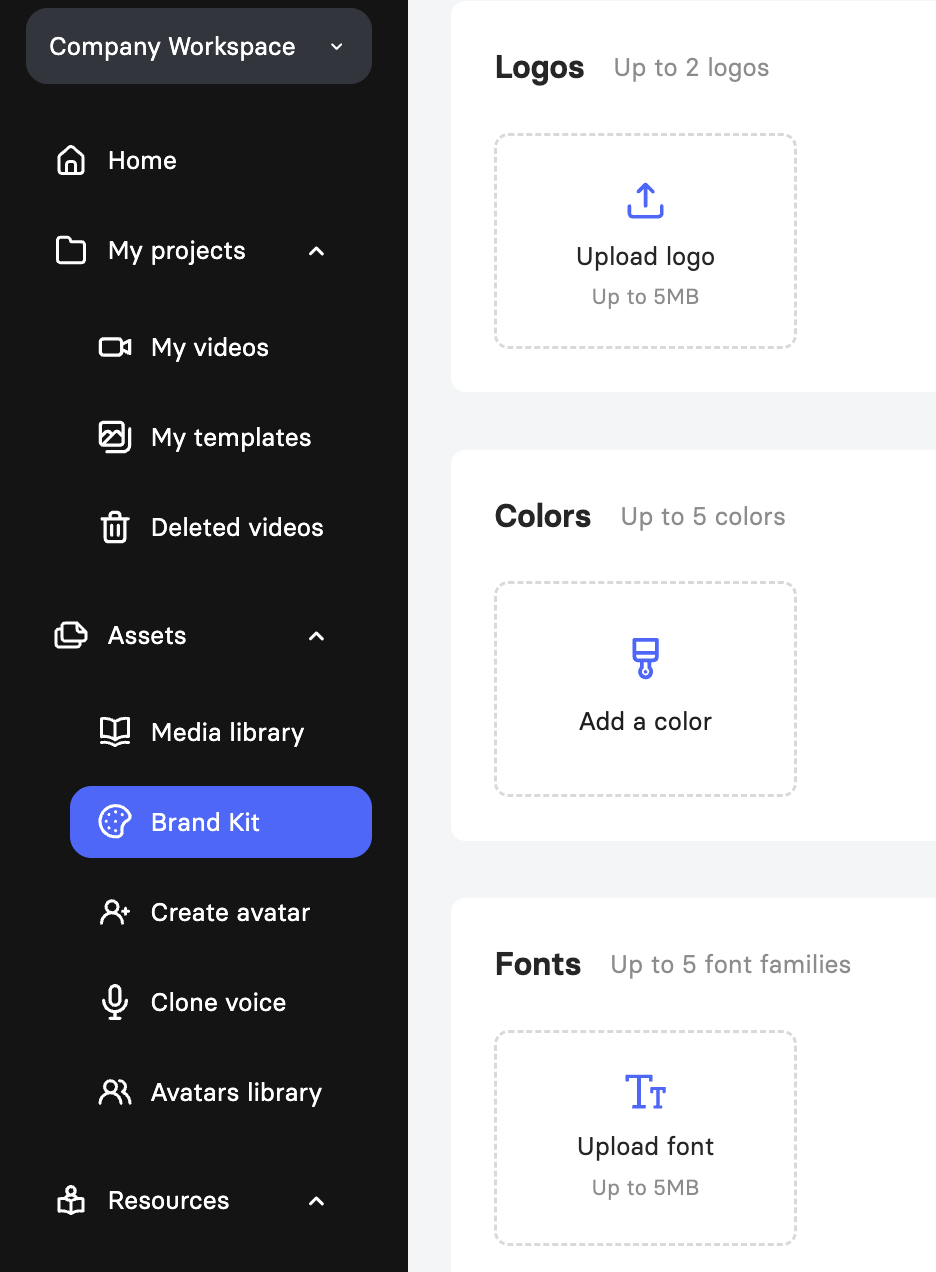
Logos can be up to 5 MB each, and fonts must be TTF files up to 5 MB each.
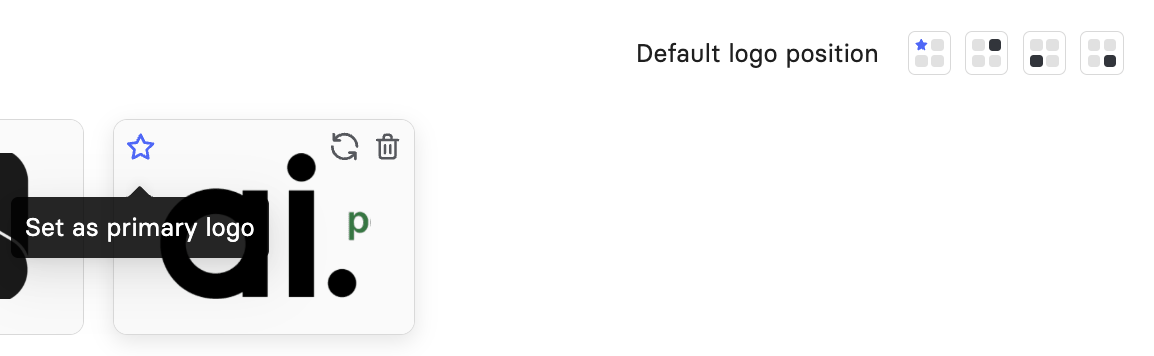
When you upload a logo, you can also choose a default logo position from the layout options provided, such as top left, top right, bottom left, or bottom right.
Also, near each uploaded file, you can choose the blue star and select the logo as primary for all your videos.
Once your Brand Kit is set up, you can apply it to your videos in the Elai editor. This updates your slide colors to match your Brand Kit palette and applies your logo to all slides by default, replacing any existing logos. Fonts must be applied manually.
Important! If your video was created from a template, the fonts in the slides would correspond to one from the template. To use your Brand Kit fonts instead, you need to apply them manually to each text element. For steps, see How to Upload Your Custom Font to a Video.
Applying Your Brand Kit to a Video
You can apply your Brand Kit from two places.
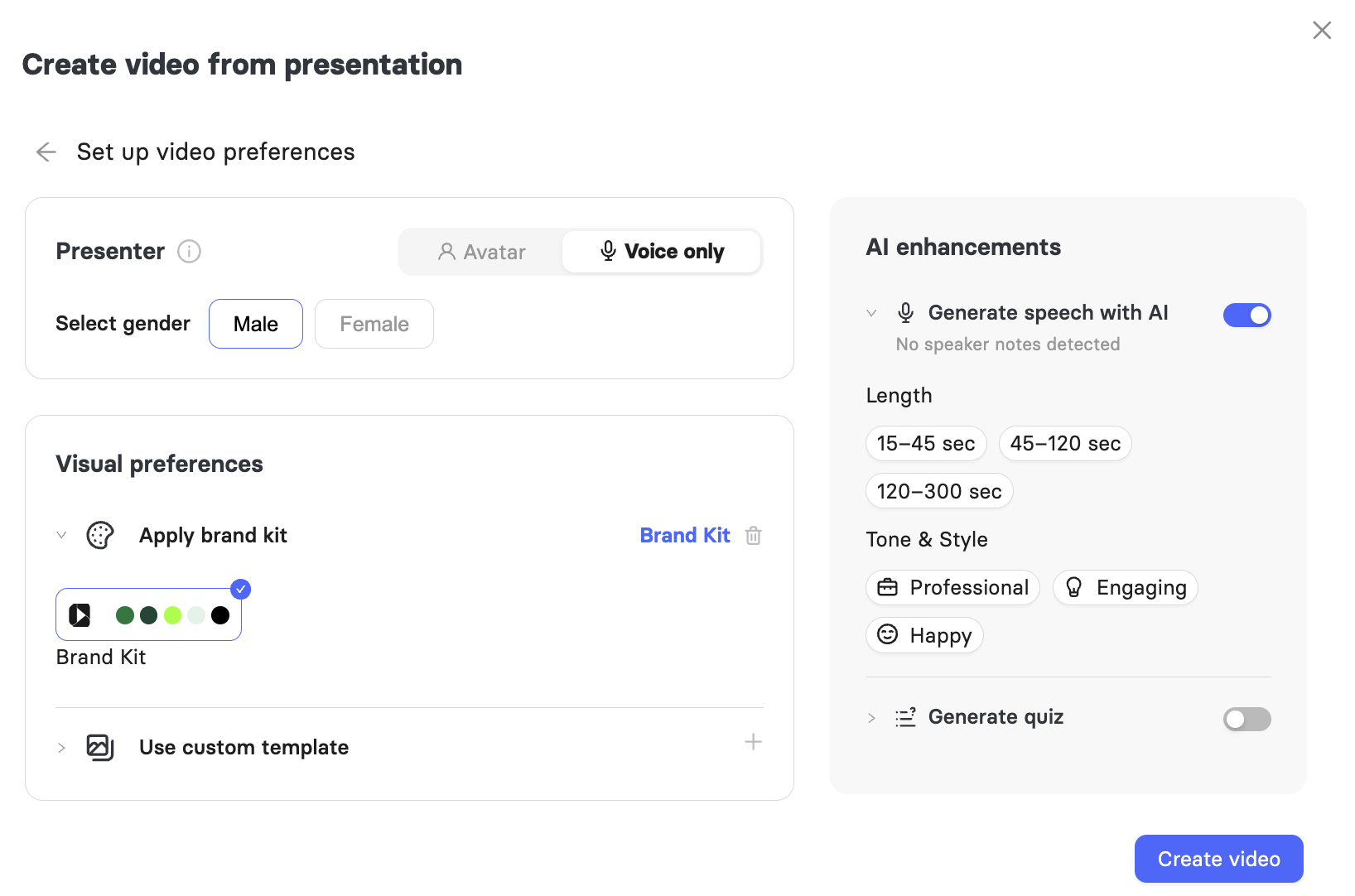
When creating a video from a PPT/PPTX, choose Apply Brand Kit under Visual Preferences before the video is generated. For the full walkthrough, see How to Create a Video From a PowerPoint or PDF File.
You can also apply it directly inside the video editor.
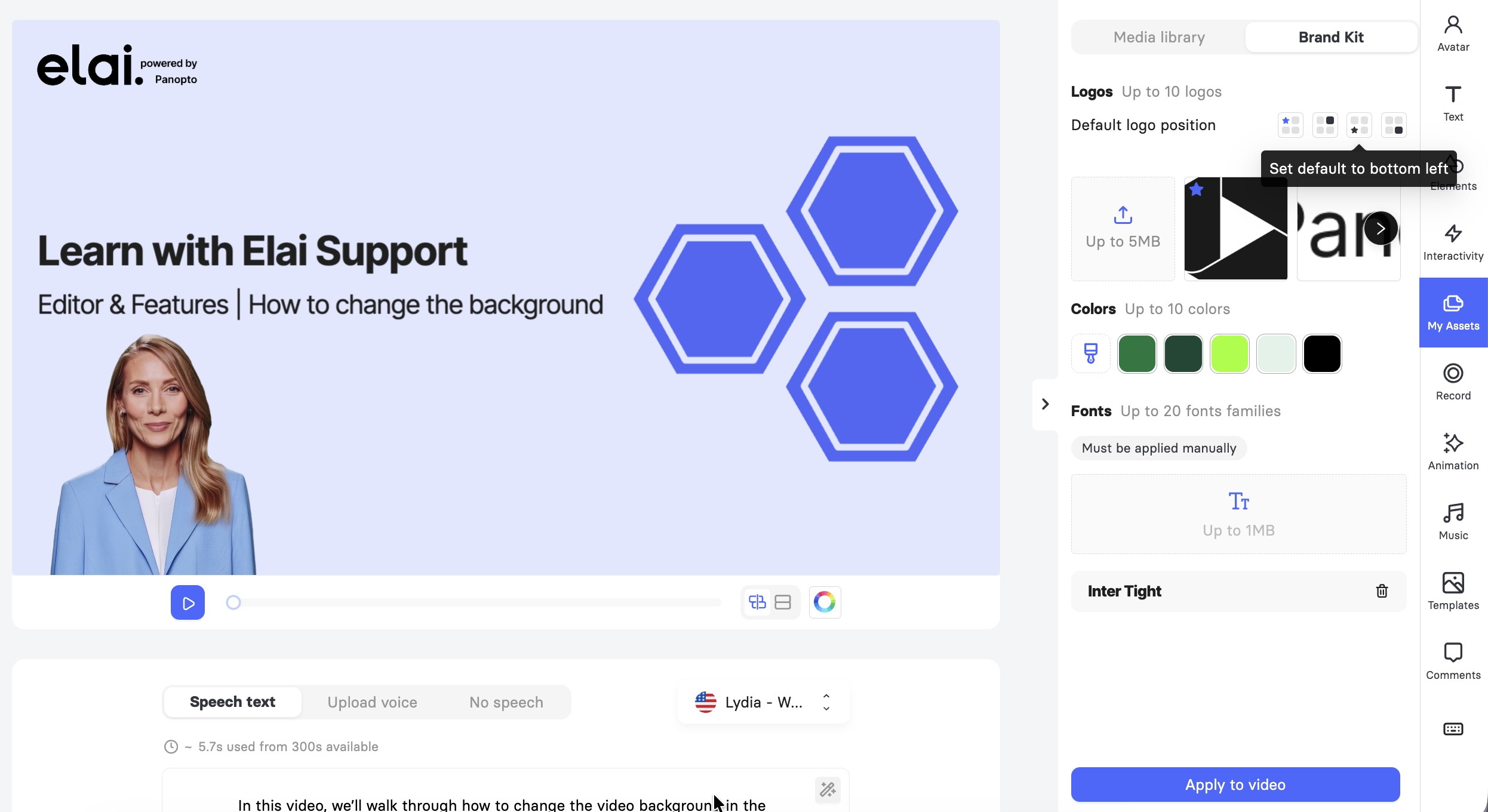
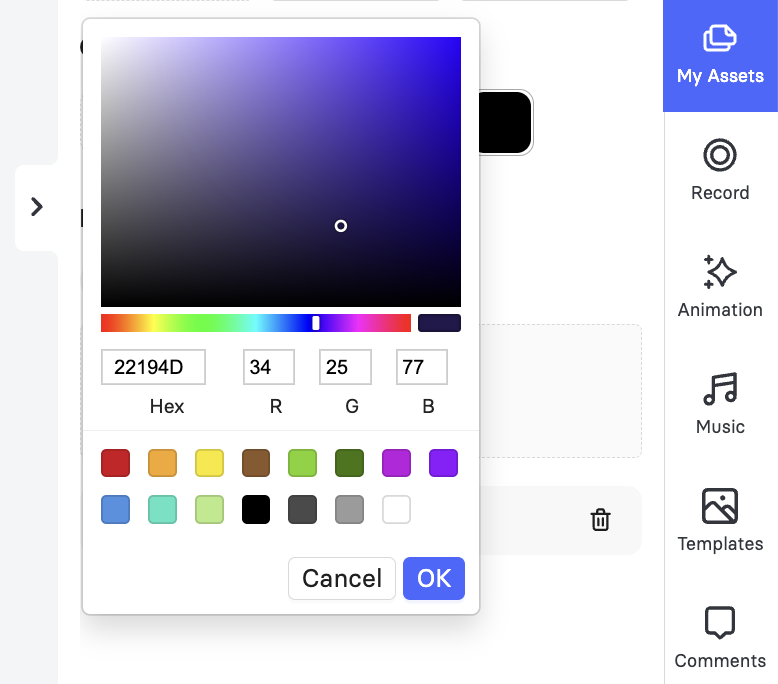
Open My Assets, select the Brand Kit tab, choose a logo position, pick a color from the palette or enter a hex code, then click Apply to Video.
FAQ
What plan do I need to use Brand Kit?
Brand Kit is available on the Team and Enterprise plans.
If I convert a PowerPoint file into a video, what happens to fonts I do not upload?
Any font used in your PPTX or PPT file that is not uploaded to your Brand Kit is replaced with a default font.
Can I remove a logo, color, or font from my Brand Kit?
Yes. Open Brand Kit and click the bin icon next to the item you want to remove.
Was this article helpful?
That’s Great!
Thank you for your feedback
Sorry! We couldn't be helpful
Thank you for your feedback
Feedback sent
We appreciate your effort and will try to fix the article