Overview
The background sets the visual tone of every slide in your video. In the Elai editor, you can replace it with an image, a video, or a solid color, and you can do this on a blank canvas or on a slide you started from a template.
Backgrounds apply slide by slide, giving you full control over how each scene looks. You can use media from the Elai stock library, upload your own files, or pick a color from your brand palette so every video stays consistent with your visual identity.
Prerequisites
Verified account
Adding a Background From the Elements Tab
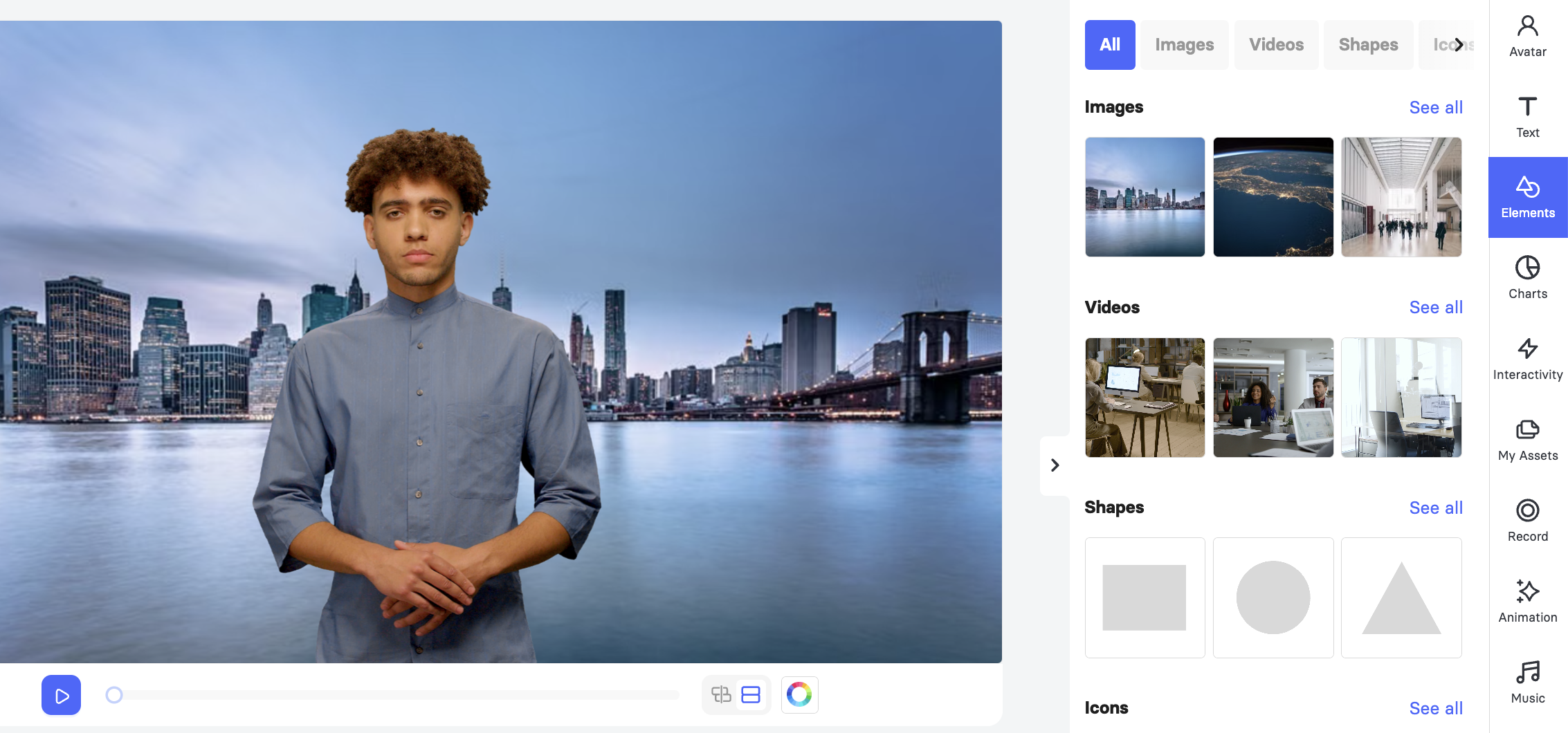
The Elements tab holds Elai’s built-in images, videos, shapes, icons, and more. Any image or video here can become a slide background.
Note: If your media does not match the dimensions of your slide, it will be cropped to fit when you click Apply as background. For best results, use media that matches your slide size.
Open your video in the Elai editor and select the slide you want to edit.
Click Elements on the right side panel.
Select the image or video you want to use as your background.

Click Apply as background.
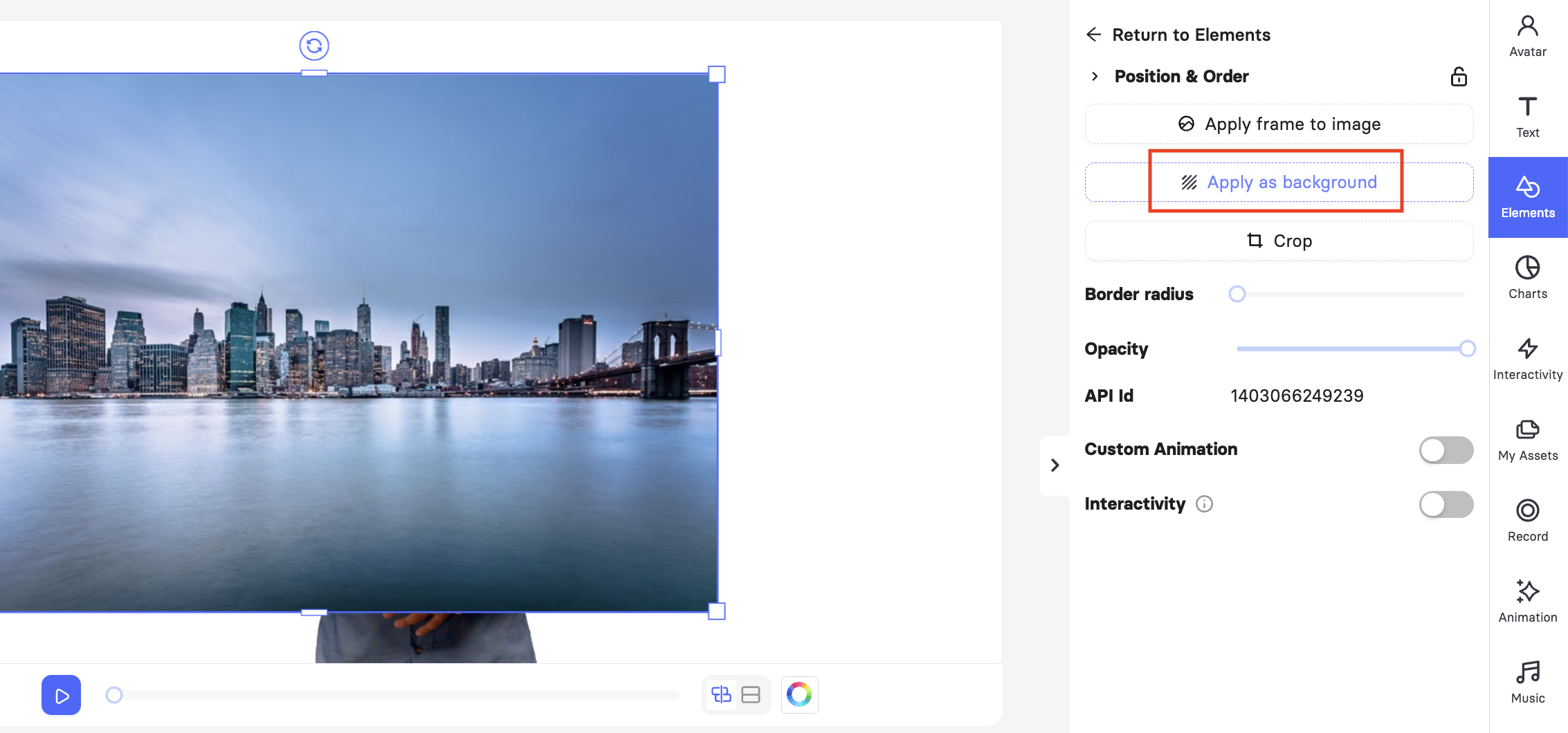
The media is automatically scaled and locked to the back of your scene, so it stays behind your avatar and any text you add.
Adding a Background From My Assets
You can also use your own uploaded files from My Assets. The My Assets tab gives you access to any files you have uploaded yourself.
Click My Assets on the right side panel.
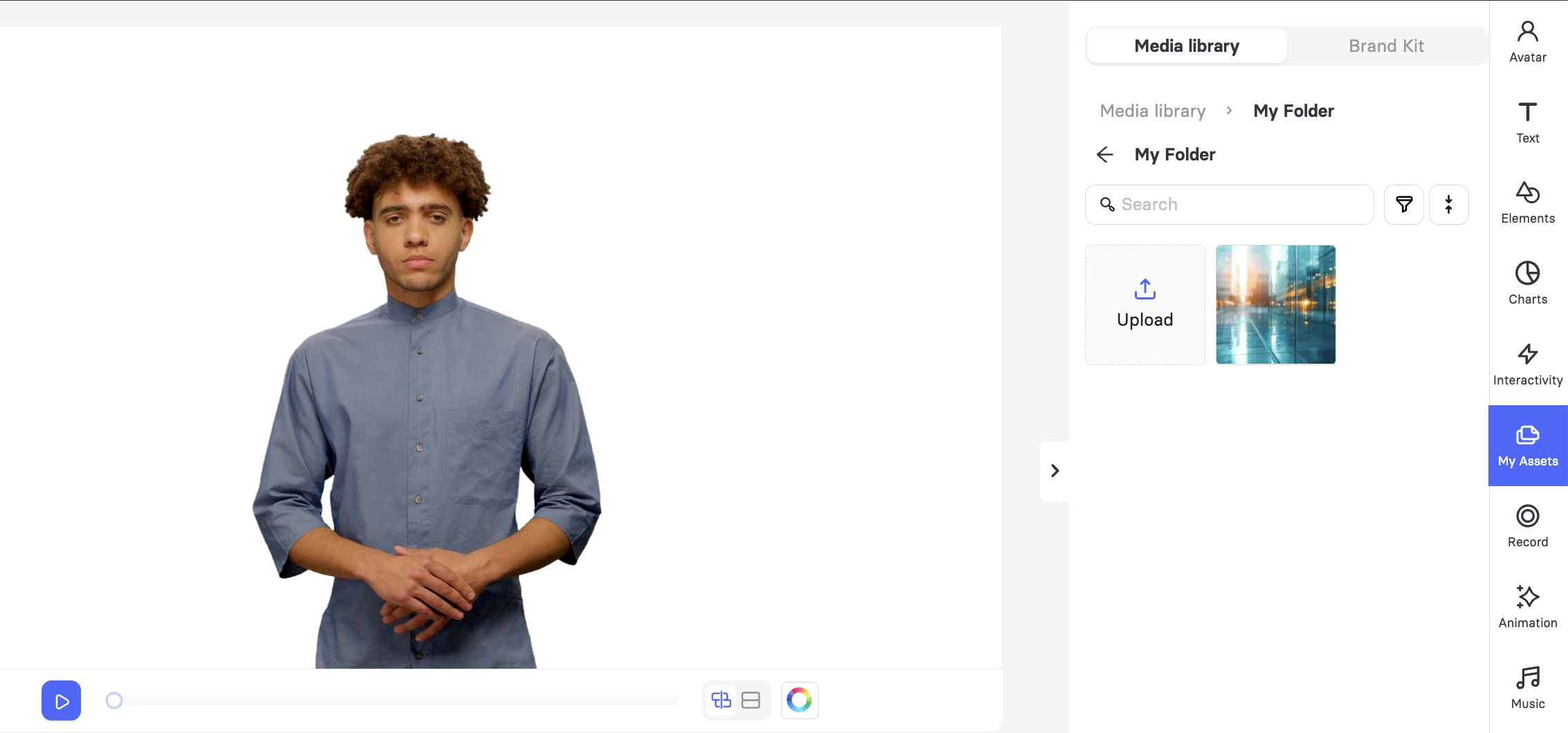
Select an image or video from the Media Library, or click Upload to add your own file.
Click Apply as background.
Changing the Slide Background Color
If you want a clean solid background instead of media, you can set a color directly from the slide toolbar.
Select the slide you want to edit.
Click the color wheel icon beneath the slide preview.

Choose a color from one of the three sections:
Brand Colors: the colors saved in your brand kit. To edit them, click Manage colors in My Assets. For details, see Learn About Brand Kit.
Video Colors: the colors already used in the current video, so you can match existing elements quickly.
Default Color Palette: Elai’s standard set of ready-to-use colors.
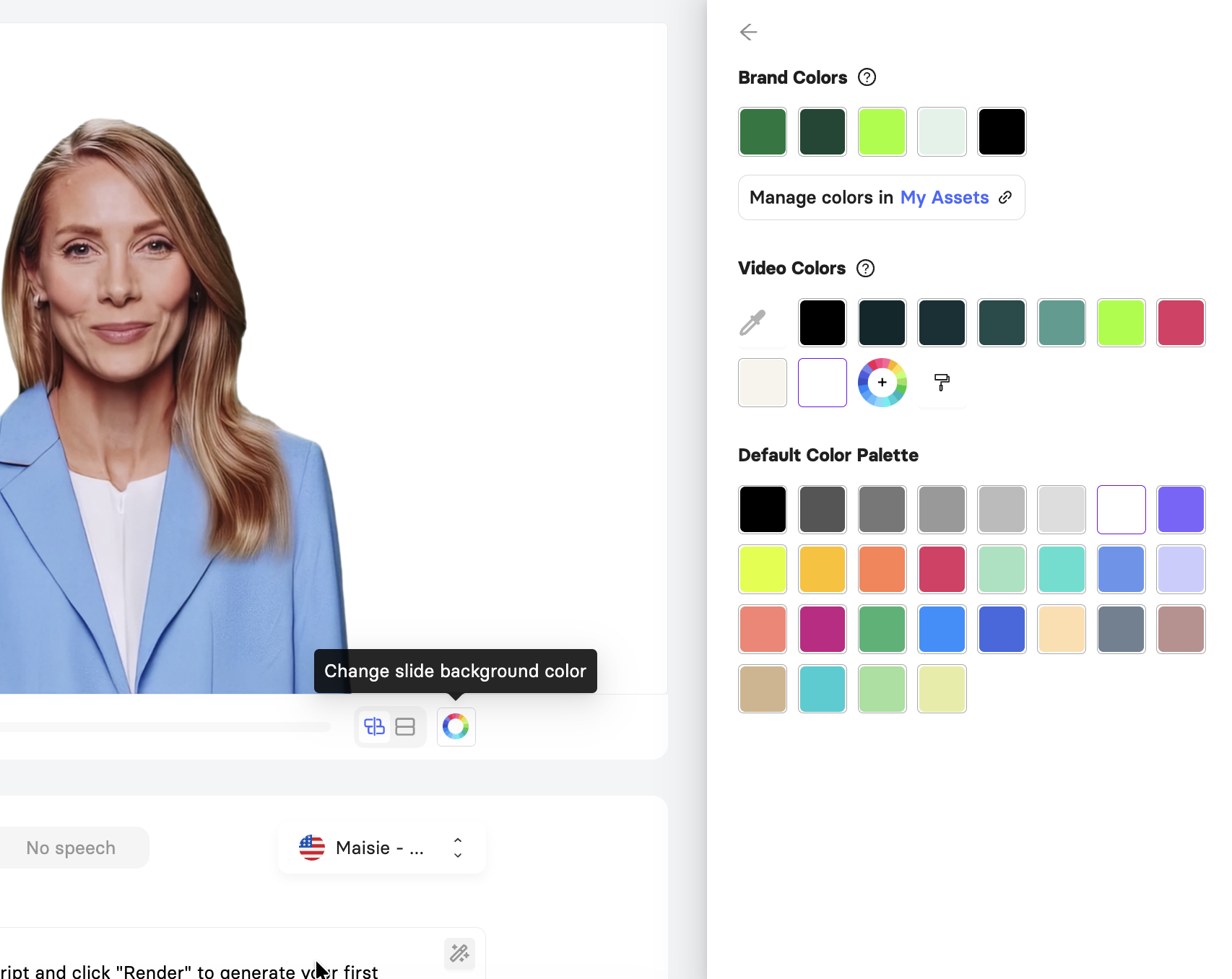
To use a specific color, click the plus icon in the Video Colors row to open the color picker.
The color is applied to the slide as soon as you select it, and your changes are saved as a draft automatically.
Keeping the Same Background Across Slides
Backgrounds apply to one slide at a time, so a background you set on slide 1 will not carry over to the slides that follow. There are two ways to keep your video consistent.
Re-apply the background on each slide after you create it.
Set up one slide exactly how you want it, then duplicate it before adding your content. Hover over the slide in the left panel and click the Duplicate slide icon.

Managing and Removing Your Background
Once a background is applied, you can adjust how it looks, animate it, turn it back into a regular element, or delete it. All of these options live in the background settings panel.
Double-click the background on the canvas to open the background settings panel.

Use Border radius to round the corners of your background.
Use Opacity to make the background more or less transparent.
Switch on Custom Animation to animate the background. Choose the Enter or Exit tab, select an animation from the drop-down, then set the Appearance time and Animation duration.
Click Save background changes to keep your edits.
To unlock the media without removing it, click Detach from background. The media becomes a regular element again, so you can move, resize, and reposition it on the slide.
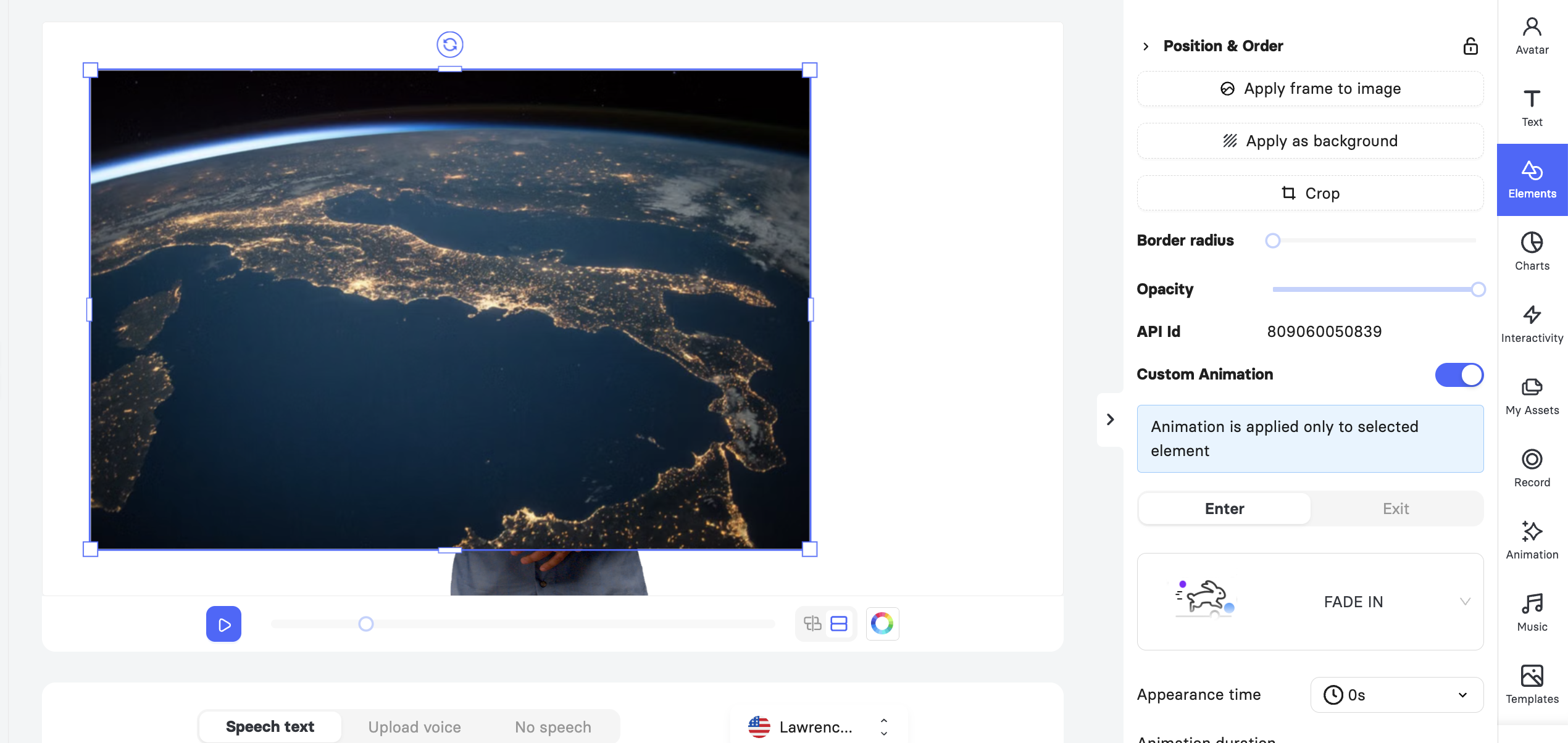
To delete the background completely, double-click it on the canvas to select it, then press Delete on your keyboard.
Note: Deleting a background affects only the current slide. Backgrounds on your other slides stay in place.
FAQ
Can I use a video as a background?
Yes. Select a video from the Elements tab or My Assets and click Apply as background.
Why did my background disappear on the next slide?
Backgrounds are applied per slide. Re-apply the background on each slide, or duplicate a slide that already has the correct background.
Can I move or resize a background after applying it?
Applying media as a background scales it to the slide and locks it behind your other elements.
Where do the colors under Brand Colors come from?
They come from your Brand kit. Click Manage colors in My Assets to update them.
Was this article helpful?
That’s Great!
Thank you for your feedback
Sorry! We couldn't be helpful
Thank you for your feedback
Feedback sent
We appreciate your effort and will try to fix the article