Overview
Your Elai license includes a set number of minutes for rendering videos. Each time you render, Elai deducts the length of that video from the minutes in your current billing cycle.
This happens on every render, including a repeat render of the same video after a small change such as a corrected typo. Previewing costs nothing, so you can check your work as often as you like before you spend any minutes.
Prerequisites
Verified account
The User role or higher in your workspace. If you cannot start a render, contact your workspace Admin or see Learn About Workspace Settings.
When Render Minutes Are Deducted
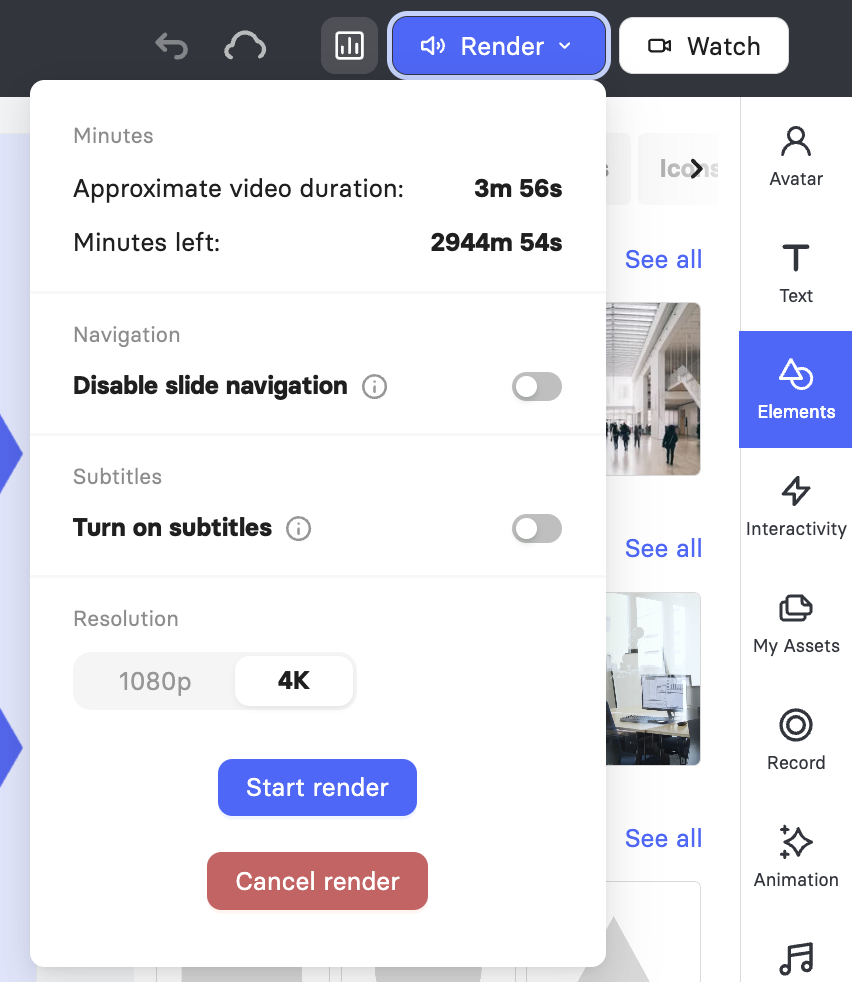
Elai deducts minutes when you start a render, not while you are building or previewing your video. When you click Render in the top bar, the render panel opens and shows Approximate video duration next to Minutes left, so you can compare the two before you commit. Clicking Start render begins the render and takes the minutes for that video from your current billing cycle.
Each render is counted separately. Minutes are deducted again when you:
Render the same video
Render after a small edit, such as fixing a typo or swapping an image
Render again after changing a transition, a voice, or any other setting in the editor
Note: Anything you change in the editor after a render appears only in a new render, so plan your edits before you render rather than after.
What Affects Your Finished Video Length
The duration shown in the editor is an estimate. It is based on your script and the timing of the elements on your slides, and it gives you a close idea of how many minutes a render will take.
Transitions are added to your video during rendering rather than while you edit, so a video with transitions between slides can run slightly longer than the estimate. Treat Approximate video duration as a guide and keep a small margin of minutes in reserve, especially for longer projects with a transition on every slide.
Previewing Before You Render
Previews are free and unlimited, which makes them the safest way to check your work before you spend minutes. You have two options.
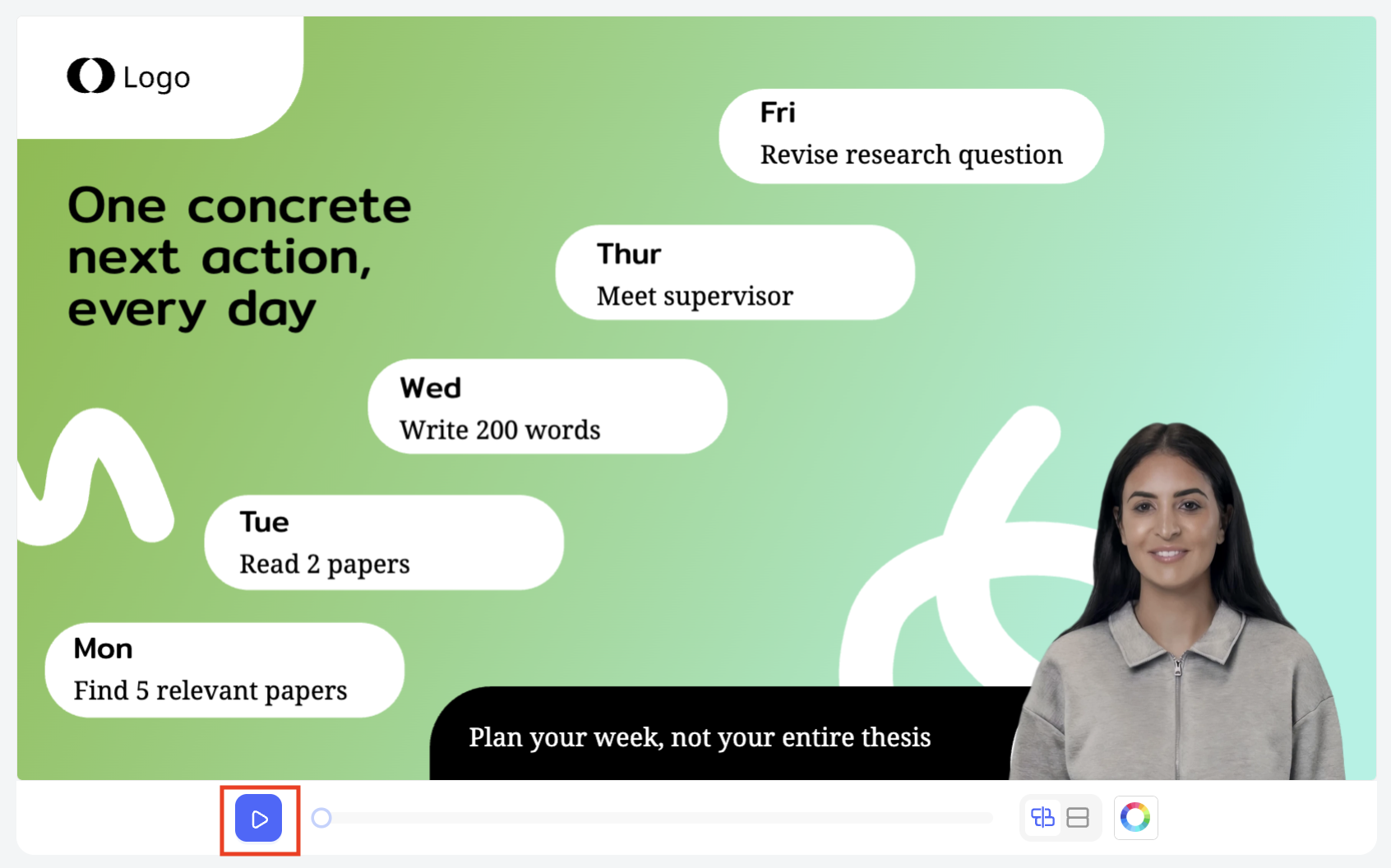
Slide preview: Click the play icon on the canvas toolbar beneath the slide to watch the slide you currently have open.
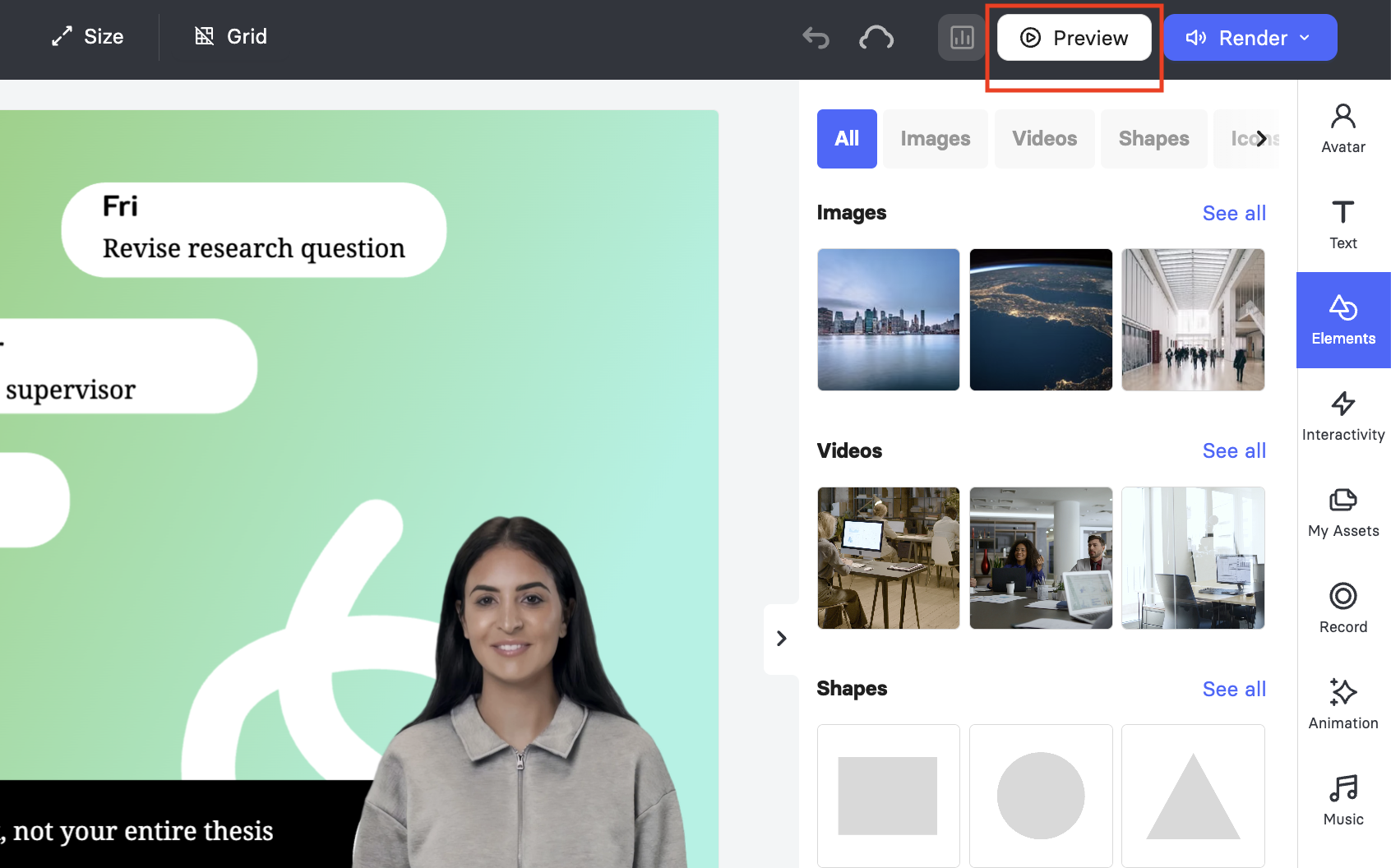
Video preview: Click Preview in the top bar to watch all of your slides in order, from the first to the last.
Both previews play your project as you built it, including your slide design, element timing, slide animations, backgrounds and branding, your chosen avatar, and the order your slides play in. Previews leave out transitions and avatar speech with lip sync because Elai generates those during rendering. For more detail on what previews show and hide, see Why Are Transitions and Lip Sync Not Visible in Preview?
FAQ
Will minutes be used after each rendering?
Yes. Every render deducts the length of that video from your billing cycle, even when you are rendering the same video again.
Do previews use any of my minutes?
No. The slide preview and the video preview are both free, so you can watch your project as many times as you need before you render.
Why is my finished video longer than the duration shown in the editor?
The editor shows an estimate. Transitions are applied during rendering, so the finished file can run slightly longer than the number you saw before you started the render.
Where can I check how many minutes I have left?
Click Render in the top bar and look at Minutes left in the render panel, next to the approximate duration of your current video.
Do I need to render again if I change a transition?
Yes. Transitions are built into the video during rendering, so a new render is needed before your change appears in the finished file.
Was this article helpful?
That’s Great!
Thank you for your feedback
Sorry! We couldn't be helpful
Thank you for your feedback
Feedback sent
We appreciate your effort and will try to fix the article