Overview
Workspace Settings lets you manage members of your Elai workspace, assign roles, and control workspace-level configuration. This is where you handle everything from setting up a new team to maintaining an existing one to deleting a Workspace entirely.
To learn how to create a workspace, see Learn How to Create a Workspace.
Workspace management is designed to give you precise control over who can access your content and what they can do. Each member of your workspace is assigned a role that determines their level of access, helping you keep your projects organized and secure. Only organization admins and workspace admins can manage workspaces.
Prerequisites
Enterprise plan
Admin role within your workspace or organization
Access Workspace Settings
Select your workspace name in the upper-left corner of the screen. A dropdown panel will appear showing your currently active workspace along with the following options:
Manage: Opens the full Workspace Settings panel for your current workspace.
Invite: Opens the invite dialog directly, allowing you to instantly invite new members to the Workspace.
Other workspaces: Opens a list of all of your Workspaces, allowing you to switch between them instantly.
+ Create: Creates a new workspace. To learn how to create a workspace, see Learn How to Create a Workspace.
Manage organization: Opens your organization-level settings. To learn more, see Learn About Organization Settings.
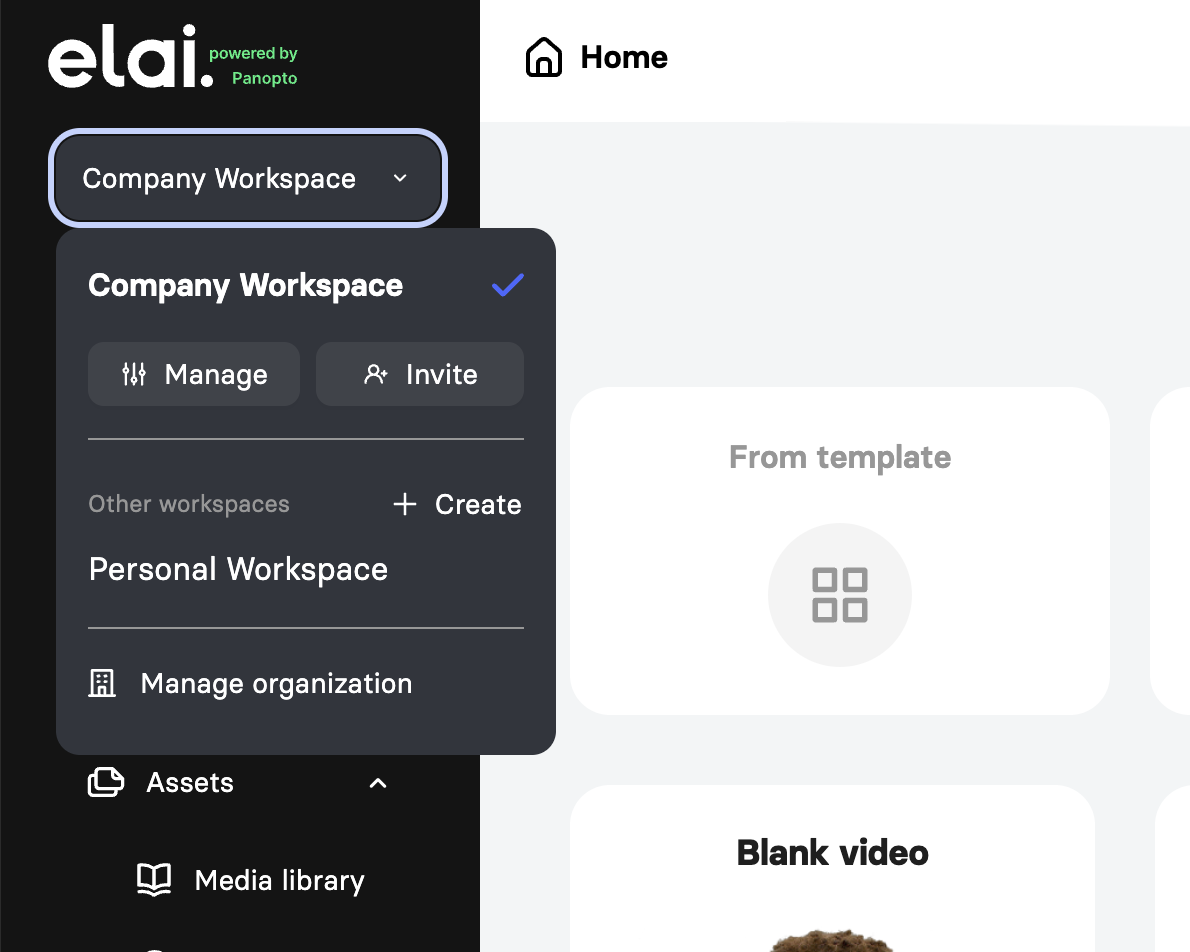
Select Manage to open the Workspace Settings page. The panel will display three sections in the left-hand navigation: Overview, General, and Users.
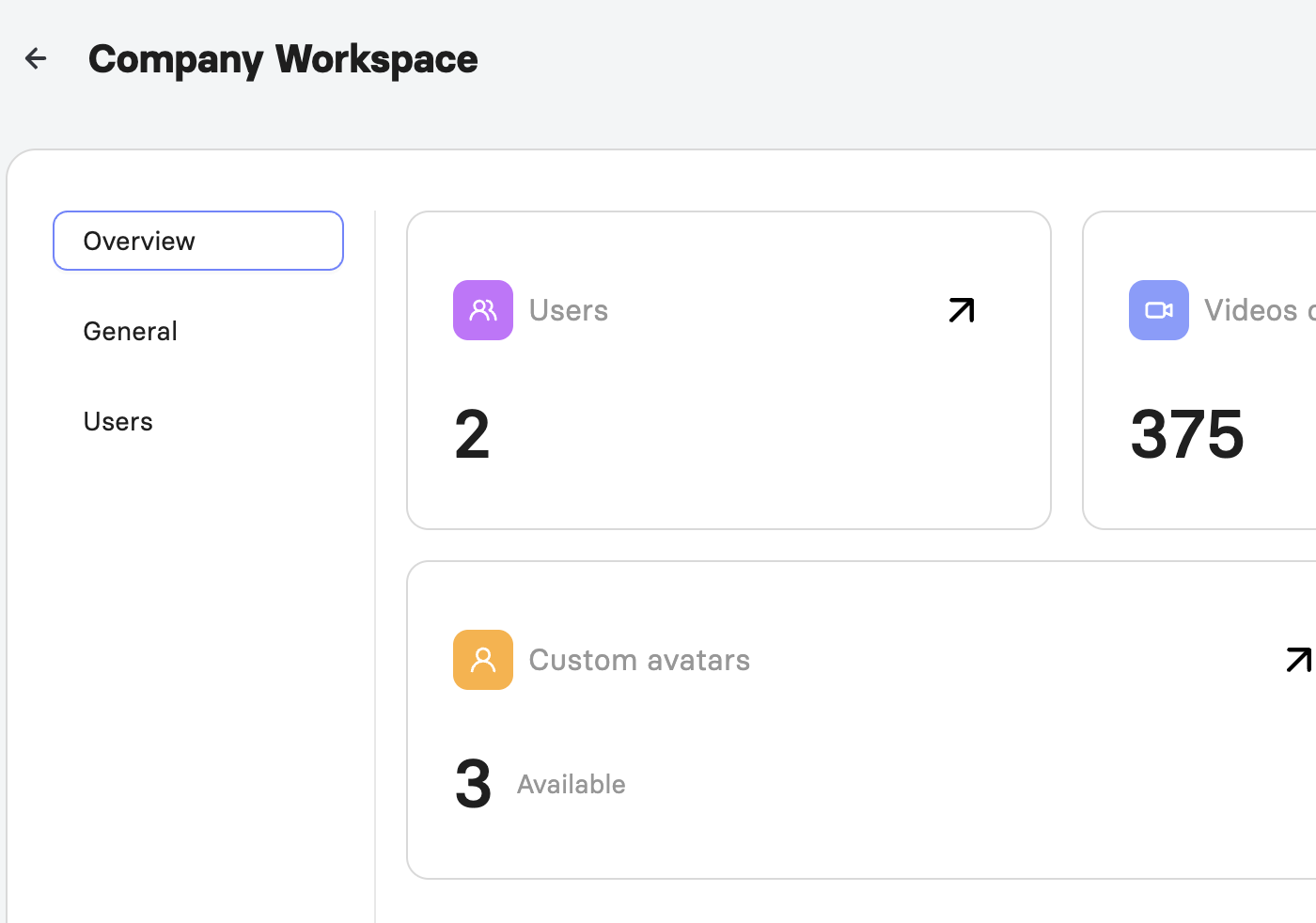
Review Your Workspace Overview
The Overview section gives you a high-level summary of your Workspace's current activity and resource usage. It displays the following:
Users: The total number of members currently in your workspace.
Videos Created: The total number of videos created in the Workspace.
Minutes Rendered: The total number of video minutes rendered, shown alongside your plan's total minute allowance.
Custom Avatars: The number of custom avatars available in your Workspace.
Voice Clones: The number of voice clones created.
Manage General Settings
The General section allows you to update your Workspace name, review render minutes usage, and permanently delete the Workspace.
- Under Workspace Name, view and edit your Workspace’s name
- The Render Minutes area shows two values side by side: your Render Minutes Limit (if one has been set for this Workspace) and your current Usage, displayed as minutes rendered against your plan's total allowance.
- To permanently delete your Workspace, scroll to the Delete Workspace section and select Delete Workspace.
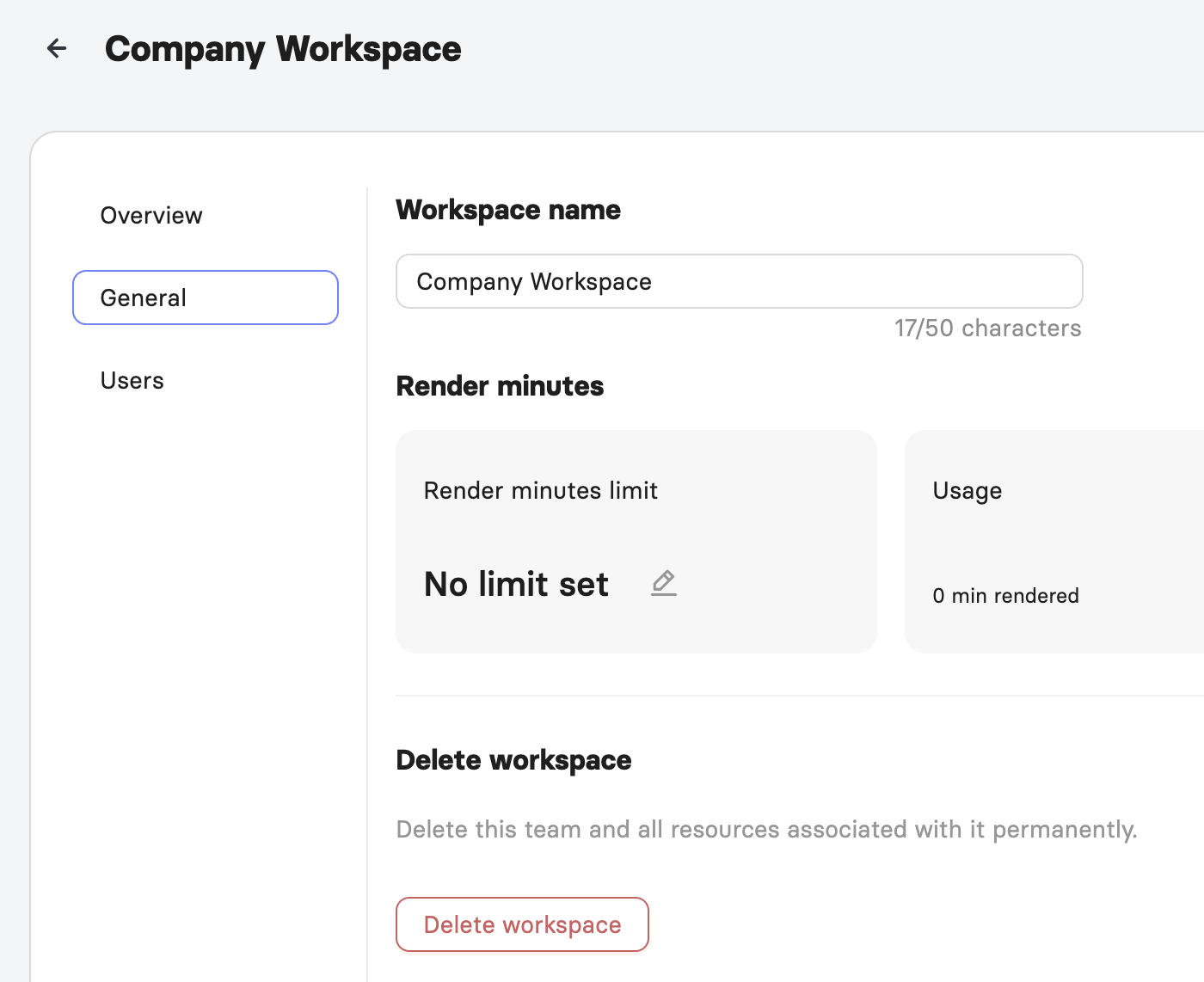
Important! Deleting your Workspace is permanent and cannot be undone. Once deleted, you will lose access to all videos, uploaded media, and custom avatars associated with the Workspace. Any remaining credits will not be refunded, and custom avatars cannot be migrated to another account. If this is your only Workspace, you will be prompted to enter the Workspace name to confirm deletion.
Only organization admins can delete Workspaces.
Invite and Manage Users
The Users section is where you invite new members, manage existing members' roles, and remove members from your Workspace.
- To invite a new user, select + Invite User in the upper-right corner of the Users table
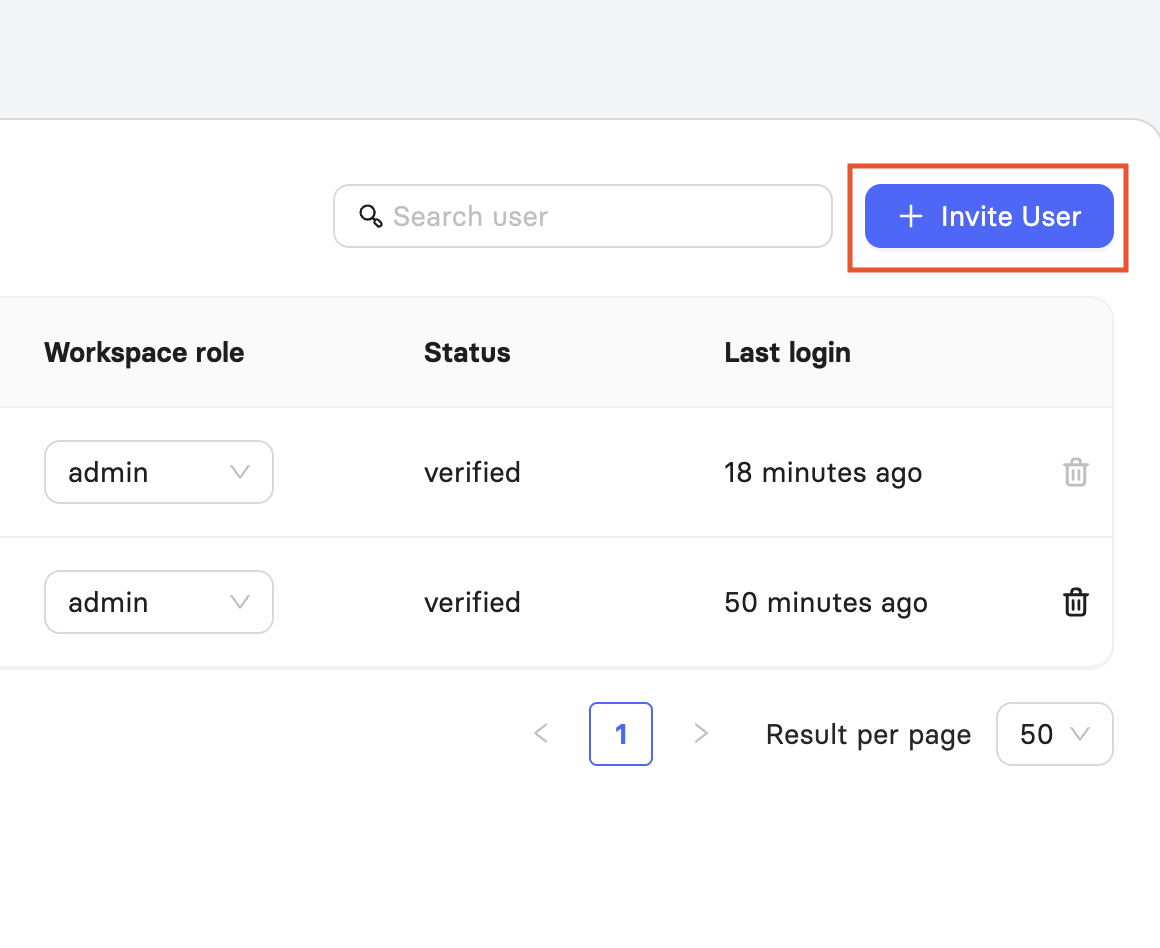
- In the dialog that appears, enter the new user's name (optional) and email address, then select a role from the Role dropdown.
- Select Invite to send the invitation. You cannot invite someone whose email address is already registered in Elai. If an account already exists with their email, ask the user to delete their existing account or provide an alternative email address. Once invited, the new user will receive a verification email and must click Verify in their inbox to access Elai.
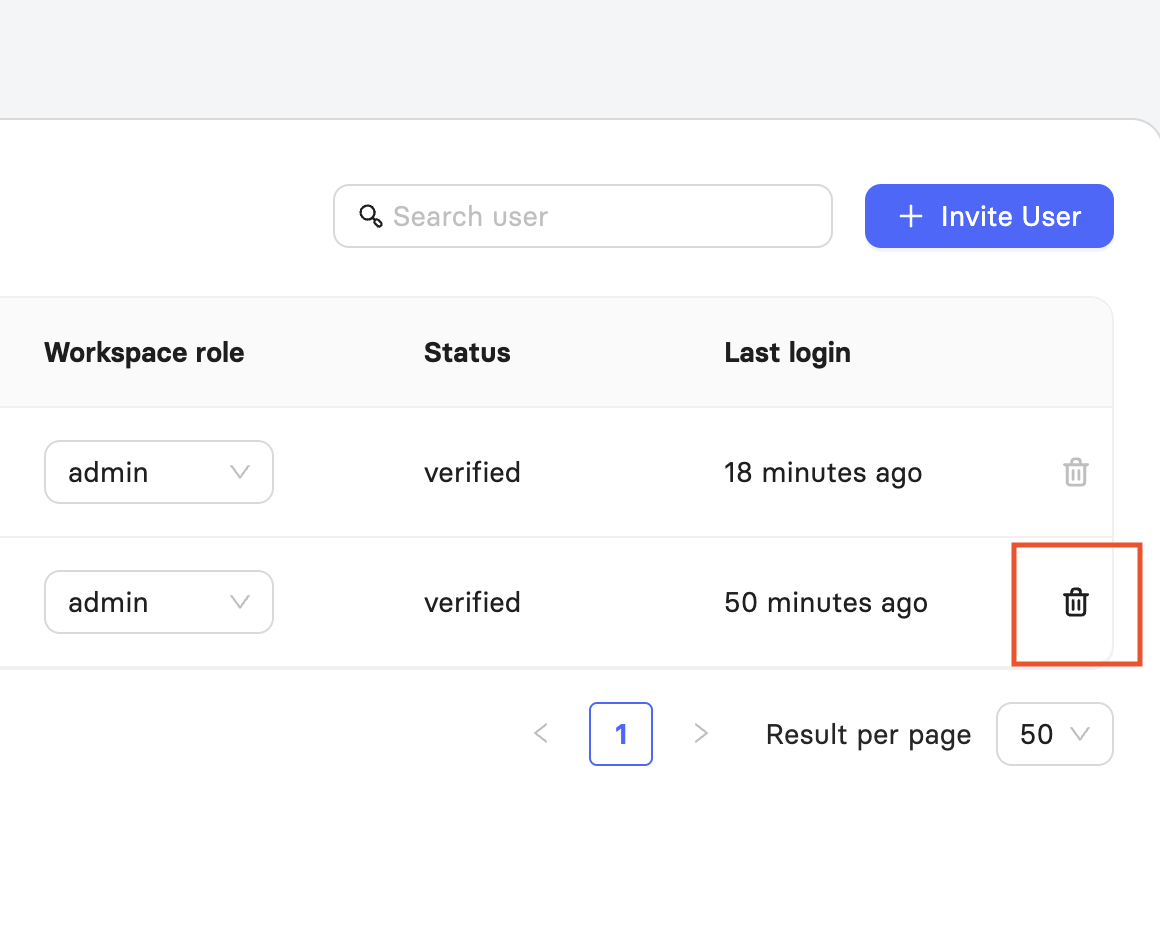
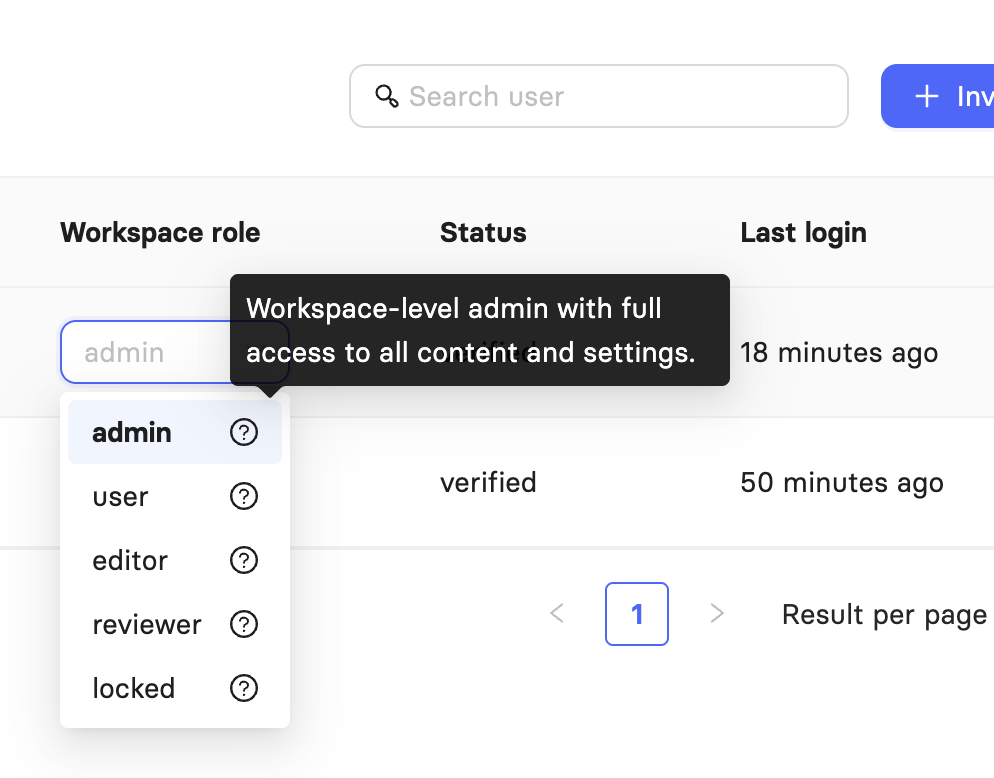
- To change an existing member's role, locate them in the Users table and select a new role from the dropdown in the Workspace Role column.
- To remove a member, select the bin icon in their row.
The following roles are available when inviting or managing users:
- Admin: Full Workspace-level access to all content, settings, and features, including API keys.
- User: Can do everything except admin-level actions; browsing, reviewing, editing, commenting, and rendering projects, but cannot access API keys.
- Editor: Can browse, review, edit, and comment on videos and templates, but cannot render projects or spend video minutes.
- Reviewer: Can browse, review, and comment on videos and templates, but cannot edit or render projects.
- Locked: Cannot navigate the app and can only view one specific video page and its preview. This role is intended for deep integrations.
FAQ
Who can access Workspace Settings?
Only organization admins and workspace admins can manage workspace settings. Single Sign-On is managed separately at the organization level. For details, see Learn About Organization Settings.
Can I invite someone who already has an Elai account?
No. You cannot invite a user whose email address is already registered in Elai. Ask them to delete their existing account or provide a different email address.
What happens after I invite a new user?
The new user receives a verification email and must click Verify in their inbox before they can access Elai.
Can I change a member's role after inviting them?
Yes. Locate the member in the Users table and select a new role from the dropdown in the Workspace Role column.
What happens to my videos and avatars if I delete my Workspace?
Deleting your Workspace is permanent. You lose access to all videos, uploaded media, and custom avatars, and remaining credits are not refunded. Custom avatars cannot be migrated to another account.
Who can delete a Workspace?
Only organization admins can delete Workspaces.
Can an Editor render videos?
No. Editors can browse, review, edit, and comment on videos and templates, but cannot render projects or spend video minutes.
Where do I see how many render minutes my Workspace has used?
In the General section, under Render Minutes, which shows your Render Minutes Limit (if set) alongside your current Usage.
Was this article helpful?
That’s Great!
Thank you for your feedback
Sorry! We couldn't be helpful
Thank you for your feedback
Feedback sent
We appreciate your effort and will try to fix the article