Overview
Organization Settings give you a centralized place to manage everything across your entire organization on the Elai platform. Rather than managing each workspace individually, Organization Settings lets you oversee them all from a single panel.
When you subscribe to an Enterprise plan, you and your team become members of an organization. The first user registered within the organization automatically becomes the organization admin. Admins can grant admin access to other users, and the organization can have multiple admins simultaneously.
Organization admins can manage all Workspaces and their settings, set render minute limits across the organization, add or remove users from any Workspace, and control feature access and permissions.
Important! Only organization admins can create and delete Workspaces.
Prerequisites
Enterprise plan
Organization admin role
Access Organization Settings
Select your Workspace name in the upper-left corner of the screen.
In the dropdown menu, select Manage organization.
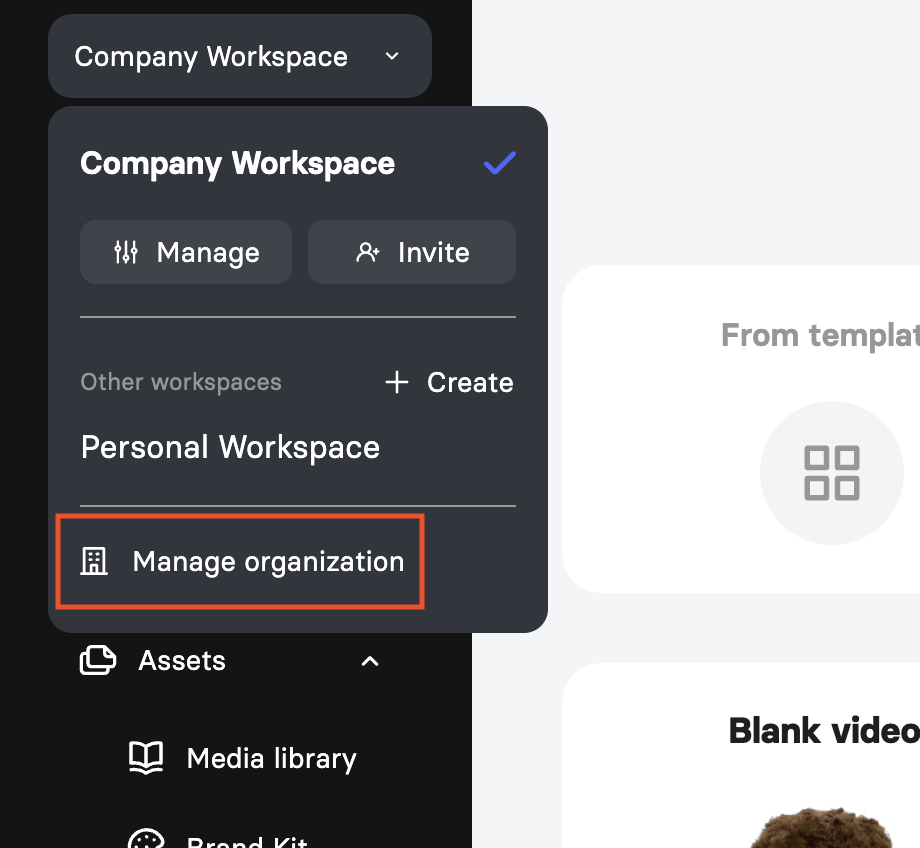
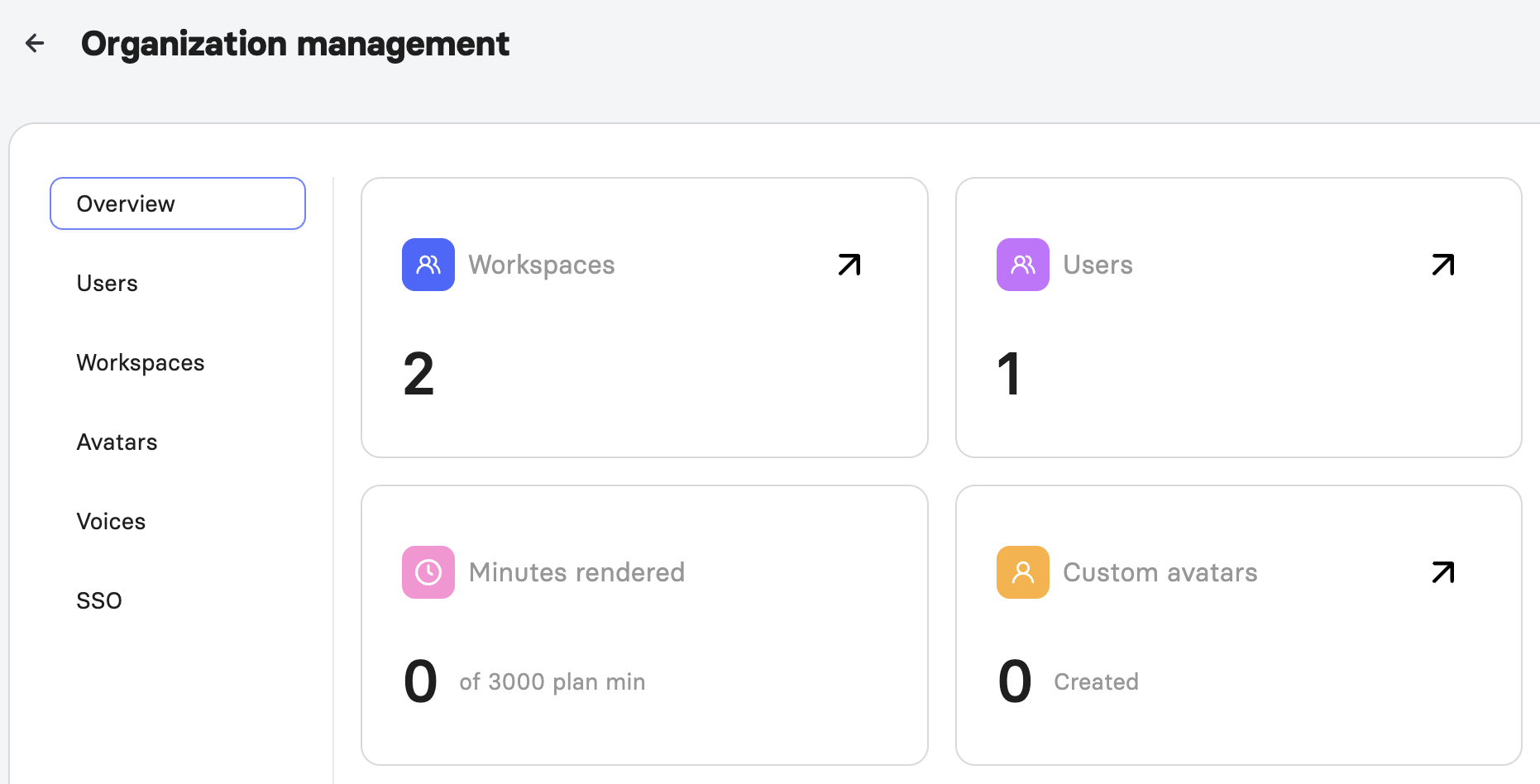
The Organization management panel will open, displaying six sections in the left-hand navigation: Overview, Users, Workspaces, Avatars, Voices, and SSO.
Review Your Organization Overview
The Overview section gives you a high-level summary of activity and resource usage across your entire organization. It displays the following:
Workspaces: The total number of Workspaces in your organization.
Users: The total number of users across all Workspaces.
Videos Created: The total number of videos created across the organization.
Minutes Rendered: The number of video minutes rendered, shown alongside your plan's total minute allowance.
Custom Avatars: The total number of custom avatars available across the organization.
Voice Clones: The total number of voice clones available across the organization.
Manage Organization Users
The Users section displays all users across your organization and allows you to invite new members, manage their Workspace access, grant admin privileges, and remove users entirely.
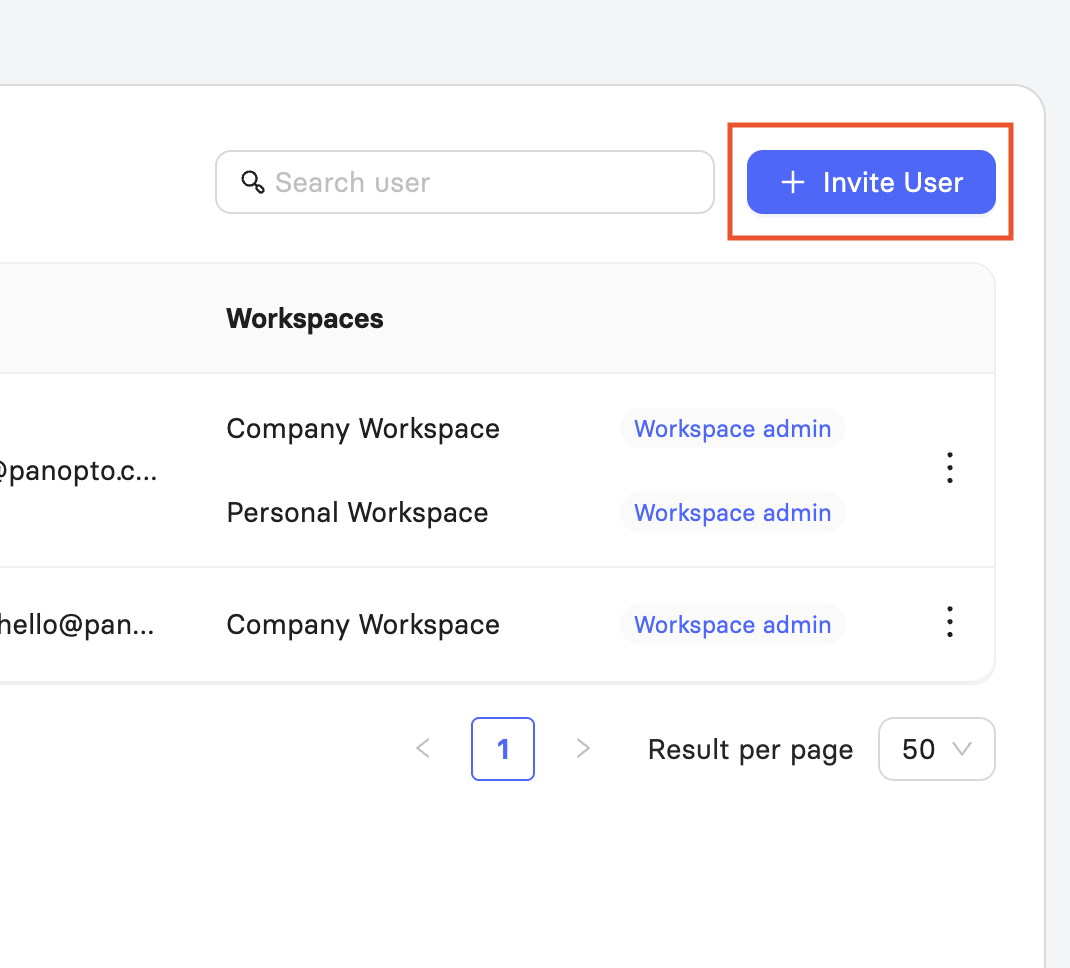
The table shows each user's name, email address, the Workspaces they belong to, and their role within each workspace.
To invite a new user, select + Invite User in the upper-right corner. In the dialog that appears, enter the user's name (optional) and email address, then select which workspaces to add them to and assign a role for each. Select Invite to send the invitation.
Important! You cannot invite someone whose email address is already registered in Elai. If an account already exists with that email, ask the user to delete their existing account or provide an alternative email address. Once invited, the new user will receive a verification email and must click Verify in their inbox to access Elai.
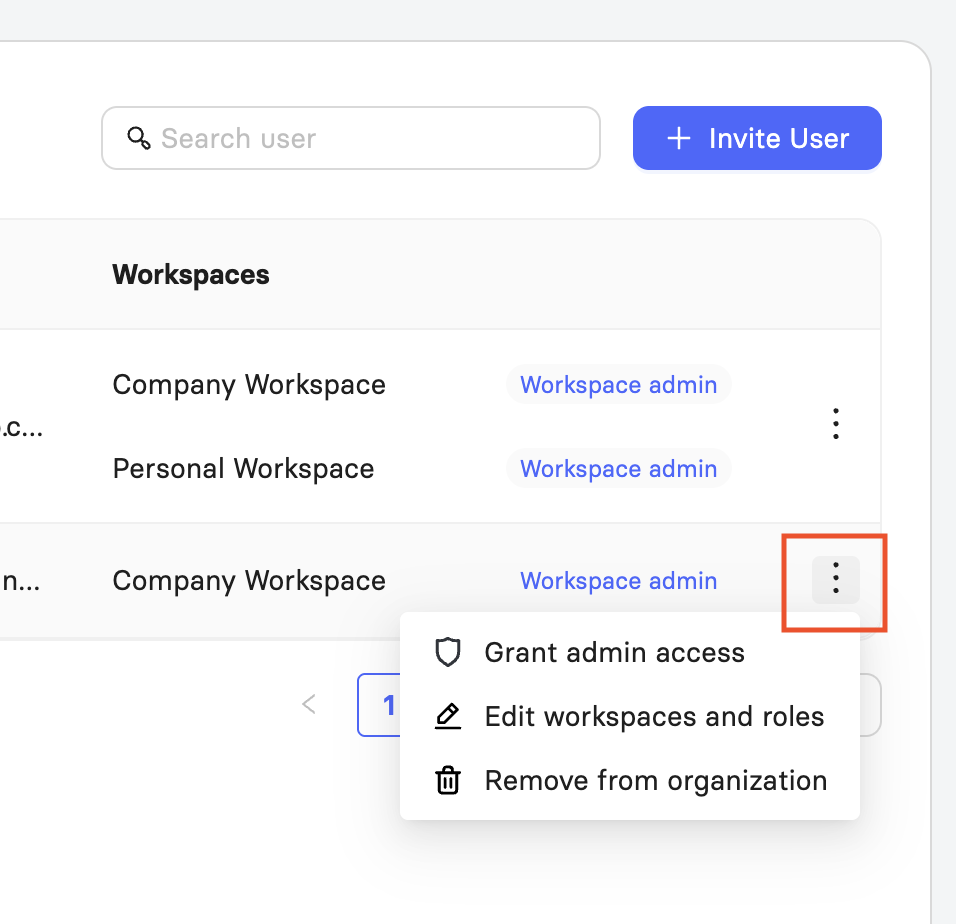
To manage an existing user, select the three-dot menu in their row. The following options will appear:
Grant admin access: Promotes the user to organization admin.
Edit workspaces and roles: Opens a dialog where you can update which Workspaces the user belongs to and change their role in each.
Remove from organization: Removes the user from the organization entirely. Their email will no longer be associated with the organization, but any content they created will remain accessible in the Workspace.
Manage Organization Workspaces
The Workspaces section gives you an overview of all Workspaces in your organization and lets you manage their settings and render minute limits from one place.
The table displays each workspace's name, the number of users it contains, its render-minute limit, and its current usage. At the top of the section, you can see your organization's total minutes, how many have been allocated across workspaces, and how many remain available.
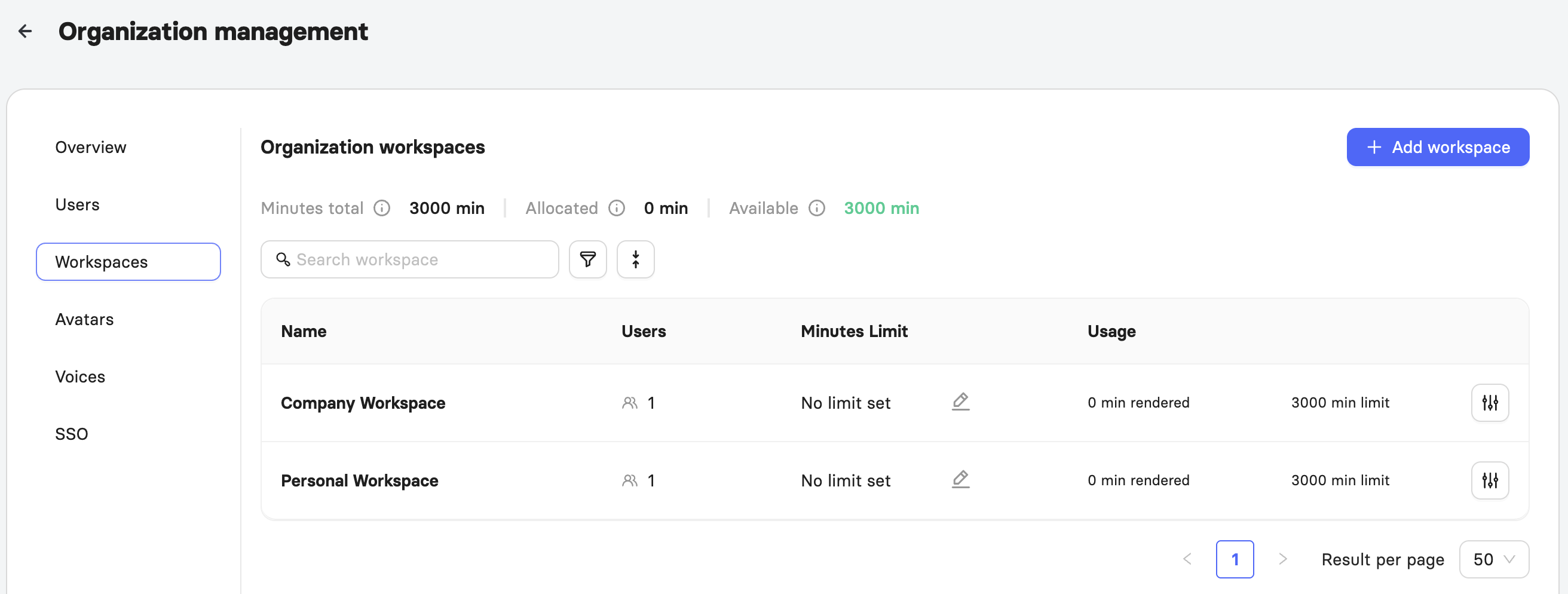
To add a new Workspace, select + Add workspace in the upper-right corner.
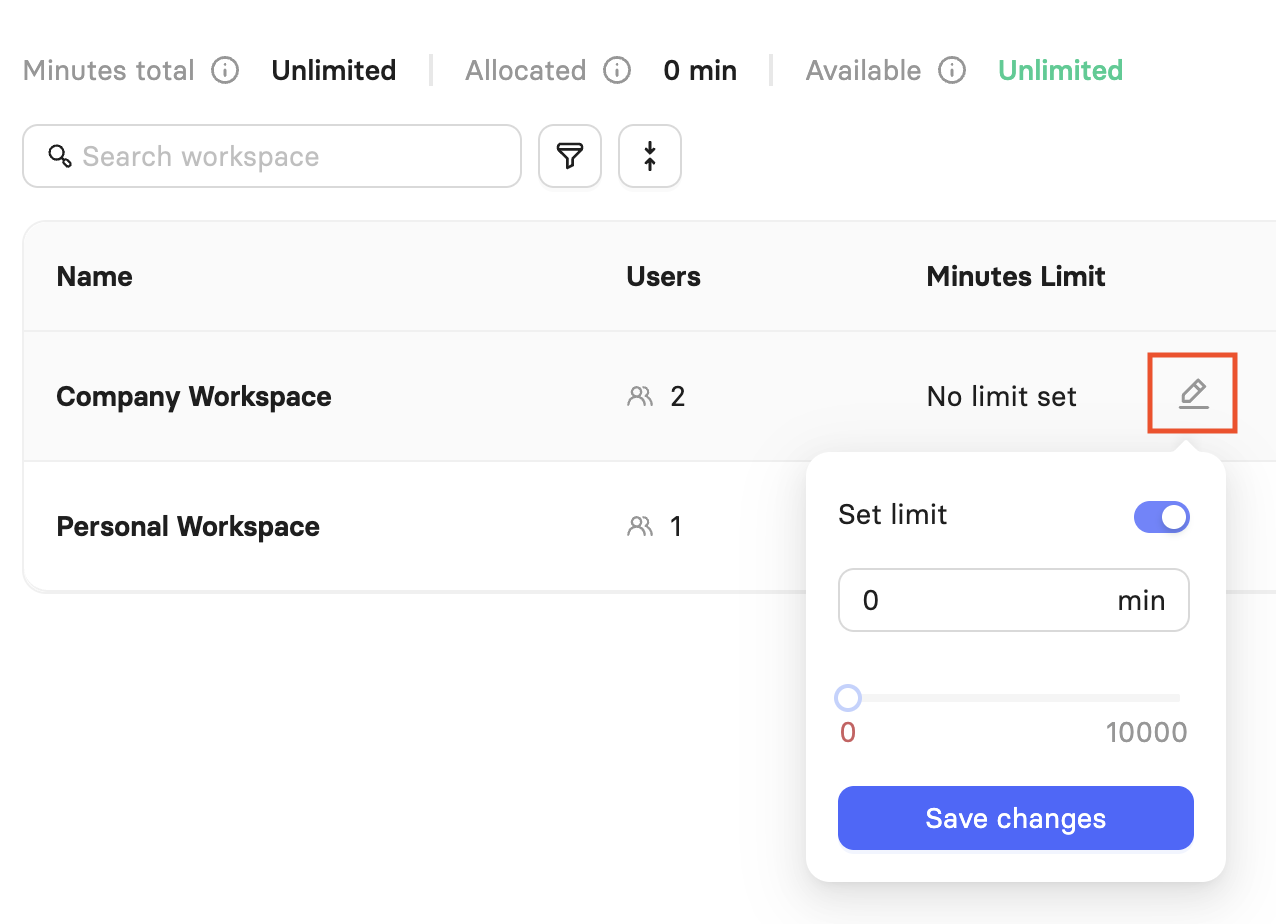
To set or edit the render minute limit for a Workspace, select the pencil icon in the Minutes Limit column.
To view detailed settings for a Workspace, select the settings icon at the end of its row.
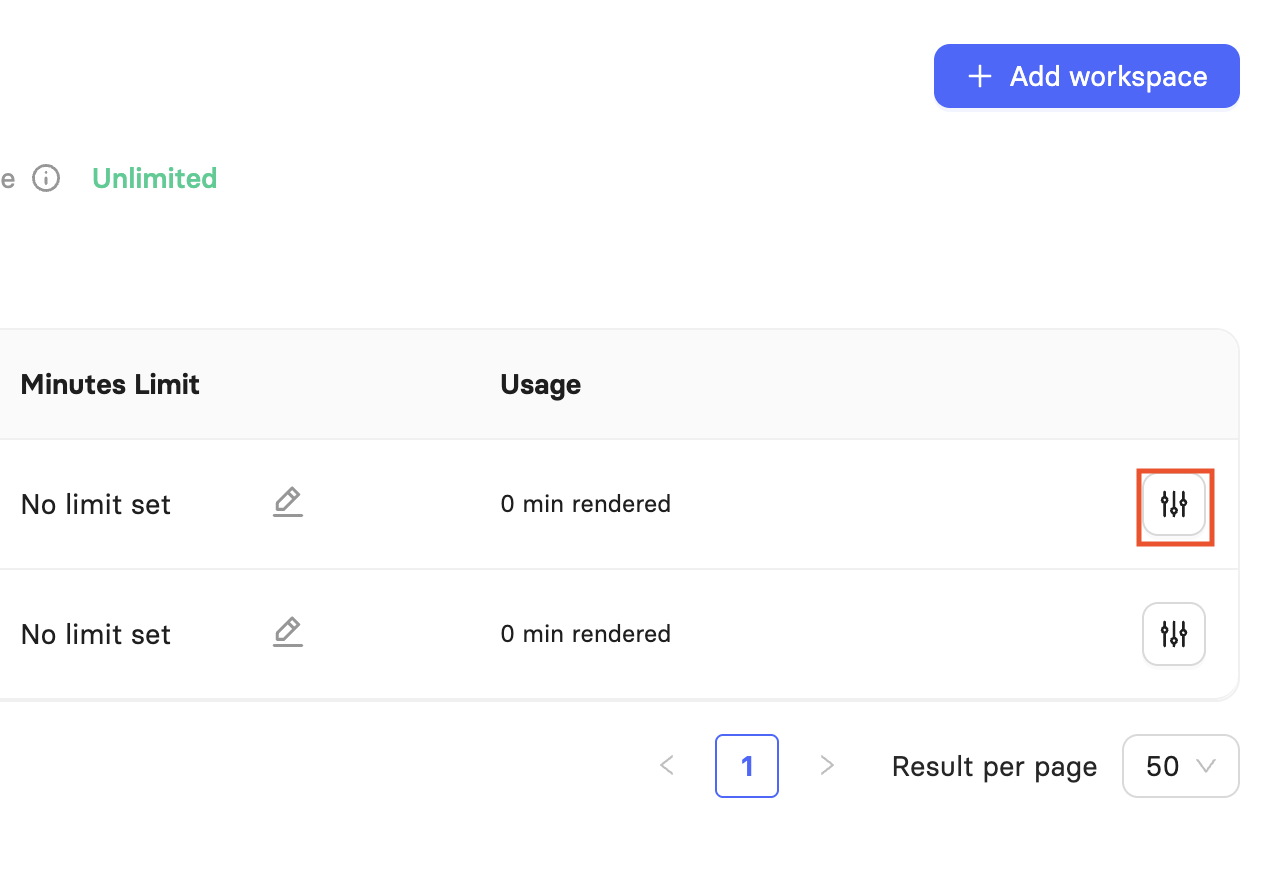
Important! Only organization admins can permanently delete Workspaces. Deleting a workspace cannot be undone. Once deleted, you will lose access to all videos, uploaded media, and custom avatars associated with it. Any remaining credits will not be refunded, and custom avatars cannot be migrated to another account. To delete a workspace, open its settings via the icon in this table, navigate to the General section, and select Delete Workspace. If this is your only Workspace, you will be prompted to enter the Workspace name to confirm deletion.
For details on managing an individual workspace, see Learn About Workspace Settings.
Important! Only Org Admins can access billing information. If your team runs out of video minutes for rendering, you can top up with extra minutes. Only an Org Admin can purchase extra minutes. This can be found in your My Profile settings.
Manage Organization Avatars and Voices
The Avatars and Voices sections display all custom avatars and voice clones available across your organization and let you control which Workspaces each can be used in. Both tables show each item's name, its current status, and the Workspaces where it is available.
You can request a custom avatar directly from the Avatars section via Create avatar, and clone a new voice directly from the Voices section via Clone voice.
Manage Single Sign-On
The SSO section is where organization admins connect your identity provider and control how people sign in to your organization. Single Sign-On is managed once for the whole organization rather than per workspace.
Elai supports identity providers that use OpenID Connect. SAML is not supported. You can connect more than one provider to the same organization, and each connection has its own settings and its own sign-in link.
Important! Only organization admins can manage Single Sign-On. Workspace admins cannot. Existing SSO connections move to this section automatically and keep working as before.
Connect an Identity Provider
1) In the SSO section, select + Create SSO config.
2) Create an OIDC web application in your identity provider and add Elai's callback URL to its redirect URIs.
3) Optionally enter a Connection name. This is the label that appears in the SSO table, so a descriptive name helps when you run several connections.
4) Enter the Issuer endpoint from your identity provider. Example formats for Okta and Azure AD appear beneath the field.
5) Enter your Client ID and Client secret.
6) Turn on Require invitation before SSO sign-in, so only invited users can sign in. They join the workspaces they were invited to.
OR
Turn it off so anyone assigned to this app in your identity provider can sign in.
7) Select Enable to save the connection.
Your new connection appears in the SSO table. To test it, open the row menu and select Copy SSO login URL. This is the same link you share with your users.
Review the SSO Table
Each row shows the connection name and its issuer domain, along with three controls.
Status: Turns the connection on or off. Turning it off blocks sign-in through that provider without deleting the configuration.
Invite only: Shows whether the connection requires an invitation before sign-in.
Default workspace: Shows where new users land on their first sign-in. When Invite only is on, this column reads From invitation and cannot be changed.
The row menu holds three actions: Edit, Copy SSO login URL, and Delete.
Control Who Can Sign In
Require invitation before SSO sign-in is on by default. Only invited users can sign in, and they join the workspaces they were invited to. These connections are marked From invitation in the Default workspace column.
When you turn it off, anyone assigned to the app in your identity provider can sign in.
Choose Where New Users Land
This setting applies only when Require invitation before SSO sign-in is off. Open the Default workspace for new users dropdown and choose one of the following.
Personal, 0 min: Each new user gets their own workspace with no render minutes.
Personal, no limit: Each new user gets their own workspace with no minute limit.
A shared workspace: New users join an existing workspace in your organization. Shared workspaces are listed beneath the personal options.
Important! If you delete a workspace that is set as an SSO default, new users will join personal workspaces with 0 render minutes until you set a new default.
Edit a Connection
Open the row menu and select Edit to open the dialog. Update the fields you need and select Save changes. Saving changes only what you edited.
Adjust Advanced Settings
Expand Advanced settings to configure two optional fields.
Redirect URL: Sends users to a specific page after they sign in.
Anonymize users: Off by default. Normally Elai requires your identity provider to supply each user's email address and name.
Single Sign-On for Panopto Organizations
If your organization uses Panopto, admins can choose which workspace new Panopto users join when they sign in.
FAQ
Who can manage Single Sign-On?
Only organization admins. Single Sign-On is managed at the organization level in the SSO section of Organization management, and workspace admins cannot manage it.
Can I connect more than one identity provider?
Yes. You can connect multiple OpenID Connect providers to the same organization, each with its own sign-in link and its own settings for default workspace and invitations.
Can I manage Single Sign-On through the Elai API?
No. Single Sign-On is managed in Organization management only.
What's the difference between an organization admin and a Workspace admin?
An organization admin has full control across every Workspace in the organization, including creating and deleting Workspaces, setting render minute limits, and managing users organization-wide. A Workspace admin's permissions are limited to the single Workspace they belong to.
Can an organization have more than one admin?
Yes. Multiple users can hold the organization admin role at the same time, and any existing admin can grant admin access to another user from the Users section.
What happens to a user's videos if they're removed from the organization?
Their content stays in the Workspace and remains accessible to other members.
What happens if I delete a Workspace by mistake?
Workspace deletion cannot be undone. You'll permanently lose access to all videos, uploaded media, and custom avatars tied to that Workspace, and any remaining credits will not be refunded. Make sure this is intentional before confirming.
Can custom avatars and voice clones be shared across multiple Workspaces?
Yes. From the Avatars and Voices sections, organization admins can control which Workspaces each custom avatar or voice clone is available in.
Do new users need to verify their email before accessing Elai?
Yes. After being invited, a new user receives a verification email and must select Verify before they can log in and access the organization.
Was this article helpful?
That’s Great!
Thank you for your feedback
Sorry! We couldn't be helpful
Thank you for your feedback
Feedback sent
We appreciate your effort and will try to fix the article