Overview
Elai Enterprise lets you create multiple Workspaces, making it easy to organize projects, teams, or clients in separate spaces. Users from one Workspace will not have access to content from another unless you explicitly invite them. You can also invite the same user to multiple Workspaces.
When you first register, you start with one Workspace. This guide walks you through creating additional Workspaces.
When you subscribe to an Enterprise plan, you and your team become members of an organization. The first user registered automatically becomes the organization admin and can grant admin access to others. The organization can have multiple admins at the same time. Only organization admins can create and delete Workspaces. Workspace admins can manage existing Workspaces and invite users, but cannot create or delete Workspaces. As an organization admin, you can also manage Workspaces directly from Organization Settings. For details, see Learn About Organization Settings.
Prerequisites
Enterprise plan
Verified organization admin account
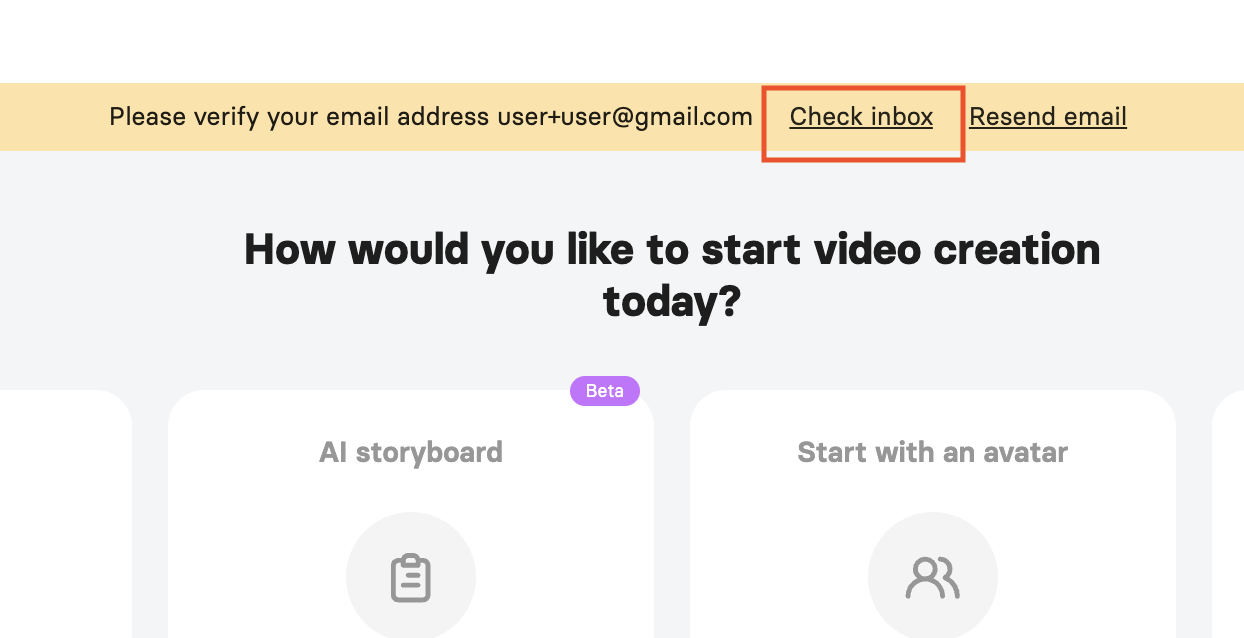
If your account is not verified, you will see a yellow banner at the top of the Elai home page. Follow those instructions to verify your account.
Create a Workspace
You can create a Workspace in two ways: from the Workspace dropdown in the upper-left corner of the screen, or from the Workspaces section in Organization Settings.
From the Workspace dropdown:
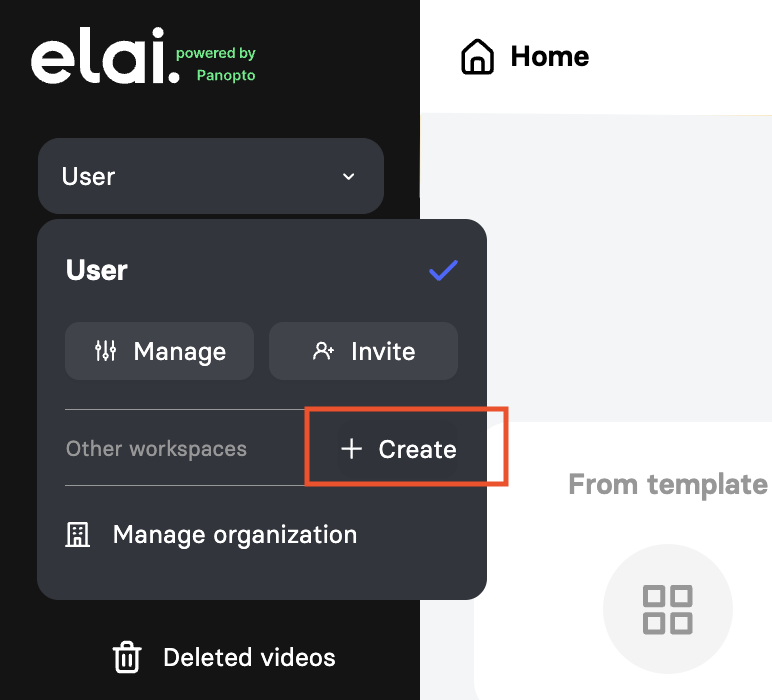
- Select your Workspace name in the upper-left corner of the screen.
- In the dropdown menu, select + Create.
From Organization Settings:
- Select your Workspace name in the upper-left corner of the screen.
- Select Manage organization, then navigate to the Workspaces section.
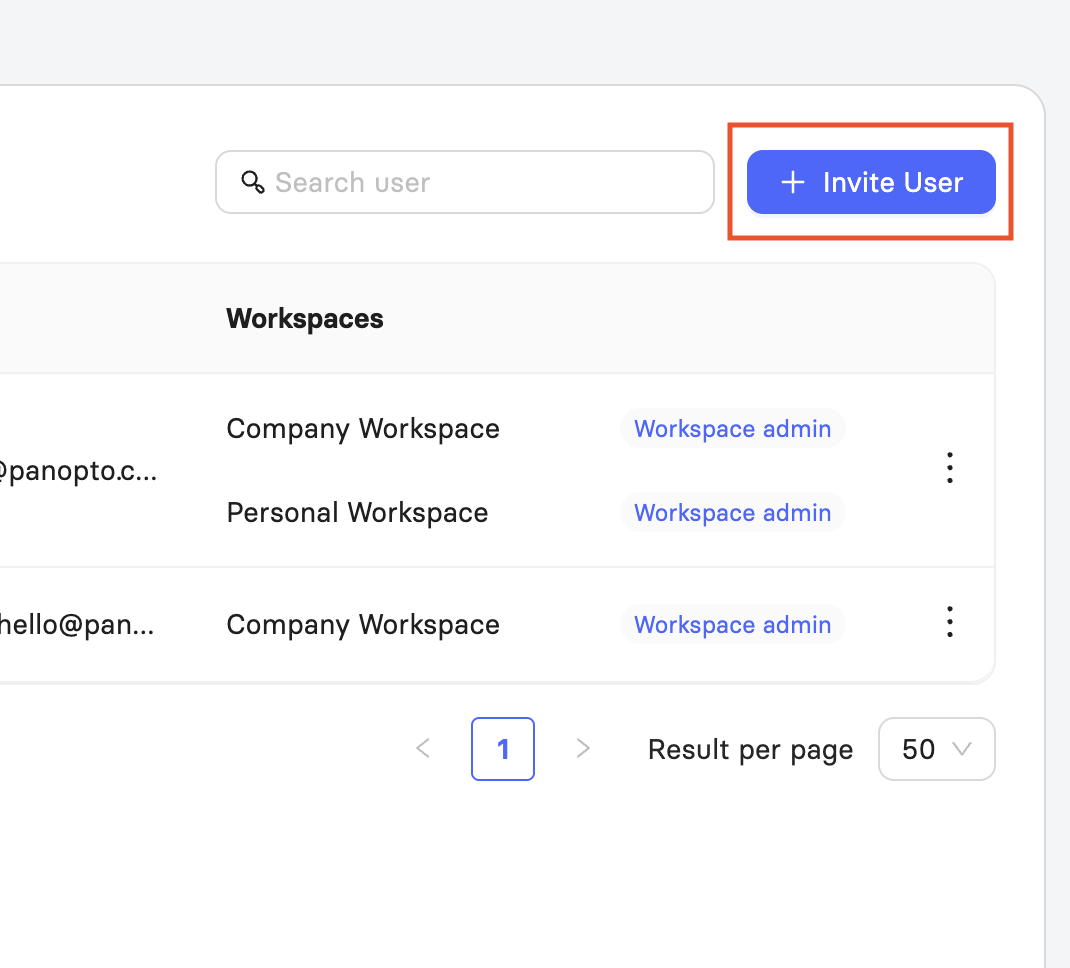
- Select + Add workspace in the upper-right corner.
Both methods continue from here:
In the Create a new workspace dialog, enter a name for your Workspace in the Workspace name field. The name can be up to 50 characters.
Select Continue.
In the Add team members step, you can optionally enter your collaborators' email addresses and assign a role to each one. If you don’t want to invite other users yet, select Skip for now.
Important! You cannot invite someone whose email address is already registered in Elai. If an account already exists with their email, ask the user to delete their existing account or provide an alternative email address. Once invited, the new user will receive a verification email and must click Verify in their inbox to access Elai.
Select Create. You will receive a confirmation that the Workspace has been created successfully.
Your new Workspace will now appear in the Workspace dropdown. Select its name at any time to switch to it.
You cannot remove yourself from a Workspace unless you are an organization admin.
Manage Your Workspace
Once your Workspace is created, it opens with three sections: Overview, General, and Users. The Overview displays a summary of activity, including users, videos created, minutes rendered, custom avatars, and voice clones.
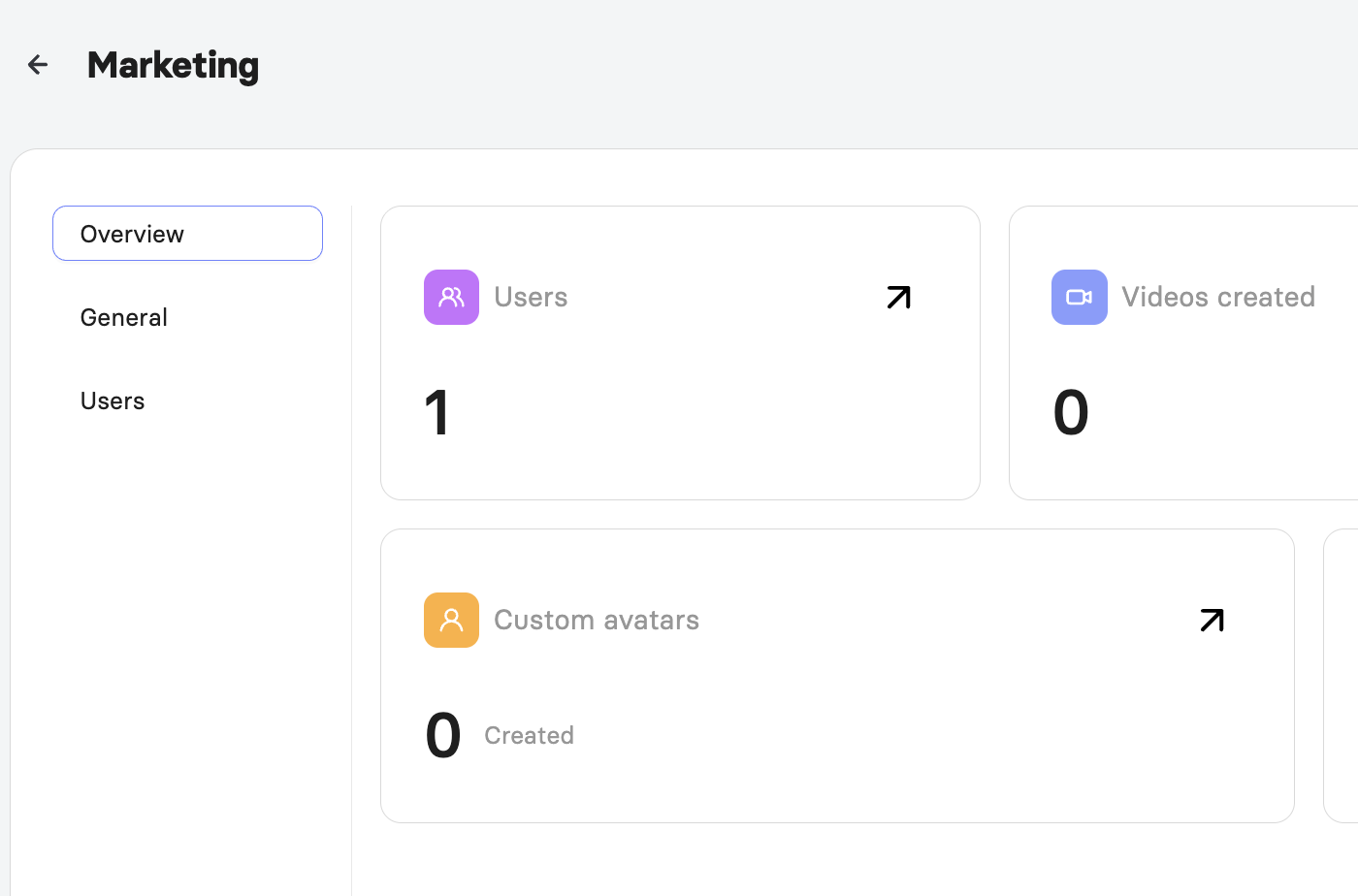
From the General menu, you can rename the Workspace or review render minute limits.
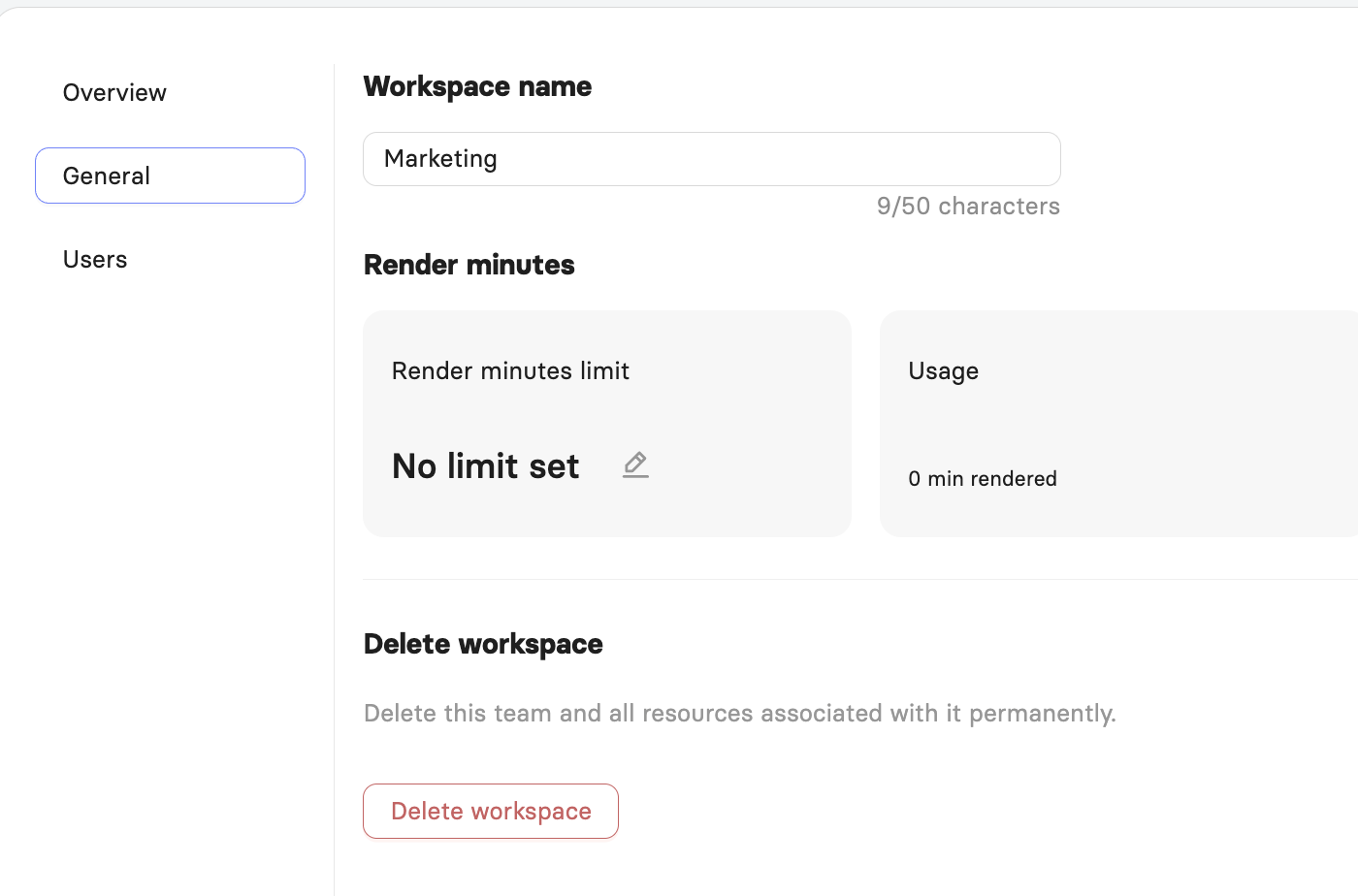
From the Users menu, you can invite and manage your team at any time.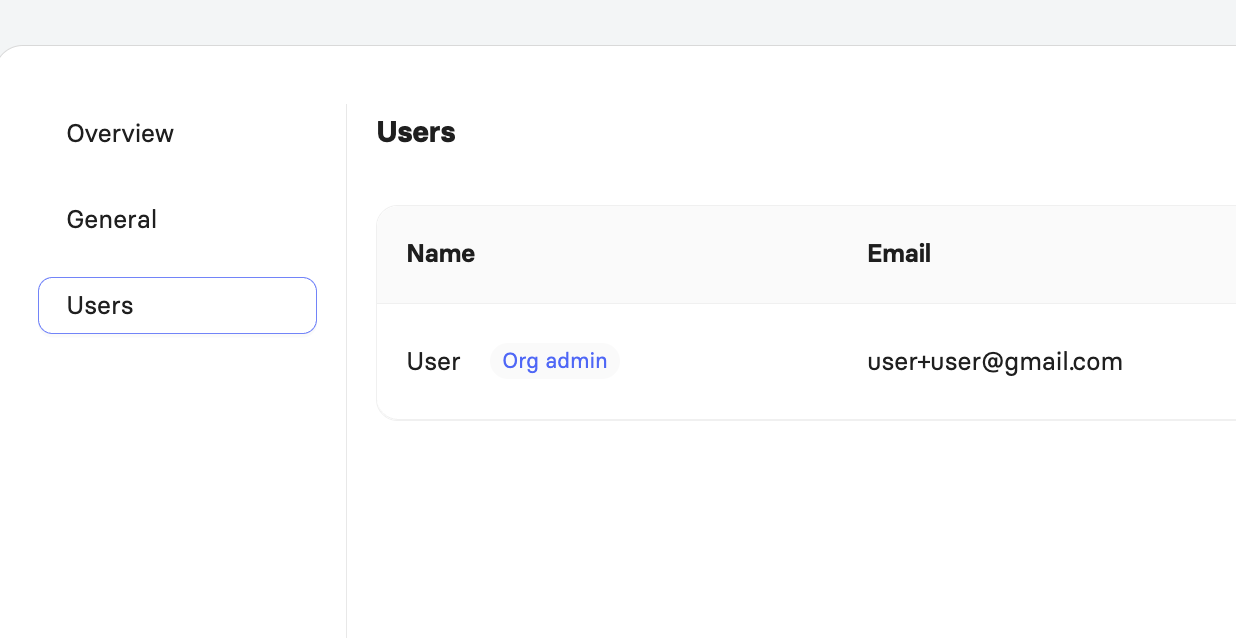
For full details on managing your Workspace, see Learn About Workspace Settings.
FAQ
Can I create more than one Workspace on any Elai plan?
No. Creating multiple Workspaces is available on the Enterprise plan. You also need a verified organization admin account to do it.
Who can create a new Workspace?
Only organization admins. Workspace admins can manage users and settings within an existing Workspace, but they cannot create or delete Workspaces.
What happens if I try to invite someone whose email is already registered in Elai?
The invite won't go through. Ask the person to delete their existing Elai account or provide a different email address to join the new Workspace.
Can I remove myself from a Workspace?
Only if you're an organization admin. Other users cannot remove themselves from a Workspace.
Can users from one Workspace see content in another?
No. Workspaces are separate by default. Users only get access to another Workspace if they're explicitly invited to it.
Can the same person belong to multiple Workspaces?
Yes. You can invite the same user to as many Workspaces as needed.
Was this article helpful?
That’s Great!
Thank you for your feedback
Sorry! We couldn't be helpful
Thank you for your feedback
Feedback sent
We appreciate your effort and will try to fix the article