Overview
Elai’s video template is a complete, ready-made video with slides, avatars, on-screen text, and design already in place. Instead of deciding how every slide is laid out, where the avatar sits, and what the text looks like, you pick a template that already answers those questions and swap in your own script. Elai offers over 100 pre-built templates covering training, onboarding, sales, compliance, higher education, and more. For a full picture of what the library includes, see Learn About Elai Video Templates.
Starting from a template is faster than building a video from a blank canvas, and it keeps a growing video library looking like it came from the same company. Templates are available on every plan, including the trial. You can use one exactly as it is, or treat it as a starting point and change the scenes, avatars, voices, and design once it opens in the editor.
This article walks you through choosing a template from the library and turning it into an editable video.
Prerequisites
Verified account
How to Create a Video From a Template
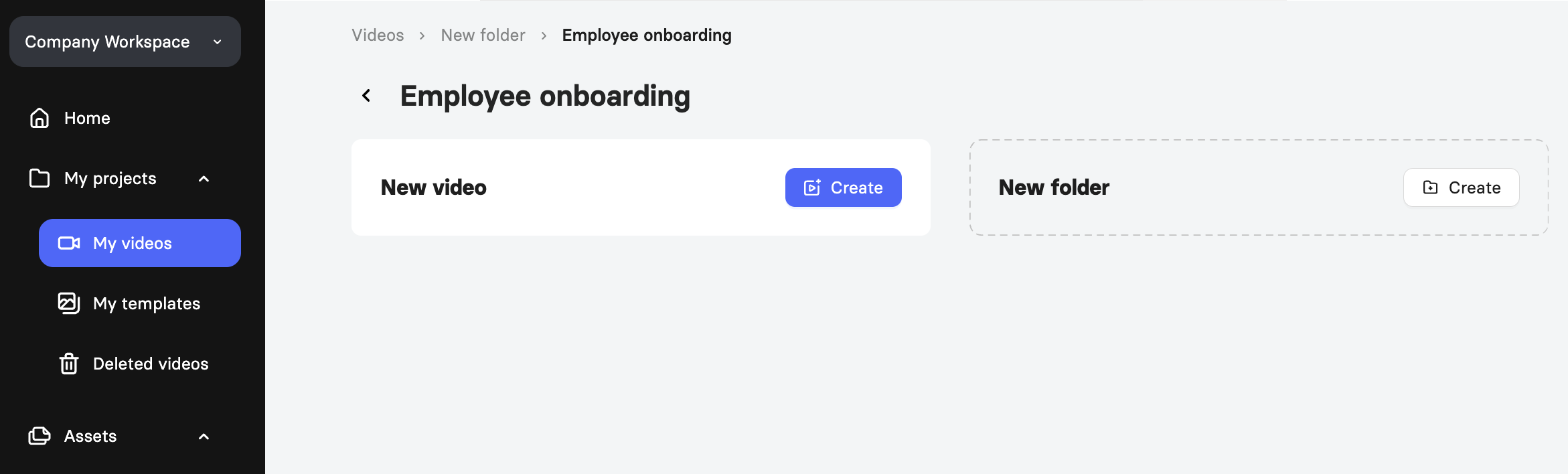
On the Elai home page, select Create video.
In the Create new video window, browse the templates under the All templates tab.
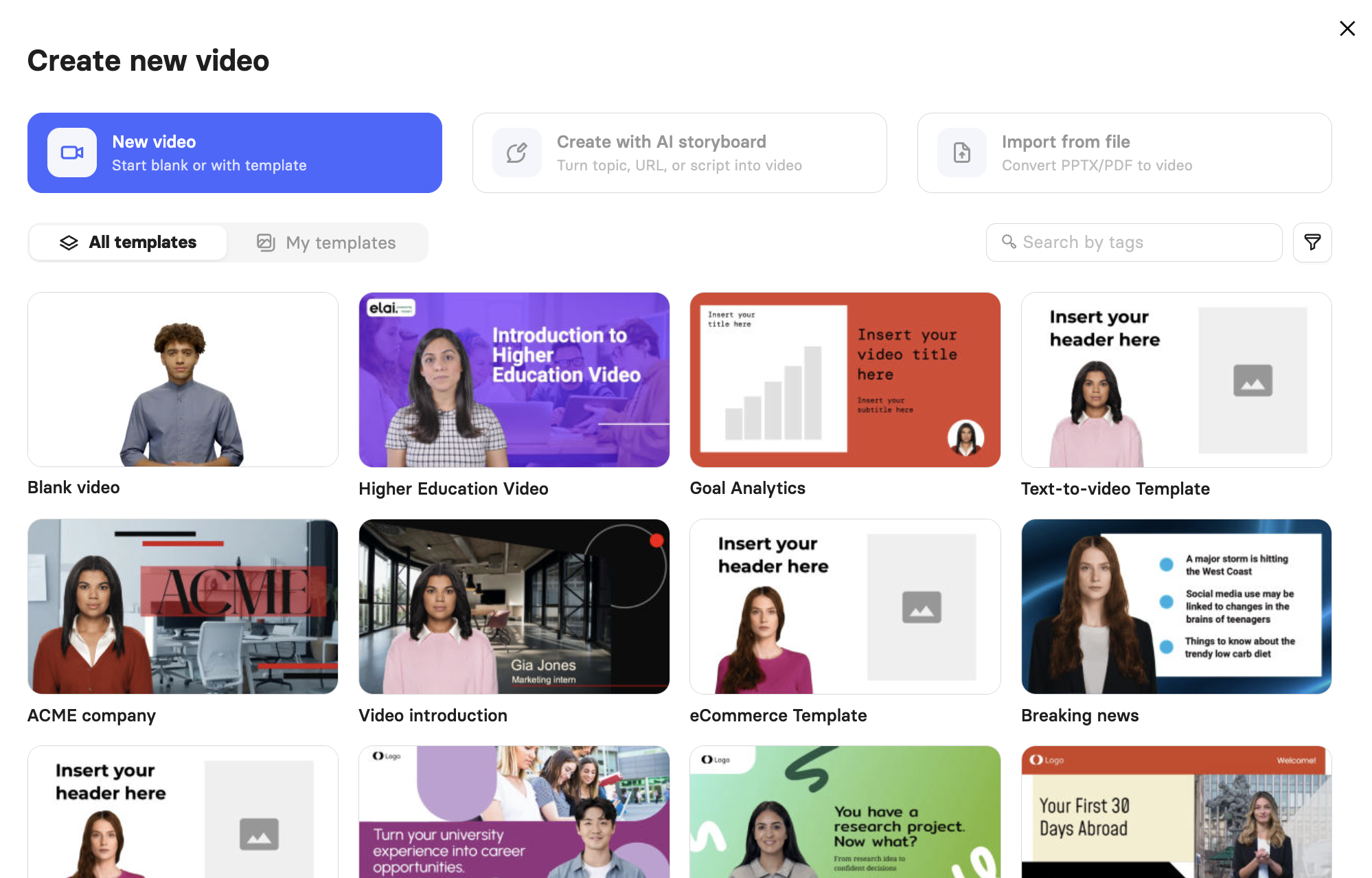
Narrow the grid down using either of the following options.
a. Search by tags: Select the search field to browse the full tag list, or start typing to filter it. Tags include Learning and Development, Higher Education, Interactive videos, Enterprise, Sales, Marketing, Insurance, Corporate communications, Health/Medical, Explainer videos, Product demo, and more.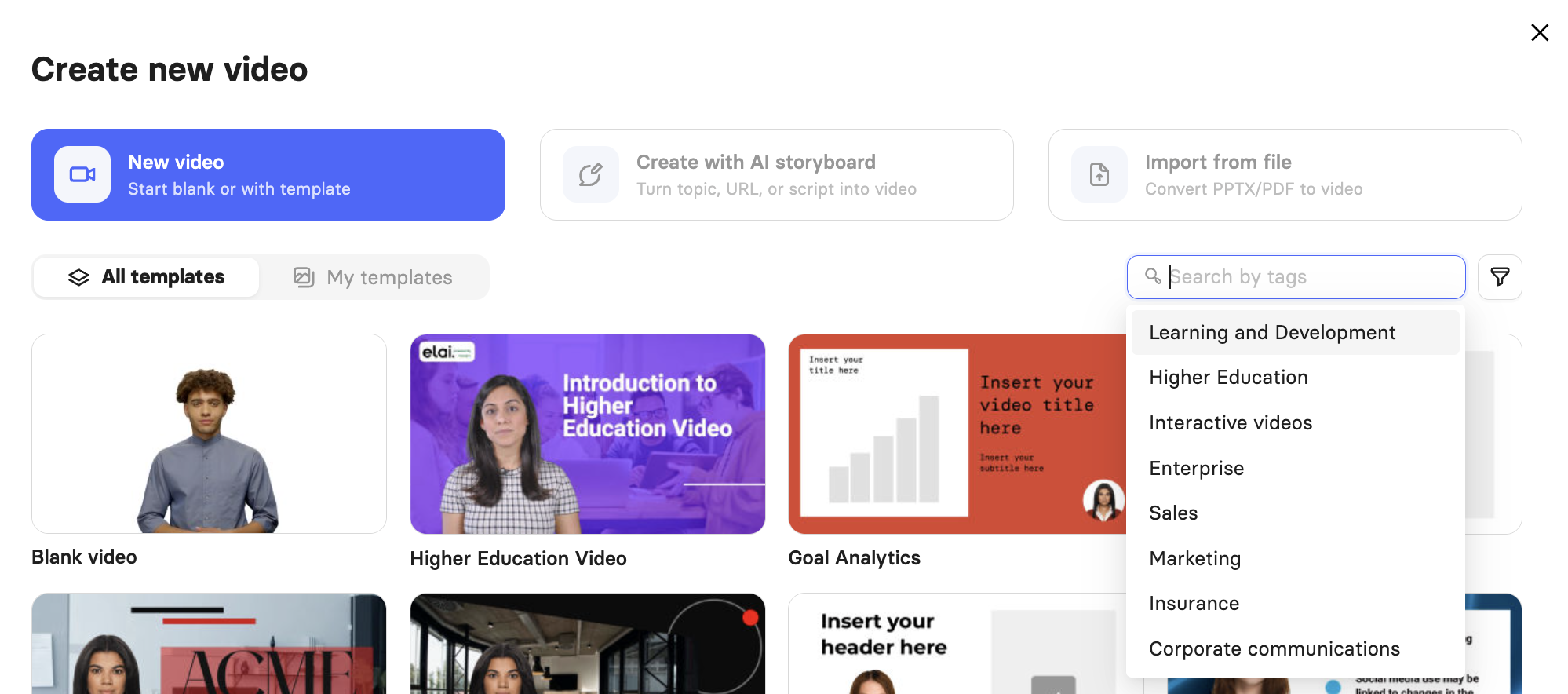
b. Dimension: Select the filter icon to the right of the search field and choose Horizontal, Vertical, or Square depending on where the video will be published.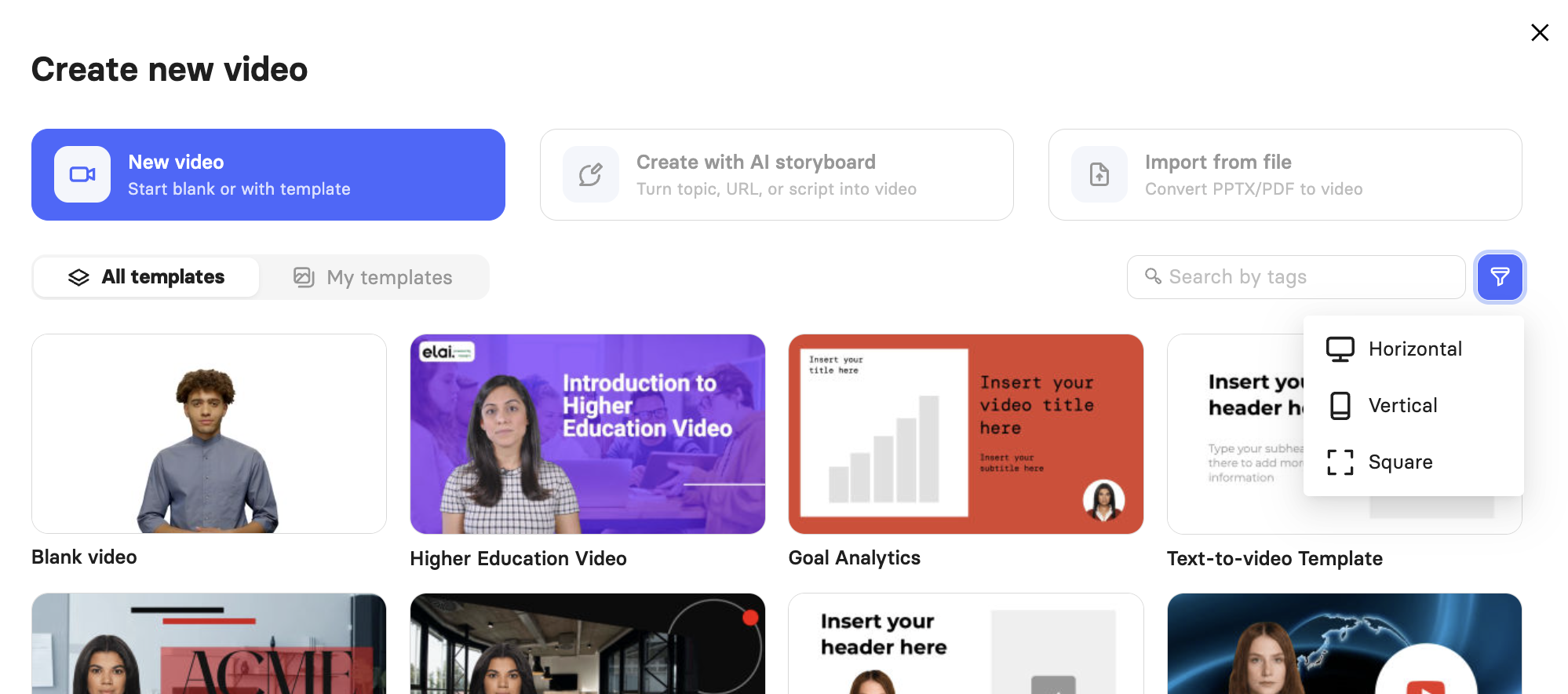
Templates tagged Interactive videos go beyond linear playback and come with clickable buttons, quizzes, and branching scenarios already built in, which suits scenario-based training and knowledge checks.
Note: When you sign up for Elai, the system asks about your use case, and the grid may already be filtered to the matching tag. Select the cross beside the tag in the search field to clear it and see every template.
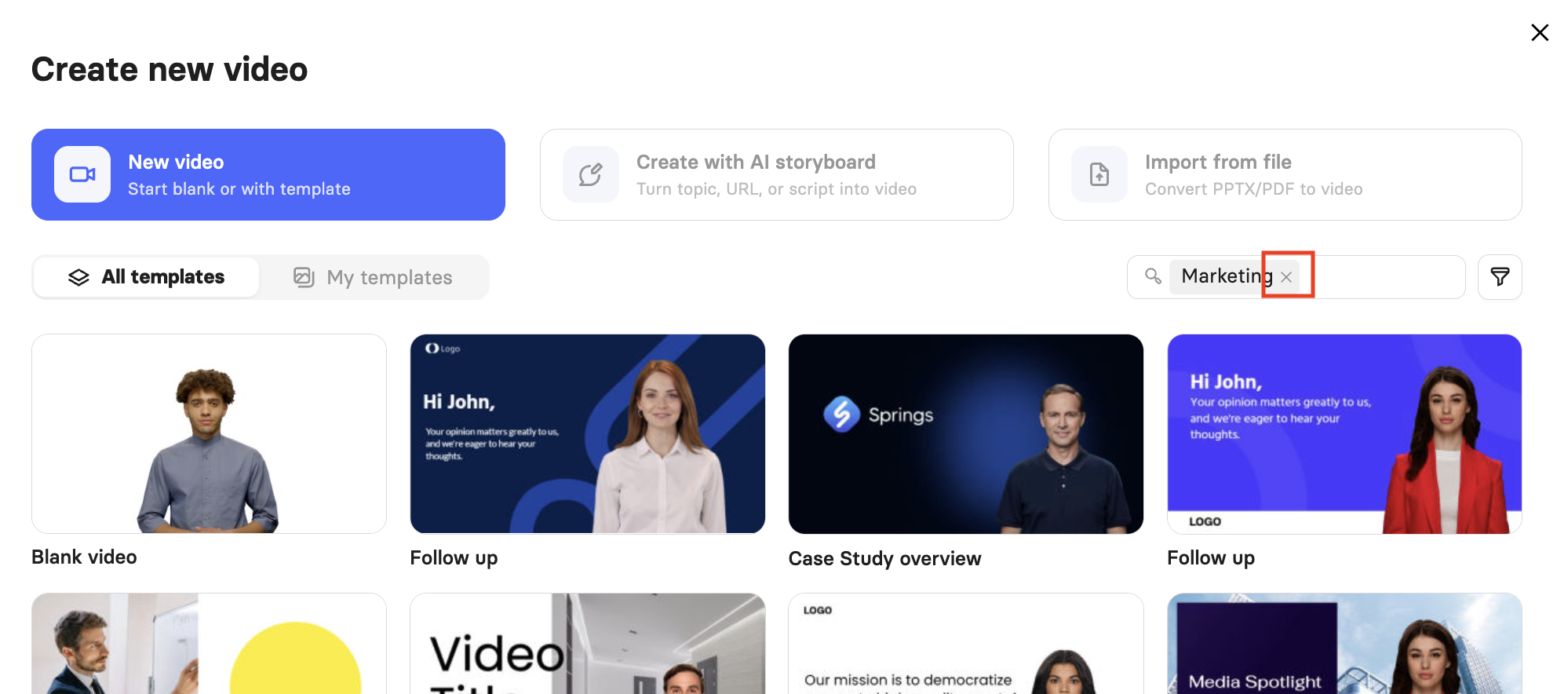
Select a template thumbnail to preview it before you commit.
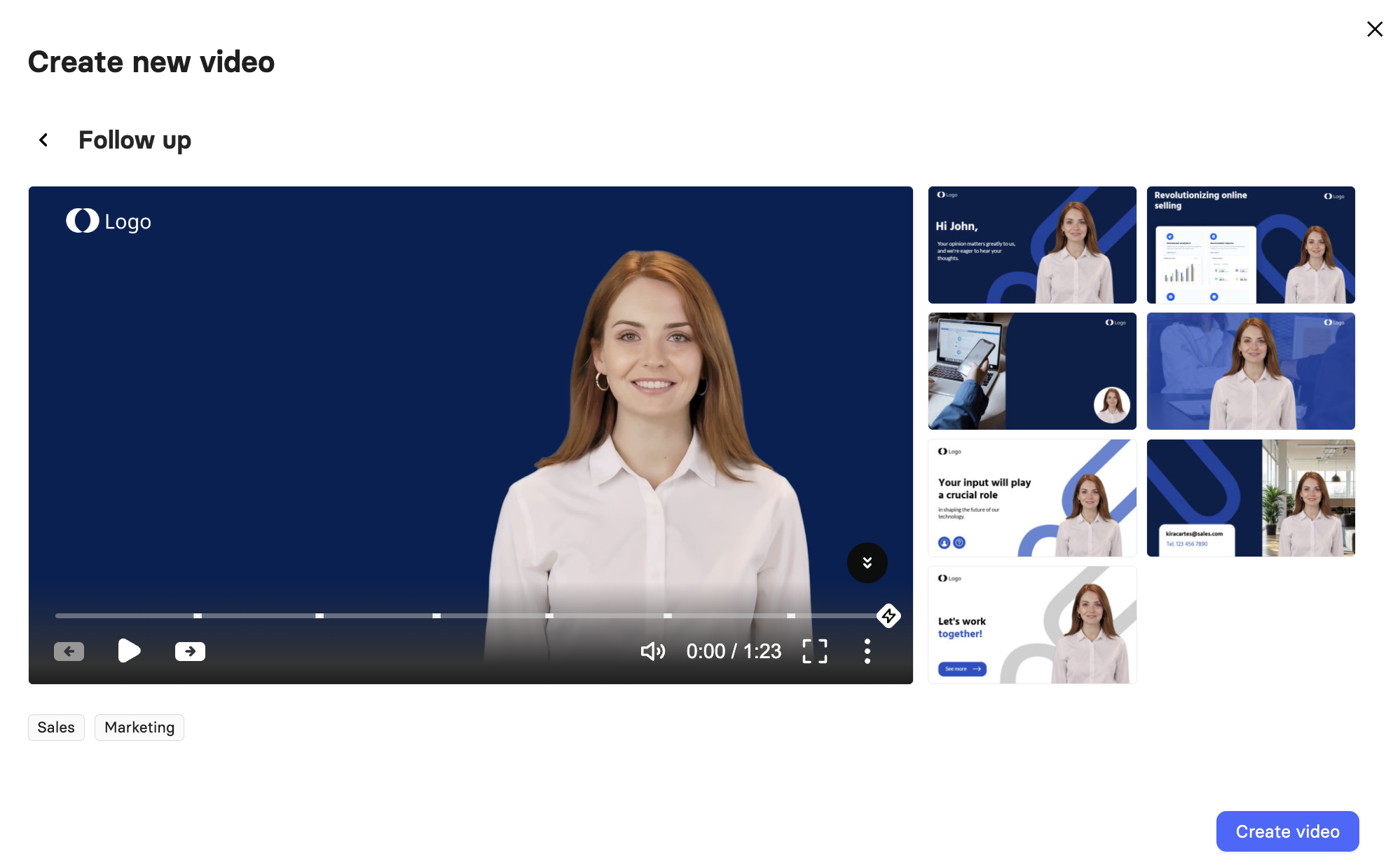
Review the preview, which plays the full video, lists the tags applied to it, and shows a thumbnail of every slide so you can judge the structure at a glance.
Select Create video to open the template in the Elai editor.
Replace the placeholder content with your own, then adjust the avatar, voice, background, and any other element on the slides.
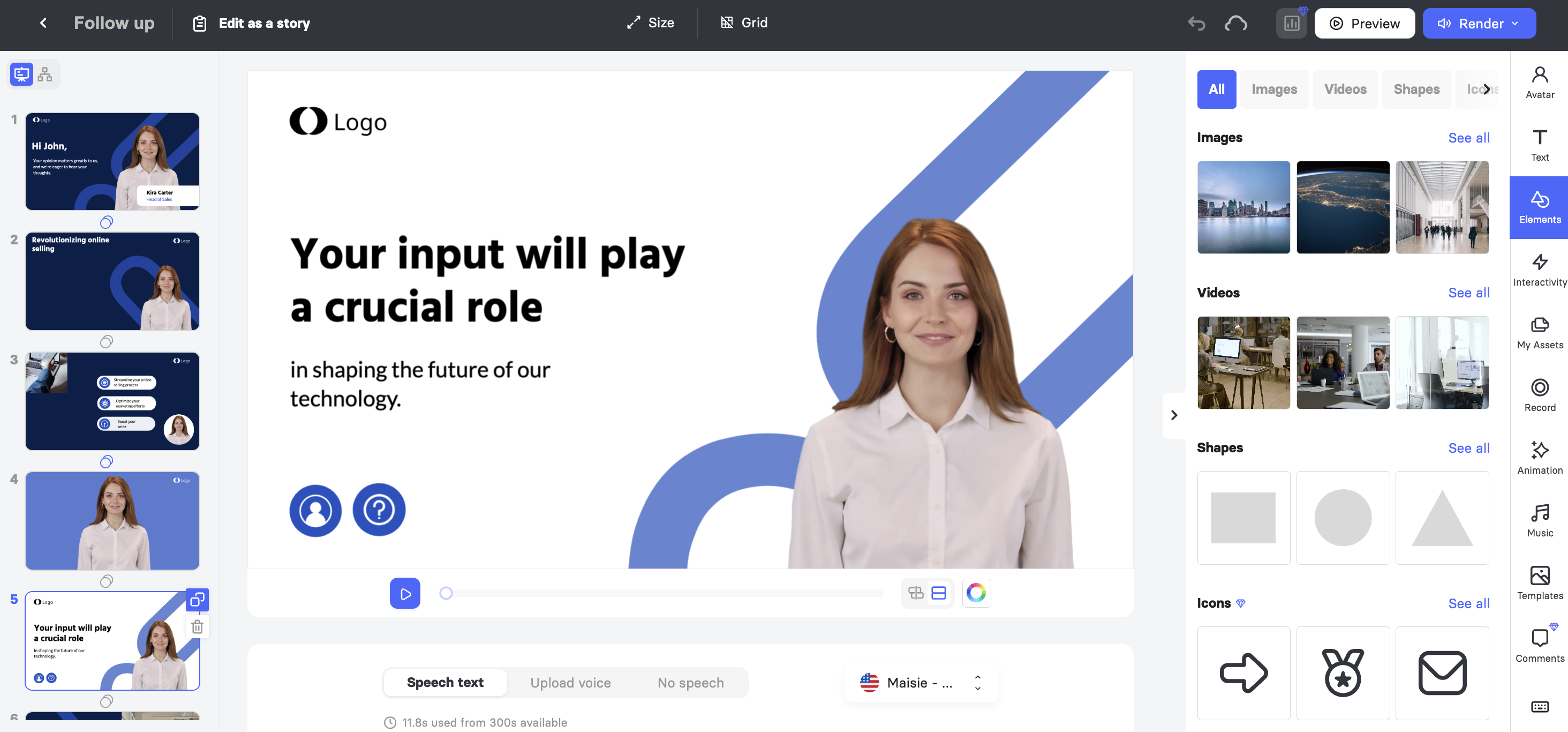
Select Render when your video is ready.
Using Your Own Custom Templates
Alongside Elai's pre-built library, the Create new video window also shows custom templates. The All templates tab lists Elai's templates together with your own, while the My templates tab shows only the custom ones you have published.
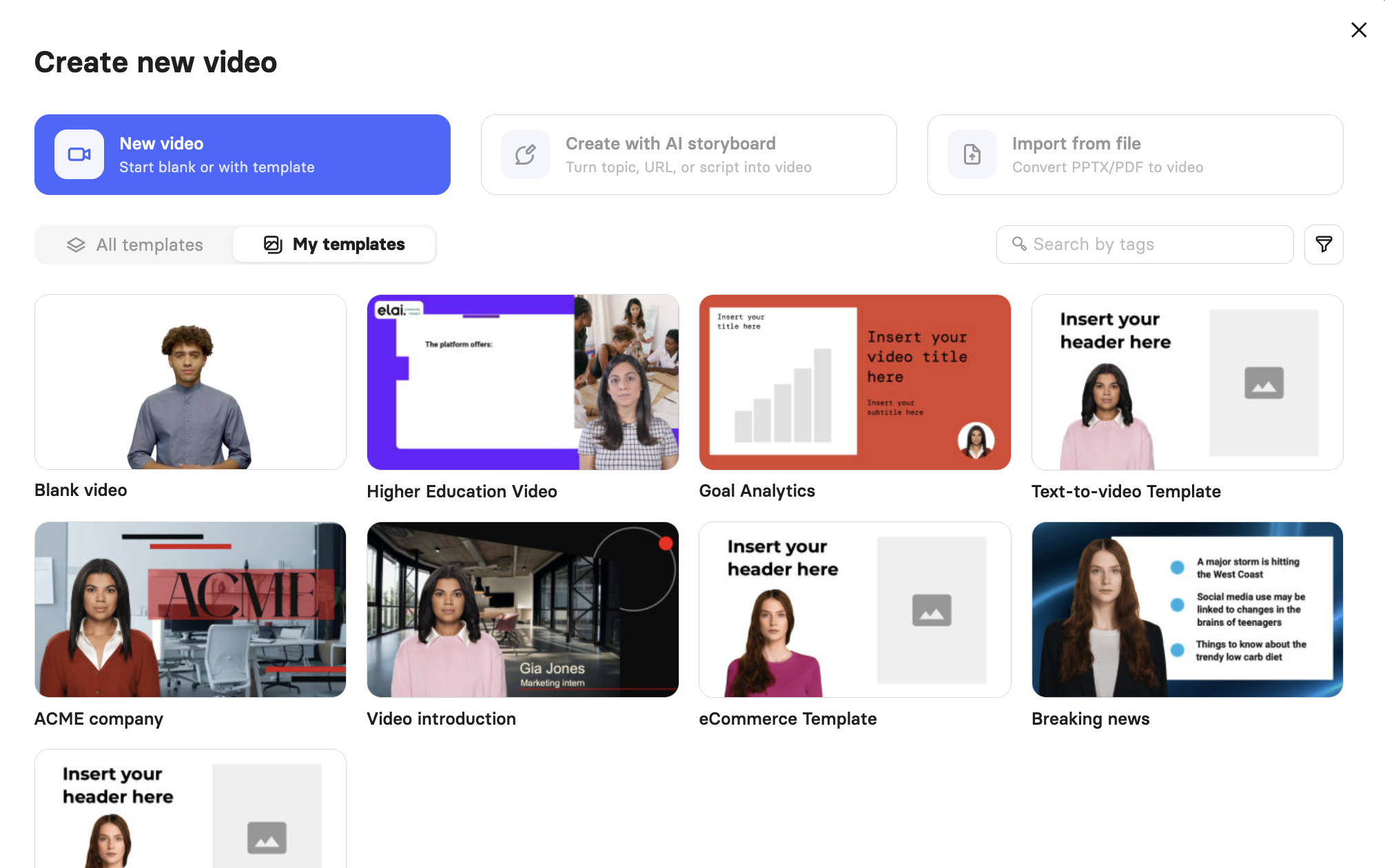
Important! A custom template appears in the video creation flow only after you publish it. Until then, it stays a draft and does not show up in the grid.
Custom templates carry your own colors, fonts, and layout choices, which makes them the most reliable way to keep a growing video library consistent. They are available on every plan, including the trial. To build one from a base template or a blank canvas, see How to Create a Video Template.
Setting up your brand assets first means every template you build starts from the right logos, colors, and fonts, and Learn About the Elai Brand Kit covers how to do that.
On Enterprise plans, templates do not sync across workspaces. If you cannot find a template a colleague has published, check which workspace they published it in.
FAQ
Are templates included in my plan?
Yes. Elai's pre-built templates and the custom templates your workspace creates are both available on every plan, including the trial.
Why am I only seeing one category of templates?
The library may still be filtered by the use case you selected when you signed up. Select the cross beside the tag in the search field to clear the filter.
What is the difference between All templates and My templates?
All templates shows Elai's pre-built library together with templates created in your workspace. My templates shows only the custom templates your workspace has published.
Can I change a template after I choose it?
Yes. A template is a starting point, and once it opens in the editor, you can change scenes, scripts, avatars, voices, and design.
My colleague published a template, so why can I not see it?
Video templates do not sync across workspaces, so it may sit in a different workspace than the one you are viewing.
Was this article helpful?
That’s Great!
Thank you for your feedback
Sorry! We couldn't be helpful
Thank you for your feedback
Feedback sent
We appreciate your effort and will try to fix the article