Overview
Render minutes are what you spend to turn a project into a finished video. Building the video itself is free: you can add slides, swap avatars, rewrite your script, and preview your work as often as you like without using anything up. Minutes are spent after rendering the video.
Every plan includes a set number of render minutes, measured against the length of the video you produce, so a two-minute video uses two minutes of your balance. Minutes sit on your account rather than on one video, so you can spread them across as many projects as you like.
Minutes are drawn from your balance each time you click Render, including when you render the same video again after an edit, so it is worth previewing before your final render. For more detail, see Why Are Minutes Deducted After Every Render?
Prerequisites
Verified account
Rendering on Free Plan
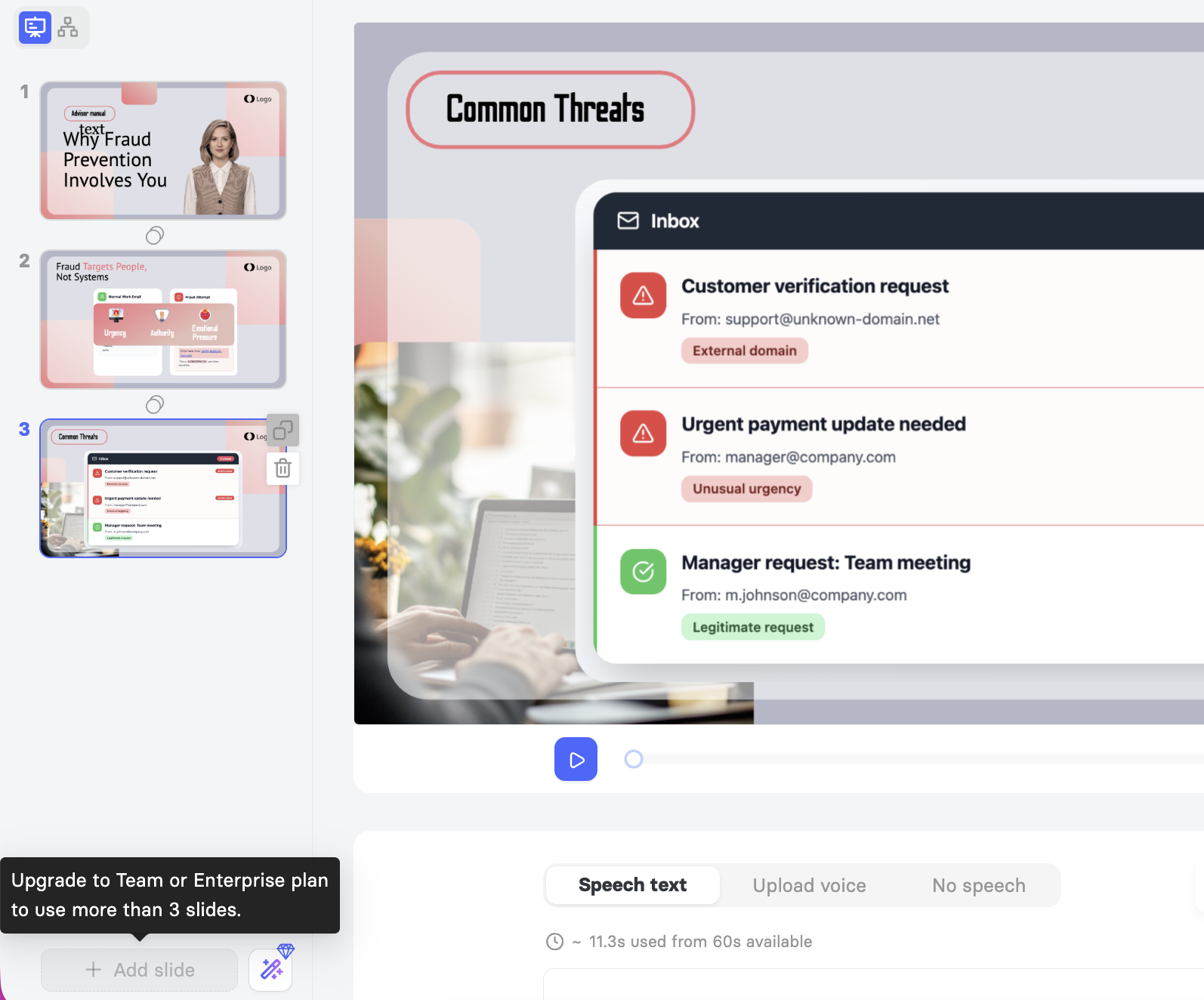
The Free Plan gives you 1 minute of render time for your whole account, and you can spend it across as many videos as you like. Each video can include up to 3 slides, with up to 60 seconds of speech per slide. See Learn About Free Plan.
Note: If a template has more than 3 slides, upgrade your plan to unlock and render the remaining slides.
Rendering on Paid Plans
Paid plans increase your monthly render time and lift the slide limit, so you can produce longer videos and more of them.
Creator: 15 minutes per month, or 180 minutes released upfront on an annual subscription. See Learn About Creator Plan.
Team: 50, 100, or 150 minutes per month depending on your tier, or 600, 1200, or 1800 minutes released upfront on an annual subscription. See Learn About Team Plan.
Enterprise: custom-configured, with your render minutes agreed as part of your subscription setup. See Learn About Enterprise Plan.
Note: On a monthly subscription, unused minutes expire at the end of each billing cycle. On an annual subscription, all of your minutes are released upfront and stay available throughout the year.
Note: Slide duration depends on the avatar you choose. All premium avatars, available on the Enterprise plan, support up to 5 minutes of speech per slide. Most standard avatars support up to 1 minute, but some support the full 5 minutes, and you do not need an Enterprise subscription to use those.
To check what an avatar supports, look at the duration badge in the lower-left corner of its thumbnail in the Avatars tab. 1 m means up to one minute of speech per slide, and 5 m means up to five. Premium avatars also carry a Premium label beside the badge.
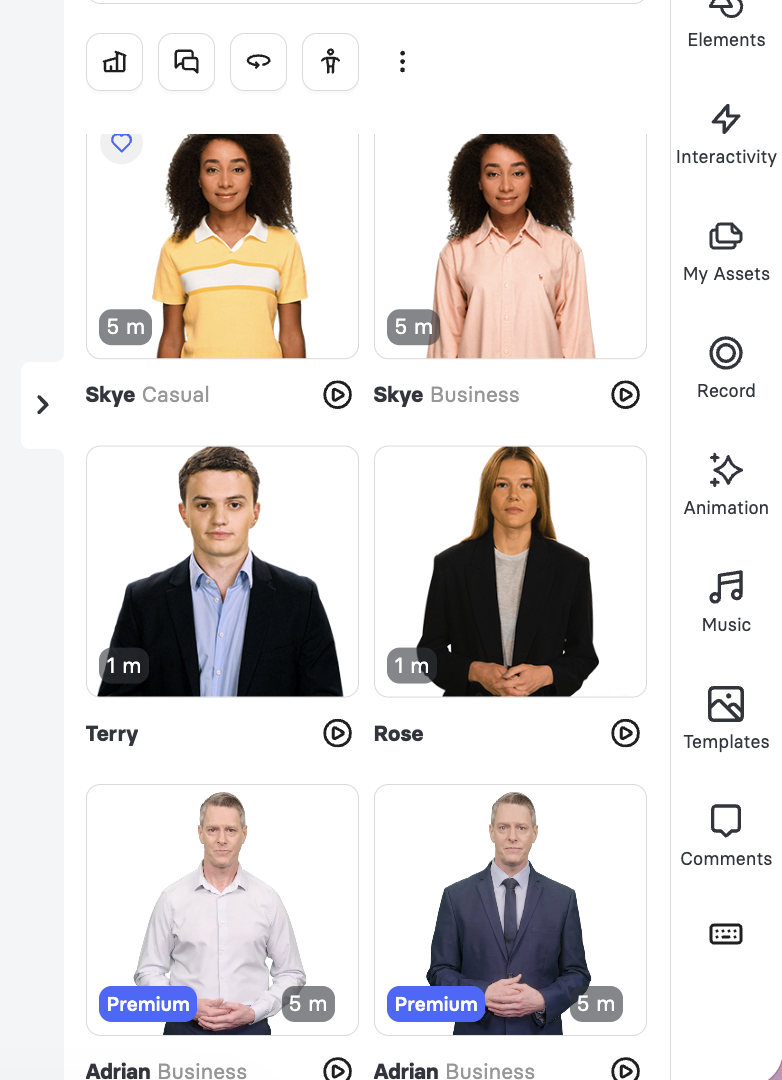
To see only the avatars with longer speech, click the three dots and, at the end of the filter row, choose 5 min speech support.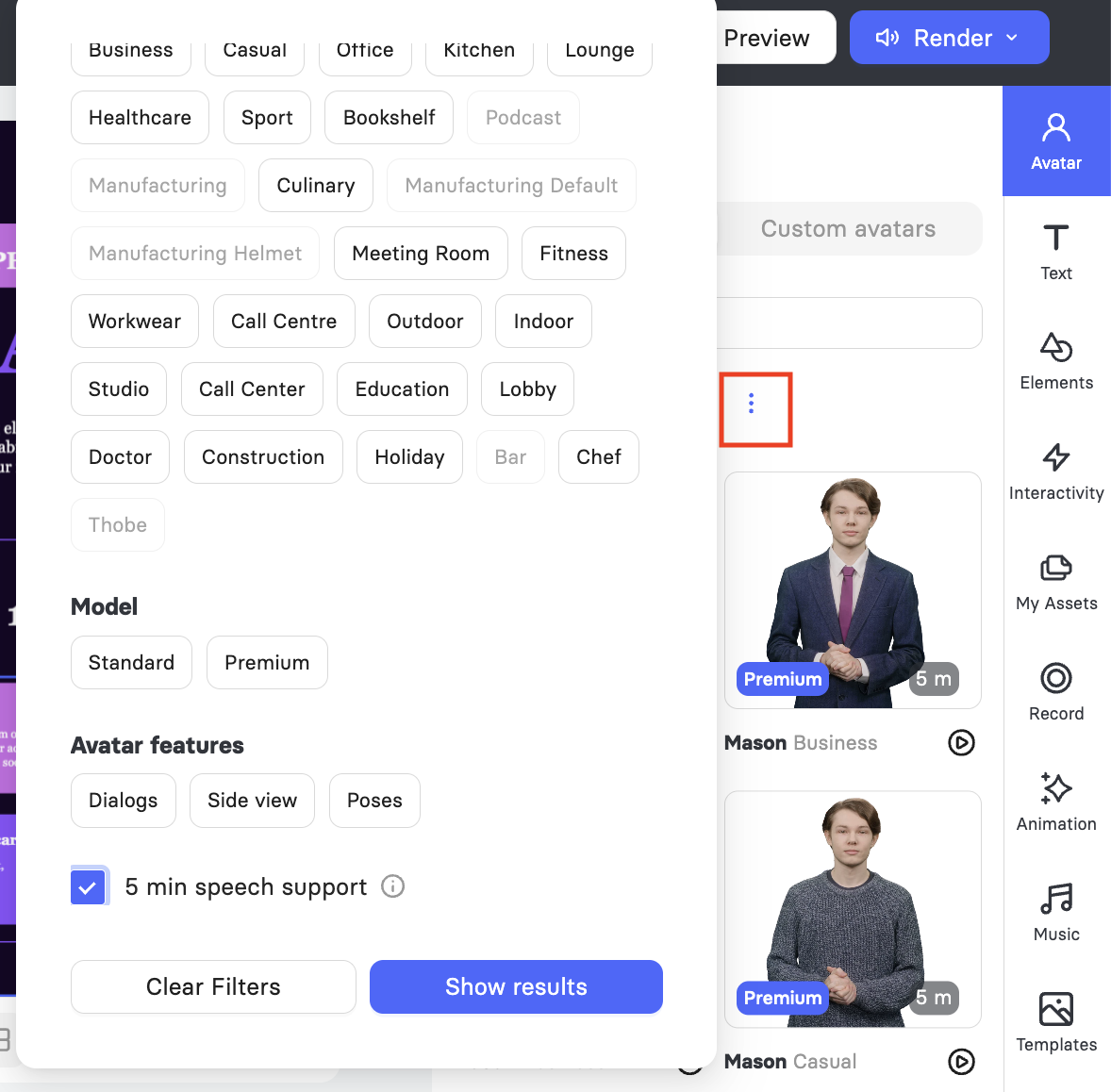
How Render Minutes Are Counted
Minutes are drawn from your balance every time you click Render, including when you render the same video again after making changes.
Note: Deleting a rendered project does not return the minutes it used, so it is worth previewing your video before you render the final version.
Buying More Minutes
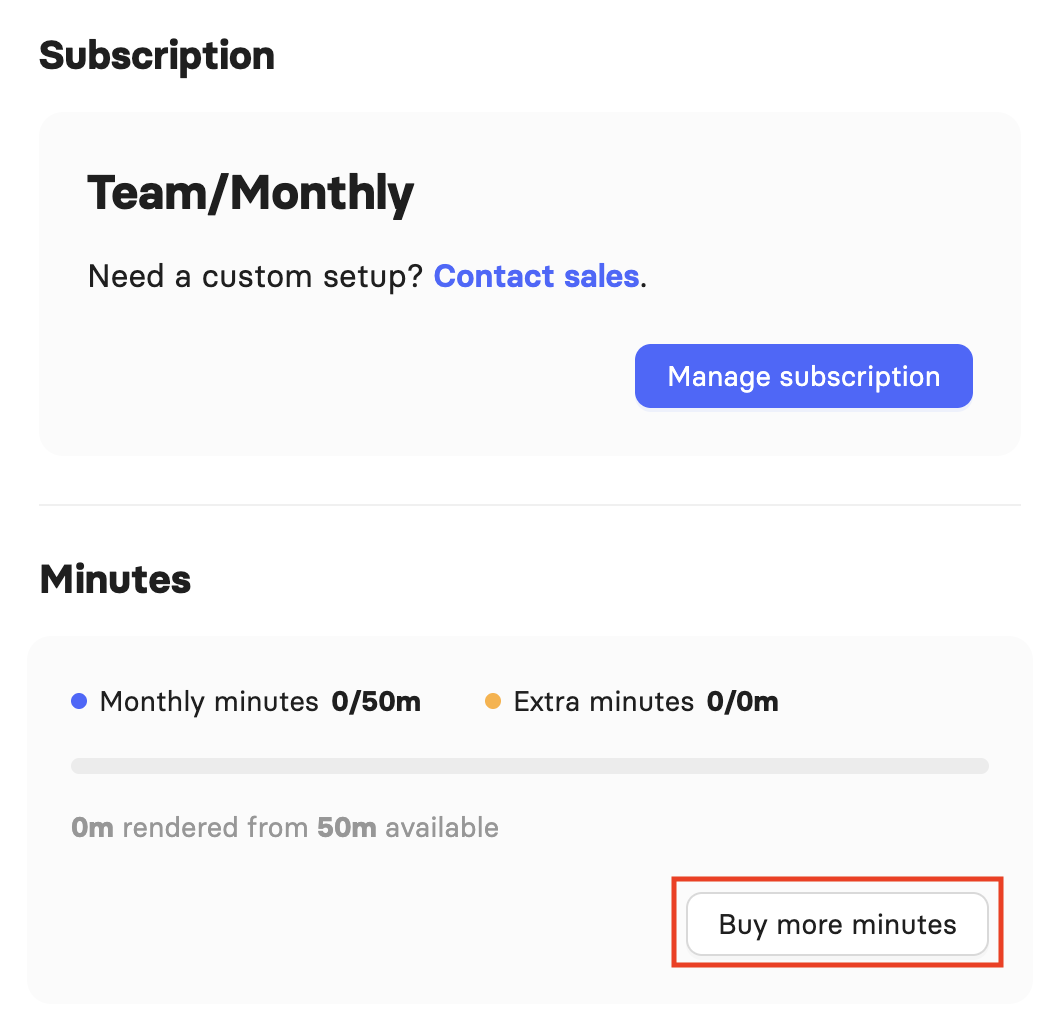
If you run out of minutes before your next billing cycle, you can buy more directly from your account in My Profile.
FAQ
Can I render more than one slide?
Yes. On the Free Plan, each video can include up to 3 slides, and you can render all of them within your available minutes.
Do unused minutes roll over to the next month?
On a monthly subscription, no. On an annual subscription, yes, since all of your minutes are released upfront and stay available throughout the year.
Will rendering the same video twice use my minutes twice?
Yes. Minutes are drawn each time you click Render, even for a video you have rendered before. Deleting it afterward does not restore them.
What happens when I run out of minutes?
You can buy more from My Profile at any time, or upgrade to a plan or tier with more monthly render time.
Was this article helpful?
That’s Great!
Thank you for your feedback
Sorry! We couldn't be helpful
Thank you for your feedback
Feedback sent
We appreciate your effort and will try to fix the article