Overview
Custom fonts keep your videos consistent with the rest of your branded material. Instead of picking the closest match from the default font list, you can upload your company's own font files and use them in any text block in your video.
Fonts live in your Brand Kit, alongside your logos and brand colors. See Learn About Brand Kit. Once a font is uploaded, it stays in your workspace and appears under My Fonts in the text settings of every project. You can upload fonts from the Home page before you start a video, or directly inside the video editor while you are working.
Custom fonts are applied manually. Uploading a font makes it available in the editor, and you then select it for each text block where you want it used.
Prerequisites
Team or Enterprise subscription plan.
A font file that meets the requirements listed in Font File Requirements below.
1. Font File Requirements
Elai accepts several font file formats, each with a size limit. Check your file against the list below before you upload it, so the upload is not rejected.
Format: Elai accepts .ttf, .otf, .woff, and other common font formats.
File size: Up to 5 MB per file.
Supported subfamilies: Regular, Bold, Italic, Medium, Light, and other standard weights and styles.
Library limit: Your Brand Kit holds up to 20 font families.
Each style you want to use is uploaded as its own file. If you want both the regular and the bold weight of a font, upload both files, and they appear together as one font family in your Brand Kit.
2. Upload a Font From the Home Page
Use this method when you want to set up your Brand Kit before you start creating videos.
Log in to your Elai account and go to the Home page.
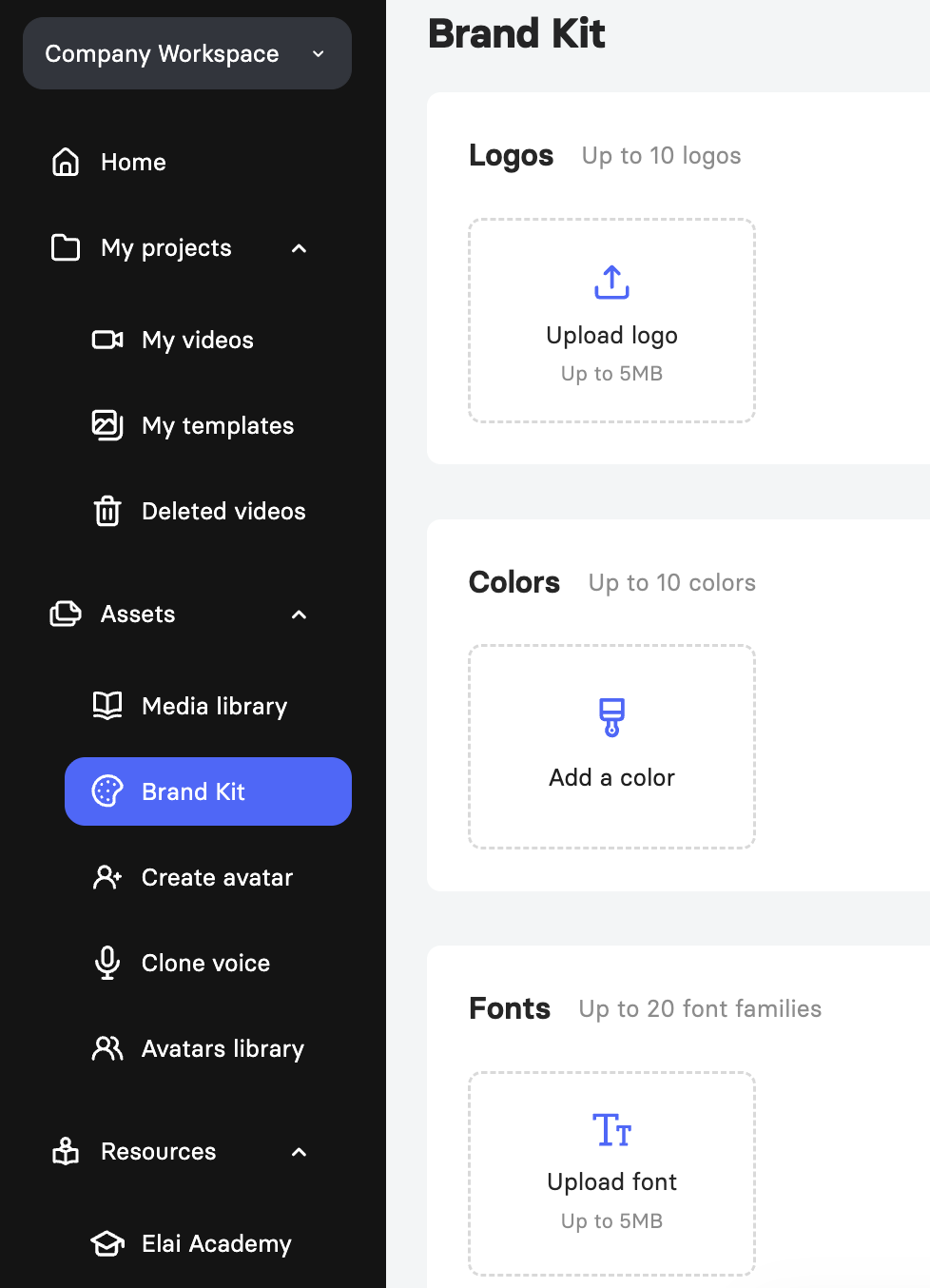
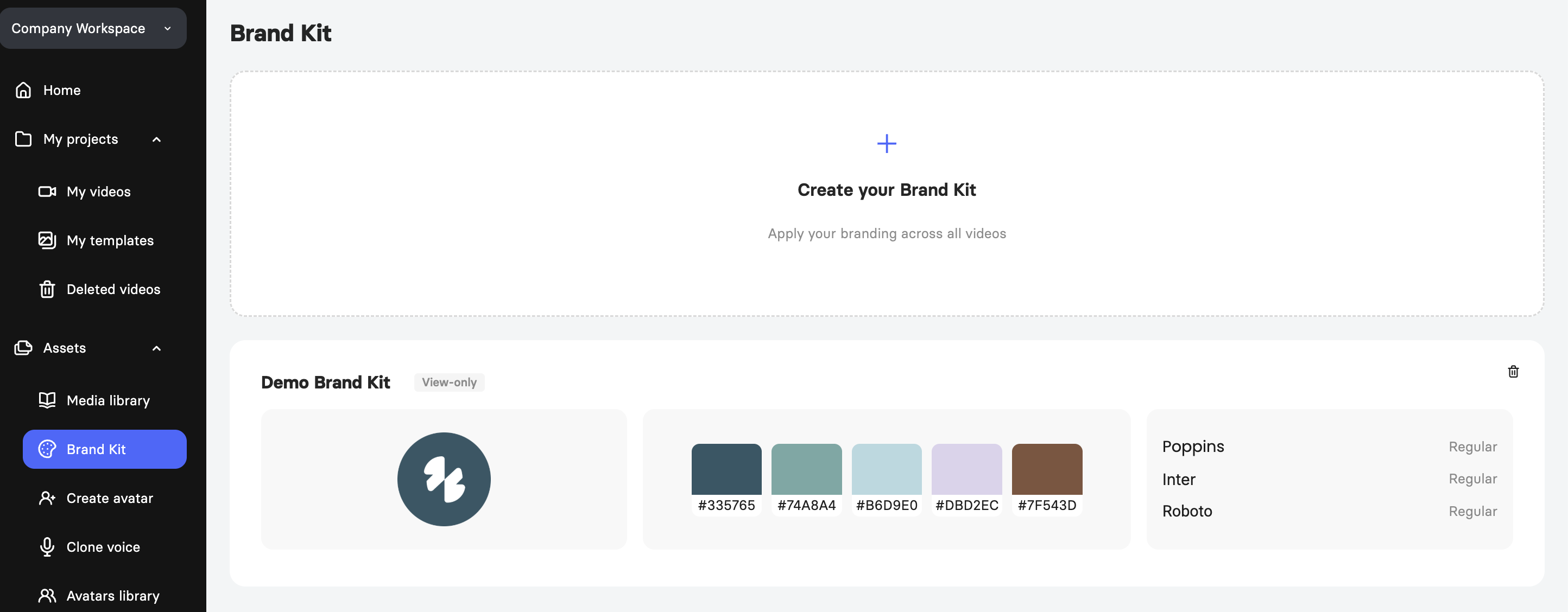
In the left-side menu, open the Assets section and click + Create your Brand Kit.
Scroll to the Fonts section of the Brand Kit page.
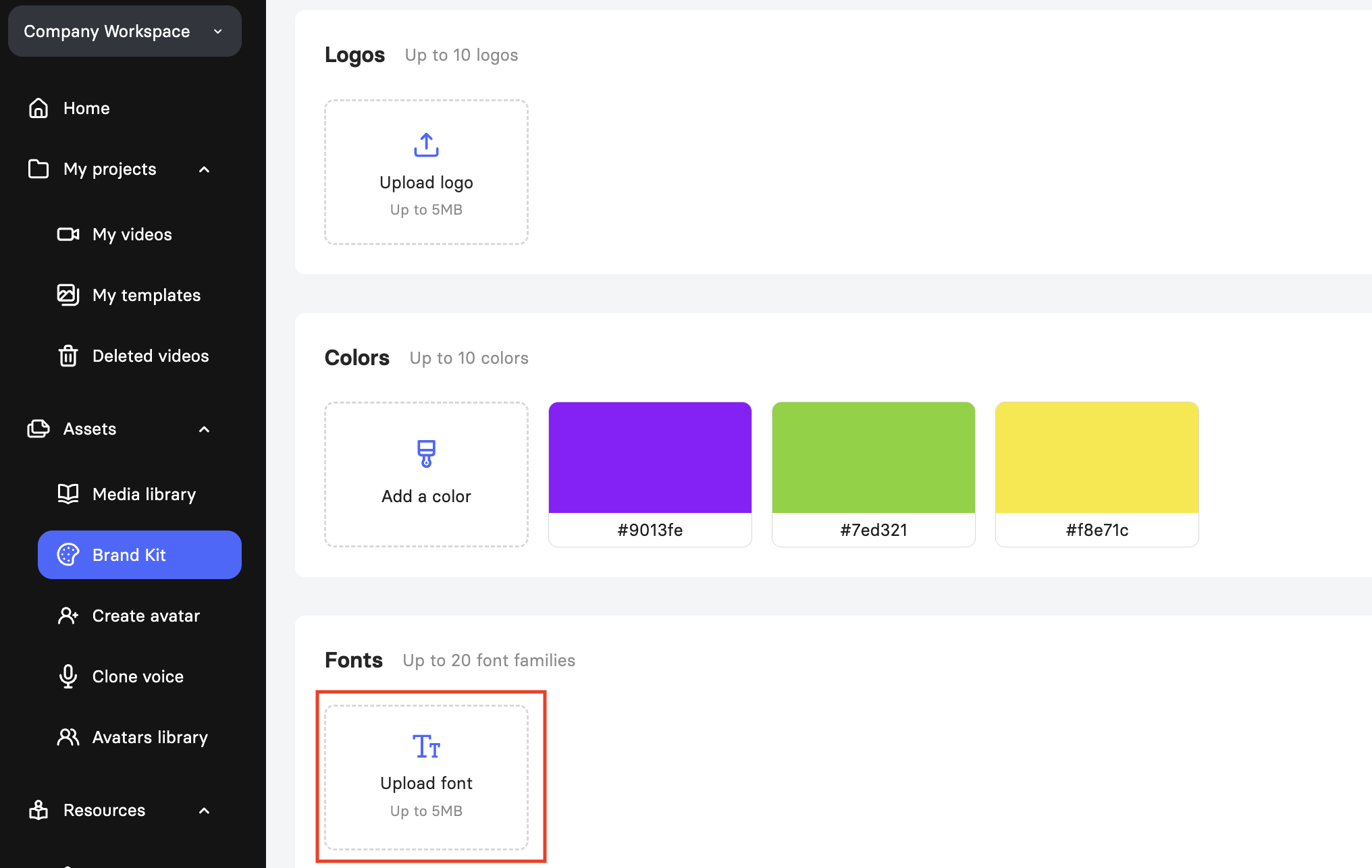
Click Upload font and select your font file from your computer.
Wait for the confirmation message that tells you the font was uploaded successfully.
Note: Your uploaded fonts appear in the My Brand Kit area at the top of the page. The Demo Brand Kit shown below it is a view-only example and cannot be edited.
3. Upload a Font in the Video Editor
If you are already working on a video and realize you need a custom font, you can reach the Brand Kit without leaving the editor.
Open your project in the video editor.
Open the Brand Kit panel in one of two ways:
a. Click the text block you want to style, then click Manage fonts in My Assets under the font drop-down in the right-hand panel.

b. Click My Assets on the right-side toolbar, then click the Brand Kit tab at the top of the panel.
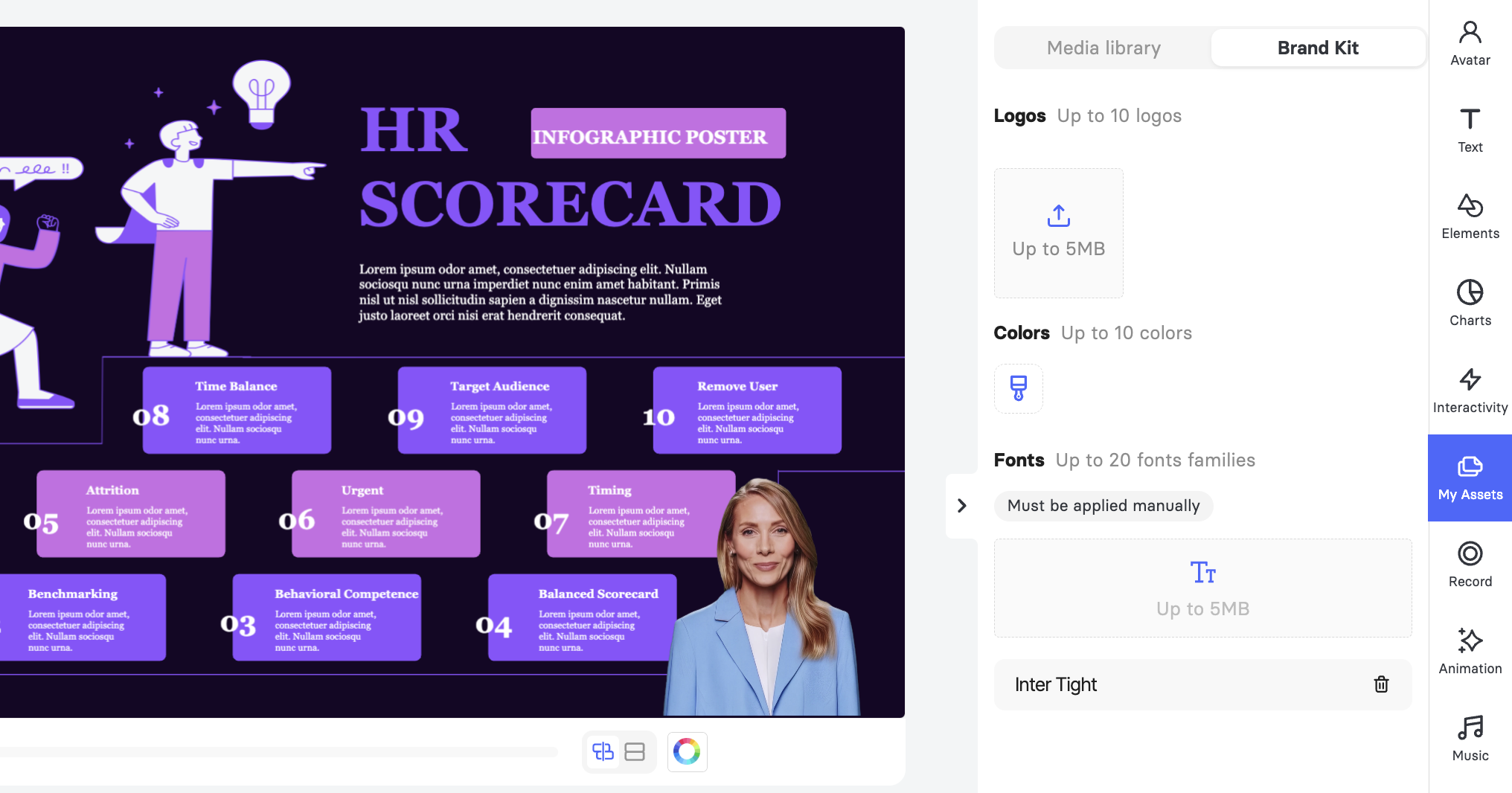
Scroll to the Fonts section of the panel and click the upload area.
Select your font file from your computer and wait for the confirmation message.
Your font is now saved to the Brand Kit for the whole workspace, not only for the video you have open. Everyone you have invited to the workspace can use it, so for details on managing those members, see Learn About Workspace Settings.
4. Apply and Manage Custom Fonts
Uploading a font makes it available in the editor, and you then apply it to each text block yourself. Follow these steps for every text block you want to restyle.
Open the video you want to work on and click the text block you want to change.
Open the Text tab in the right-side toolbar to show the text properties.
Click the font field and find your font under My Fonts at the top of the list.
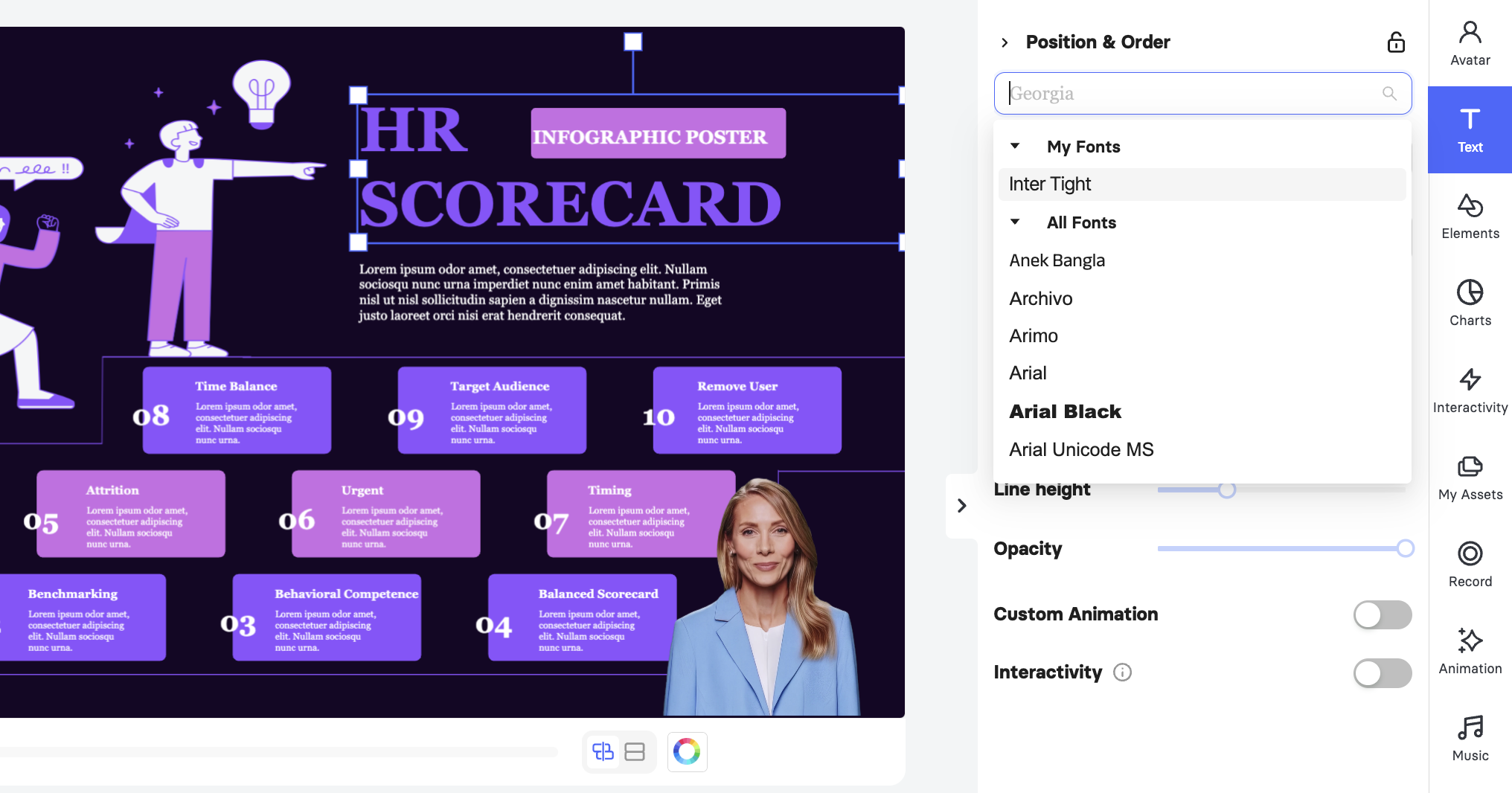
Click the style drop-down next to the font name and choose the style you want, such as Regular, Medium, or Bold.

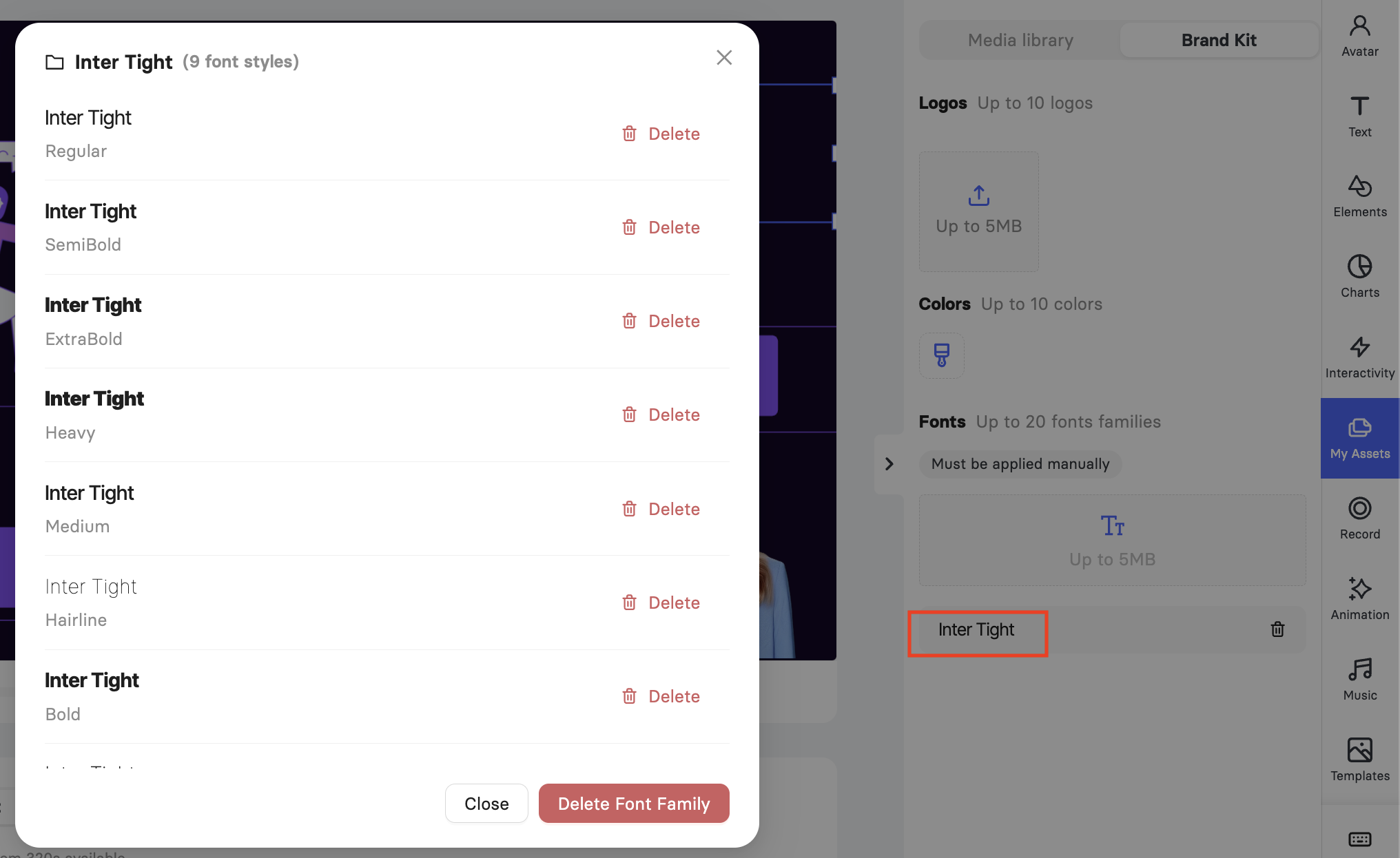
Note: By clicking the uploaded font family in the Brand Kit, you can manage it by deleting certain files or the whole family at once. To remove a font straight from the list, click the bin icon next to it.
FAQ
Which plans include custom font upload?
Custom fonts are part of the Brand Kit, which is available on the Team and Enterprise plans. You can compare plans on the Elai Pricing Page.
Which font file formats can I upload?
You can upload .ttf, .otf, .woff, and other common font formats.
How many fonts can I keep in my Brand Kit?
Your Brand Kit holds up to 20 font families, and each file can be up to 5 MB.
Why is my new font not showing in my video?
Custom fonts are applied manually. Uploading a font adds it to your Brand Kit, and you then select it for each text block in the Text tab.
Does my font stay available in other videos?
Yes. A font uploaded from either the Home page or the video editor is saved to your workspace Brand Kit and appears under My Fonts in every project.
Can I delete one style without removing the whole font?
Yes. Open the font family in the Brand Kit and delete the individual style, or use Delete Font Family to remove every style at once.
Was this article helpful?
That’s Great!
Thank you for your feedback
Sorry! We couldn't be helpful
Thank you for your feedback
Feedback sent
We appreciate your effort and will try to fix the article