Overview
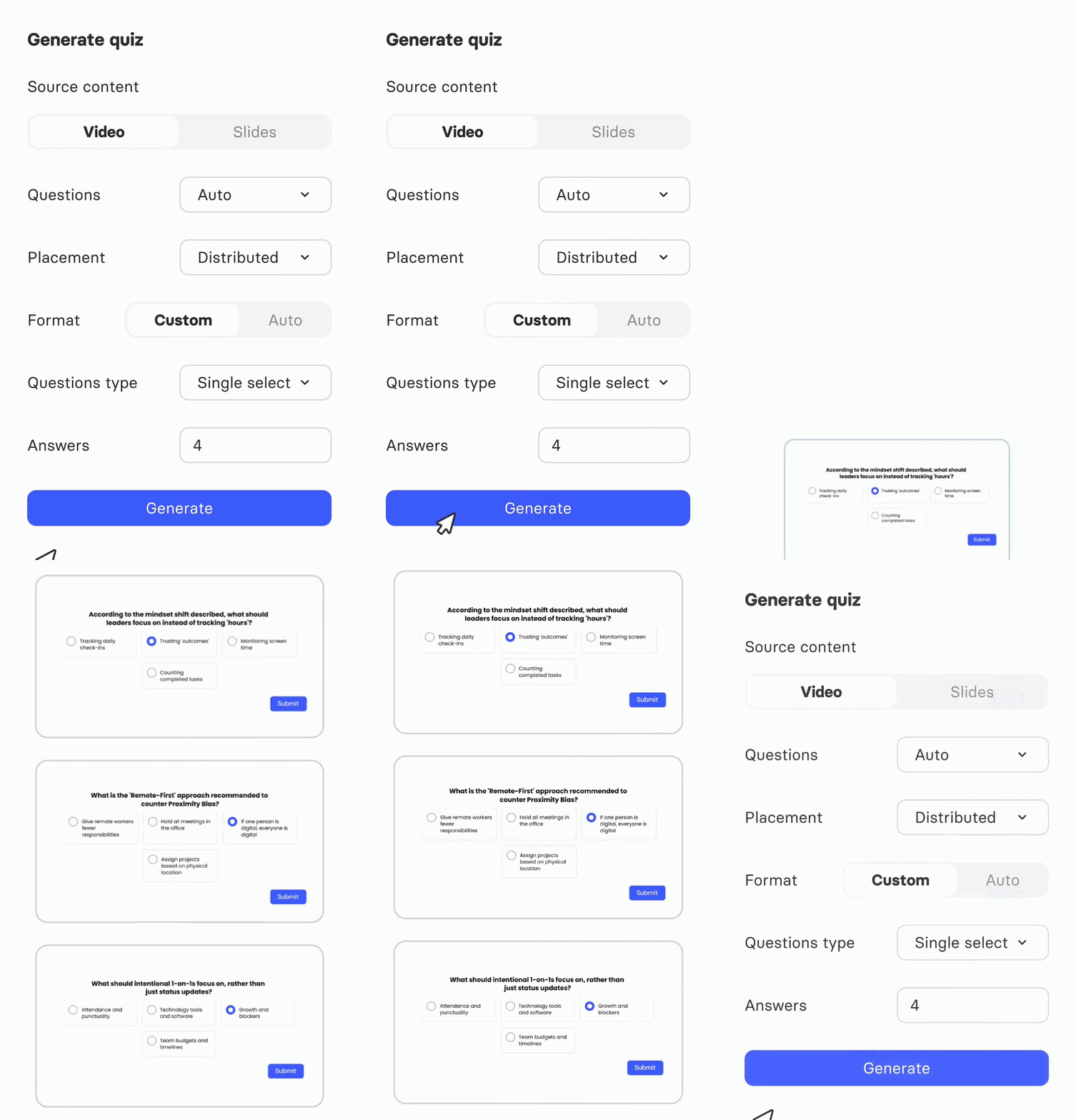
AI Quiz Generation lets you turn existing video content into ready-made knowledge checks without writing questions yourself. Elai analyzes your slides or video and builds text-based single-choice or multiple-choice quizzes based on what it finds, so you can add engaging answers to a video in a few clicks.
You can generate a quiz in several places: while creating a video with AI Storyboard, while importing a presentation, or directly inside the video editor from slides you've already built. In every case, you stay in control of how many questions are created, where they appear in the video, and whether the format is set automatically or customized by you.
Prerequisites
Available on the Enterprise plan.
Generate a Quiz in the Video Editor
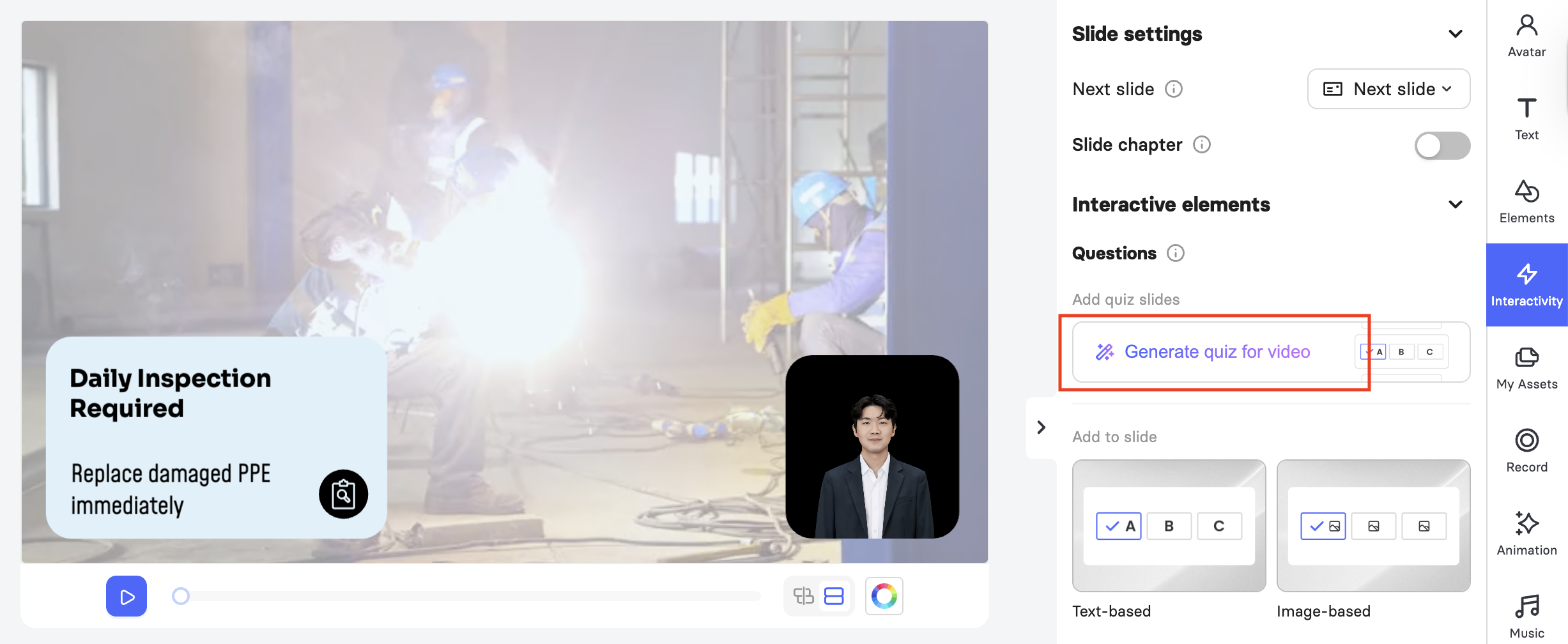
Open Interactivity in the right-hand panel of the video editor and select Generate quiz for video option.
Choose your source content. Select Video or Slides, described in detail below.
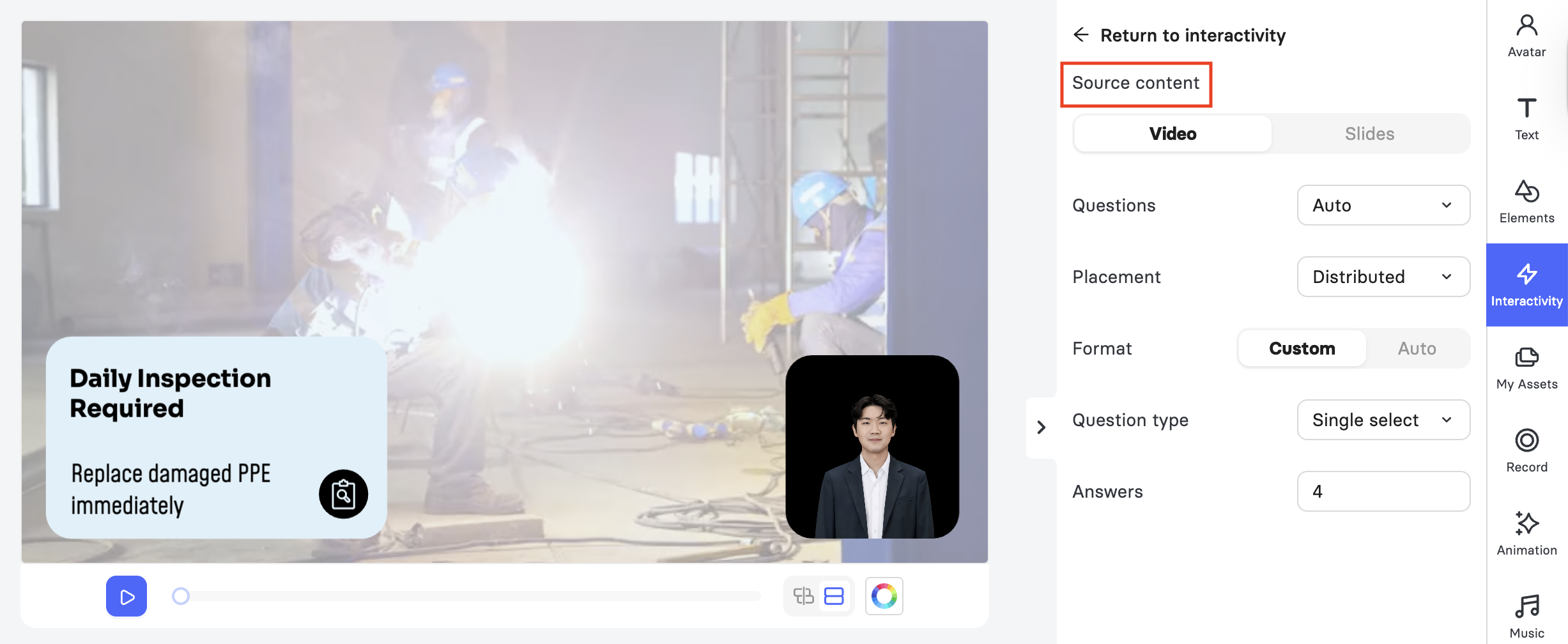
Set Questions, Placement, and Format, described in detail below.
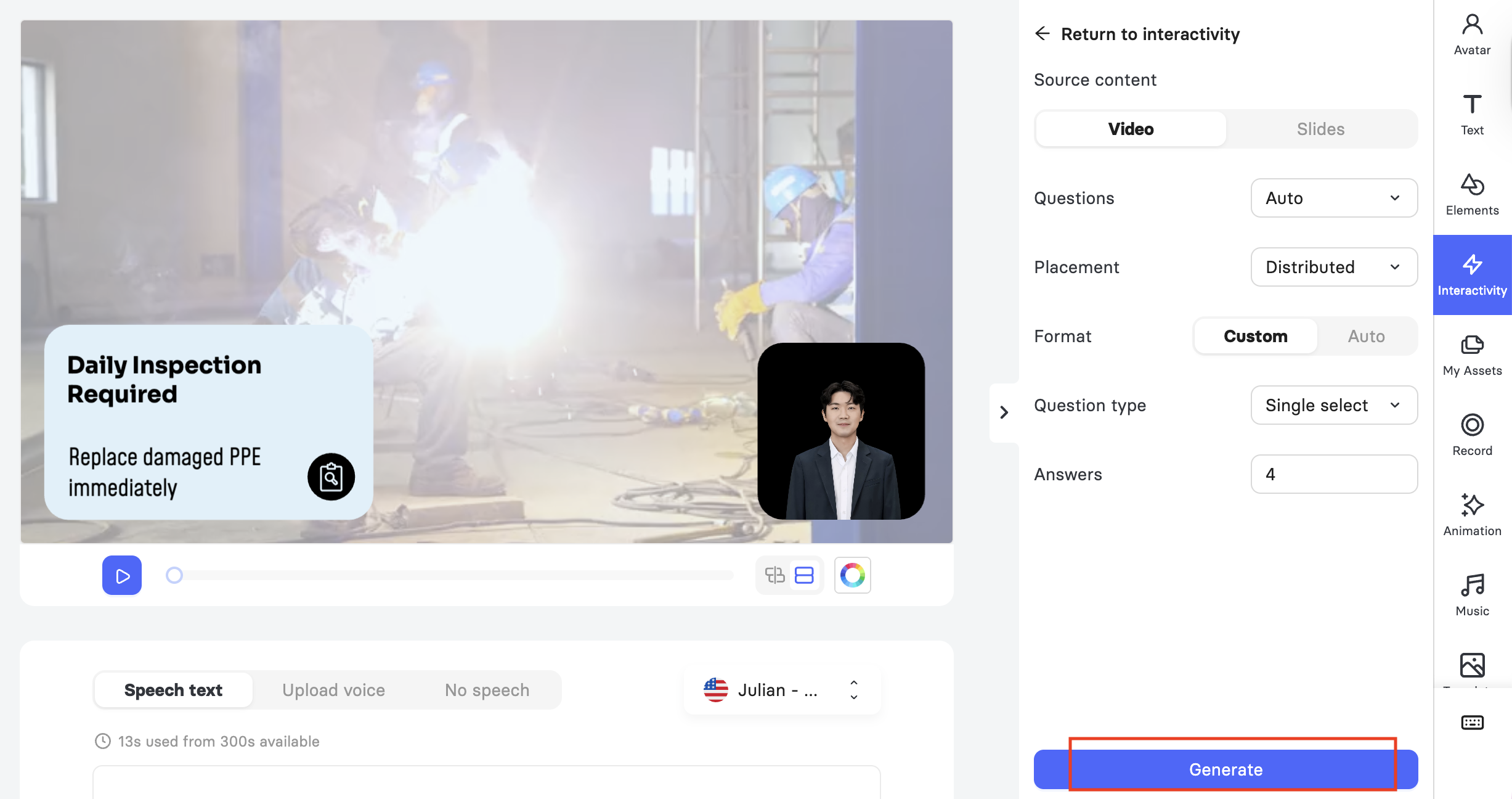
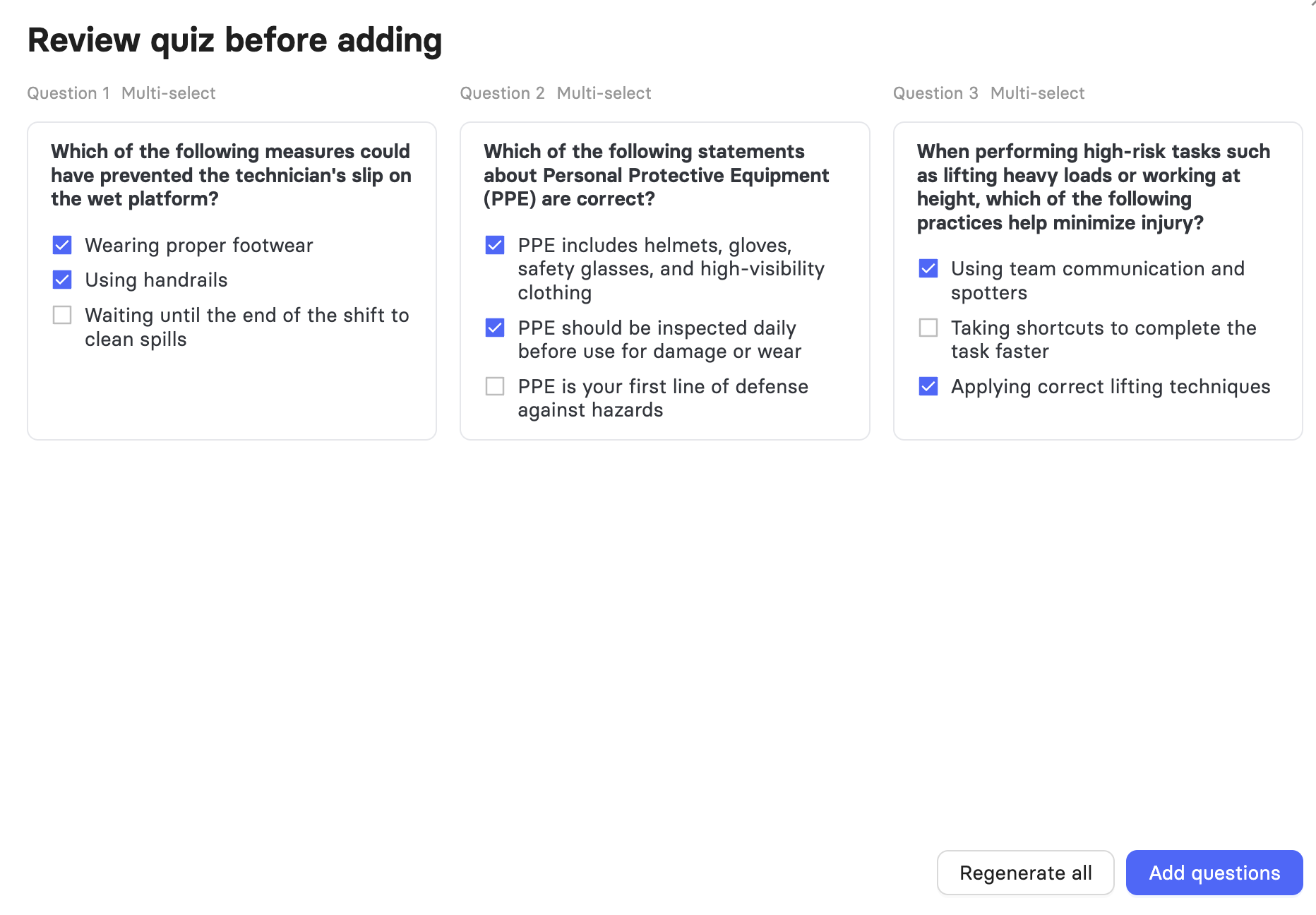
Click Generate. A review window shows all the generated questions with their marked answers.
Select Regenerate all for a fresh set, or Add questions to insert them into your video.
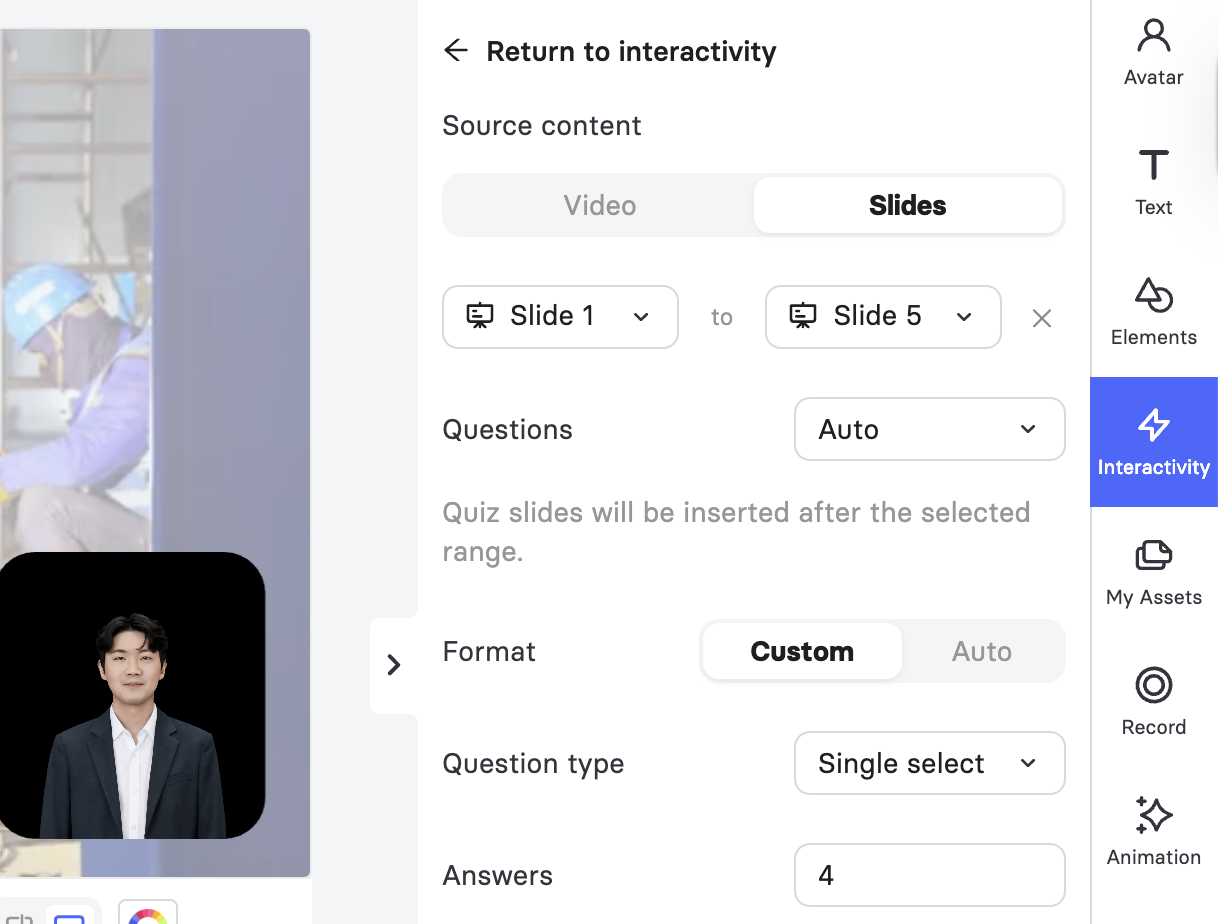
Source content
Video: The AI builds the quiz using the entire video as its information base.
Slides: The AI builds the quiz using any slide of choice as its information base. Instead of a dropdown for a single slide, you can also select Add slide range to choose a start and end slide. The AI uses only the content within that range to build the quiz, and the quiz slides are inserted right after the selected range.
Note: With Elai, you can create branching learning scenarios. A video with branching logic is an interactive video where the next scene depends on the viewer's choices. Instead of following one fixed path, it includes decision points that lead to different outcomes.
Important! If your video already includes branching logic, make sure viewers cannot skip the quiz. Otherwise, other slides may indirectly reveal the answer to your questions. Learn more about setting up paths for viewers in Interactivity Branching Scenarios.
Questions
You can set up to 10 questions per request, or leave it on Auto to let the AI decide the appropriate number based on your content. Each request creates unique questions, so regenerating never repeats a previous version.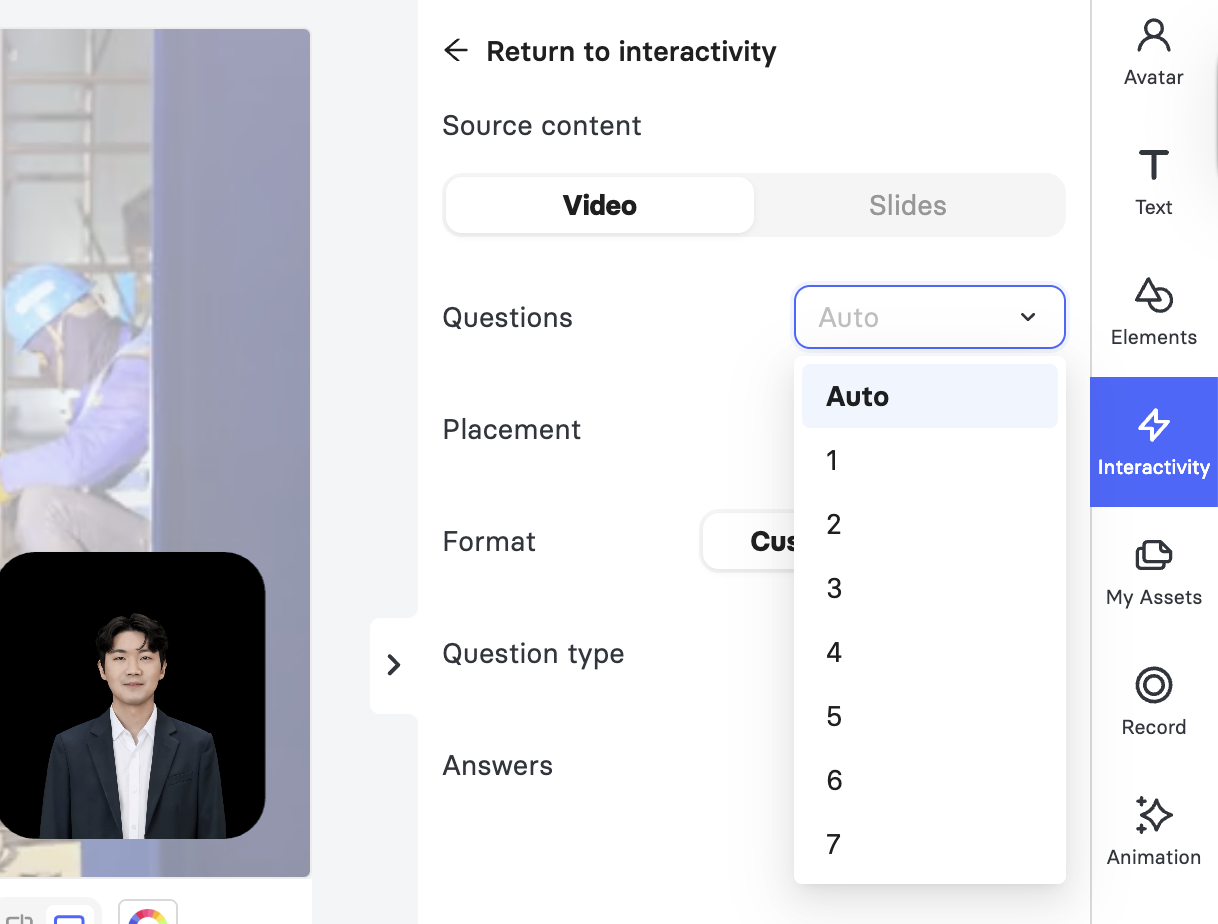
Note: If your video already contains quizzes, you will be asked whether to keep the existing quizzes and add the new ones alongside them, or replace them by removing the existing quizzes first.
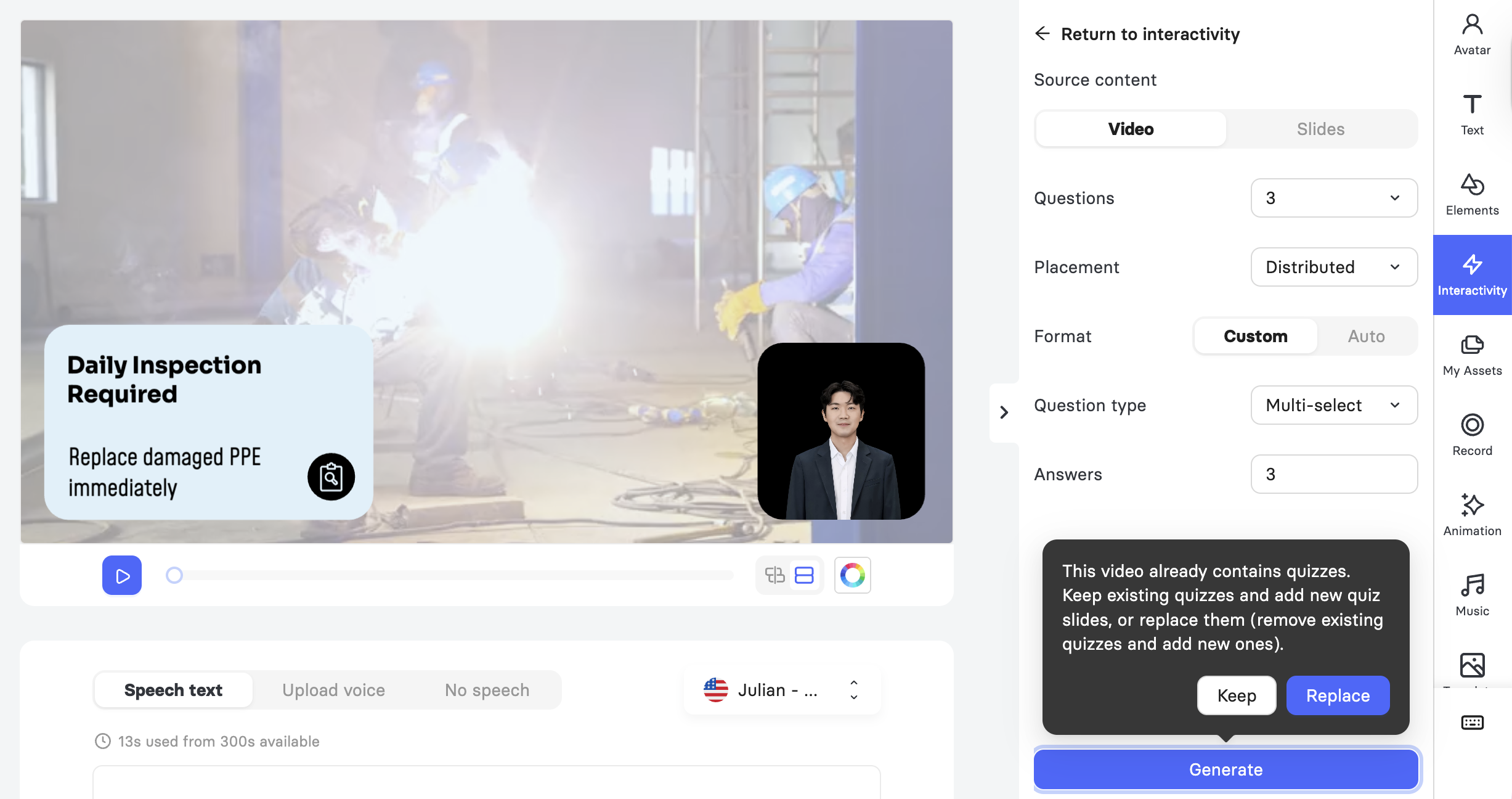
Placement
Distributed: Spreads the generated quiz slides logically throughout the video.
End of video: Places all generated quiz slides together at the end of the video.
Format
Auto: The AI automatically sets the question format to match the slide content.
Custom: You choose the format yourself, using the following two settings.
Question type: Single select, Multi-select, or True or False.
Answers: The number of answer options per question, from 2 to 6.
Once you click Generate, a review window displays all generated questions along with their correct answers. From here, you can either select Regenerate all for a new set of questions, or Add questions to insert the quiz slides into your video at the placement you chose.
Generate a Quiz with AI Storyboard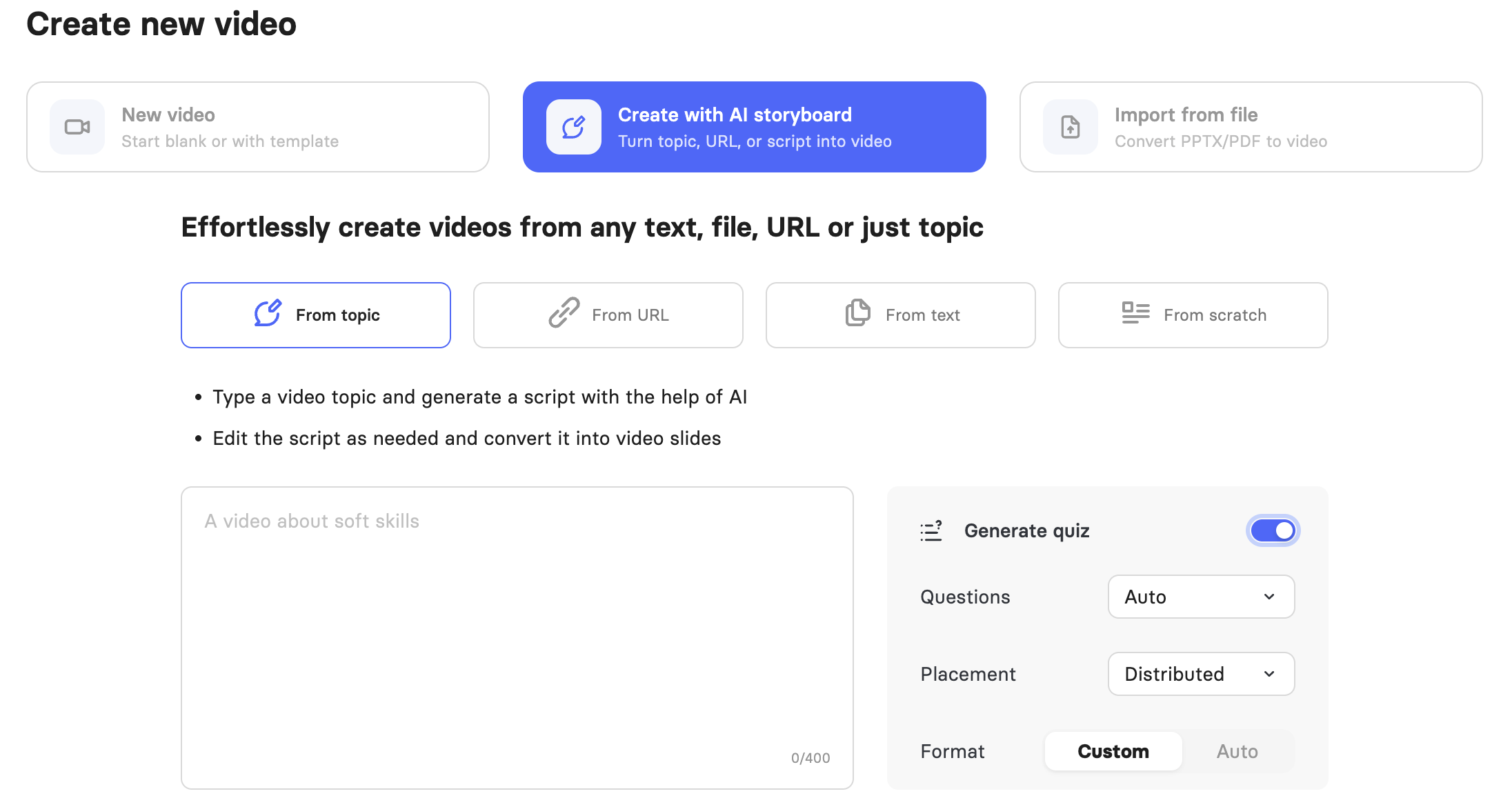
Start creating a new video with AI Storyboard using the From topic option.
Turn on the Generate quiz toggle next to your script settings.
Set Questions, Placement, and Format the same way as described in Generate a Quiz in the Video Editor.
Continue creating your script. Quiz slides are added once they're converted into video slides.
Important! AI Quiz Generation is only available when creating a video using the “From topic” option. It is not available when starting from a URL, from text, or from scratch.
Learn more about AI Storyboard here.
Generate a Quiz from a Presentation
Import your PPTX file to create a video from a presentation. Choose Editable mode.
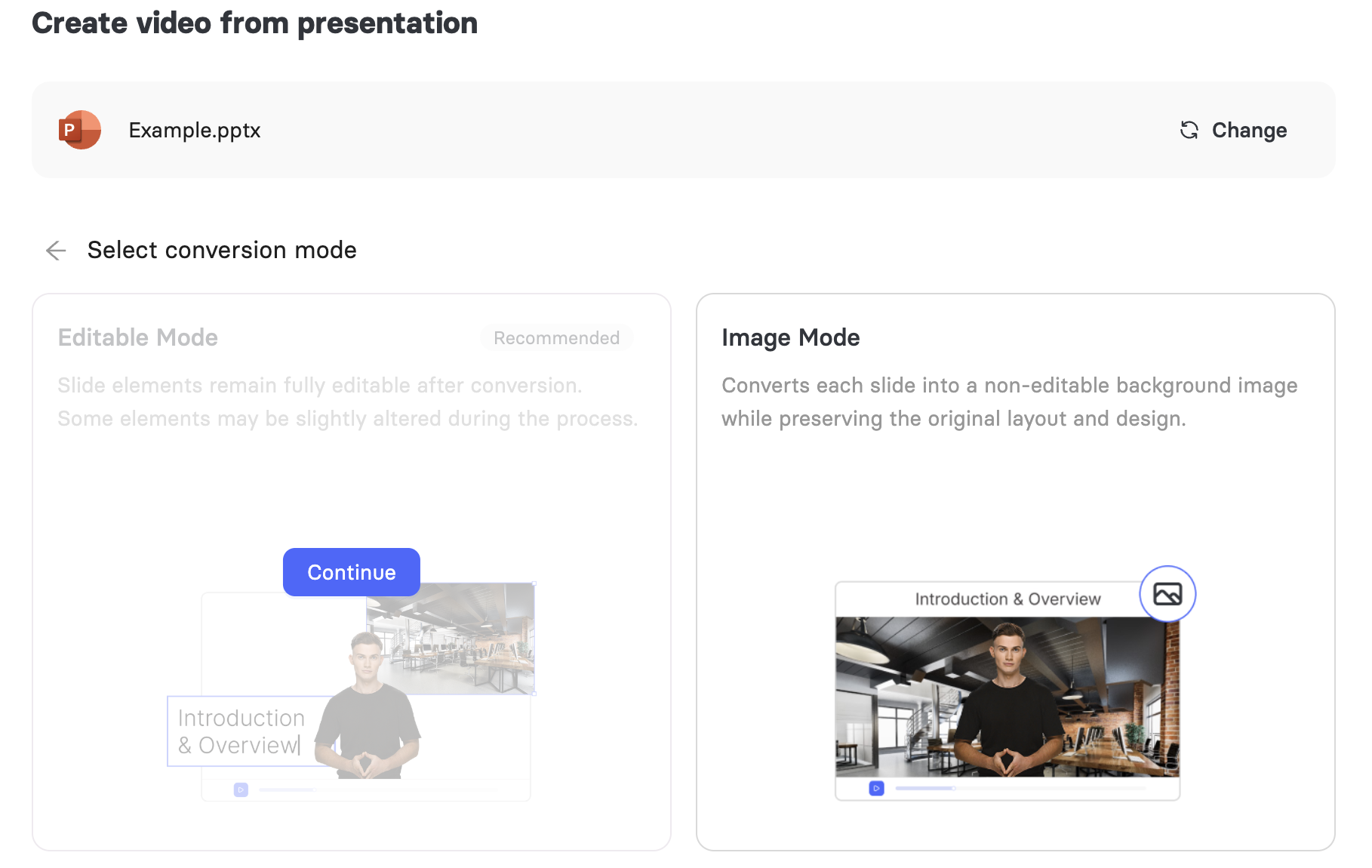
In the AI enhancements panel, turn on Generate quiz, next to Generate speech with AI.
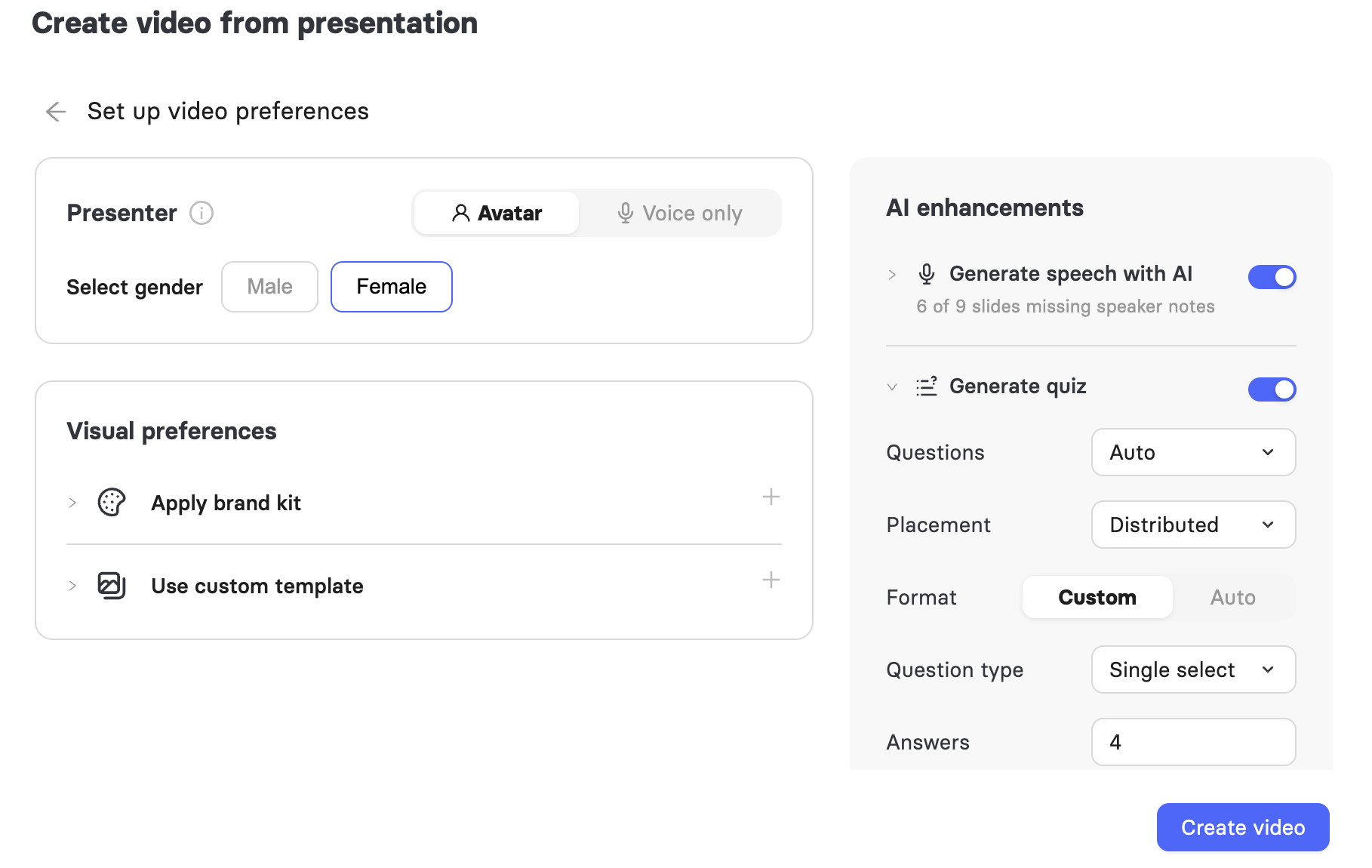
Configure the Placement and Format options the same way as described in Generate a Quiz in the Video Editor.
Click Create video. Quiz slides are added automatically once your presentation finishes converting.
Customize Question Format and Content
Each generated question becomes its own slide in your video. Once questions are generated, you can edit them like any other quiz slide. Click on a question's slide to open its settings and freely rewrite the question or answer text, switch between single-select and multi-select, add or remove answers, and set the design, style, and layout of the quiz card, regardless of which settings you chose before generating the quiz.
You can also delete a question's slide entirely, just like any other slide in your video.
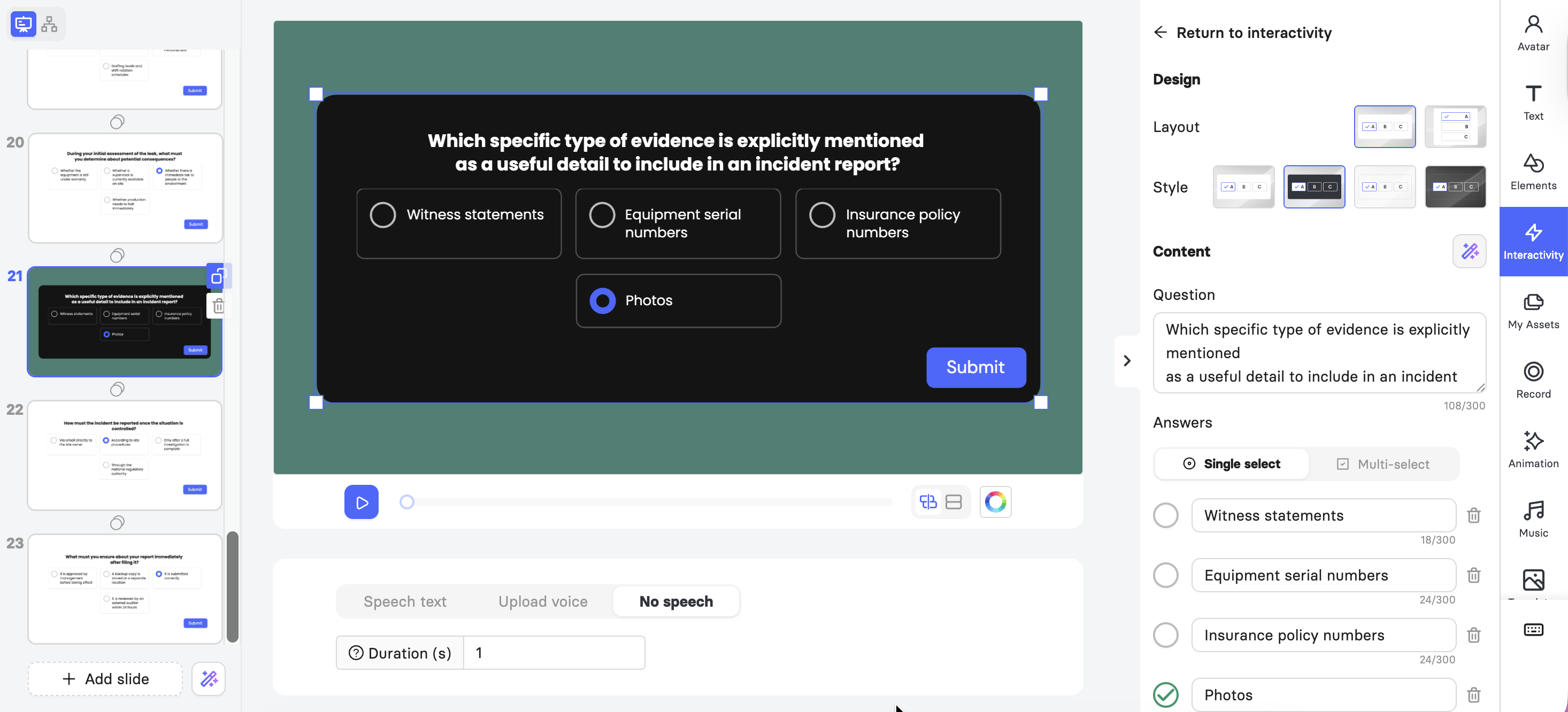
Review and Manage Generated Quizzes
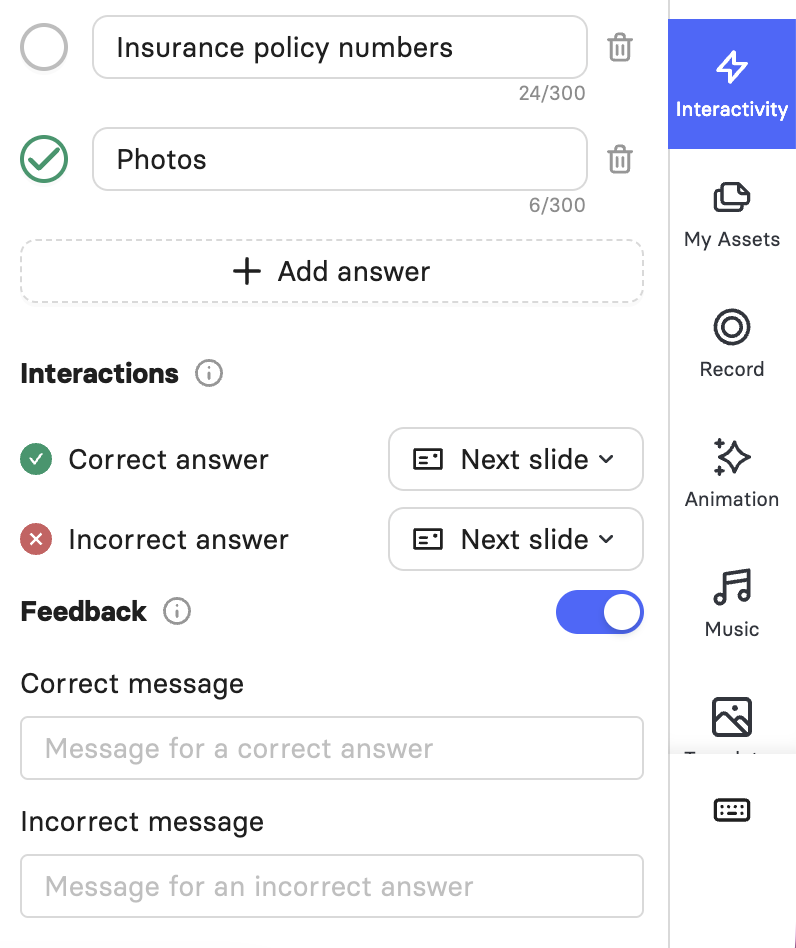
After adding quiz slides, you can set which slide the viewer sees next for a correct or incorrect answer, turn on feedback messages for each outcome, and drag the quiz slide to a different position in your video. These settings work the same way as they do for manually created quizzes, as covered in the Interactivity Guide.
Note: You can only see how a quiz will behave for viewers after your video has been rendered. The editor preview does not let you interact with the questions.
Important! Only one quiz is allowed per slide, and a quiz cannot be combined with a button on the same slide.
Further Reading
Elai's AI Recast feature uses a similar AI-driven approach to turn full-length Panopto recordings into shorter, ready-to-share Elai videos based on the recording's transcript. Once a Recast video is created, you can use AI Quiz Generation on it the same way as any other Elai video, letting you add knowledge checks to a video summary.
Note that quizzes must be generated after the summary itself, since Recast videos are built from a transcript rather than existing video slides.
For details on creating summaries, see How to Create a Video Summary Using Elai.
FAQs
How many questions can I generate per quiz?
You can set up to 10 questions per request, or leave the setting on Auto and let the AI choose the appropriate number based on your content.
Can I regenerate a quiz if I don't like the results?
Yes. Select Regenerate all in the review window to get a fresh set of questions. Each request creates unique questions, so you will never see the same version twice.
Can I edit a question after it's generated?
Yes. Click on a question's slide to rewrite the question or answer text, switch between single-select and multi-select, add or remove answers, and adjust the design, style, and layout of the quiz card.
Can I use AI Quiz Generation with branching videos?
Yes, but make sure viewers cannot skip the quiz. If they can, other slides may indirectly reveal the answers to your questions.
Can I combine a quiz with a button on the same slide?
No. Only one quiz is allowed per slide, and a quiz cannot be combined with a button on the same slide.
Can I preview how a quiz behaves for viewers before rendering?
No. The editor preview does not support interacting with the questions. You can only see how a quiz behaves for viewers after your video has been rendered.
Can I check quiz results without exporting SCORM?
Elai stores quiz results in its own database, but, for now, there is no way to view or use that data outside of a SCORM export or outside your LMS.
Can I use AI Quiz Generation on a Recast video?
Yes. Once a Recast video is created from a Panopto recording, you can generate a quiz on it the same way as any other Elai video. The summary must be created first, since Recast videos are built from a transcript rather than existing video slides.
Was this article helpful?
That’s Great!
Thank you for your feedback
Sorry! We couldn't be helpful
Thank you for your feedback
Feedback sent
We appreciate your effort and will try to fix the article