Overview
Dialogue Avatars let you place two AI avatars on the same slide, with one avatar speaking at a time while the other stays present in the scene. This creates the visual effect of a conversation or exchange, even though only one avatar delivers speech at any given moment. It's especially useful for teams building role-play scenarios, interview simulations, onboarding conversations, compliance training, and any script written for two on-screen speakers rather than one.
For a complete walkthrough of working with Elai’s AI avatars, check out How to Use Elai Avatars.
Not every avatar in the Elai library supports dialogue scenes. Avatars that do are tagged accordingly, so you can quickly tell which ones can be paired together on a slide. Dialogue Avatars are available at every plan level, including the Free trial, so you can try them out before upgrading.
Prerequisites
Verified account. See How to Verify Your Elai Account for more detailed steps.
Enterprise plan for premium avatars
Switching to a Dialogue Avatar
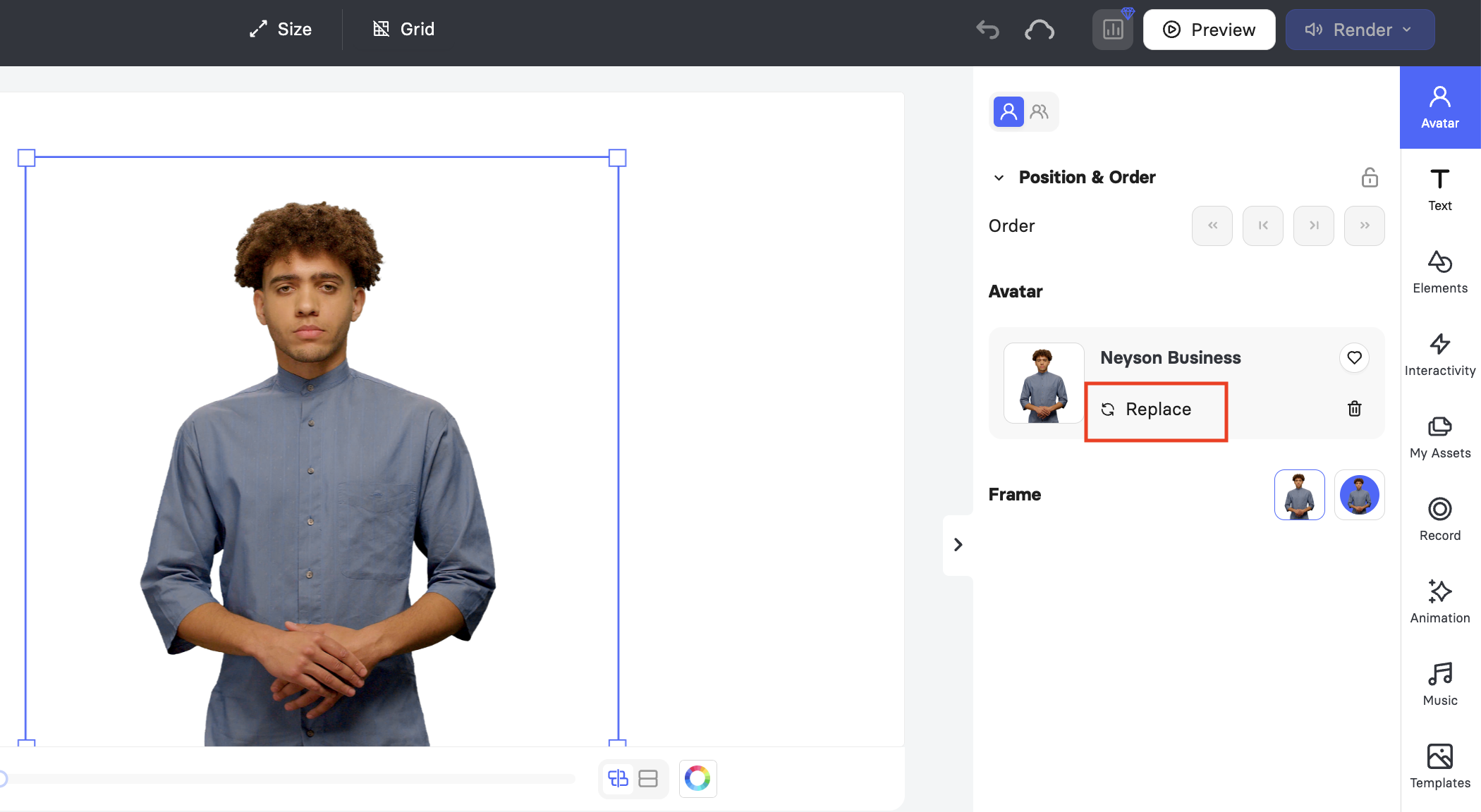
When you create a video, you already have an avatar placed on the slide. To open the full avatar grid, choose the Avatar panel on the right side of the editor and click Replace, or click directly on the avatar on the canvas and select Replace.
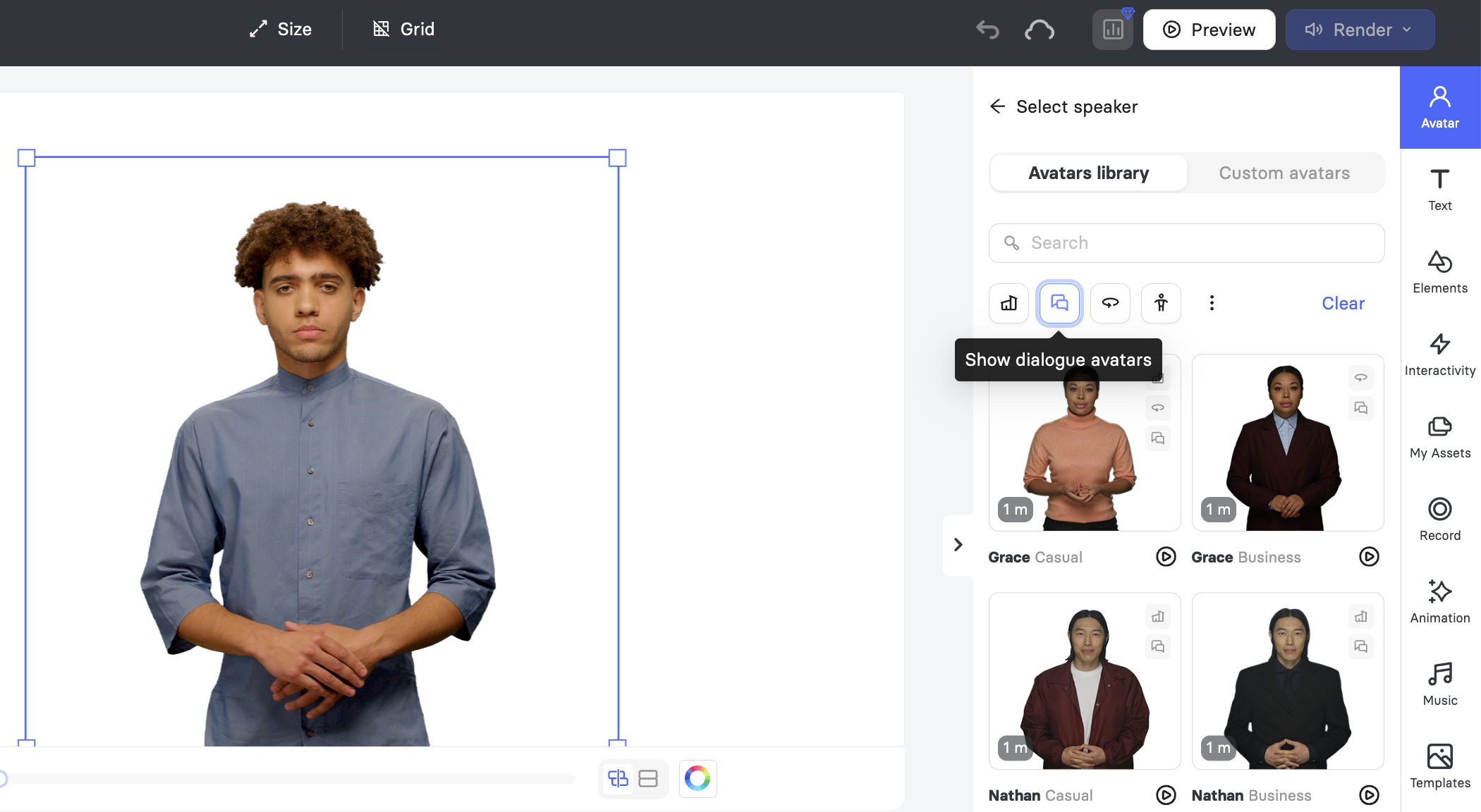
Above the avatar grid, you'll see a row of filter icons for different avatar types. Select the Show dialogue avatars icon to filter the grid to only those compatible with dialogue scenes.
Use the Clear button beside the filter icons to reset your filters and selection at any time, and preview any avatar speaking before adding it to your slide using the play button on its thumbnail.
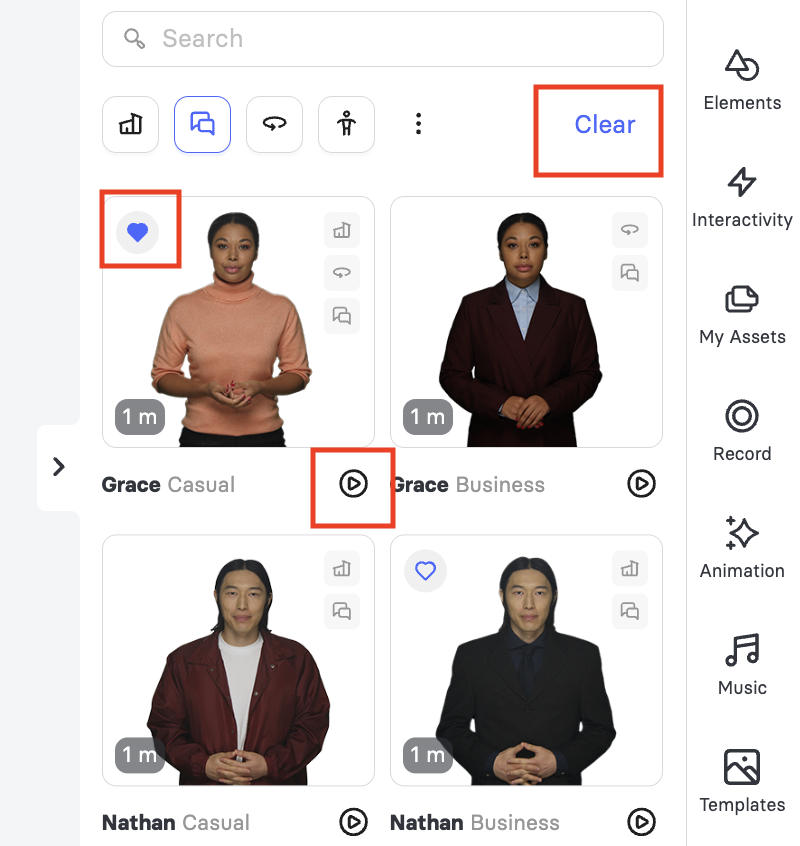
Note: Favorite avatars appear first in the grid, so you can quickly find your go-to picks for recurring scenes.
Switching Slides to Dialogue Mode
Once you've selected an avatar from the dialogue-filtered grid, click the two-person icon at the top of the Avatar panel, beside the single-person icon, to switch the slide into dialogue mode.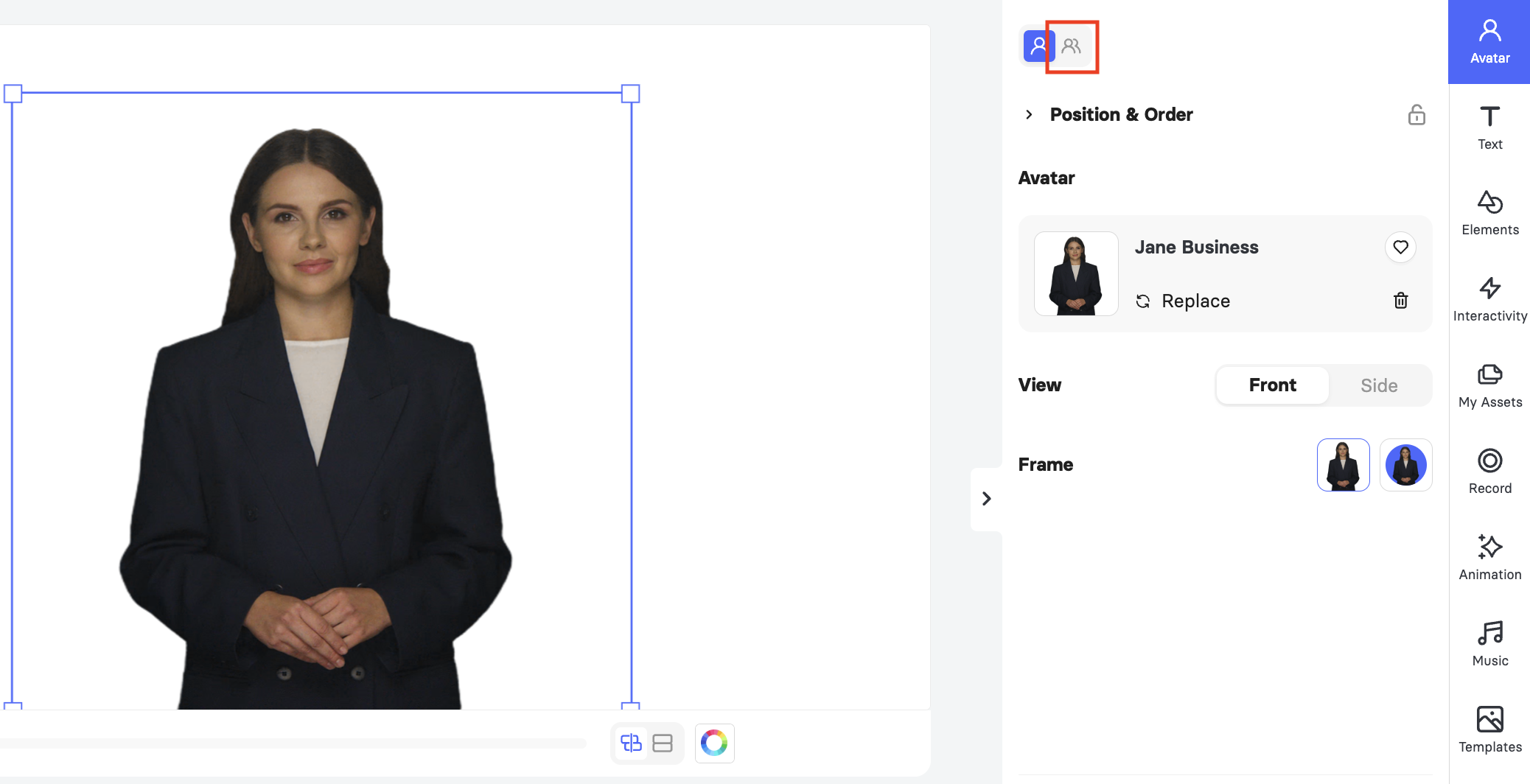 Note: Only one avatar can speak per slide at any given time.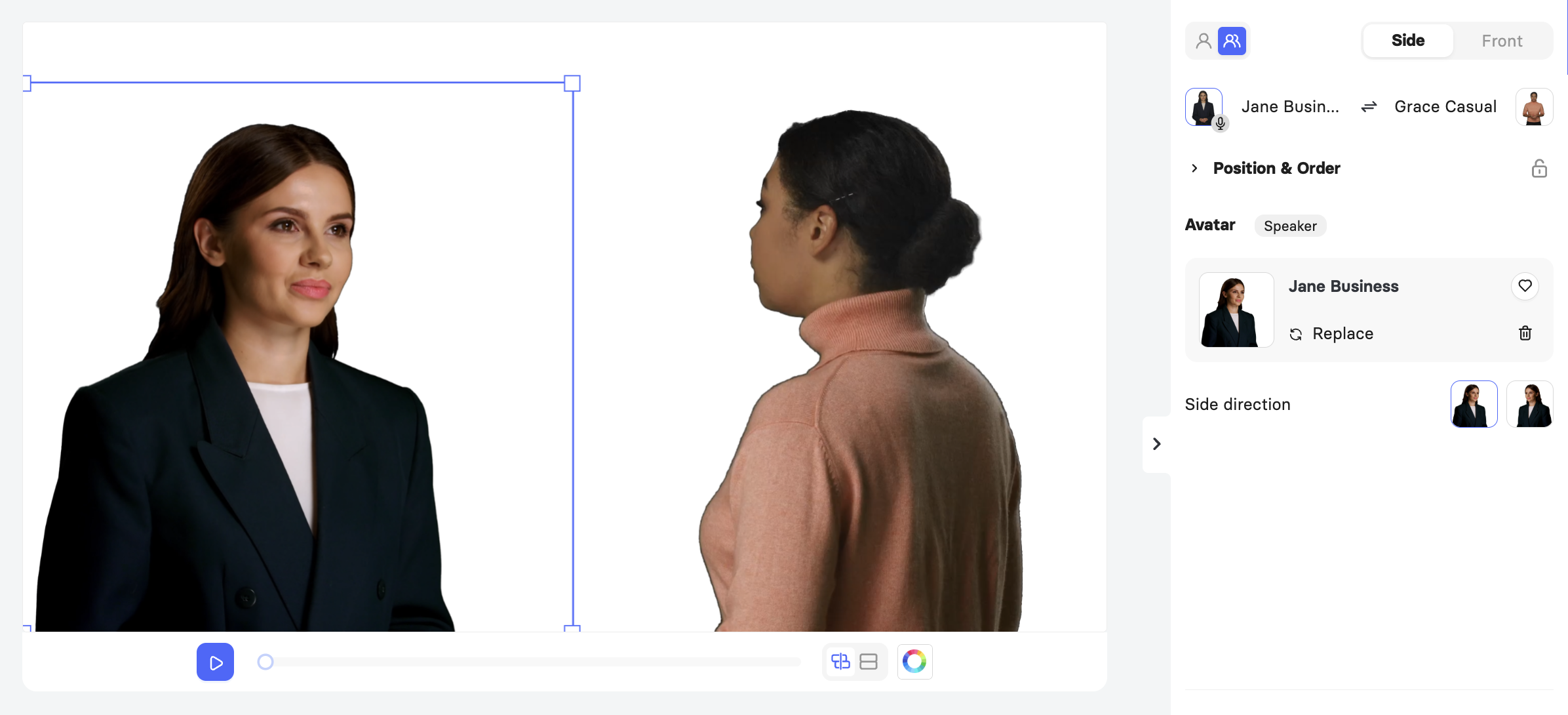
Adjusting Dialogue Avatar Positioning
The dialogue avatar pair can be displayed in Front or Side view using the View toggle at the top of the panel.
When using Side view, you can choose between two camera angles: back and side.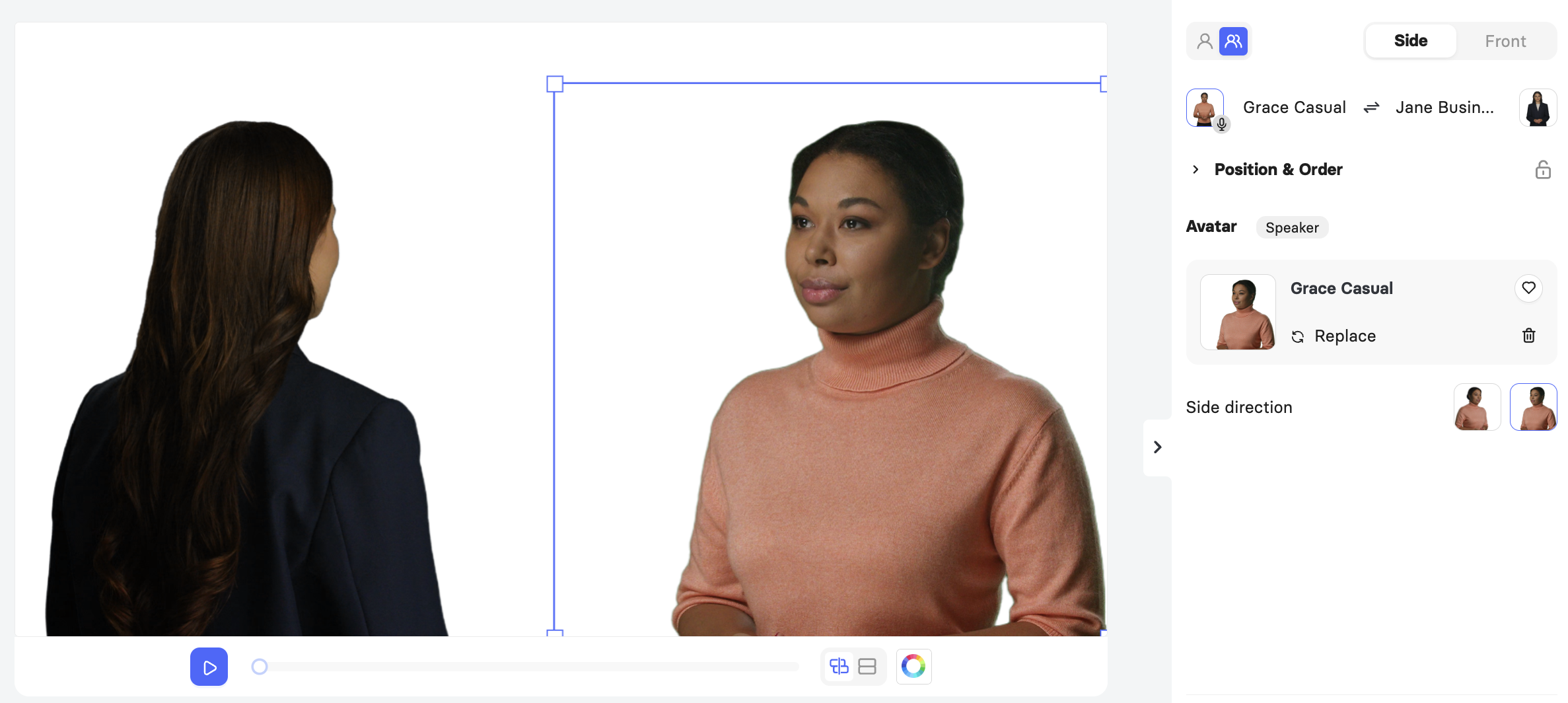
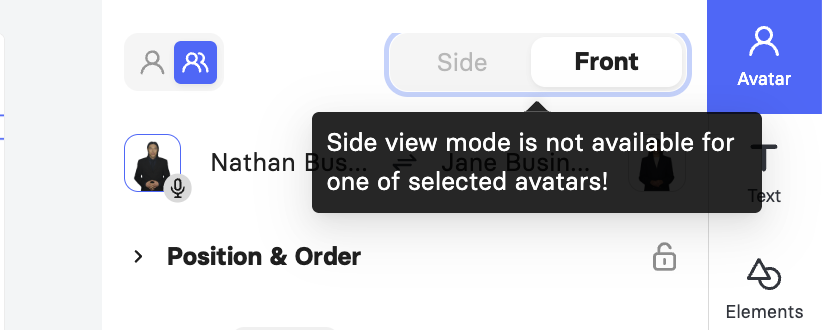
Note: Some avatars do not support Side view. If you receive a notification that Side view is unavailable for your chosen pair, change your avatar choice to unlock this view.
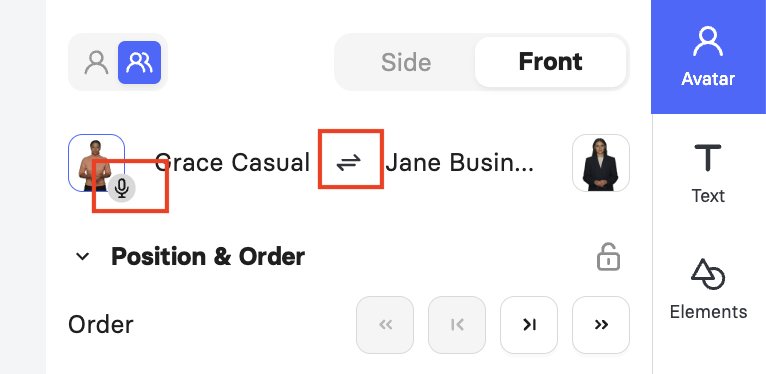
Above the avatar thumbnails, you'll see both avatar names with a swap icon between them. A small microphone icon marks whichever avatar is currently speaking on the slide. Click the swap icon to switch the active speaker whenever your script calls for the other avatar to talk.
You can resize and reposition avatars on the slide, and change the layering of the avatar and objects. To change the avatar's outfit, click on the avatar.
Note: To maintain consistent avatar positioning and ensure a natural-looking video, duplicate existing dialogue slides instead of creating new ones. For precise placement when reusing an avatar on a different slide, use Ctrl+C and Ctrl+V instead of re-adding it from the library.
FAQ
Can any avatar be used in a dialogue?
No. Only avatars tagged as supporting dialogue scenarios can be paired together on a slide. Use the dialogue filter in the avatar library to find them.
Do I need a paid plan to use Dialogue Avatars?
No. Dialogue Avatars are available on every plan, including the Free trial.
Can I control which avatar is speaking at a given moment?
Yes. Use the swap icon between the two avatar names to switch the active speaker, shown by the microphone icon, and use the Avatar and Speaker tabs to manage each avatar's details and assigned speech.
Why can't I switch to Side view?
Side view isn't supported by every avatar. If one of your two chosen avatars doesn't support it, Elai will notify you and keep the pair in Front view. Try a different dialogue-ready avatar to unlock Side view.
Was this article helpful?
That’s Great!
Thank you for your feedback
Sorry! We couldn't be helpful
Thank you for your feedback
Feedback sent
We appreciate your effort and will try to fix the article