Overview
Lottie is a lightweight animation format that plays as vector graphics instead of video, so animations stay sharp at any size and keep file sizes small. Elai integrates with LottieFiles, which gives you access to a large animation library you can drop straight into your scenes.
You add a Lottie by pasting its JSON URL into the Lottie tab of the Elements panel. Once the element is on your slide, you can reposition it, change its layer order, adjust its opacity, animate how it enters and exits, and turn it into a clickable element.
Prerequisites
Verified Elai account
Free or paid LottieFiles account. You need to be signed in to LottieFiles to see the JSON URL for an animation.
1. Find an Animation on LottieFiles
Go to LottieFiles and sign in to your account.
Browse or search the library and open the animation you want to use.
Click Save animation in the top right corner of the animation page.
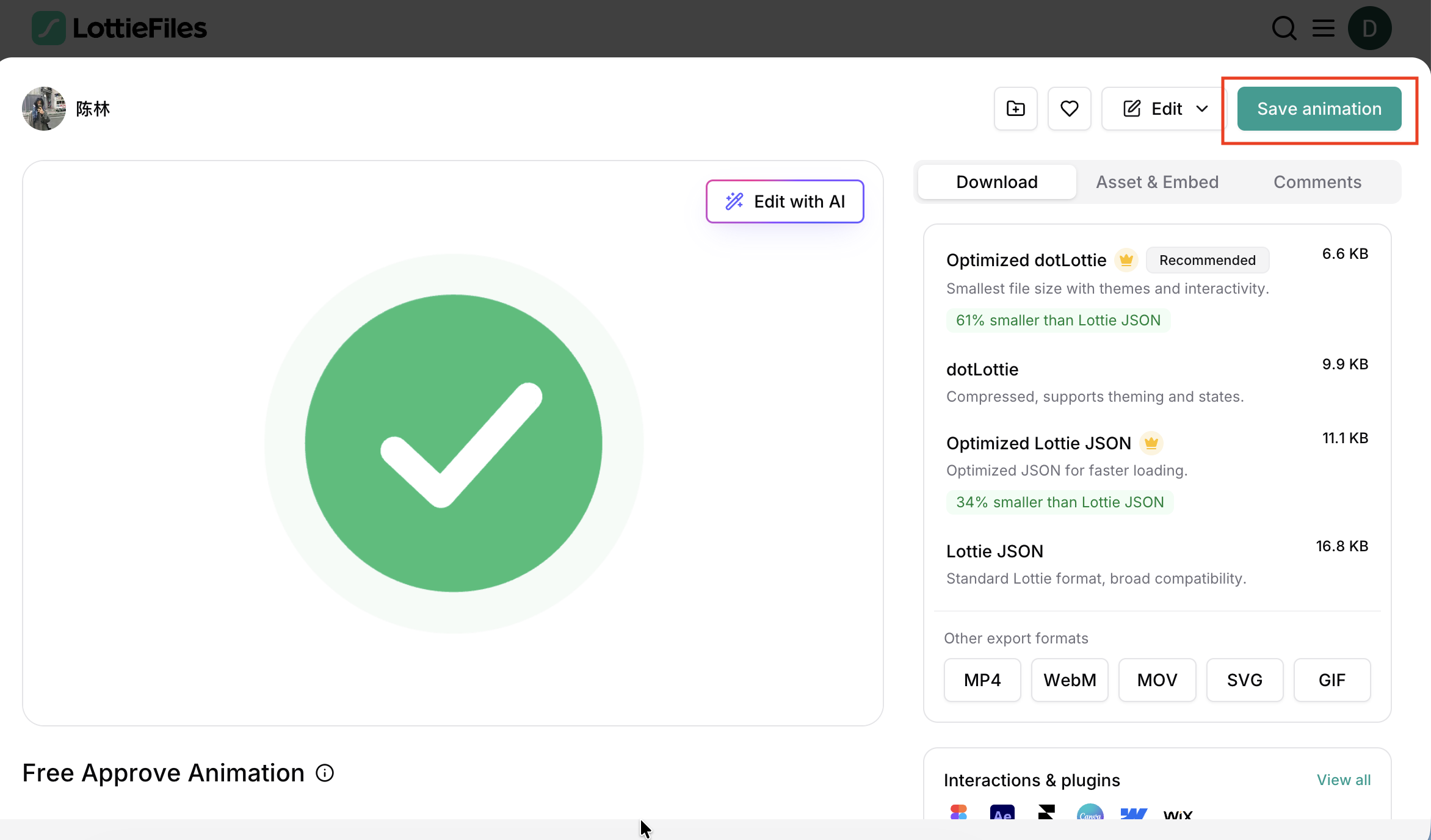
Note: Saving the animation to your LottieFiles account is what unlocks the asset and CDN options you need in the next section.
2. Enable the Asset CDN
The CDN link is what lets Elai load your animation. Without it, the asset link stays empty and cannot be copied.
On the saved animation, open the Download & Handoff panel and select the CDN tab.
Turn on the Enable asset CDN toggle.
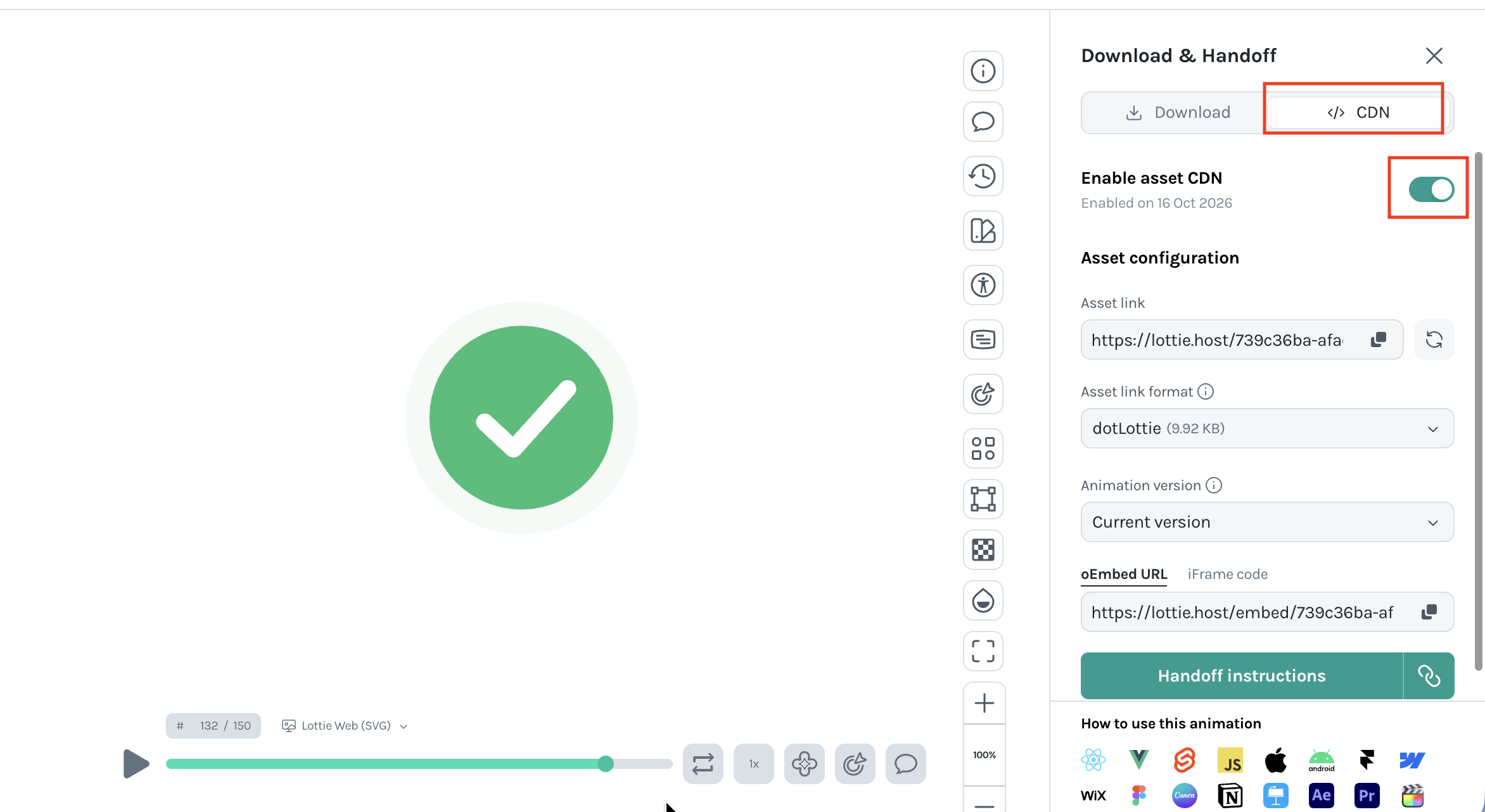
Click Handoff instructions.
3. Copy the Lottie JSON URL
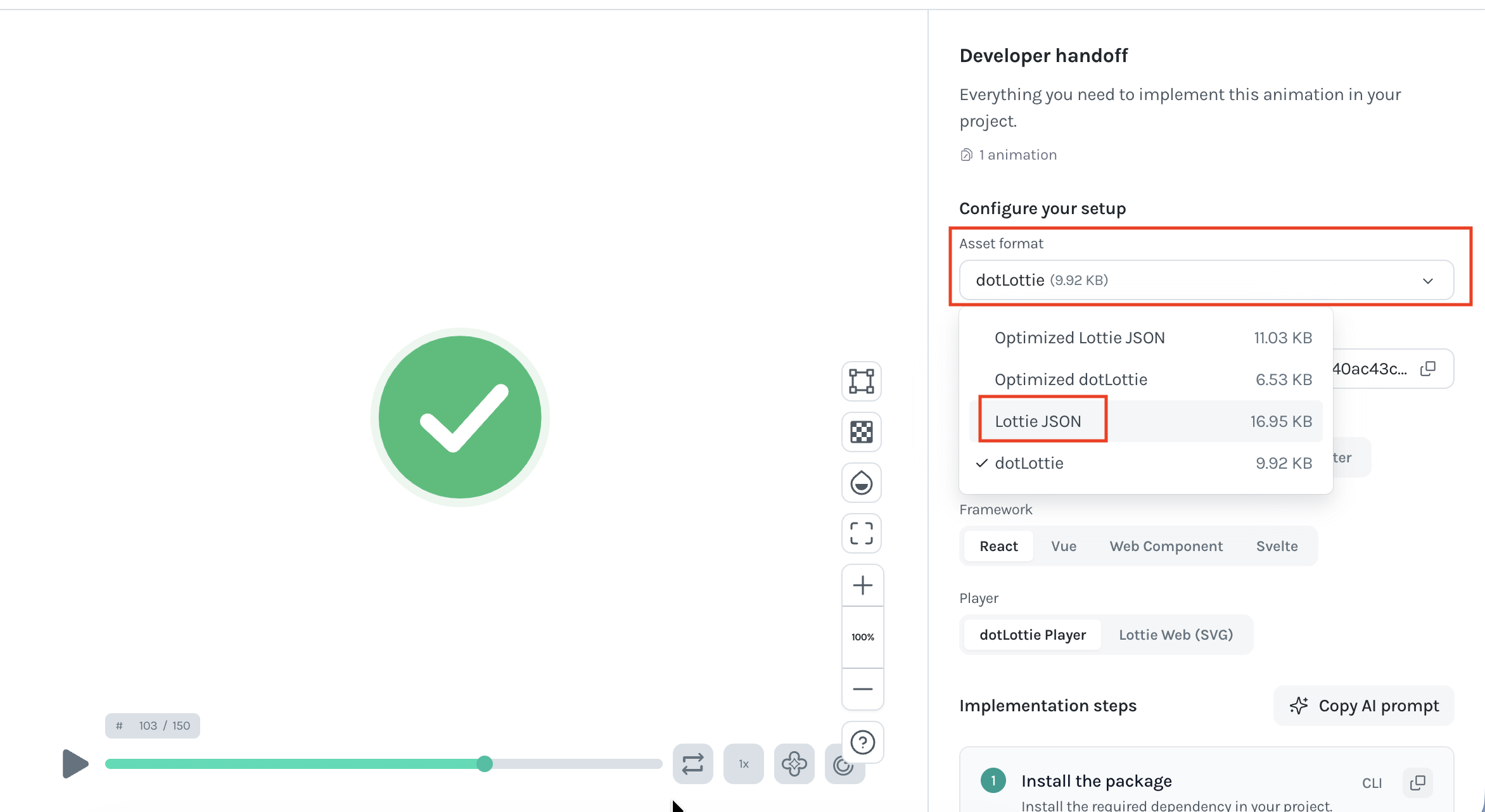
In the Developer handoff panel, open the Asset format drop-down.
Select Lottie JSON.
Copy the link from the Asset link field using the copy icon beside it.
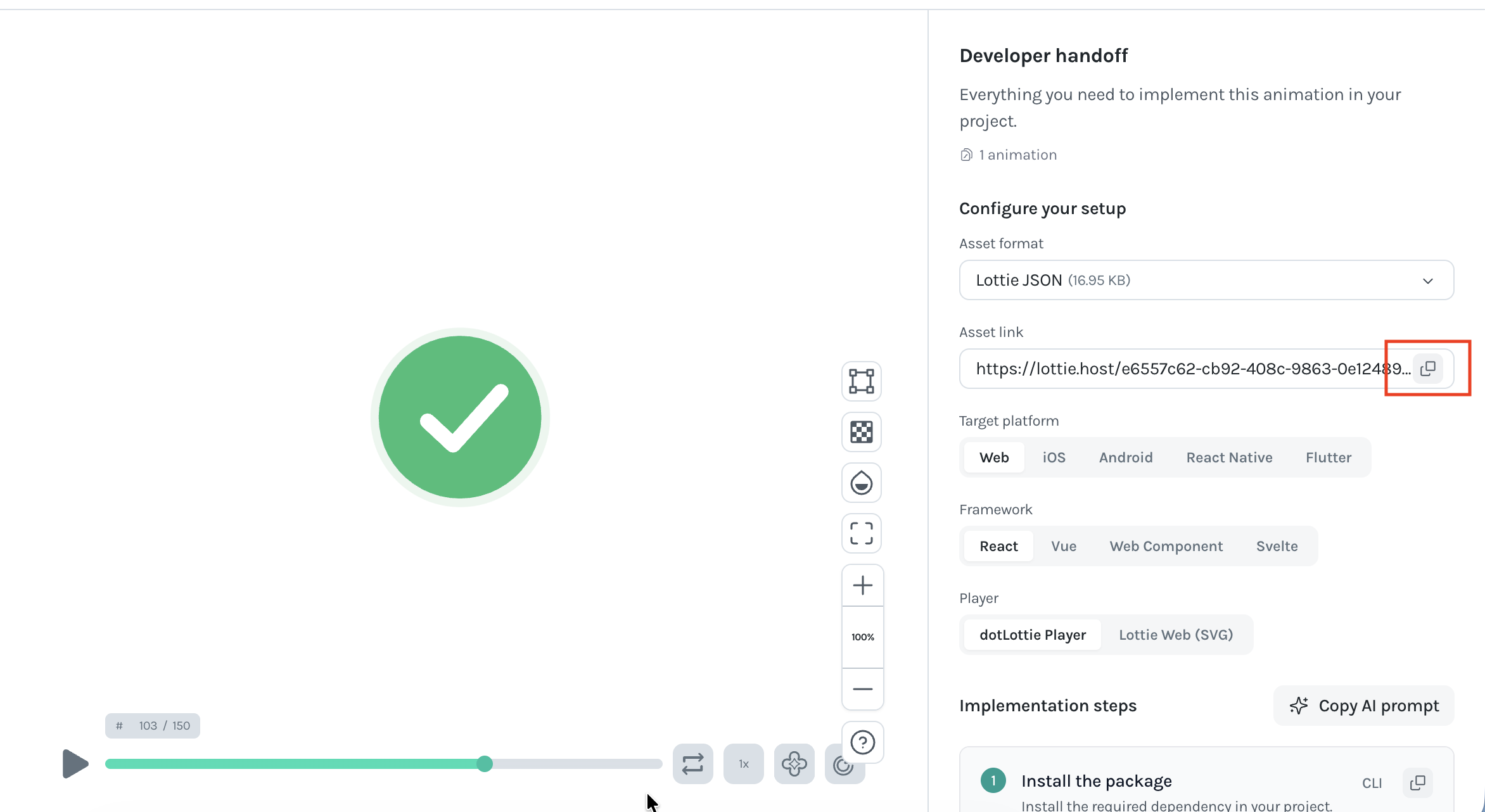
Important! Elai expects a Lottie JSON URL, so make sure the format is set to Lottie JSON before copying. The other formats in the drop-down will not work.
4. Add the Animation to Your Scene
In the Elai editor, open the scene you want to add the animation to.
Click Elements in the right-hand panel.
Use the arrow at the edge of the tab row to scroll across to the Lottie tab.
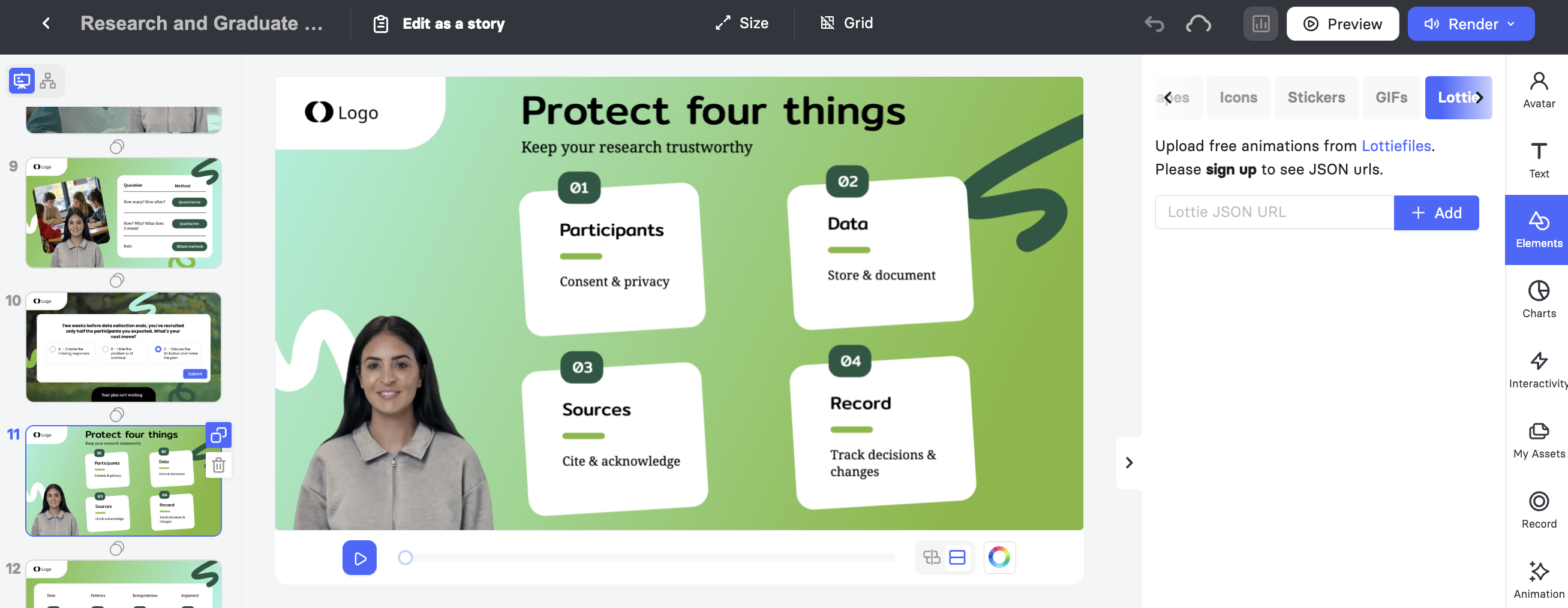
Paste your link into the Lottie JSON URL field.
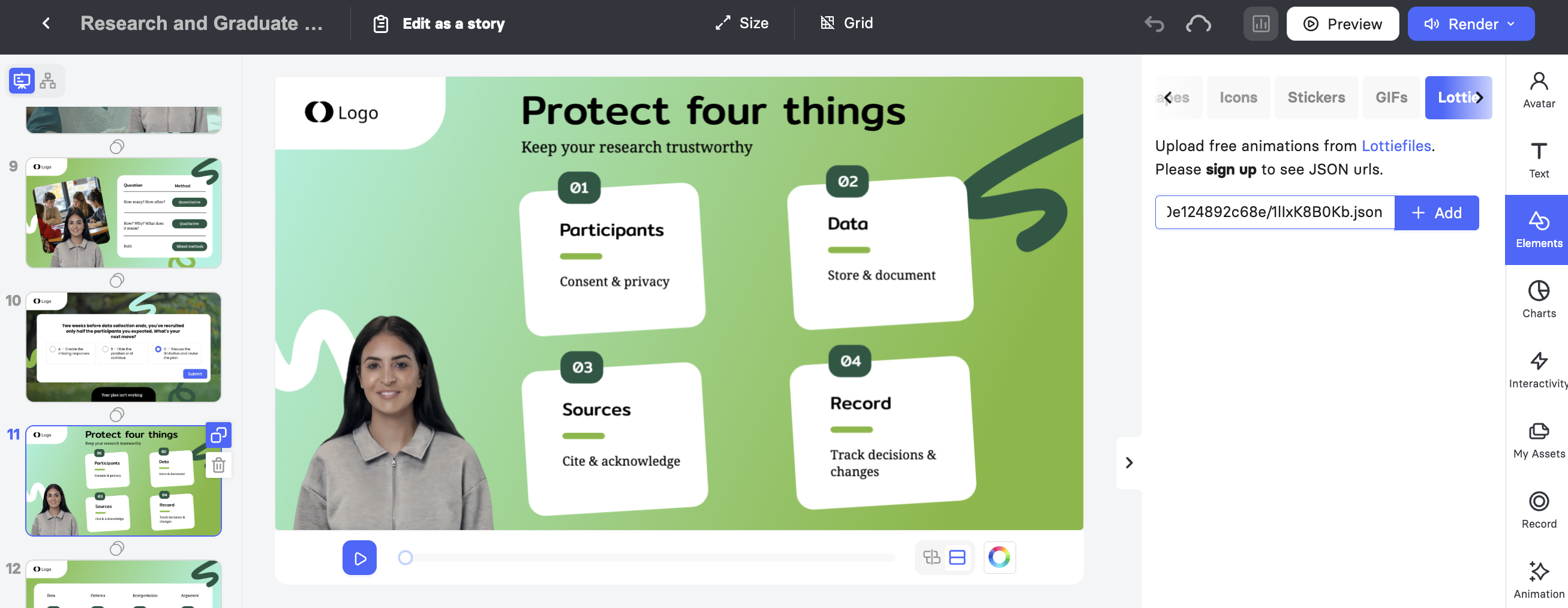
Click Add.
The animation appears on your slide and can be dragged and resized like any other element.
5. Adjust Your Lottie Animation
Select the animation on the slide to open its settings in the right-hand panel.
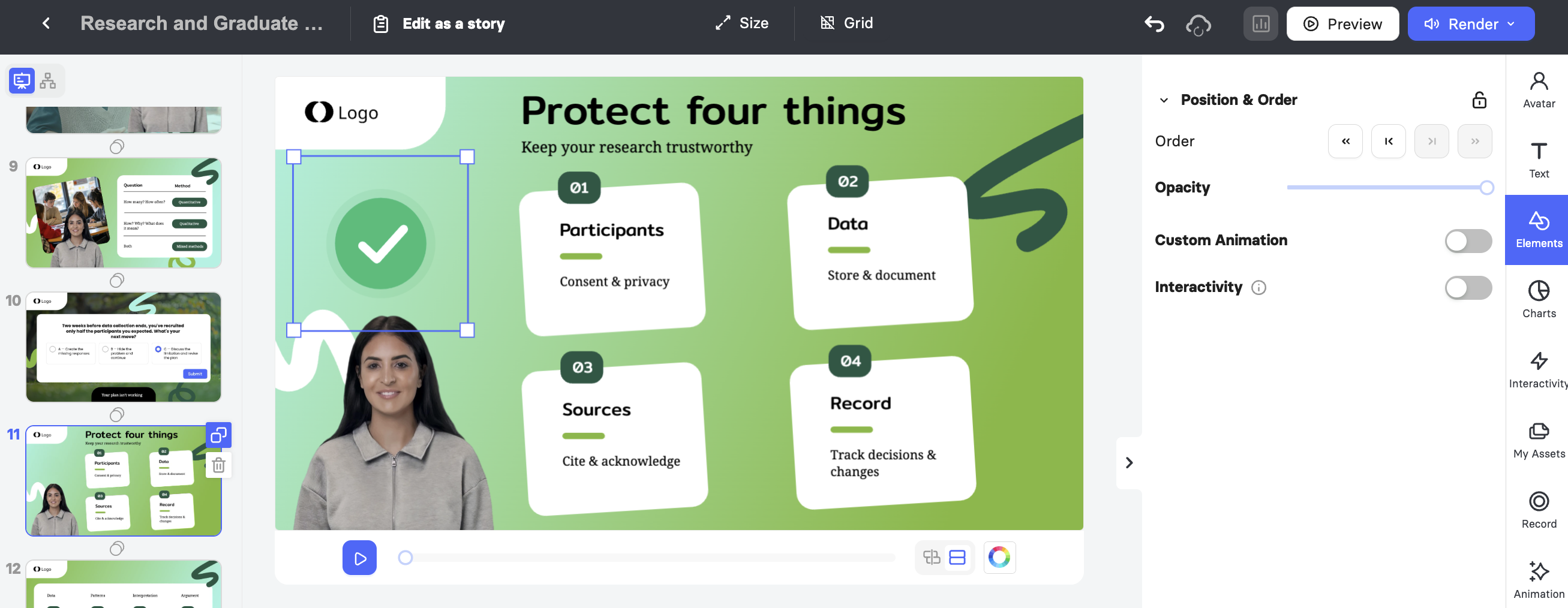
Order: Moves the animation forward or backward through the layers on your slide.
Opacity: Controls how transparent the animation appears.
Custom Animation: Sets an entrance and exit animation for the element, controlling how and when it appears on the slide. Turn the toggle on to choose an Enter and Exit effect and set the Appearance time.
Interactivity: Turns the animation into a clickable element. Turn the toggle on and choose Go to the slide to send viewers to another slide, or Open a link to send them to a URL.
Important! Custom Animation and Interactivity cannot be used together. Once you make an element interactive, animations are disabled, and any animation you applied earlier is replaced with the default Fade In and Fade Out.
FAQ
Do I need a paid LottieFiles account?
No. A free account is enough to save an animation and copy its Lottie JSON URL.
Why is my asset link empty?
The Enable asset CDN toggle is most likely still off. Turn it on, then reopen the handoff instructions and copy the link again.
Can I use the dotLottie or optimized formats?
Use Lottie JSON. Select it in the Asset format drop-down before copying your link.
Can I animate a Lottie and still make it clickable?
No. Enabling Interactivity disables Custom Animation for that element and resets it to Fade In and Fade Out.
Was this article helpful?
That’s Great!
Thank you for your feedback
Sorry! We couldn't be helpful
Thank you for your feedback
Feedback sent
We appreciate your effort and will try to fix the article