Overview
Custom animations let you control when each object on a slide appears and disappears. Instead of showing everything at once, you can bring in a text box, an icon, or an image at the moment your avatar starts talking about it, so your visuals follow along with what is being said.
Every object on a slide can be given an enter animation, an exit animation, or both. You can trigger those animations at a set number of seconds, at the start or the end of the scene, or at a mark you place inside your speech text. Marks are the most precise option, because they tie the animation to a specific word instead of a timestamp you have to work out yourself.
This article covers how to apply enter and exit animations to an object, how to add marks to your speech text, and how to connect the two so your slide animates in time with the voiceover.
Prerequisites
Verified account
1. Adding Marks to Your Speech Text
A mark is a point you place inside your script. It tells an object to appear or disappear the moment your avatar says the word the mark sits next to, so you never have to work out the exact timing yourself. Marks show up in your text as small coloured shapes, and you can use up to 20 of them on one slide.
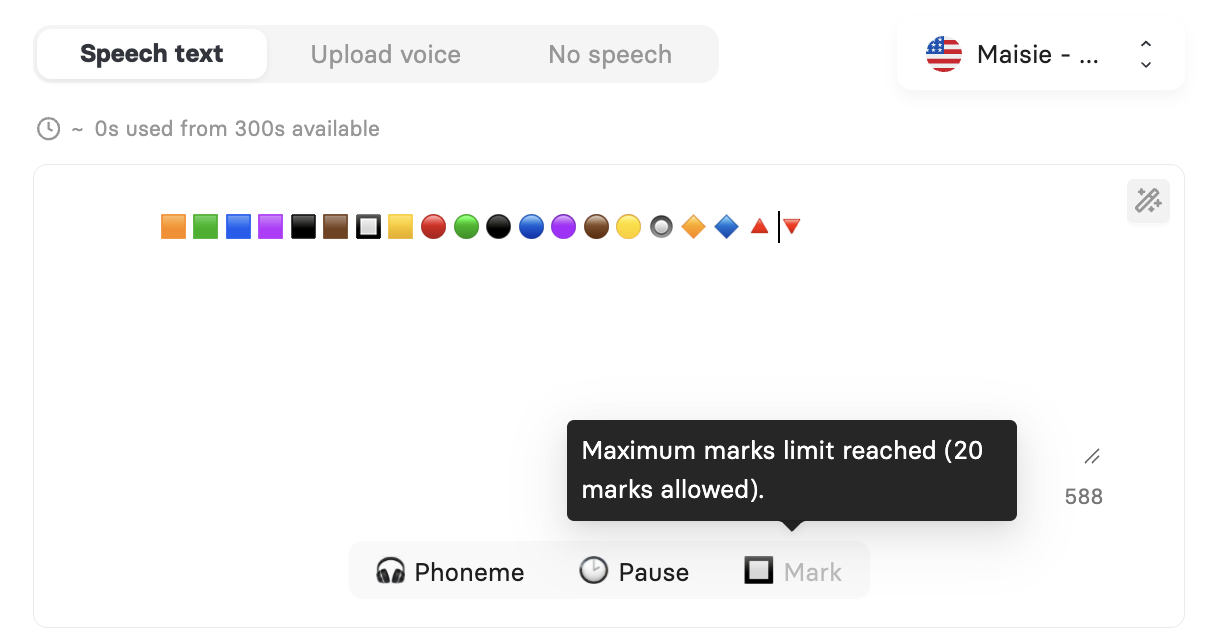
Type or paste your script into the Speech text box.
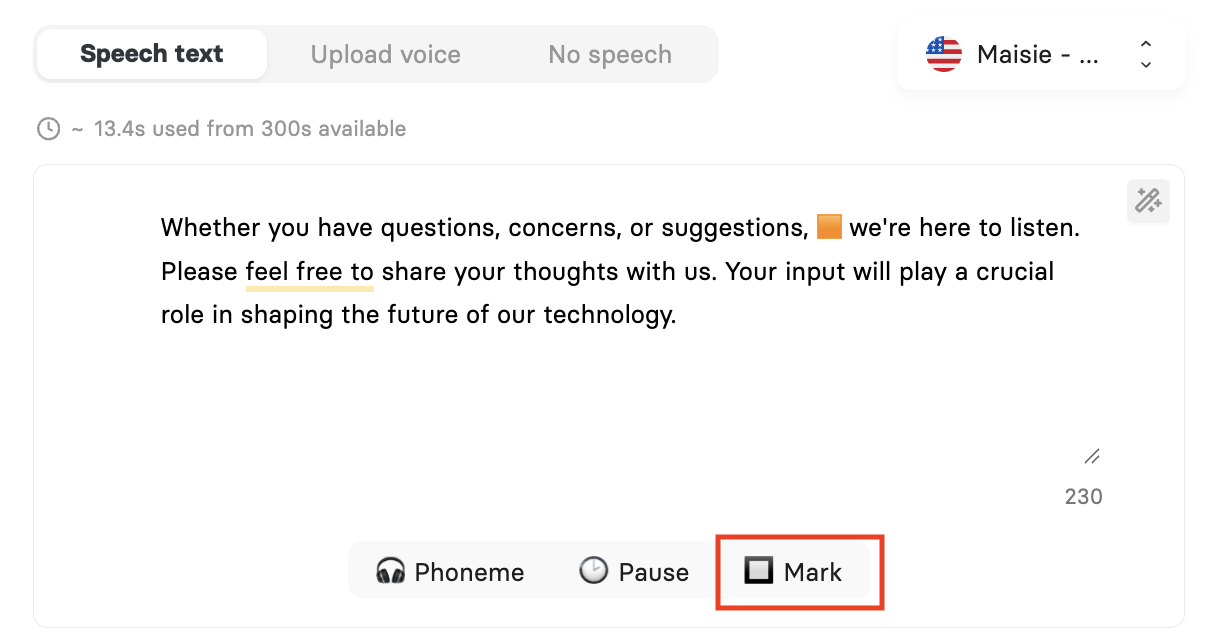
Click in the text at the point where you want something to appear or disappear, so your cursor sits beside that word.
Select Mark under the speech box. A coloured shape is added at your cursor, and you should leave a space between the word and the mark.
Repeat for every moment in the script where an object should appear or disappear.
Note: Marks always follow the same fixed order of shapes and colours. If you add a new mark earlier in the script later on, the marks after it shift along and any objects already connected to them are updated automatically.

2. What are Enter and Exit Animations
An enter animation controls how an object comes onto the slide, and an exit animation controls how it leaves. You can set one or both on any object, and each object on the slide keeps its own settings.
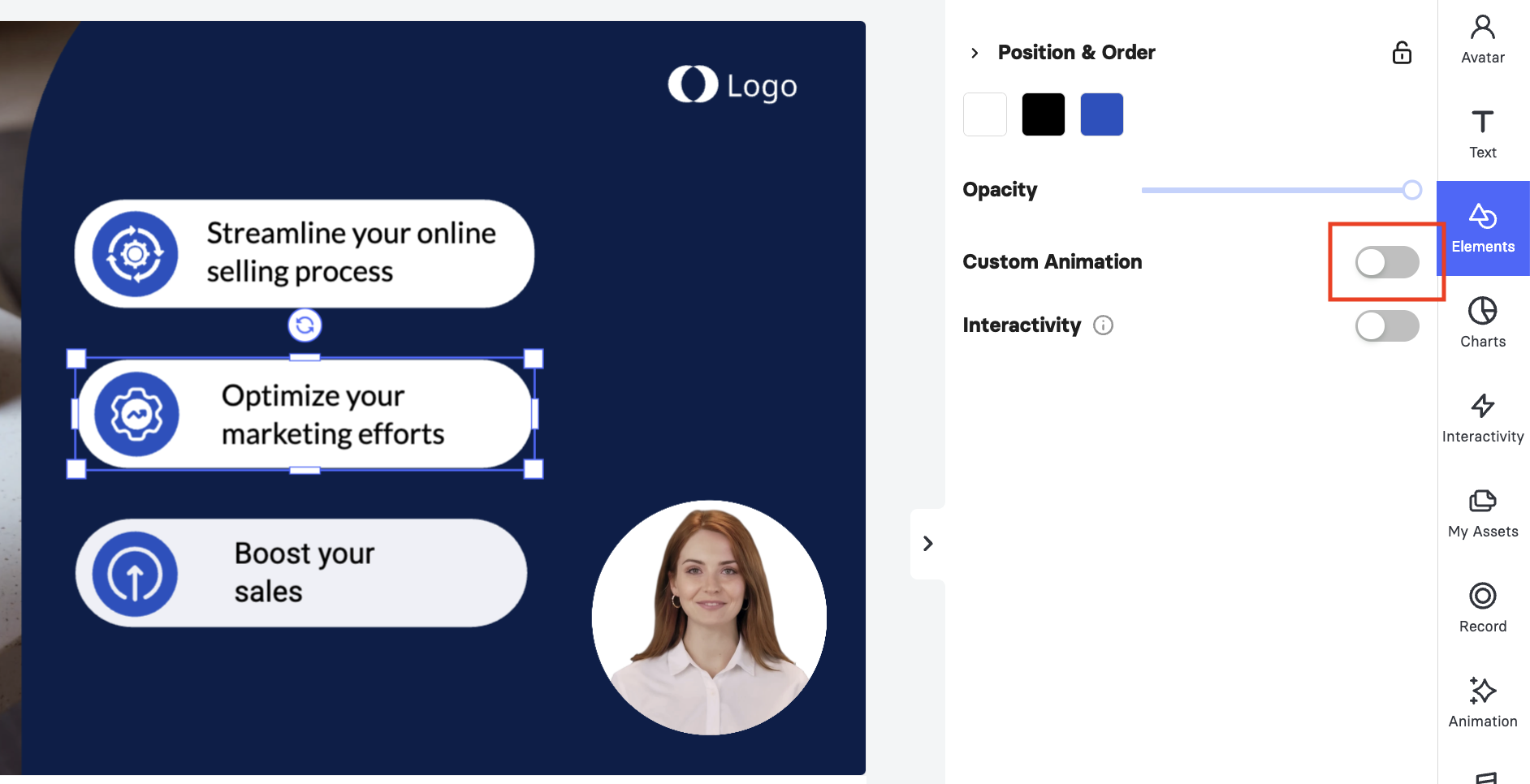
Select the object you want to animate on the slide. Its settings open in the panel on the right under Elements.
Turn on the Custom Animation toggle. A reminder appears confirming that the animation is applied only to the element you have selected.
Select Enter to set how the object appears, or Exit to set how it disappears. Open the animation drop-down and choose the effect you want.

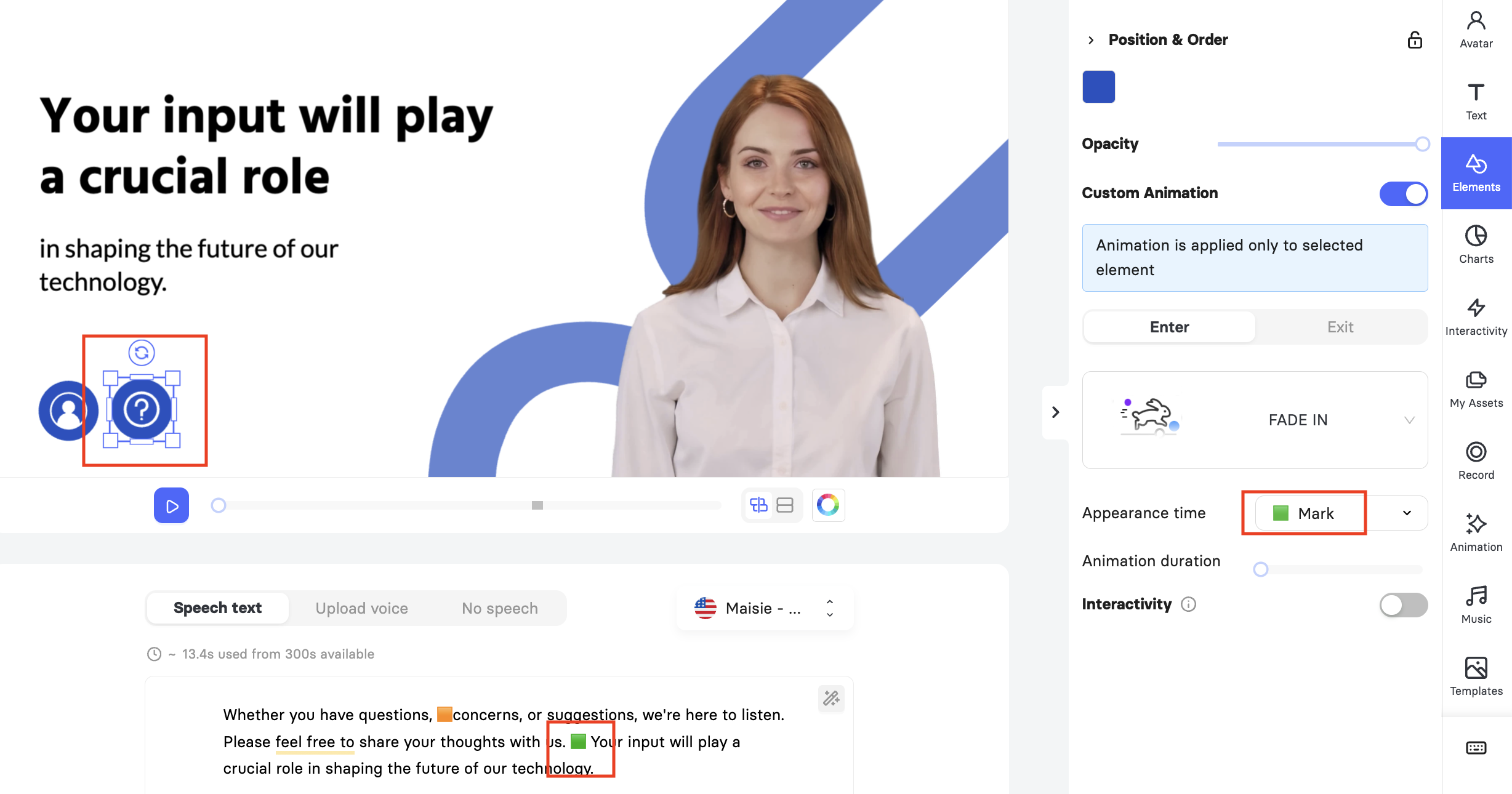
Open the Appearance time drop-down and choose when the animation runs. You can pick Scene start, Scene end, a mark from your speech text, or type a number of seconds.
Note: Only the marks that already exist in your speech text appear in the list.
Drag the Animation duration slider to set how long the effect takes to play.
Repeat these steps for every object you want to animate, and select Preview to check the result.
Note: Choosing No Animation in the drop-down leaves the object without that effect, so you can not sync media elements with speech marks.
When a slide holds a lot of objects set to appear at different times, it can be hard to work with, because anything you have not reached yet stays hidden. Two buttons beside the timeline under the slide control how you see them while editing.
The first shows each element at its set appearance time, so you drag the timeline to view them in sequence.

The second always shows every element on the slide regardless of its appearance time, which makes it easy to select and edit an object that would otherwise be hidden.

3. Linking Animations to Marks
Once your marks are in the script, you connect each object to the mark that should trigger it.
Select the object on the slide and turn on the Custom Animation toggle.
Select Enter or Exit, then choose the animation effect you want.
Open the Appearance time drop-down. Select the mark that should trigger the animation.
Repeat for each object on the slide, then select Preview to watch the timing against the voiceover.

One mark can act as the trigger for different objects at the same time. For example, you can set it as the exit animation for the first object and the enter animation for the second, and the first object will disappear as the second one appears.
FAQ
How many marks can I use on one slide?
You can use up to 20 marks on a single slide. Each one appears in your script as a different coloured shape.
Why is my mark missing from the Appearance time list?
Only marks that already exist in your speech text show up in that list. Add the mark to your script first, then open the drop-down again.
Do I need to redo my animations if I add a new mark earlier in the script?
No. Marks keep a fixed order, so the ones after your new mark shift along and any objects already connected to them are updated for you.
Can I animate an object without using marks?
Yes. Set Appearance time to Scene start, Scene end, or a specific number of seconds instead.
Can one mark control two objects at once?
Yes. Use the same mark as the exit animation for one object and the enter animation for another, and they will swap places at that point in the script.
Does every object on the slide need its own animation?
No. Custom animation applies only to the object you have selected, so you can animate some objects and leave others on screen for the whole scene.
Was this article helpful?
That’s Great!
Thank you for your feedback
Sorry! We couldn't be helpful
Thank you for your feedback
Feedback sent
We appreciate your effort and will try to fix the article