Overview
The AI Chat Assistant is a chat panel inside the Elai video editor that makes your editing changes for you. Describe what you want in plain words, such as "Make the title a bit bigger and dark blue" or "Shorten the speech on this slide", and the assistant prepares the edit and shows it to you.
It is there to help you build videos faster and more smoothly. Instead of hunting for the right tab, the right element, and the right setting, and then repeating all of that on every slide, you ask once and keep moving. The assistant works on the slide you have open, the element you select, the slides you tick, or the whole video at once.
It covers the edits you make most often while building a video: text and elements, images and backgrounds, speech, voices, animations, and slides. You stay in control of every change, because the assistant shows you what it proposes before anything is saved to your video.
Important! AI Chat Assistant is in early access. It’s still learning, and new skills are on the way.
Prerequisites
Enterprise subscription plan
Admin, Editor, or User role in your workspace
1. Getting Started with AI Chat Assistant
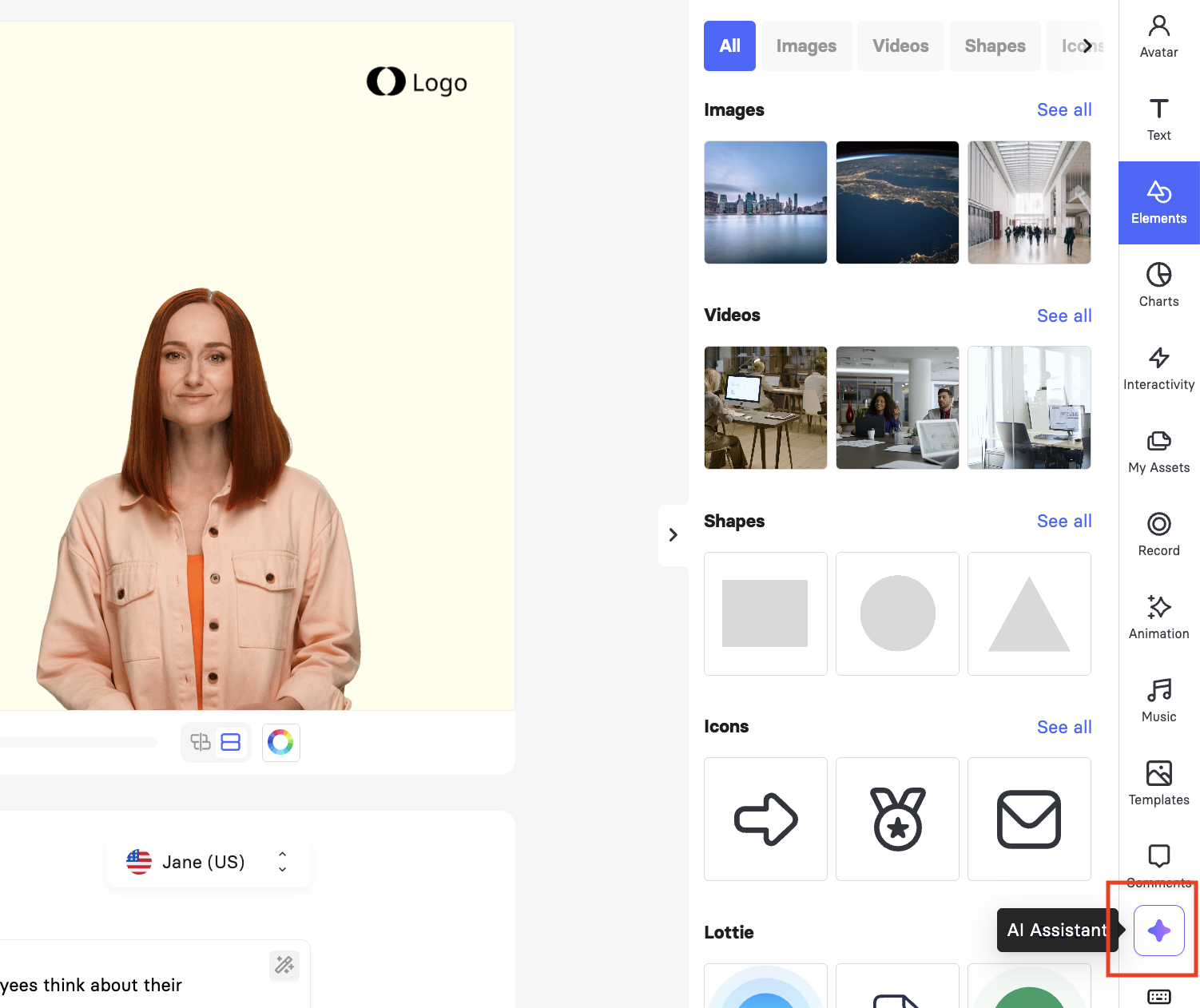
The AI Chat Assistant lives in the right toolbar of the video editor, alongside Avatar, Text, Elements, and the other editing panels.
Open any video in the Elai video editor.
Click the star button at the bottom of the right toolbar, labelled AI Assistant.
The panel opens with three starter prompt suggestions such as Apply Brand Kit, Generate speech from slide content, and Sync elements to speech.
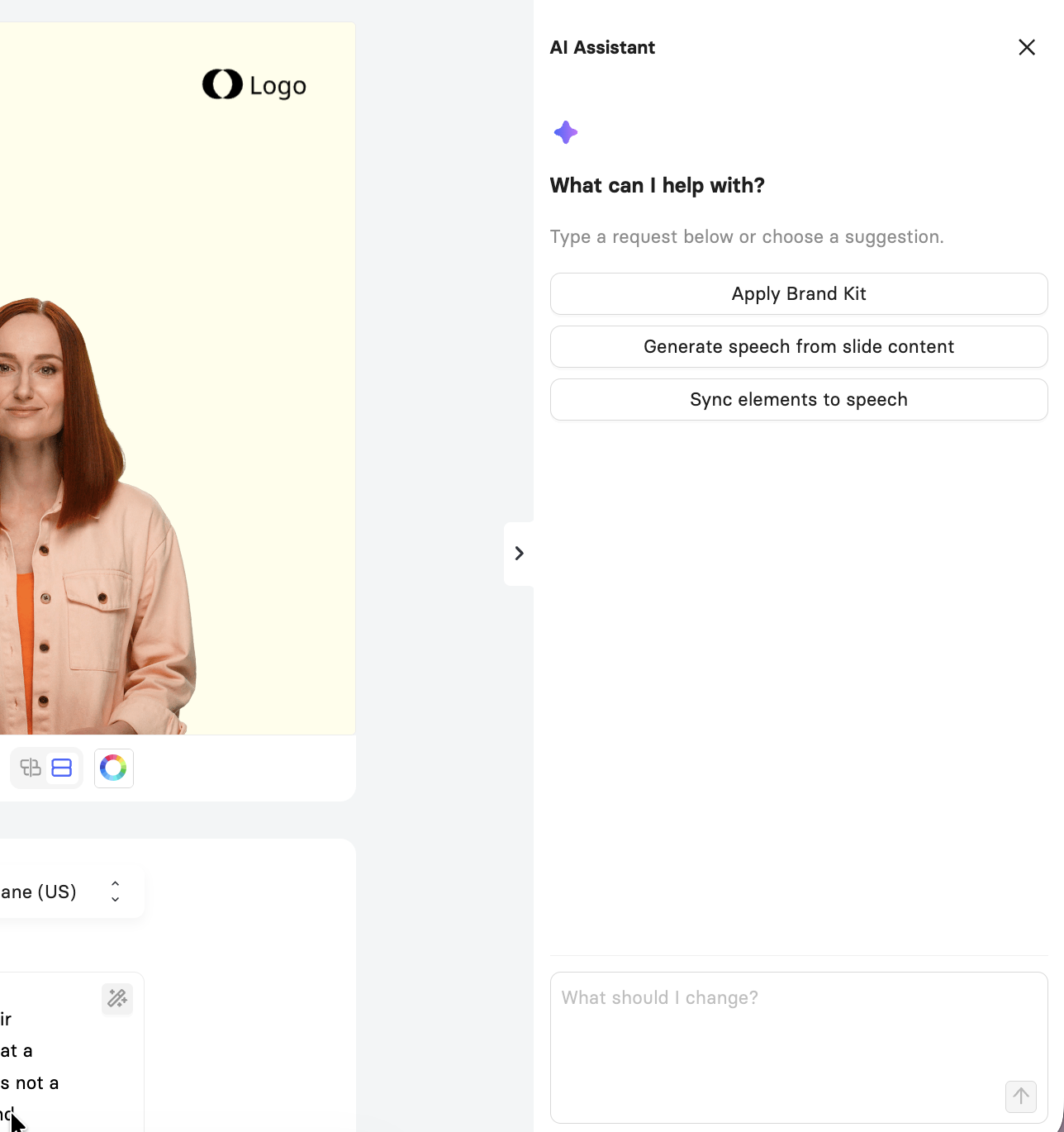
Type your request into the What should I change? box and press Enter, or click one of the starter suggestions.
Note: If you are not on Enterprise-level plans, the AI Chat Assistant button stays visible but is not active. Upgrade your subscription to access feature capabilities.
2. Prompting the AI Chat Assistant
A prompt is the inquiry you type into the What should I change? box. Write it the way you would ask a colleague, and the assistant prepares the edit and shows it to you before anything is saved.
Sending a Prompt
Tell the assistant what you want to change. Select an element on the canvas, tick slides in the slides panel, or name the target in the prompt itself.
Type your inquiry, for example, "Make the title a bit bigger and dark blue", and press Enter.
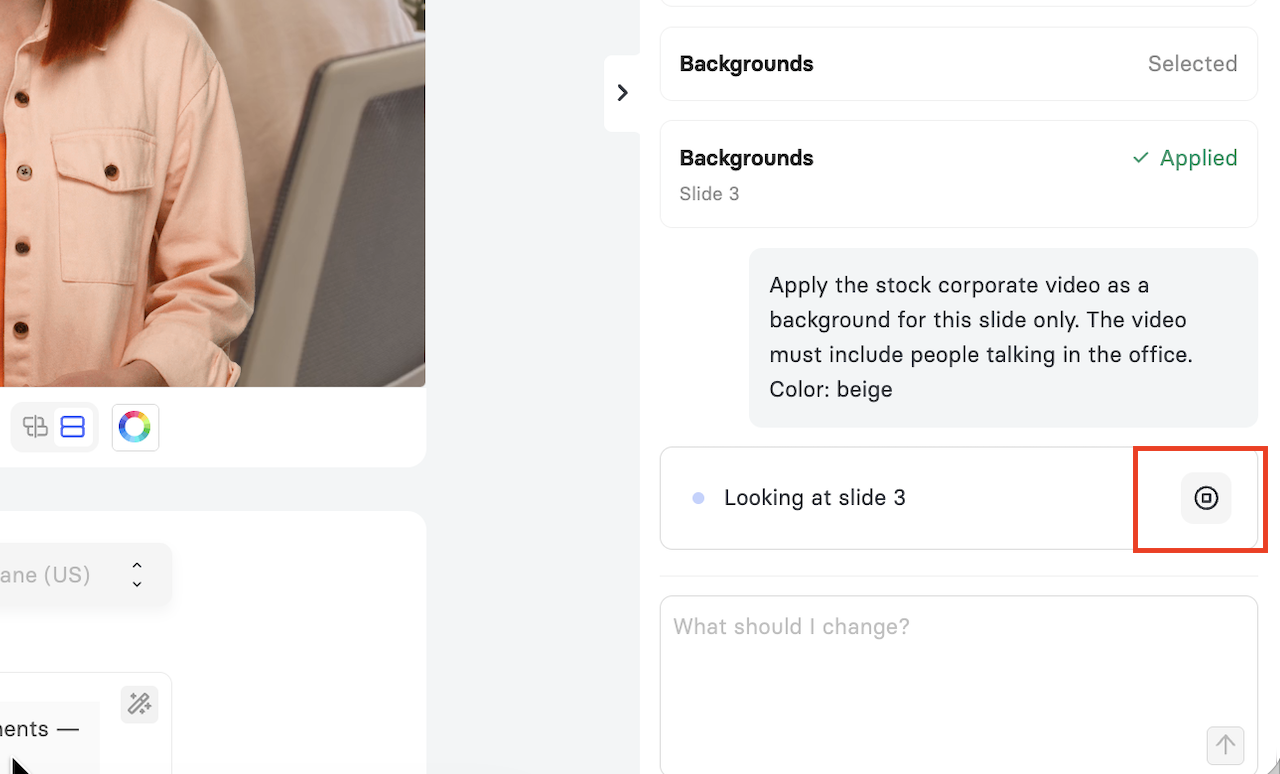
Wait while the assistant works. Progress steps such as Looking at slide 1 show what it is doing, and editing pauses until it finishes. Use the stop button beside the progress steps to cancel.
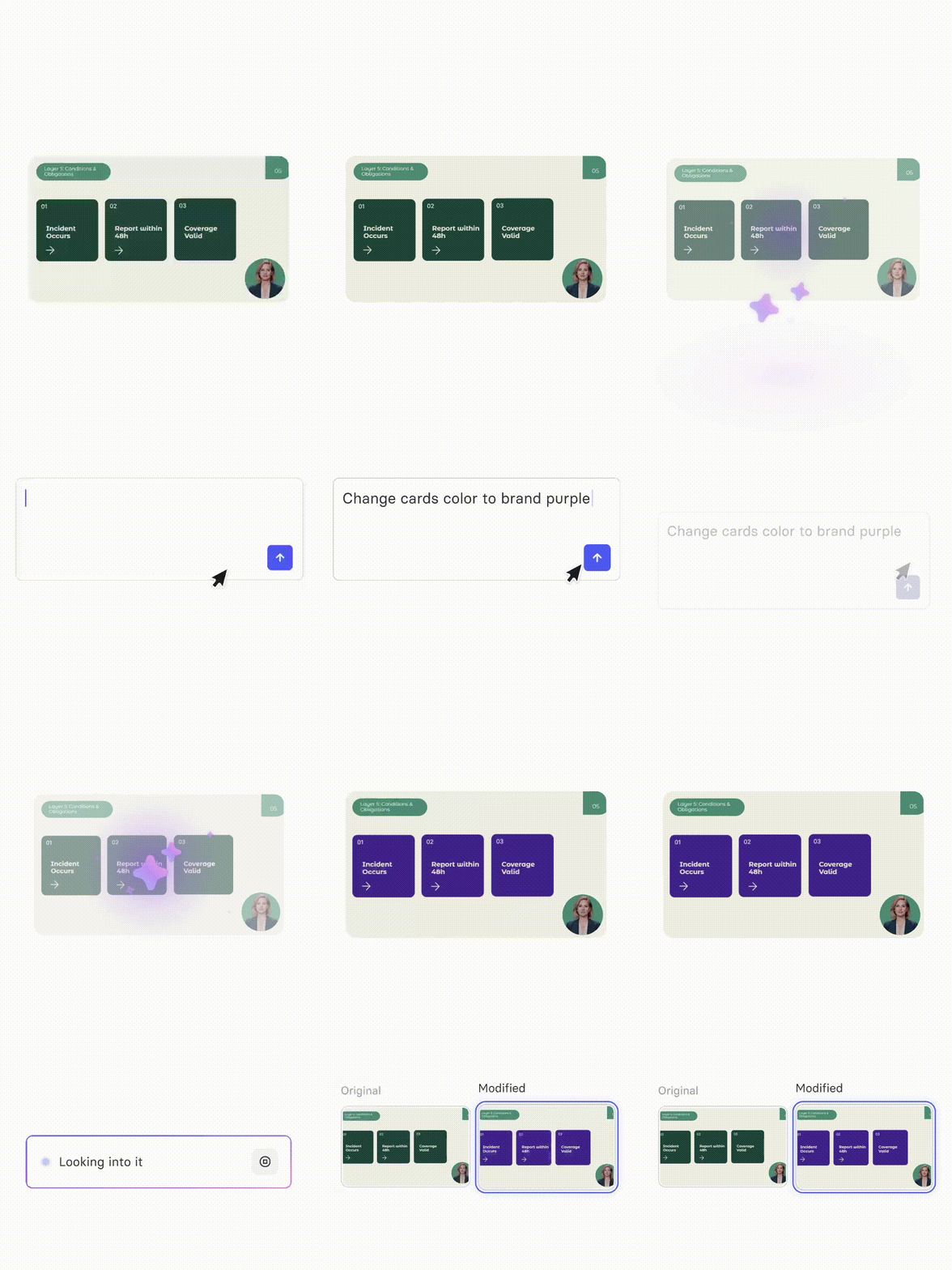
Review what comes back, then click Apply changes to save it to your video or Discard to leave the video as it was.
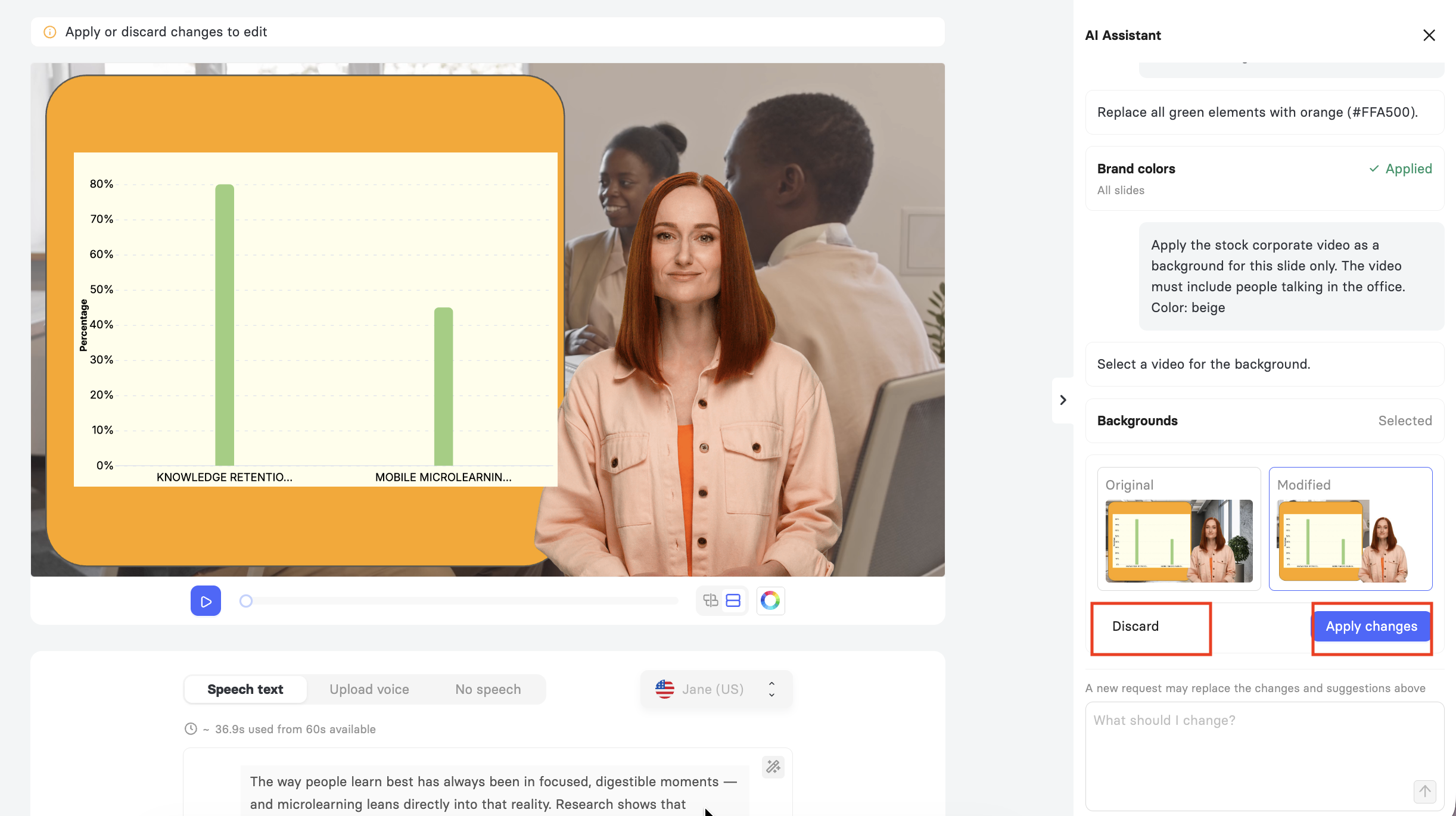
Send a follow-up inquiry to refine the result, for example, "It's a bit too big now, make it fit on two lines", or use the suggestion chips such as Even bigger, Set exact size, and Pick exact color.
Writing a Good Prompt
Ask for one change at a time. A prompt containing several changes may only be carried out in part. Send your next inquiry once the first one is applied.
Name your target. "The title", "the photo on the left" and "every slide" all work. Selecting the element first makes words such as "this" unambiguous.
Be specific where it matters. Name exact colours and sizes, such as "#003366" or "28 px", or set them with the Pick exact color and Set exact size options.
Use the chips. Some chips answer in one click. Others, such as Set exact size and Set a length, fill the box with a request you can edit before you send it, so nothing runs until you are happy with the wording.
Use plain words. Casual wording and typos are fine, and you never need to name a panel or a setting.
Apply or discard before you move on. A new prompt replaces any proposal that is still waiting.
Ask what it can do. Type “What can you do?” and the assistant lists what it can change on the slide you have open and across the whole video, with a few prompts to start from.
How the Assistant Answers Your Inquiries
Not every inquiry ends in a preview. Depending on what you ask for, you get one of the following.
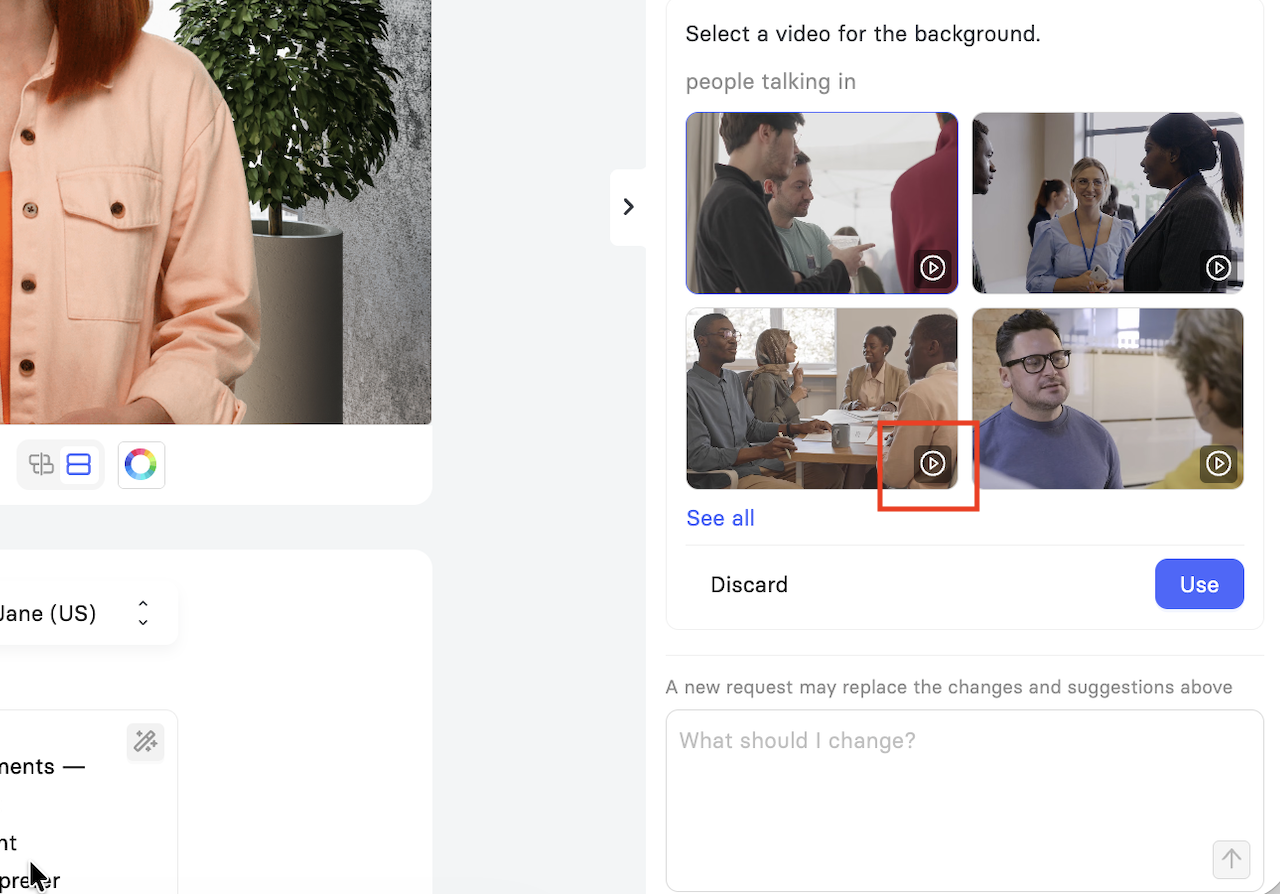
Preview. The four suggestions can be previewed by clicking on the play button. Nothing is saved until you apply it.
Confirmation. The assistant uses a simple ‘yes or no’ confirmation when there is something you should know first, like the fact that other slides link to the slide you want to delete. It tells you what will happen, and you click the button to go ahead.
Options. A short list of images, voices, or fonts to choose from, with See all to open the full library.
Checklist. Everything your inquiry would affect, such as the elements on a slide that carry a custom animation. Untick anything that should stay as it is, then confirm.
Question. A short question with answer chips, offered when a prompt could mean several things.
Explanation. When an inquiry sits outside the assistant, it says so and points you to the panel that handles it, usually with the closest alternative it can do for you.
Error. If a change cannot be saved, the card stays open exactly as you left it, with your picks and ticks untouched, and Retry takes the place of the commit button. Nothing reached your video.
Note: Sometimes the assistant cannot carry out a prompt because of the slide rather than the request. For example, a locked element cannot be restyled until you unlock it, a slide imported as a picture carries no text to edit, a slide using an uploaded recording has no speech to rewrite, and some voices take no variants. In each case, the assistant names what is blocking it and where it lifts.
Prompting Across Several Slides
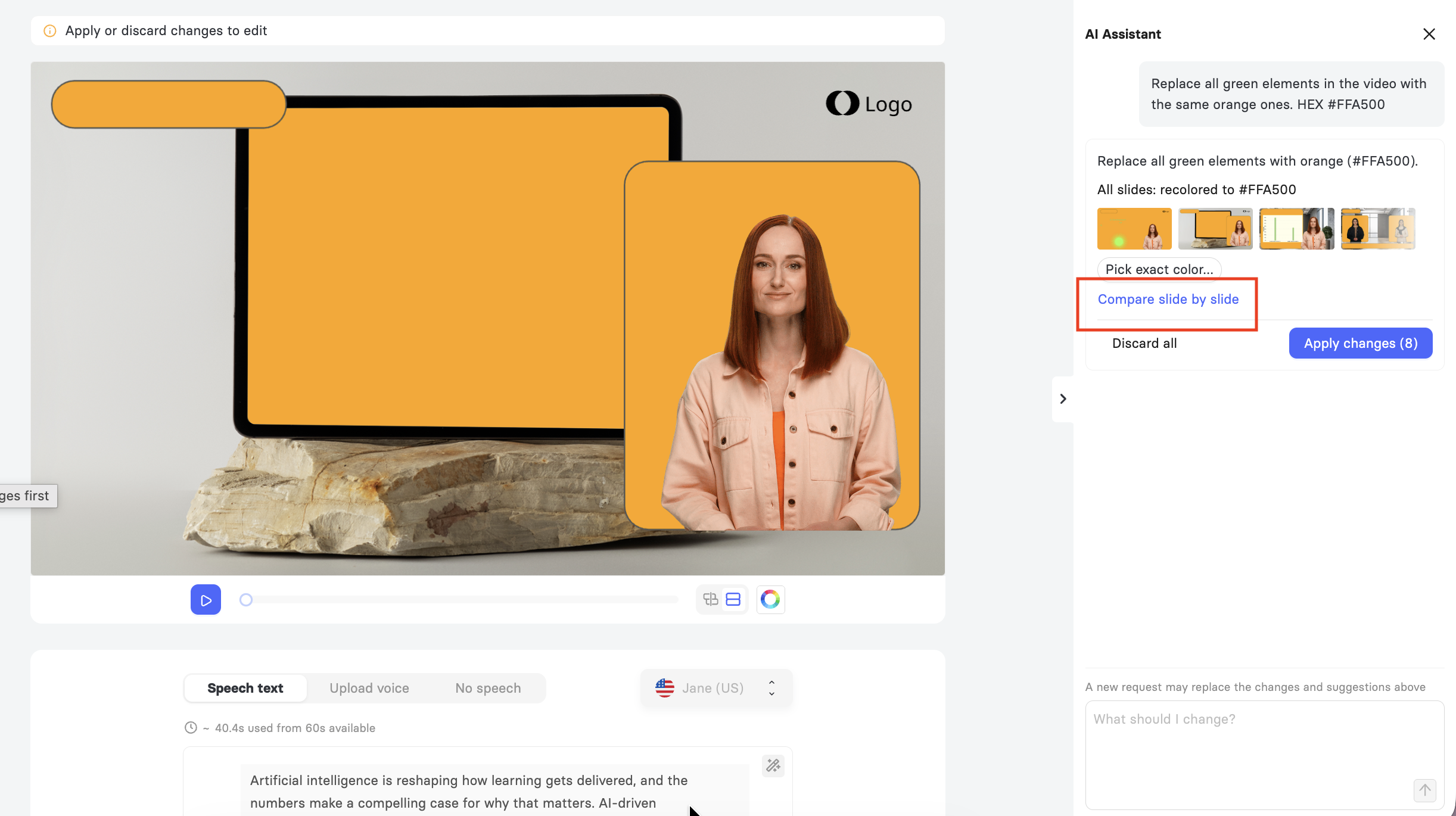
When your prompt covers more than one slide, you get a single preview for the whole set, with a thumbnail and a line for each slide. Slides the change does not apply to are named, for example, Slide 5: skipped, no heading here.
Click Compare slide by slide to step through the set and keep the original wherever you prefer it.
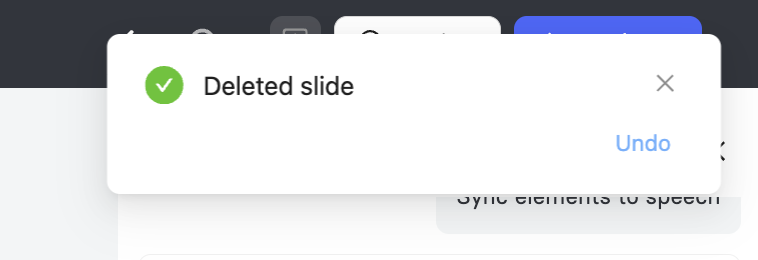
Note: Slide actions such as deleting, duplicating, and moving a slide apply straight away instead of arriving as a preview. Each one comes with an Undo button in the message that appears.
3. AI Chat Assistant Capabilities and Limitations
What the AI Chat Assistant Supports
The AI Assistant covers the edits you make most often while building a video. Each example below is a request you can type word for word, or adapt to your own slides.
Text and elements: Change the size, colour, weight, font, alignment, position, or wording of text, and the size, position, colour, or corner rounding of shapes and images.
Try "Make the title a bit bigger and dark blue" or "Round the corners of the photo".
Changes across slides: Apply the same change to several slides or the whole video in one request.
Try "Make the titles on every slide dark blue" or "Apply our brand colors to these slides".
Speech: Shorten, lengthen, rewrite, or restyle your script, or generate speech from the content already on the slide. The preview shows the new text alongside the original, with an updated estimated duration.
Try "Make the speech on this slide shorter and a bit friendlier".
Images: Describe the picture you want, and the assistant searches the stock library and offers four options, with See all to browse the rest. A replacement takes the old image's place and layer. You can also remove an image, open the crop tool, or open AI image generation.
Try "Replace the photo with workers wearing hard hats on a construction site".
Voices: Describe the voice you want, and the assistant offers four matching voices you can play before choosing. If the voice does not match your presenter, the assistant checks with you first and then switches the avatar to match.
Try "Give this slide a British English female voice" or "Use this voice on every slide".
Animations: Bring elements in one after another, time them to words in the speech, or clear animations from a slide. Also, explore How to Sync Media Elements With Speech Marks.
Try "Make the four picture cards appear one after another" or "Sync elements to speech".
Slides: Add, delete, duplicate, and move slides. A new slide arrives with your presenter and drafted speech, ready for you to style.
Try "Add a new slide after this one about why wearing PPE matters".
Interactivity: Turn an element such as a button into a link to another slide.
Try "Make the Go to Slide 5 button take viewers to slide 5 when clicked".
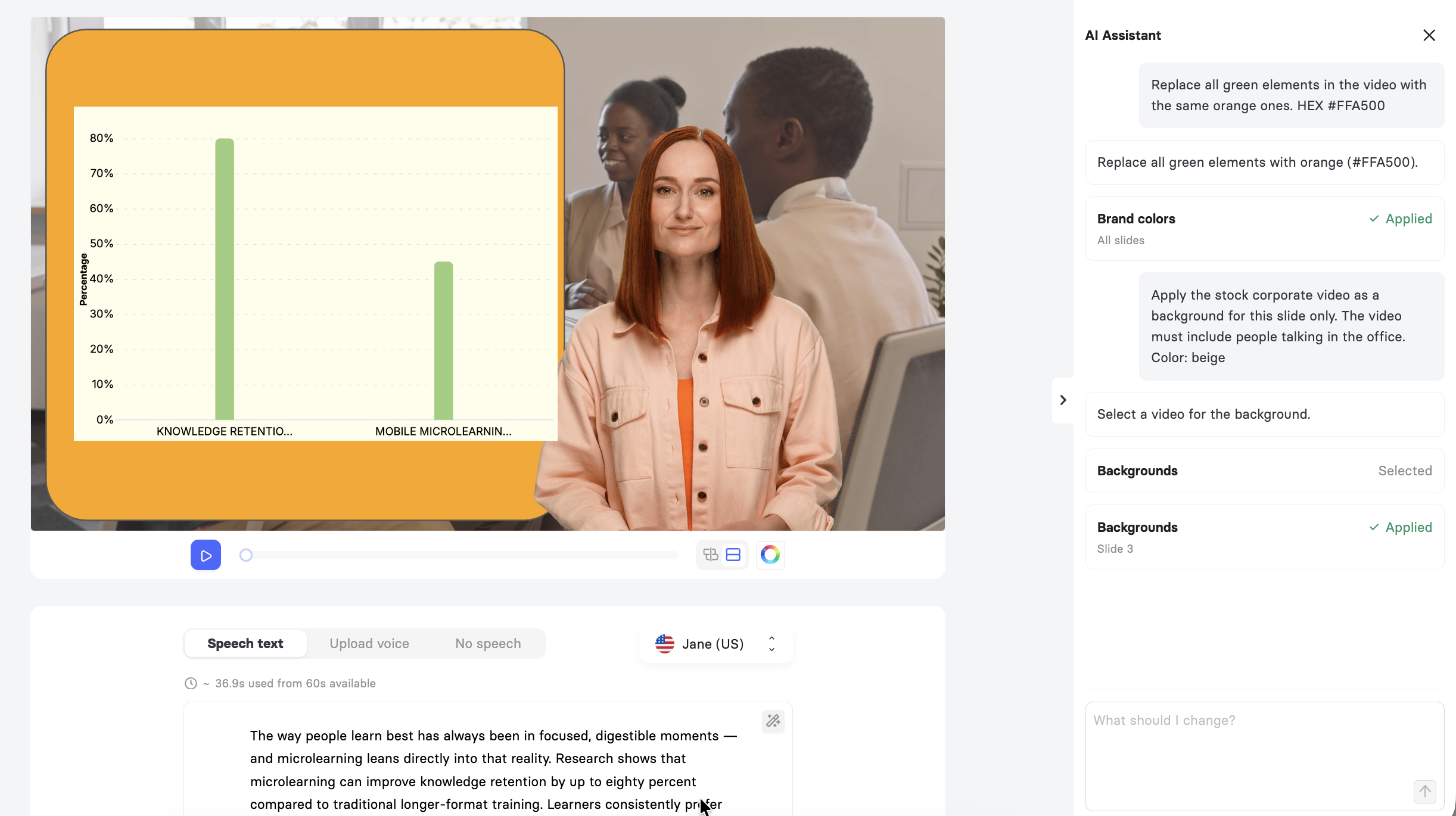
Note: The assistant works best with one change per request, so ask for a single thing and then refine it with a follow-up. If a request could mean more than one thing, the assistant asks you a short question rather than guessing, and you can answer by tapping a chip or typing a reply.
What the AI Chat Assistant Does Not Support
The AI Assistant focuses on slide, speech, voice, and animation edits. Everything else in Elai is handled by its own dedicated panel, and the assistant points you to the right one whenever you ask.
Avatars: Add or swap an avatar, set up dialogue avatars, and assign avatar roles in the Avatar tab.
Background music: Choose and adjust your soundtrack in the Music panel.
Video-level actions: Translate, render, export, rename, duplicate, share your video, and manage subtitles from the editor header and the video page.
Layouts: Change a slide layout, or split and merge slides, using the layout controls in the editor.
Quizzes and pronunciation: Edit quiz content and set pronunciation through their own tools.
Word-level formatting: Format individual words inside a text box directly on the canvas.
Note: Your chat history clears when you reload the page. Any changes you have already applied stay in your video.
FAQ
Will the AI Chat Assistant change my video without asking?
No. Visible changes always arrive as a preview that you apply or discard yourself. The only exceptions are simple slide actions such as deleting, duplicating, or moving a slide, which apply straight away and come with an Undo button.
Does using the AI Chat Assistant spend my render minutes?
No. Minutes are spent at render, not while you edit.
What happens if I close the panel while a preview is open?
Elai reminds you that you have changes waiting. Reopen the panel and either apply or discard them before you carry on.
Can I undo a change after I have applied it?
Yes. Undo in the editor header reverses the whole change in one step, including a change that covered several slides at once.
Why did the assistant skip some of my slides?
When a slide does not contain the element you asked about, the assistant leaves it untouched and names it in the preview, for example, a slide with no heading in a request about headings.
Why does the assistant sometimes ask instead of just doing it?
When a prompt could mean more than one thing, the assistant asks a short question rather than guessing, and each answer chip is a complete answer. If none of them fits, type what you meant into the box instead.
What happens to my speech marks and pauses if I rewrite the speech?
Rewriting replaces the text on the slide, so speech marks, phonemes, and pauses on that slide come off with it. The rewrite settings tell you before the request is sent.
Can I ask for several changes in one request?
You will get the best results by asking for one change at a time and then refining with a follow-up. A request containing several changes may only be carried out in part.
Why can I see the AI Chat Assistant button but not use it?
The button stays visible on plans and roles that do not include the AI Chat Assistant. Check your plan, and contact your workspace Admin if you think it should be available to you.
What happens if a change fails to save?
Nothing reaches your video. The card stays open with your picks and ticks exactly as you left them, and Retry repeats the same save.
Was this article helpful?
That’s Great!
Thank you for your feedback
Sorry! We couldn't be helpful
Thank you for your feedback
Feedback sent
We appreciate your effort and will try to fix the article