Overview
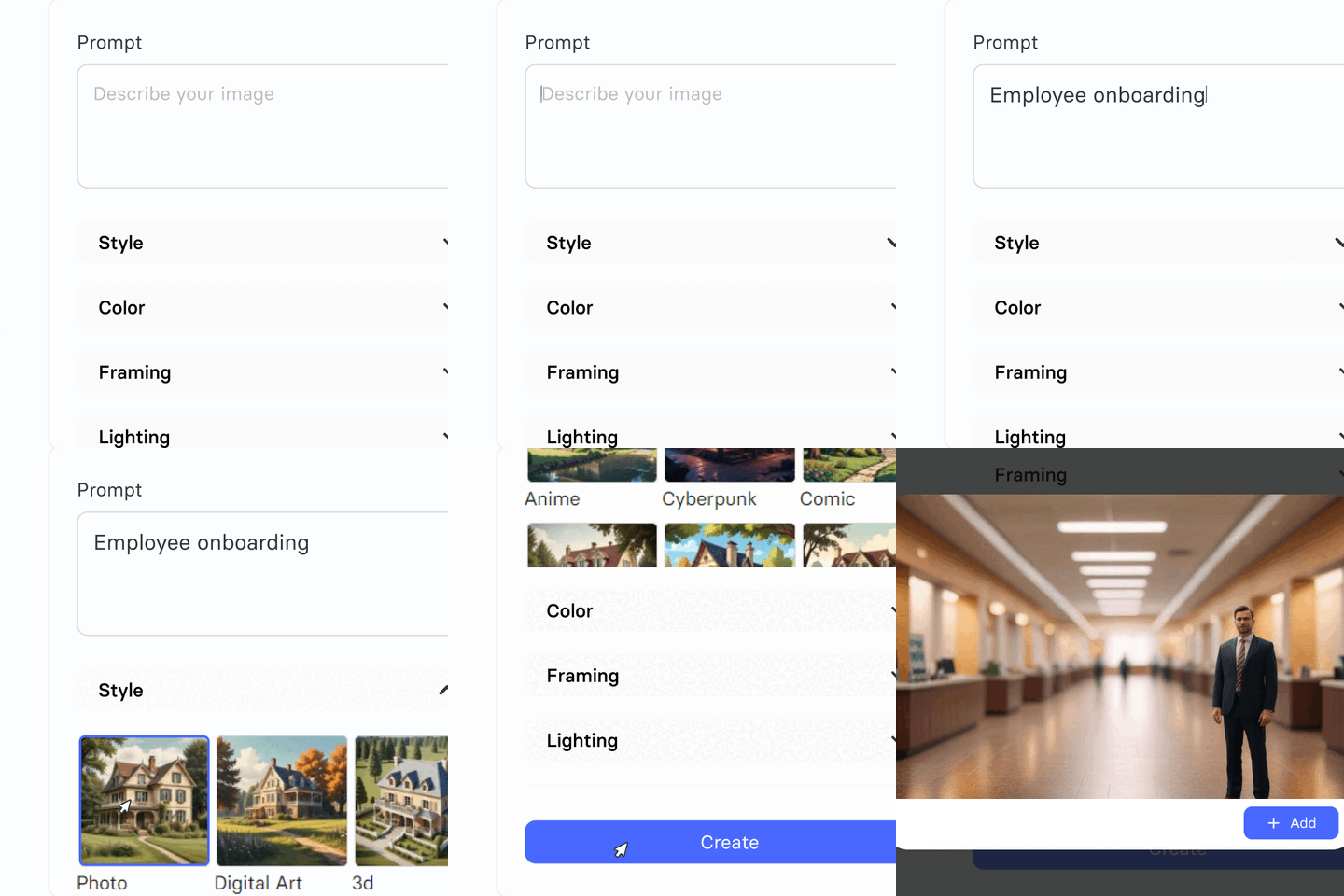
AI Image Generation lets you create custom images directly inside the Elai builder by describing what you want in a text prompt. Instead of searching stock libraries for an image that almost fits, you can generate one that matches your video's exact style, colors, and composition.
You can control the output using style, color, framing, and lighting settings, along with a negative prompt to exclude unwanted elements and a size selector to match your video's aspect ratio. This makes AI Image Generation useful for anyone who wants a specific visual for their video without leaving the editor.
Prerequisites
Team plan or Enterprise plan
Accessing AI Image Generation
To generate an image, open your video in the Elai builder and click Elements in the right-hand sidebar.
Click the Images tab.
Click Generate with AI.
Enter a description of the image you want in the Prompt field.
Note: If you leave the Prompt field empty, you cannot generate an image.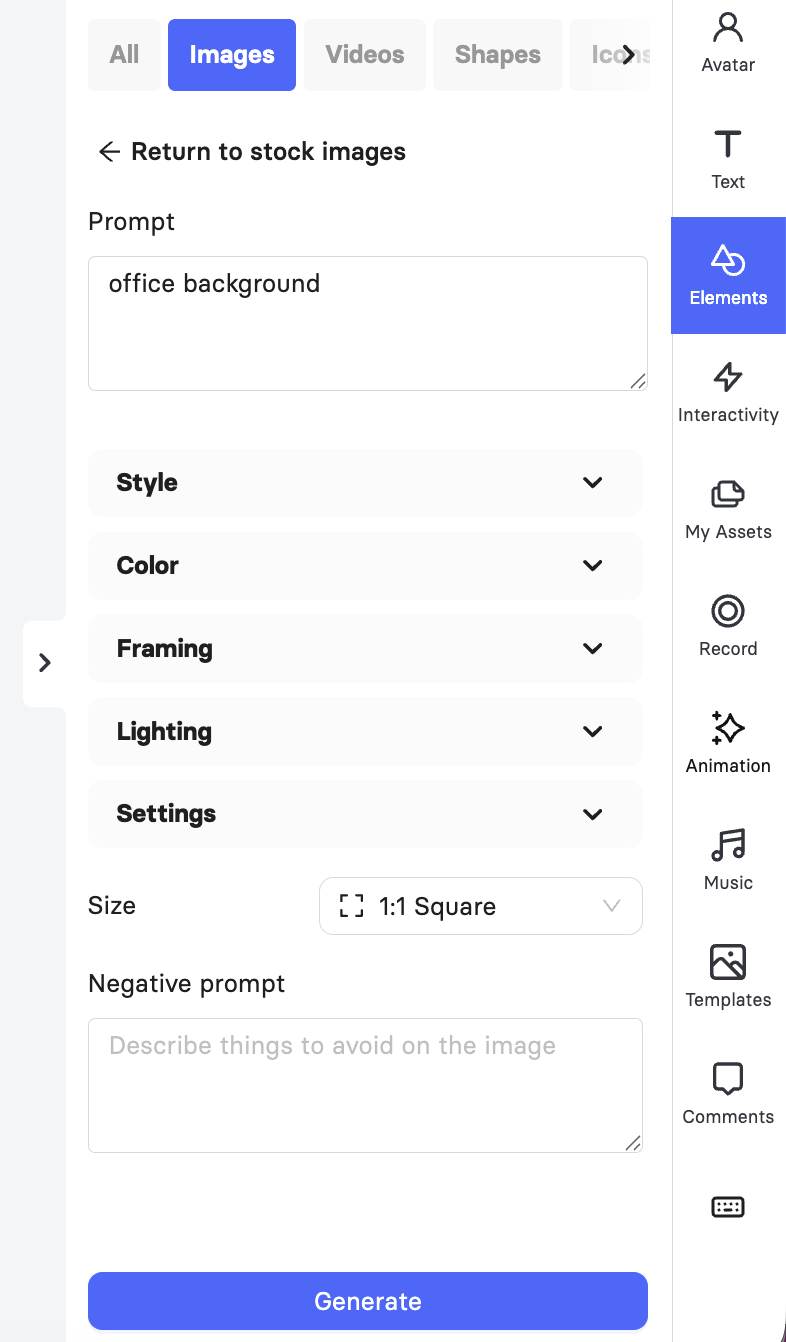
How to Customize Your Generated Image
Before generating, you can refine the result using the following settings.
Style: Sets the visual treatment of the image, such as Photo, Digital Art, 3d, Painting, Low Poly, etc.
Color: Applies a color treatment, such as Black & White, Pastel, Sepia, Dramatic, etc.
Framing: Sets the camera angle or composition, such as Portrait, Macro, etc.
Lighting: Sets the lighting mood, such as Studio, Warm, Cinematic, Volumetric, etc.
Size: Sets the image dimensions to match your video format.
Negative Prompt: Describes anything you want the AI to avoid including in the image.
Once you have set your options, click Generate.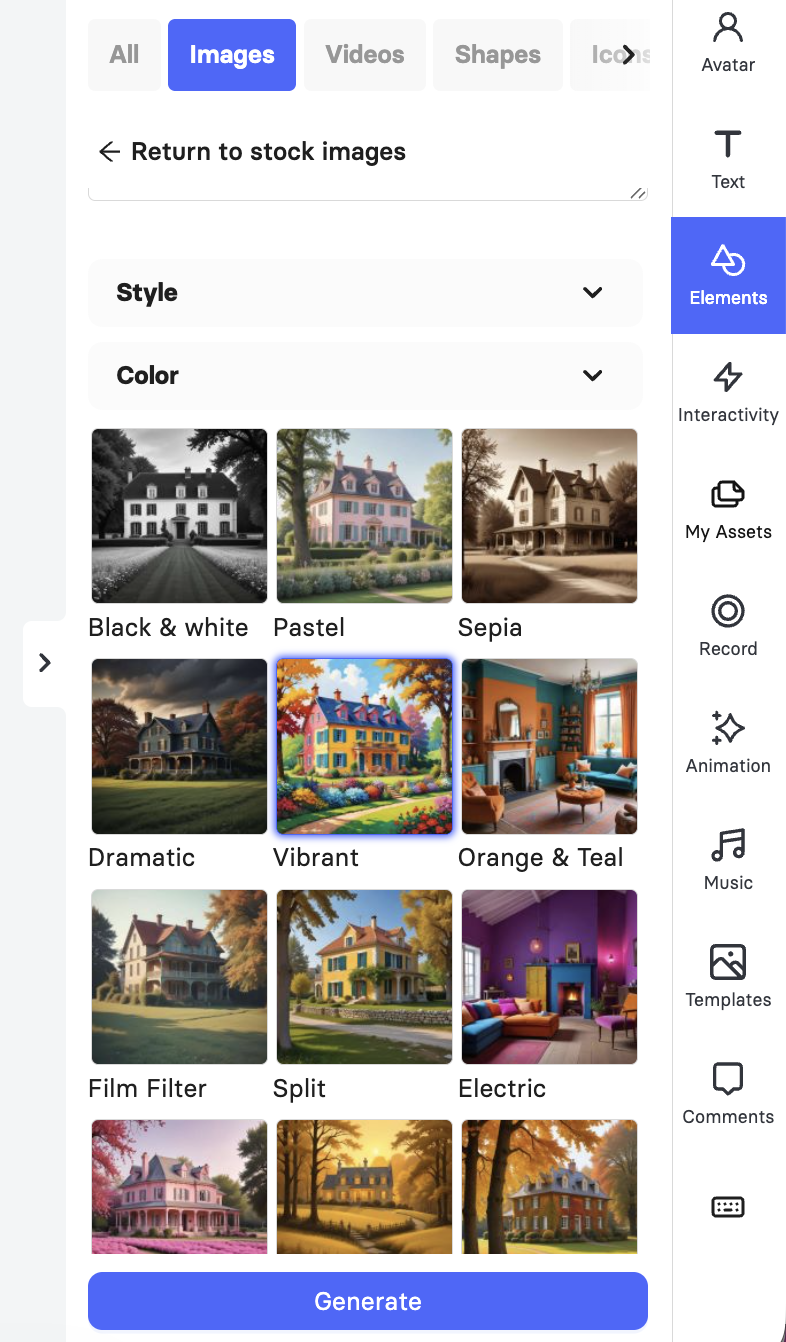
Review and Edit Your Generated Image
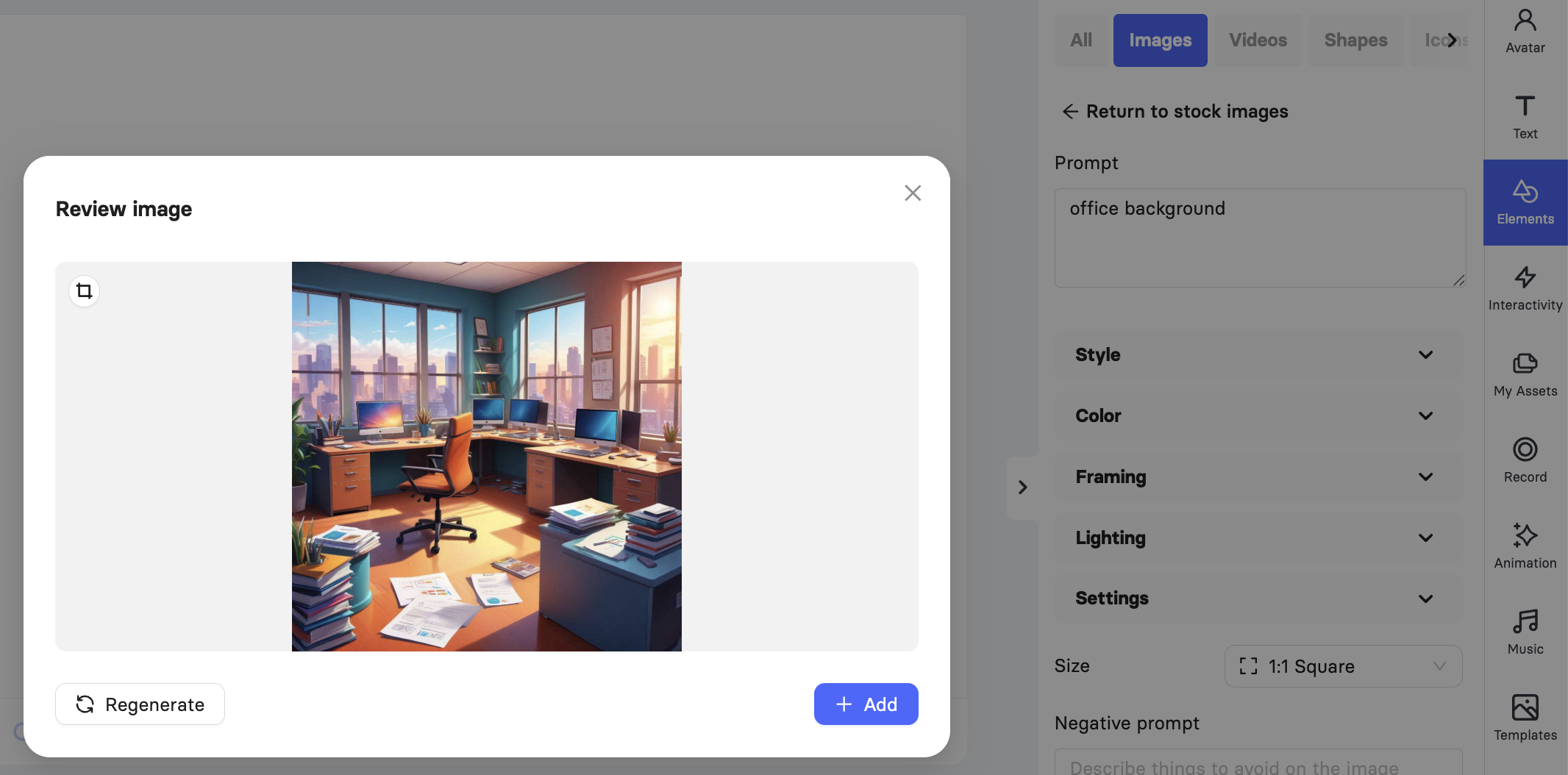
After you click Generate, Elai opens a Review Image window where you can check the result before adding it to your video.
Click the crop icon in the top-left corner of the preview to adjust the image's framing.
Drag the selection handles to crop the image to the area you want.
Click Regenerate if you want Elai to create a new version using the same prompt and settings.
Click Add to insert the image into your video.
Note: Regenerating replaces the current preview. If you want to compare versions, add the current one to your video first, then generate a new image separately.
Further Reading
FAQ
Which plans include AI Image Generation?
AI Image Generation is available on the Team plan and the Enterprise plan.
Do I need to fill in every setting before generating an image?
No. Style, Color, Framing, and Lighting are all optional. You only need to enter a prompt to generate an image.
Can I use AI Image Generation without leaving the video editor?
Yes. The feature is built directly into the Elai builder under Elements > Images, so you can generate and insert images without switching tools.
Can I control what the AI avoids including in the image?
Yes. Use the Negative prompt field to describe elements you want excluded from the result.
Was this article helpful?
That’s Great!
Thank you for your feedback
Sorry! We couldn't be helpful
Thank you for your feedback
Feedback sent
We appreciate your effort and will try to fix the article