Overview
AI Storyboard is Elai's AI-driven feature that lets you edit your video as a structured outline. It breaks your video down into a list of slides, and for each slide you can see the text that appears on screen, the speech text used for narration, the media used on the slide, and interactive elements on the slides.
You land in this view automatically when you create a video with AI Storyboard or convert a PPT or PPTX file into a video with Elai. For details on generating a video with AI Storyboard, see How to Create a Video With AI Storyboard.
Prerequisites
Verified account
How to Open Your Video as a Story
If you're creating a new video with AI Storyboard, or converting a PPT or PPTX file into a video, Elai opens it in story view automatically once generation is complete.
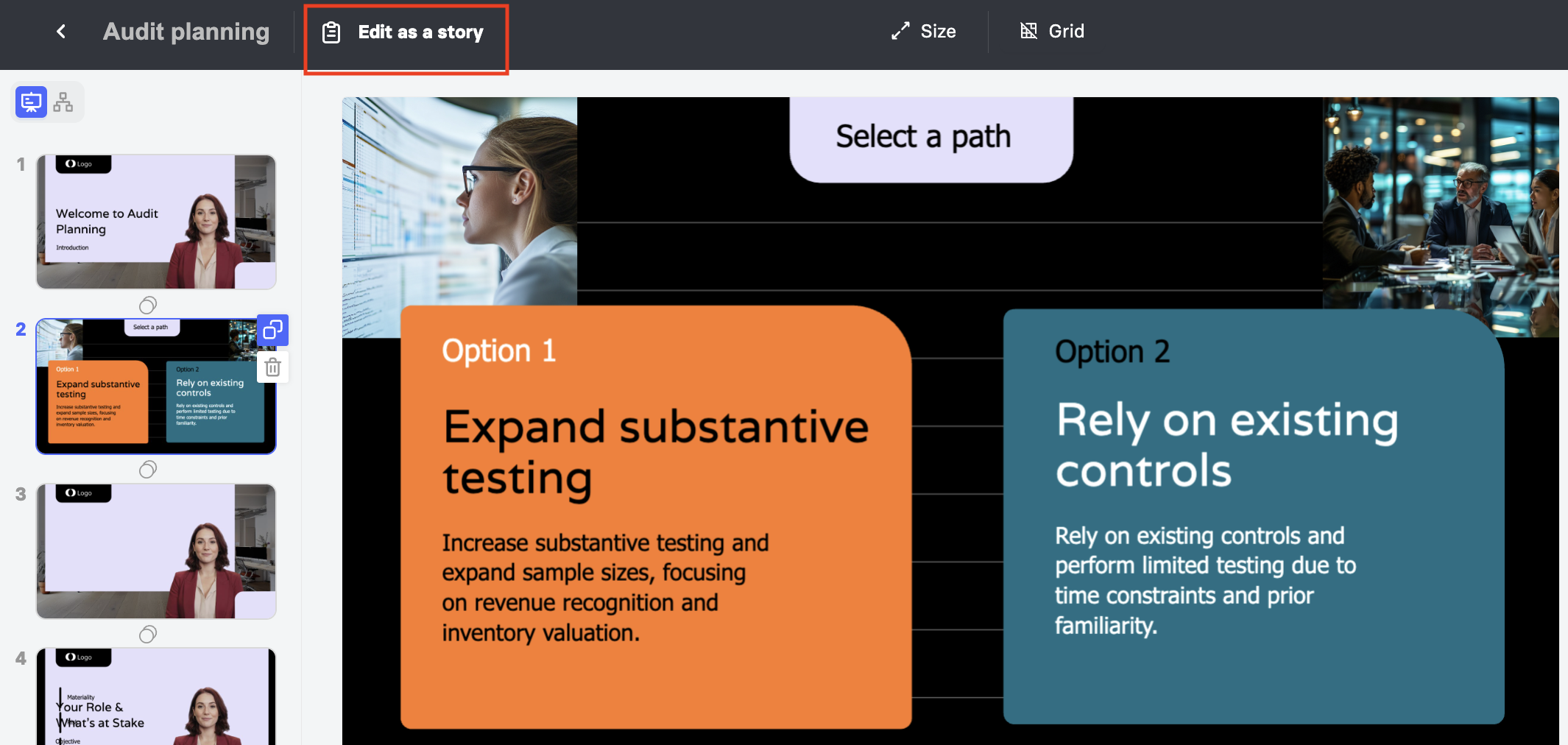
If you want to edit an existing video from your video library, open the video, then click Edit as a story in the top left corner.
Exploring the Top Toolbar
Once you've opened your video as a story, the top toolbar gives you access to several tools while you work.
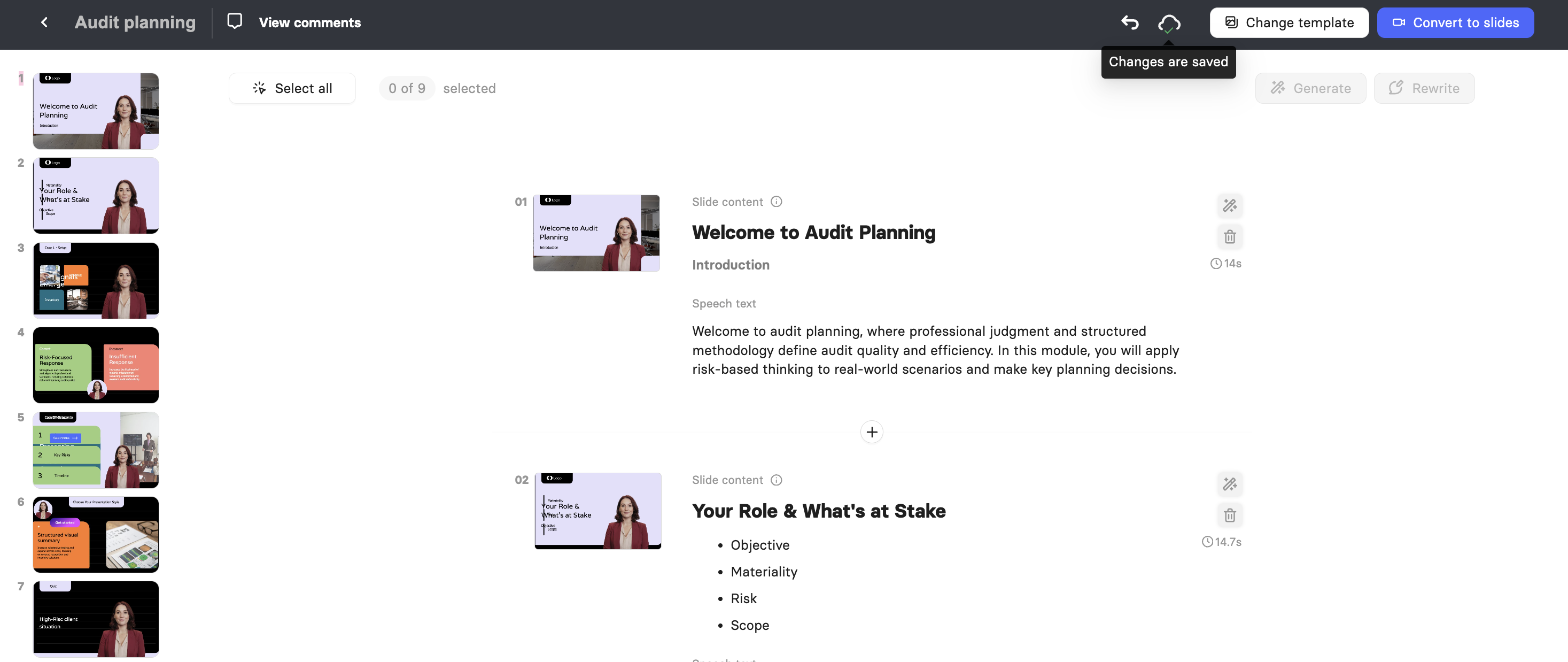
Click View comments to open the comments panel, where you can write a new comment, attach it to a specific slide, and review any comments that have been resolved.
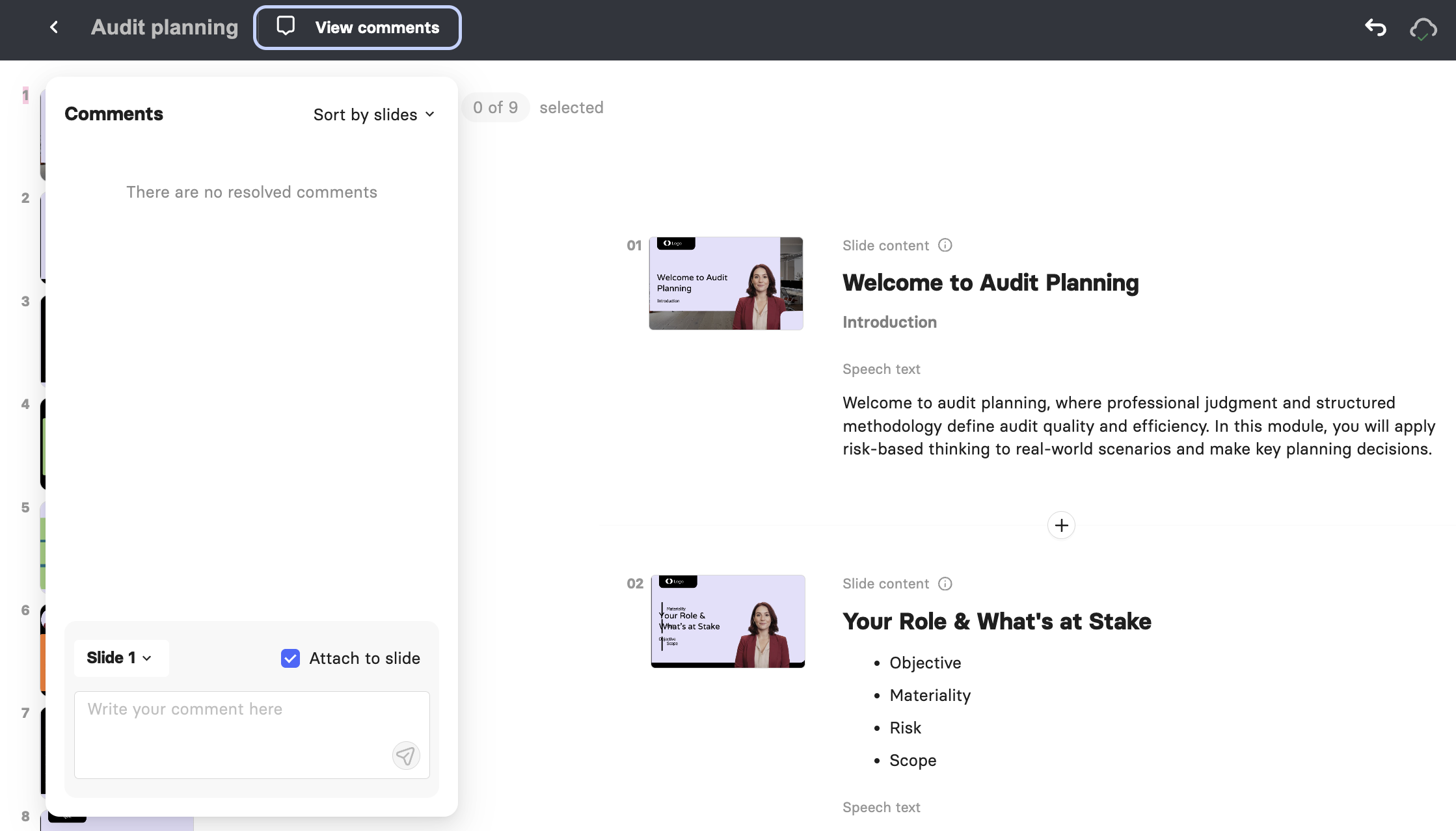
Click the Undo icon to reverse your most recent change.
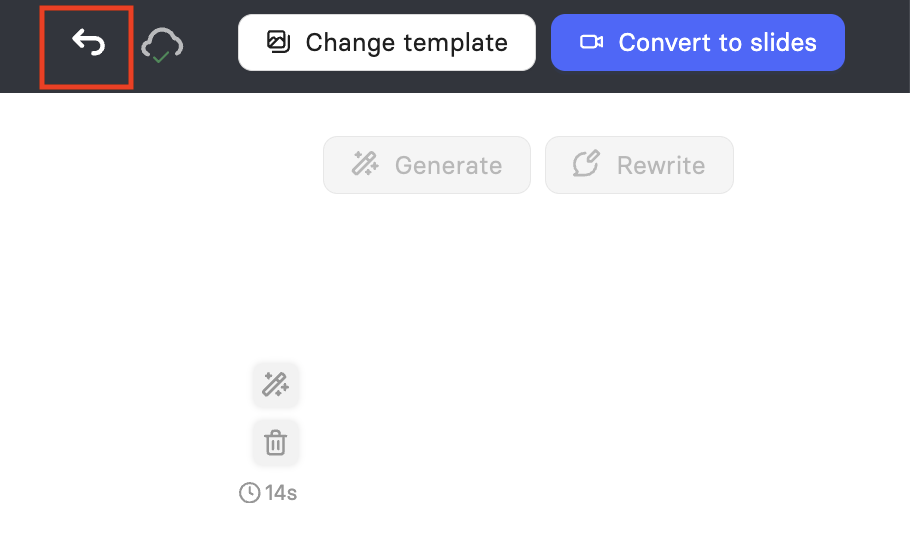
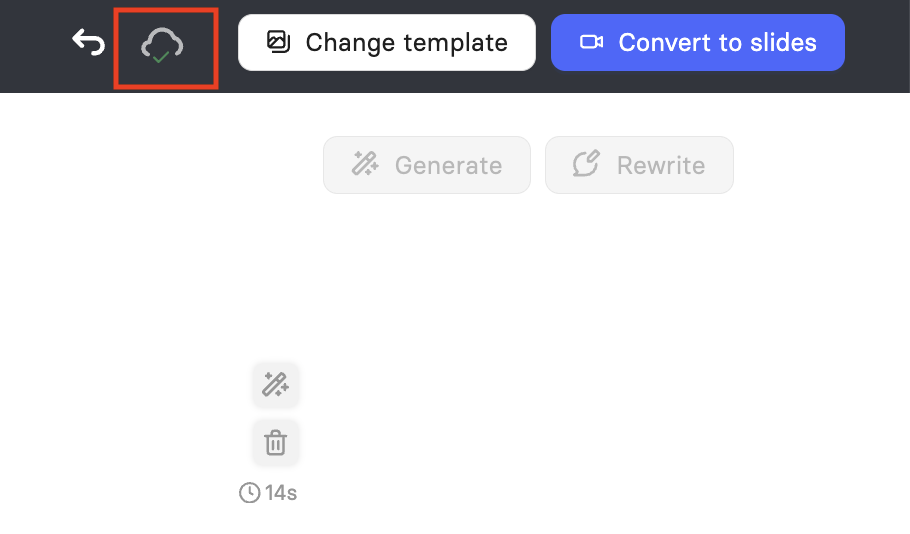
Check the cloud icon next to Undo to confirm your changes have been saved. It displays Changes are saved once your edits are stored. You can double-click the cloud icon to save changes manually.
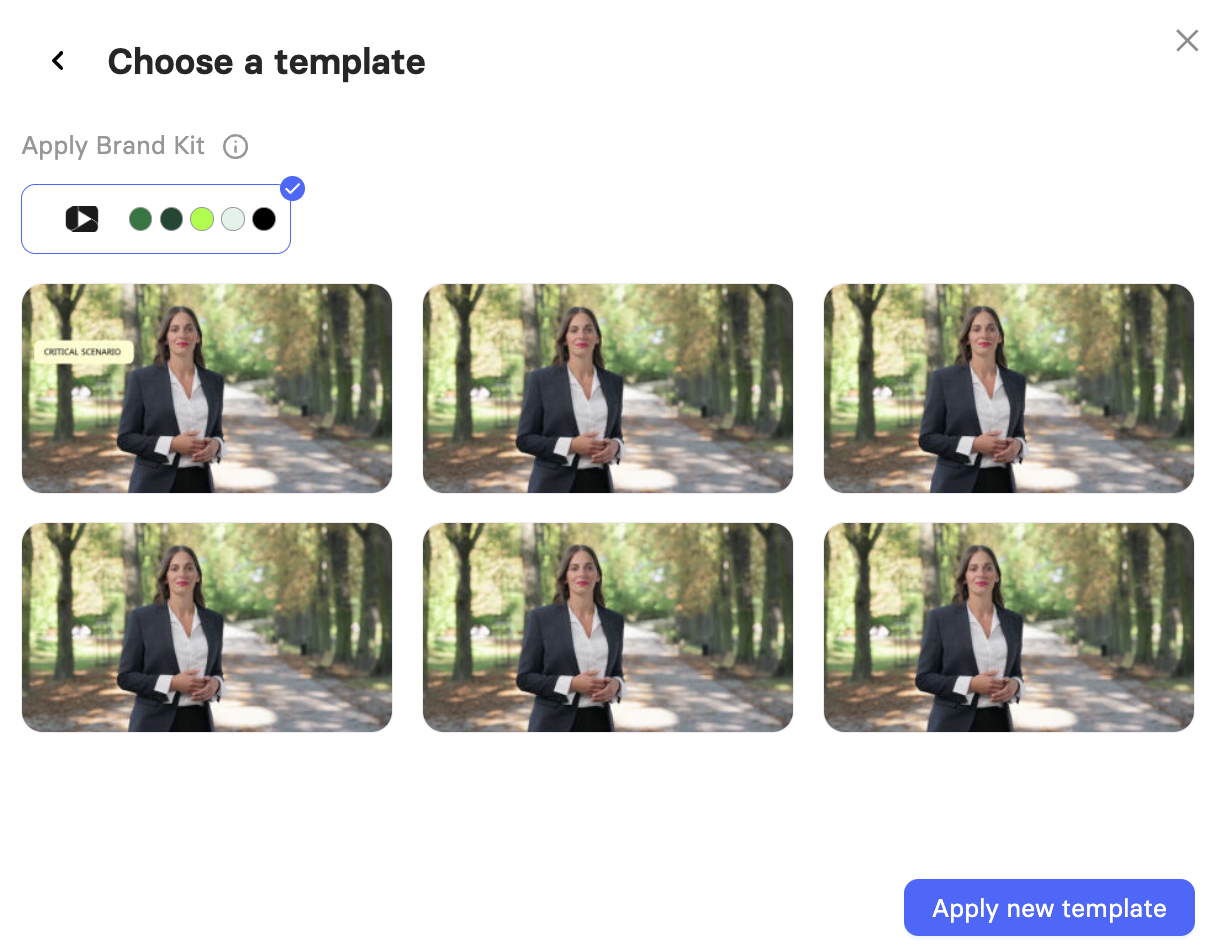
Click Change template to apply a different template to your story at any point while editing. After choosing the template, you can use your Brand kit in the video.
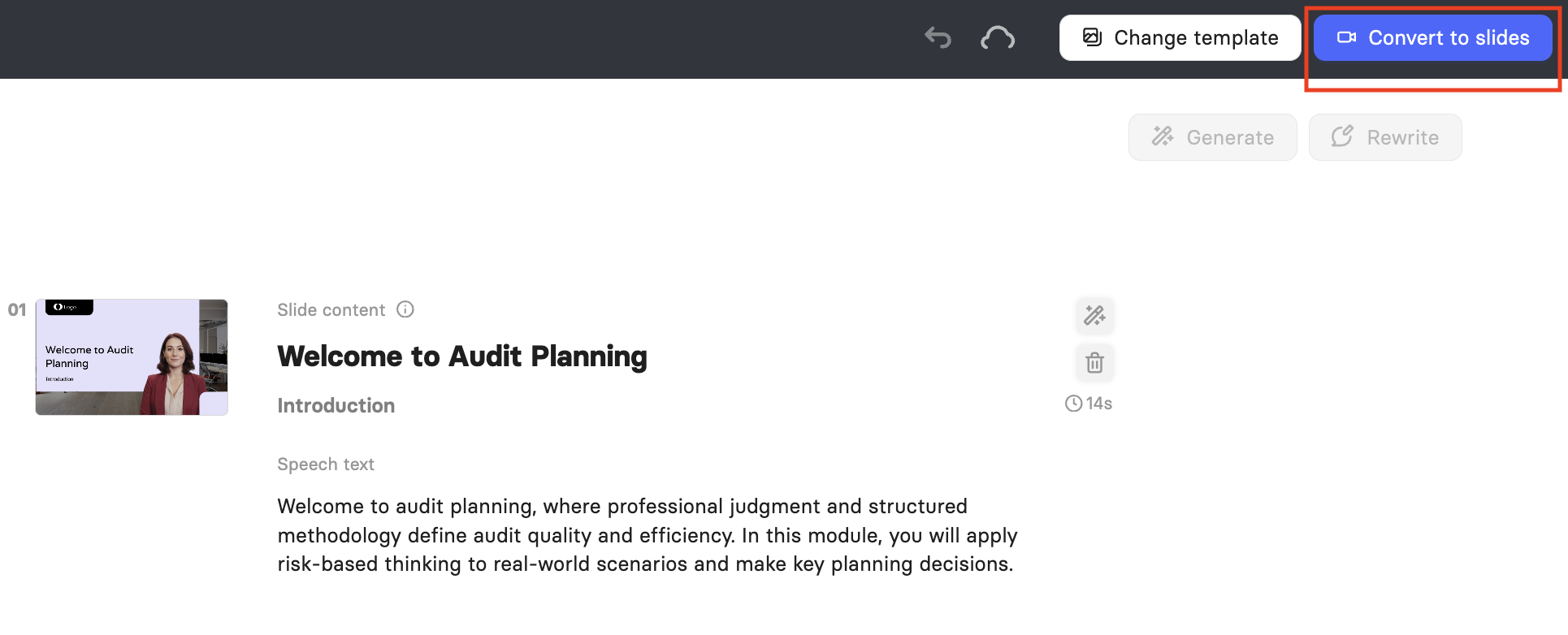
Once you're happy with your story, click Convert to slides to convert your outline into a video.
Browsing Your Slide List
Your slides are listed in order down the left side of the screen, each shown as a numbered thumbnail with a small preview of its layout and text.
Click any slide in the list to open it in the main preview area.
Scroll down the list to move through the rest of your slides in order.
Bulk Actions with the Slides
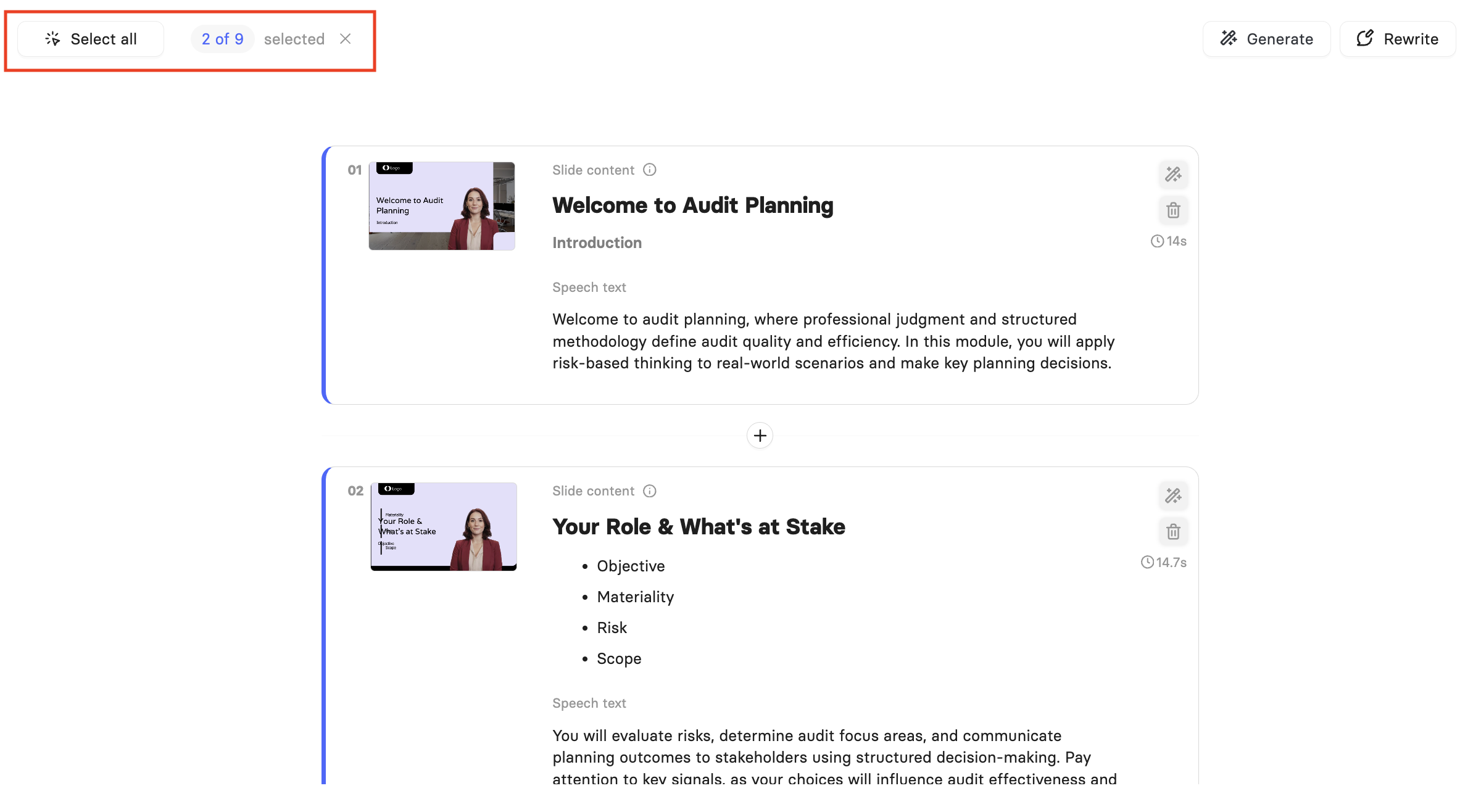
In the main preview area, you can select several or all slides to generate or rewrite their speech text in bulk.
To generate speech:
Click a slide's thumbnail to select it, or click Select all to select every slide in your story.
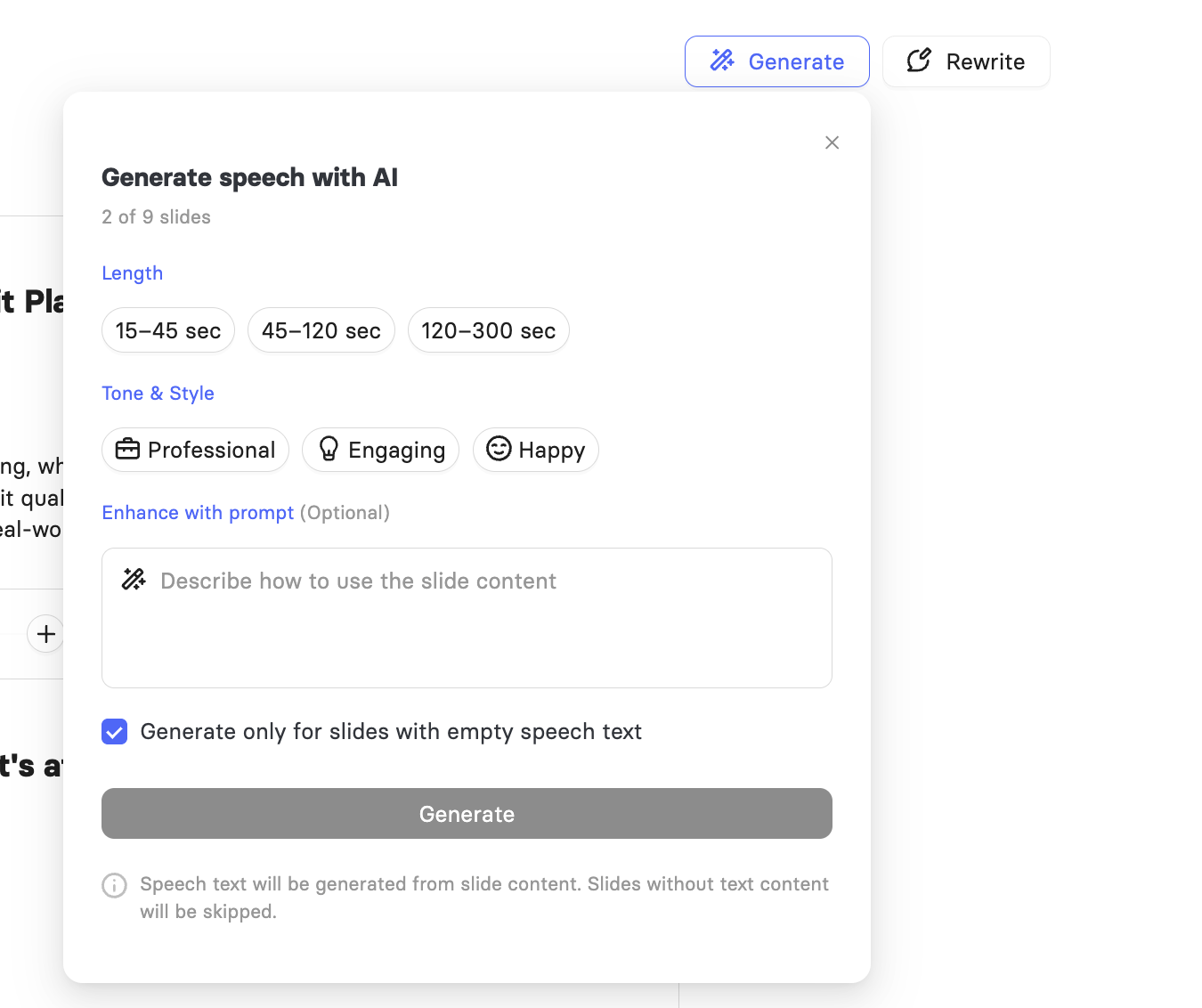
Click Generate to open the Generate speech with AI panel for your selected slides.
Choose a target Length for the speech, a Tone & Style, and optionally add instructions in Enhance with prompt.
Leave Generate only for slides with empty speech text checked to skip any slide that already has speech text, or uncheck it to regenerate speech for all of your selected slides.
Click Generate to apply the speech to your selected slides.
Note: Speech text is generated from each slide's content. Slides without any text content are skipped.
To rewrite speech:
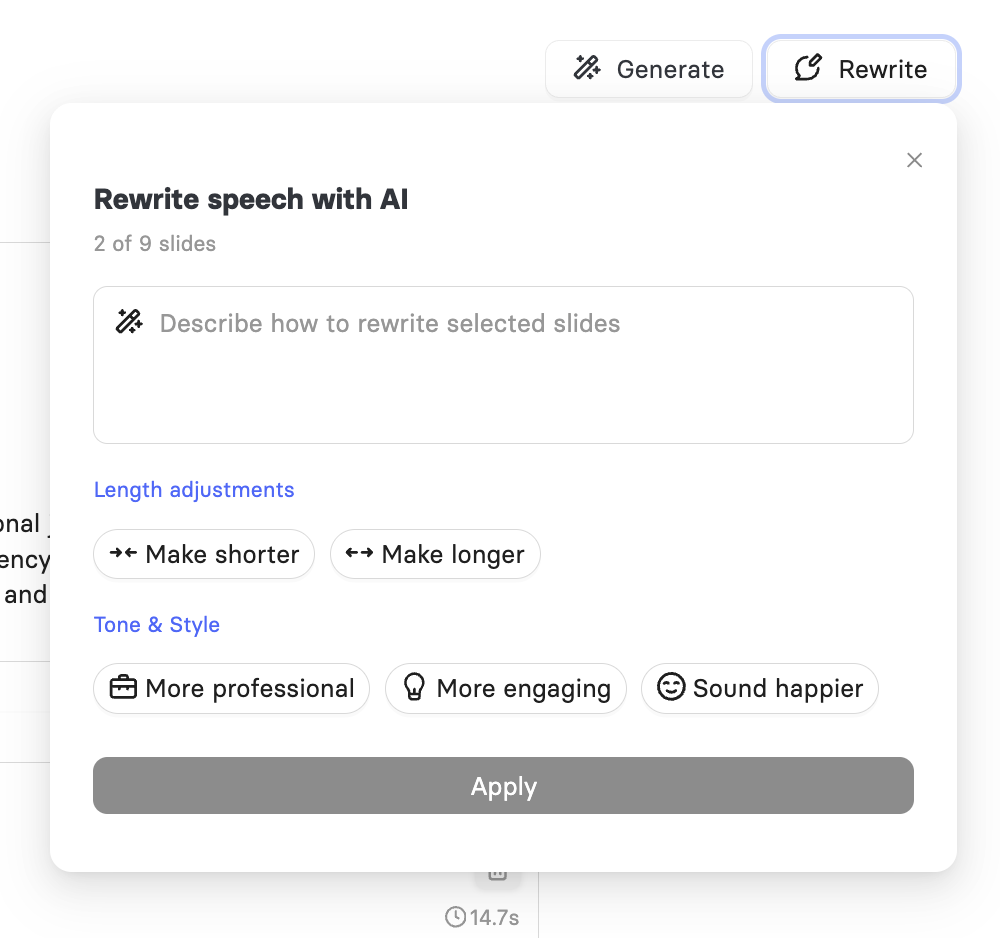
Alternatively, click Rewrite to open the Rewrite speech with AI panel for your selected slides.
Describe how you want the speech rewritten, or use the Length adjustments options to make it shorter or longer, and the Tone & Style options to adjust its style.
Click Apply to rewrite the speech on your selected slides.
Reviewing a Slide in the Main Preview
Selecting a slide from the list opens it in the main preview area, where you can review its layout, text, and media at full size before making edits.
Each slide in the main preview also has its own controls, separate from the bulk actions covered above.
Click the magic wand icon beside a slide to open the Rewrite speech with AI panel for that slide only.
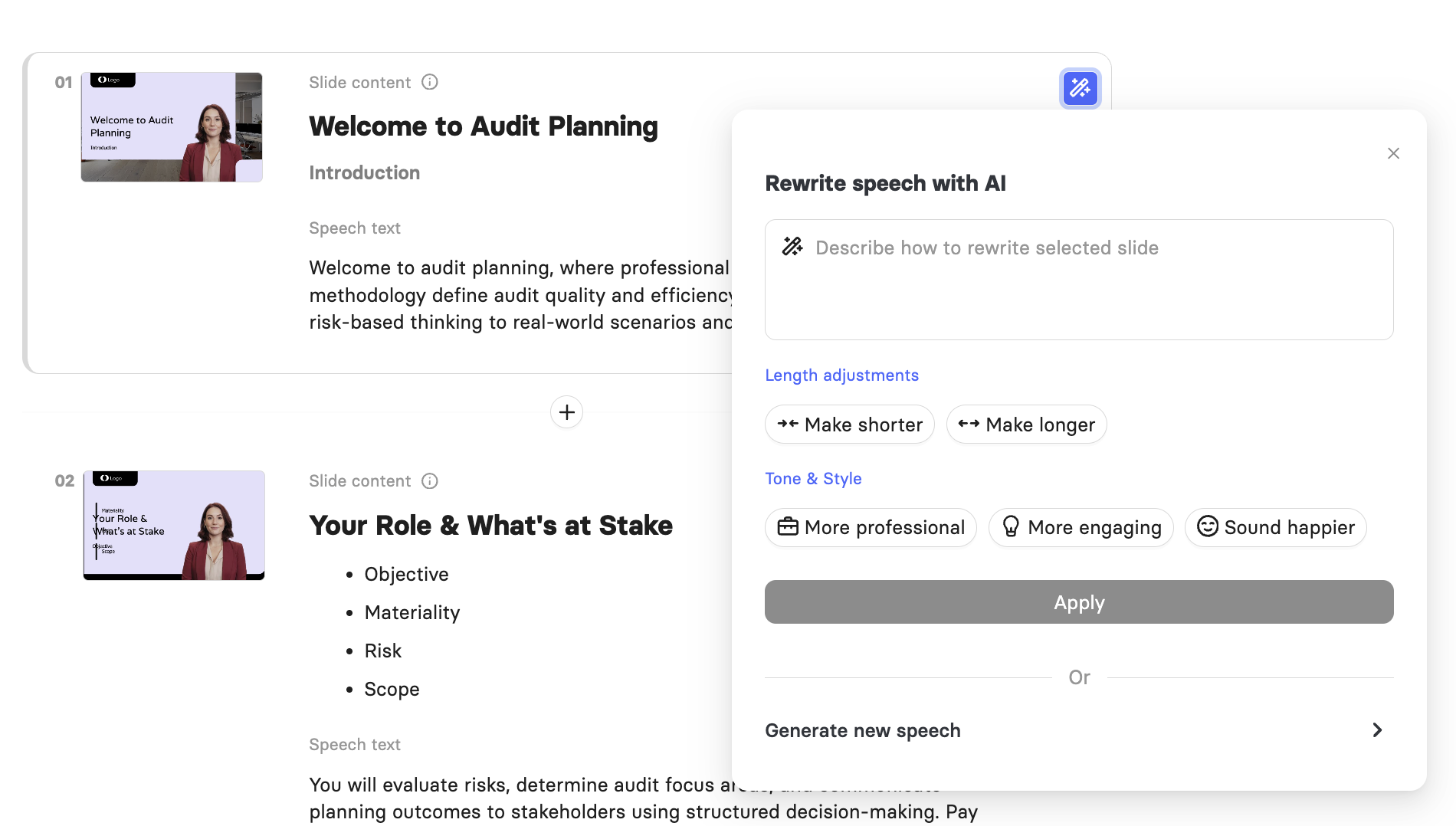
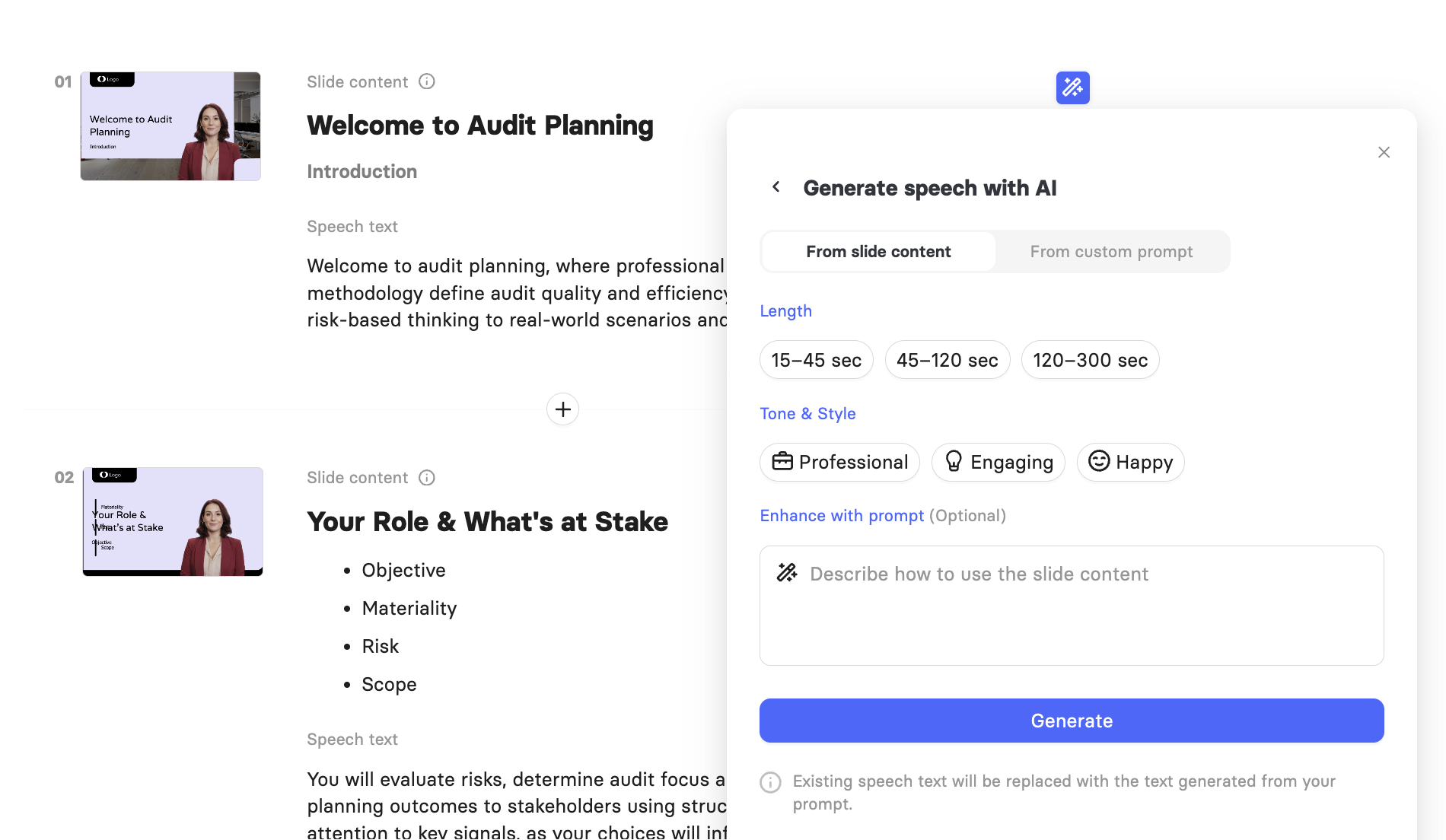
This works the same as the bulk version, with the addition of a Generate new speech option if you want to replace the speech entirely rather than rewrite it. You can generate speech from slide content or a custom prompt.
Click the trash icon beside a slide to delete it from your story.
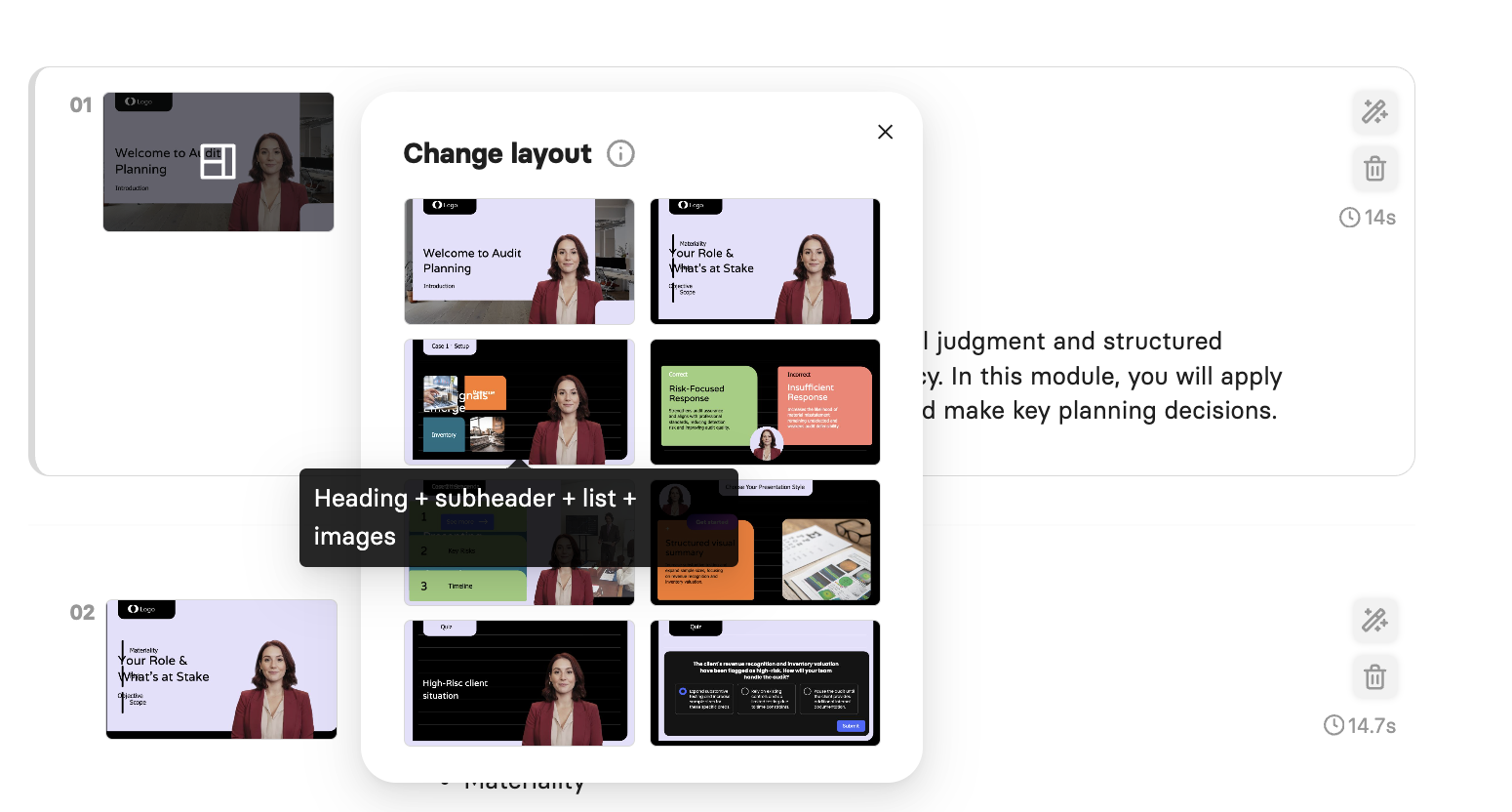
Click a slide's thumbnail in the main preview to choose its layout. The fields available for that slide, such as heading, subheading, and speech text, depend on the layout you select.
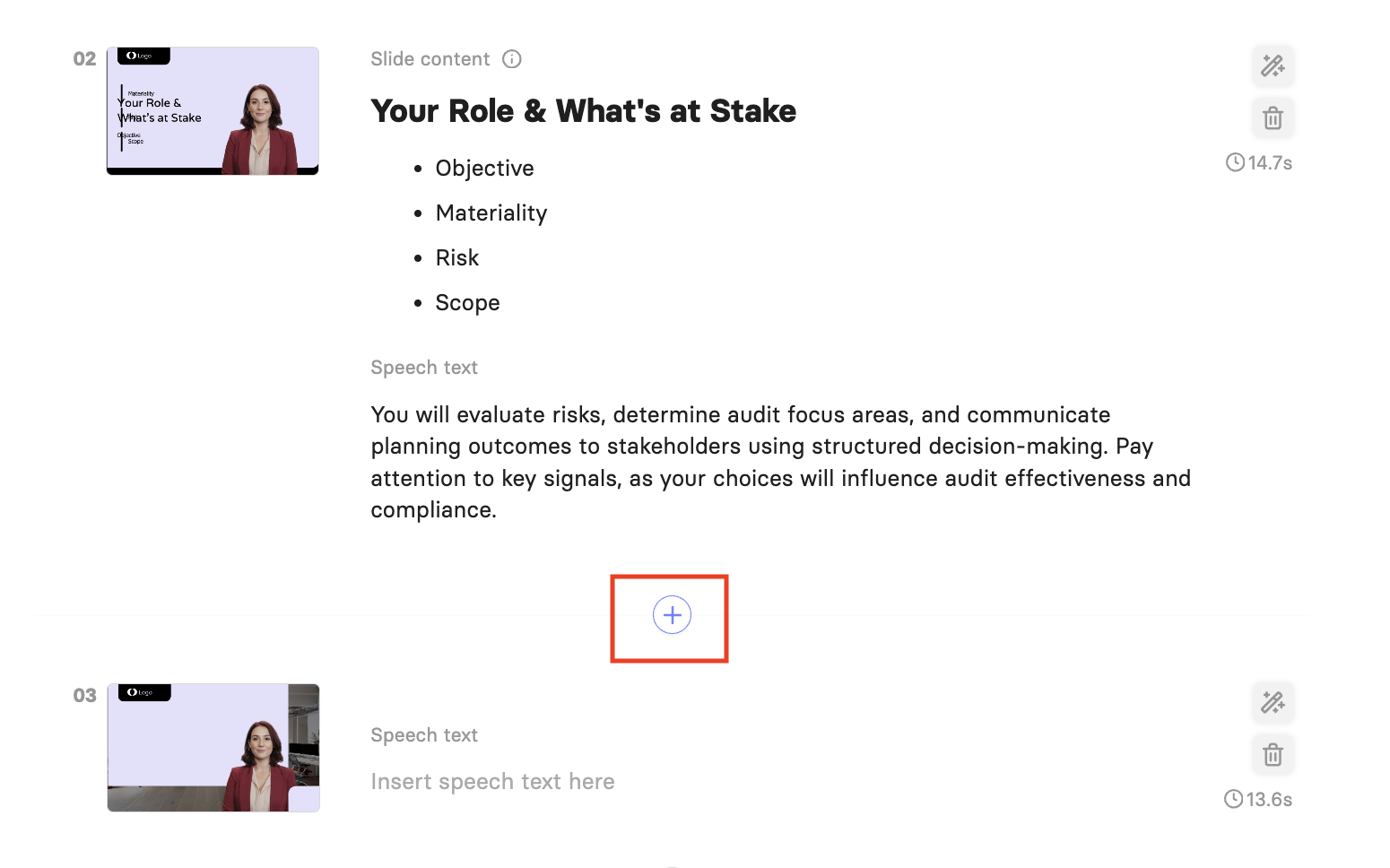
Click the plus icon between two slides in the main preview to insert a new, blank slide at that point in your story.
Drag and drop a slide in the main preview to move it to a different position in your story. Your slide list on the left reorders to match.
Each slide also displays its approximate speech duration, such as 14s or 14.7s, beneath these icons. This is an estimate only, since actual duration varies depending on the voice you choose for your video.
Note: Interactive slides, such as quiz slides, cannot be edited in story view because of their visual complexity. You can generate the speech text for the slides or delete them from this view, but you'll need to convert your story to slides before you can edit their layout or content directly.

FAQ
What's the difference between editing a video as a story and editing it after conversion?
Story view shows your video as a structured outline, where you can see and edit each slide's heading, speech text, media, and layout in one list. Converting to slides turns that outline into your actual video, which you can then render.
Can I edit any video as a story, or only ones created with AI Storyboard?
You can edit any existing video in your video library as a story by clicking Edit as a story. You also land in story view automatically whenever you generate a new video with AI Storyboard.
Can I edit quiz or other interactive slides in story view?
No. Interactive slides can't be edited in story view because of their visual complexity. You can still rewrite their speech text or delete them from this view, but you'll need to convert your story to slides first to edit their layout or content.
Can I reorder my slides?
Yes. Drag and drop a slide in the main preview to move it to a new position. Your slide list on the left updates to match.
How do I finish building my video once I'm done editing the story?
Click Convert to slides in the top toolbar to convert your outline into a video.
Was this article helpful?
That’s Great!
Thank you for your feedback
Sorry! We couldn't be helpful
Thank you for your feedback
Feedback sent
We appreciate your effort and will try to fix the article