Overview
Voice Customization lets you create custom variants of a voice, adjusting its speed and stability, without changing the voice itself. Use it to make the same voice sound calm and steady for a training course, or more dynamic for a promo video.
Prerequisites
Enterprise plan
Verified account
1. Locate Voice Customization
Follow these steps to find and open Voice Customization for any voice in the editor.
Open your video editor and click to select a voice.
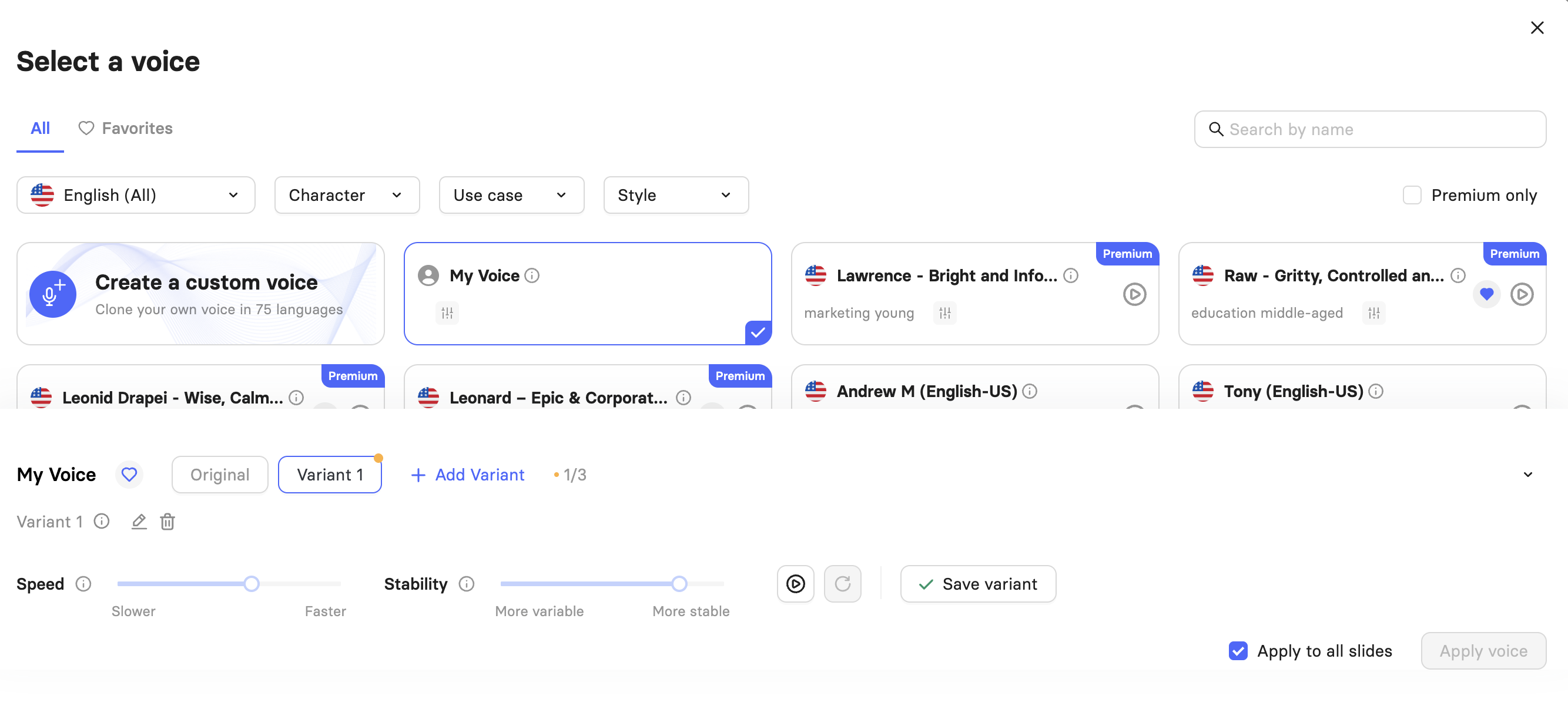
In the Select a Voice window, look for the slider icon beneath a voice's name. This icon means the voice supports customization.
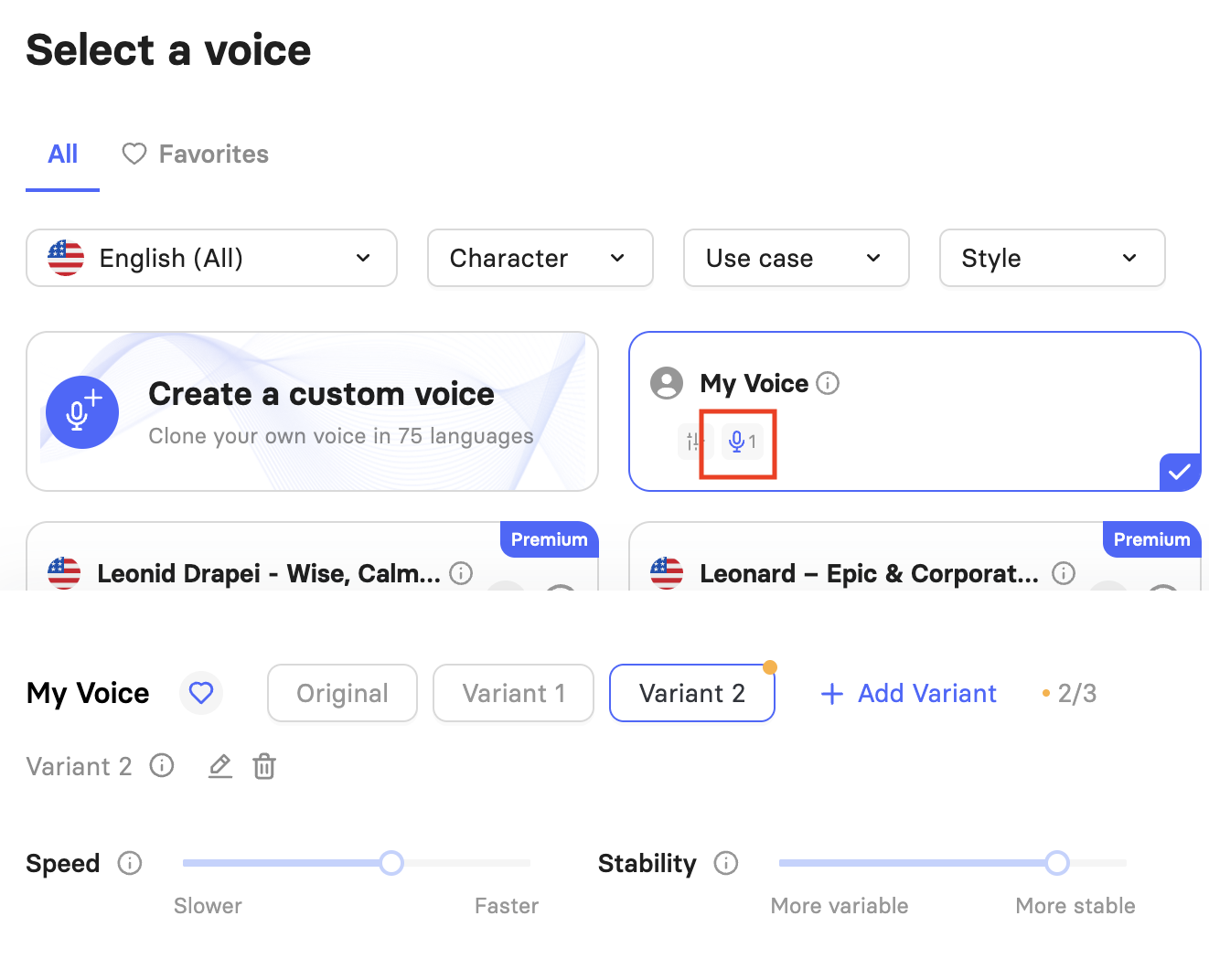
Once you've saved a variant, a second icon appears next to the voice's name: a microphone icon with a number showing how many custom variants that voice already has. Hover over it to see the tooltip "This voice has custom variants."
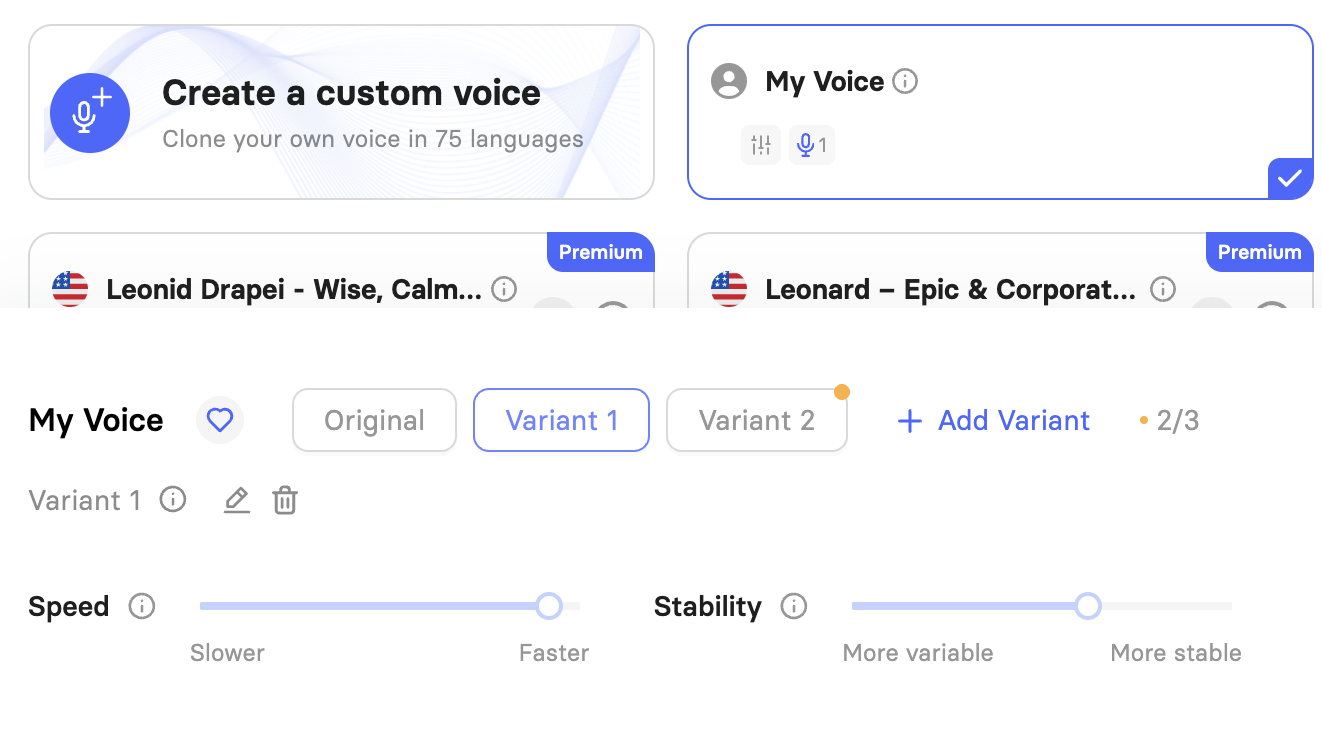
Click the voice to open the variant panel at the bottom of the window.
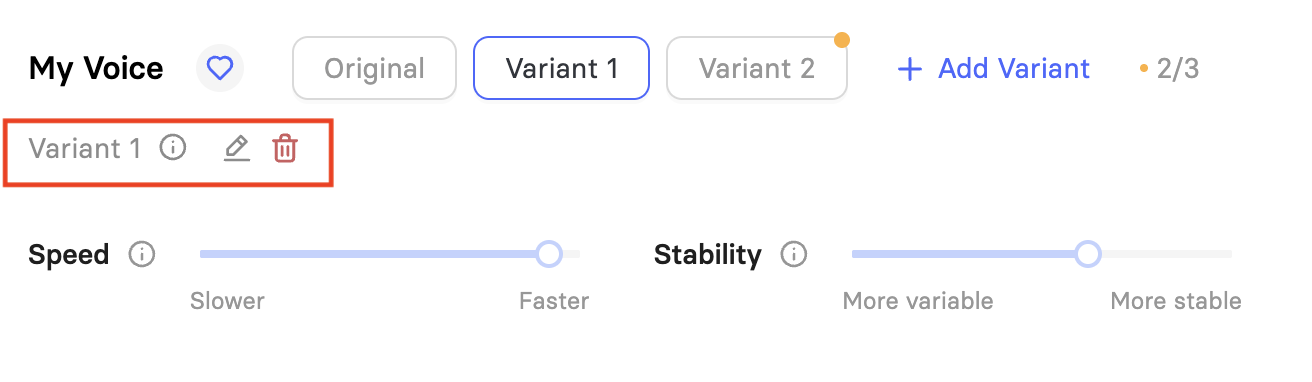
Each variant row shows three controls next to its name:
The info icon shows variant details.
The pencil icon renames the variant.
The trash icon removes the variant.
2. Create a Voice Variant
Each voice can have up to 3 variants, plus the Original. For each variant, you can adjust:
Speed: Controls the speed of the generated speech. Values below 1.0 slow the speech down; values above 1.0 speed it up. Extreme values may affect the quality of the generated speech.
Stability: Controls how consistent the voice sounds between re-generations.
Higher stability means more consistent results between re-generations, but can sound a bit monotone.
Lower stability means more natural variation.
Note: For longer text fragments, lower the Stability value. High stability tends to sound monotone on longer speech.
Click Add Variant to create a new one. You can add up to 3 variants per voice.
Adjust the Speed and Stability sliders.
Click Play to preview the result.
Click the Reset icon to revert the variant to its previous settings if you want to start over.
Click Save Variant to keep it, or check Apply to All Slides and click Apply Voice to use it across your whole video.
3. Tips for Using Voice Variants
You get 3 variants per voice. Use them to compare a few options side by side, for example one calm and one energetic, before deciding which fits your video.
Apply to All Slides applies the variant to every slide using that voice. This is useful for consistency, but turn it off if you want different variants on different slides.
Preview before applying. Small slider changes can noticeably change the result. Always listen with Play before saving.
Same settings can still sound slightly different between renders, especially at lower Stability. This is expected behavior of AI voices, not a bug.
Was this article helpful?
That’s Great!
Thank you for your feedback
Sorry! We couldn't be helpful
Thank you for your feedback
Feedback sent
We appreciate your effort and will try to fix the article